
How to Reset Local Group Policy to Default in Vista, Windows 7, and Windows 8
Information
This will show you how to reset all policy objects in the Local Group Policy Editor (gpedit.msc), including any custom GPOs for specific users/groups or all users except administrators, back to default in Vista, Windows 7, and Windows 8.
This will also only reset registry entries for policies that had been changed in the Local Group Policy Editor (gpedit.msc) itself to default, and not those changed using a REG file, manually in Registry Editor, or any other means.
This will not reset local security policies (secpol.msc)
This will also only reset registry entries for policies that had been changed in the Local Group Policy Editor (gpedit.msc) itself to default, and not those changed using a REG file, manually in Registry Editor, or any other means.
This will not reset local security policies (secpol.msc)
Note
This could be handy if you lost track of what changes you made in the Local Group Policy Editor, and just wanted to reset it back to default.
Warning
The Local Group Policy Editor is only available in:
- Vista Business, Ultimate, and Enterprise editions.
- Windows 7 Professional, Ultimate, and Enterprise editions.
- Windows 8 Pro and Enterprise editions.
OPTION ONE
To Reset "Local Group Policy" to Default using a VBS File
NOTE: You must be logged in as an administrator in Windows to be able to do this option.
1. Click/tap on the Download button below to download the VBScript file below, then run it.
Reset_Local_Group_Policy.vbs
Download
2. If prompted, click/tap on Open.
NOTE: If you like, you can stop getting the Run prompt by unblocking the downloaded .vbs file.
3. If prompted by UAC, then click/tap on Yes (Windows 7/8) or Continue (Vista).
4. The Local Group Policy Editor has now been reset back to default.
OPTION TWO
To Reset "Local Group Policy" to Default using a BAT File
NOTE: You must be logged in as an administrator in Windows to be able to do this option.
1. Click/tap on the Download button below to download the batch file below.
Reset_Local_Group_Policy.bat
Download
2. Right click on the downloaded .bat file, and click/tap on Run as administrator.
3. If prompted, click/tap on Run.
NOTE: If you like, you can stop getting the Run prompt by unblocking the downloaded .bat file.
4. If prompted by UAC, then click/tap on Yes (Windows 7/8) or Continue (Vista).
5. The Local Group Policy Editor has now been reset back to default.
OPTION THREE
To Reset "Local Group Policy" to Default in a Command Prompt at Boot
1. Open a command prompt at boot in Vista or Windows 7 or Windows 8.
NOTE: See OPTION ONE at this link for how if needed.
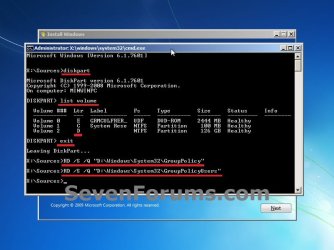
2. In the command prompt, type diskpart, and press Enter. (see screenshot below step 7)
3. In the command prompt, type list volume, and press Enter. (see screenshot below step 7)
4. Make note of what your Windows OS drive letter is. It is not always C: at boot. (see screenshot below step 7)
NOTE: Mine just happens to be D: at boot.
5. In the command prompt, type exit, and press Enter. (see screenshot below step 7)
6. In the command prompt, type the command below, and press Enter. (see screenshot below step 7)
NOTE: Substitute D in the command below with your drive letter from step 4 instead.
RD /S /Q "D:\Windows\System32\GroupPolicy"
7. In the command prompt, type the command below, and press Enter. (see screenshot below)
NOTE: Substitute D in the command below with your drive letter from step 4 instead.
RD /S /Q "D:\Windows\System32\GroupPolicyUsers"
8. Restart the computer back into Windows.
9. The Local Group Policy Editor has now been reset back to default.
That's it,
Shawn
Related Tutorials
- How to Open the Local Group Policy Editor in Windows 7
- How to Open the Local Group Policy Editor in Vista
- How to Back Up and Restore Local Group Policy in Windows
- How to Apply Local Group Policies to a Specific User or Group in Vista and Windows 7
- How to Apply Local Group Policies to All Users Except Administrators
- How to Add Local Group Policy Editor to the Windows 7 Control Panel
- How to Quickly View Enabled Group Policies in Windows
Attachments
Last edited:


