
How to Change the Default Location of your Windows 7 Computer
Information
This will show you how to set a default location to provide programs information about your computer's geographic location to use when a location sensor, such as a GPS receiver, is unavailable or not installed. When you set a default location, it applies to all users.
To help you know which programs are accessing your default location, Windows temporarily displays the Location and Other Sensors icon in the notification area the first time a program accesses your computer's location.
To help you know which programs are accessing your default location, Windows temporarily displays the Location and Other Sensors icon in the notification area the first time a program accesses your computer's location.
OPTION ONE
Set Default GeoID Location Using "Region and Language" Settings
1. Open the Control Panel (icons view), and click on the Region and Language icon.
2. Click on the Location tab. (see screenshots below)
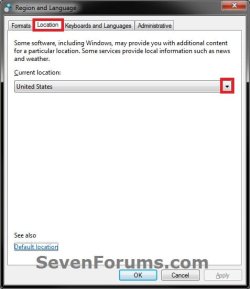
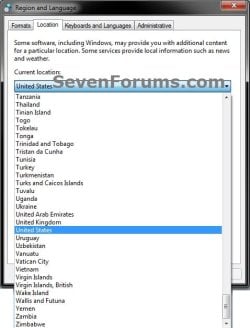
3. To Only Set "Current Location"
A) Under Current location, select your current location from the drop down box and click on OK. (see screenshots above)
B) Go to step 5.
4. To Set "Default Location"
A) Click on the Default location link at the bottom. (see screenshots above)
B) Go to step 3 or 4 in OPTION TWO below.
5. Close the Control Panel window.
OPTION TWO
Set Default Location Using "Location and Other Sensors" Settings
1. Open the Control Panel.
2. Type location in the Control Panel's search box (top right corner), then click on the Enter a default location link. (see screenshot below)
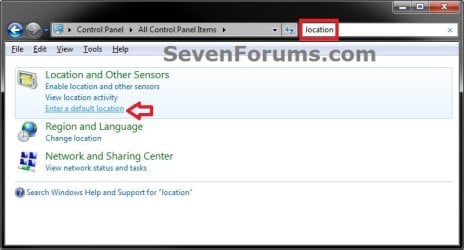
3. To Enter and Apply Default Location Information
A) Enter your default location information that you wish to fill out, then click on Apply when finished. (see screenshot below)
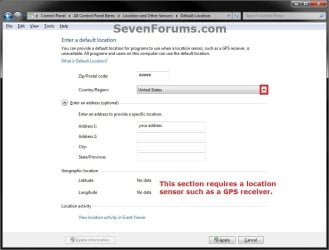
B) Go to step 5.
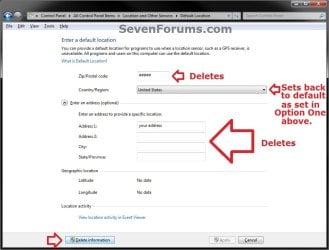
4. To Delete Default Location Information
NOTE: This will delete all default location information that you entered and applied in step 3 above back to being blank, and restores the default County/Region location back to what it is set as in step 2 of OPTION ONE above.
A) Click on the Delete information button. (see screenshot below)
5. If prompted by UAC, click on Yes (if administrator) or type in the adminstrator's password (if standard user).
6. When finished, you can close the Default Location window. (see screenshot below step 3A or 4A)
That's it,
Shawn
Related Tutorials
- How to Enable or Disable Changing GeoID Location in Windows
- How to Create a Region and Language Shortcut in Windows 7
- How to Copy Your Region and Language Settings to New Users and Welcome Screen
- How to Create a "Default Location" Shortcut in Windows 7
- How to Add or Remove the "Location" Tab in Region and Language
Last edited:

 )
)

