Log On Screen - Change

How to Change Log On Screen Background in Windows 7


   Information
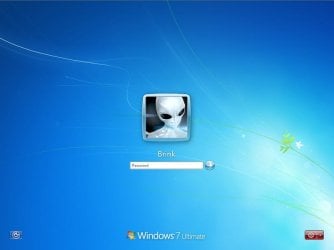
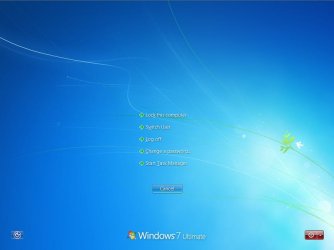
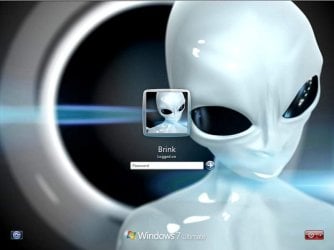
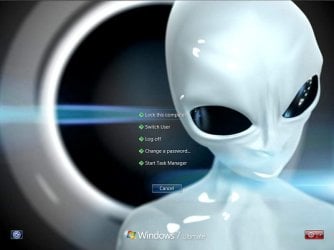
This will show you how to change the default Windows 7 log on screen background to a custom image of your choice. The log on screen consists of the Welcome, Ctrl+Alt+Del, Shutdown, Lock Computer, Switch User, Log On, and Log Off screens.
   Tip
If you need or want the default Windows 7 log on screen background image, then you can click on the Download button below to get it. It is normally located at C:\Windows\System32\oobe\background.bmp by default in Windows 7. While this is the looks like the log on screen background image, it is not the location to change the log on screen background image of.
Download


   Warning
The custom image that you use must be a .jpg image less than 256 KB in size, or this will not work.

EXAMPLE: Default Log On and Ctrl+Alt+Del screensLog_On_Screen.jpg

CTRL_ALT_DEL_Screen.jpg


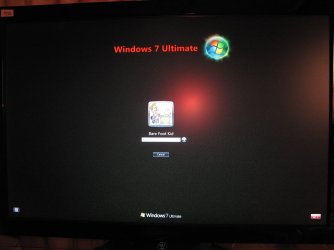
EXAMPLE: Custom Log On and Ctrl+Alt+Del screensCustom_Log_On_Screen.jpg

Custom_CTRL_ALT_DEL_Screen.jpg


OPTION ONE

Using the "Windows 7 Logon Background Changer" Program


NOTE: This will let you easily change the default Windows 7 log on screen automatically with a stand-alone exe program called by our member Julien (aka: link8583). You can use OPTION FOUR below to restore the default Windows 7 log on screen, or just select the image using this program.1. If you have not already, download the latest version of Windows 7 Logon Background Changer.

2. Extract (drag and drop) the Win7LogonBackgroundChanger folder to your desktop, and run the Win7LogonBackgroundChanger.exe file in it.
NOTE: This is only a standalone EXE file, and does not install on your computer.

3. Click on Run in the Open File - Security Warning dialog box.

   Tip
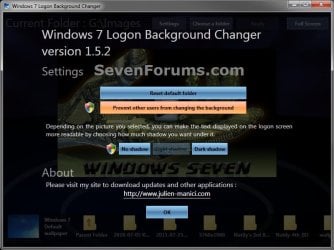
If you click on the Settings button, you could click on the Prevent other users from changing the background option to prevent standard users from being able to run this program to change the log on screen until the next time you change it. This option will give them a UAC prompt for them to have to type in an administrator's password before being able to run the program.
Settings.jpg


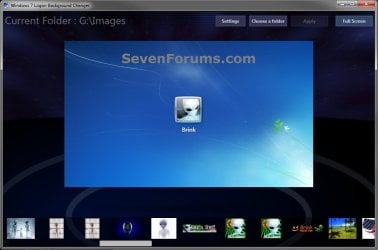
4. Click on the Choose a folder button at the top. (see screenshot below)Logon-Main.jpg

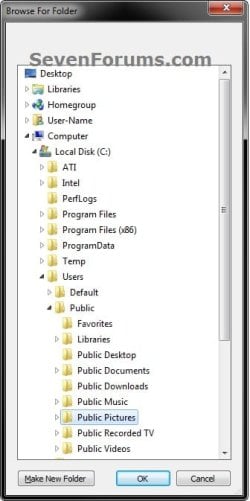
5. Navigate to and select the folder that contains the image you want to use for your log on screen background, and click on OK. (see screenshot below)Select.jpg

6. Select the image you want to use in the bottom row to have it displayed in the main window of the program, then click on the Apply button at the top. (see screenshot below step 4)
NOTE: You can click on the arrows boxed in red below to scroll through the available images. If you select an image that is over 256KB in size, it will automatically be reduced in size to be below 256KB.

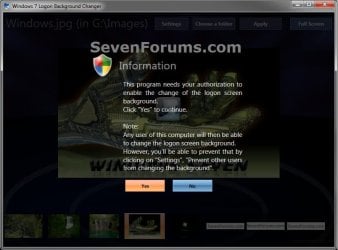
7. If prompted, click on Yes to apply. (see screenshot below)Change-Confirm.jpg

A) If prompted by UAC, then click on Yes.

8. When it's finished, your log on screen has now been changed. You can press Ctrl+Alt+Del to test it. Click on Cancel to return to the desktop.

9. When finished, you can close the Windows 7 Logon Background Changer program.
WARNING: It is important to wait until the program has completely finished creating the images and applying the background before closing the program or testing it.

10. Depending on how light or dark your background image is, you may want to change the log on screen text shadow to make it look better as well.


OPTION TWO

Using the "Tweaks.com Logon Changer for Windows 7" Program


NOTE: This will let you easily change and restore the default Windows 7 log on screen automatically with another stand-alone exe program. 1. If you have not already, download the latest version of the Tweaks.com Logon Changer for Windows 7 program, and save it to your desktop.

2. Open the downloaded tweakslogon.zip file, extract (drag and drop) the TweaksLogon.exe file to your desktop, and run the program.

3. Click on Run in the Open File - Security Warning dialog box.

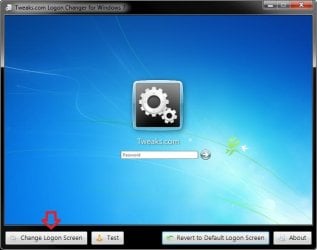
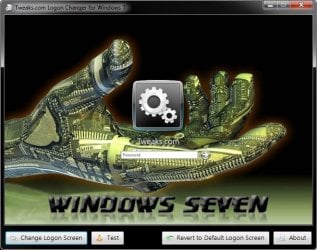
4. To Change the Log On Screen in Windows 7A) Click on the Change Logon Screen button. (see screenshot below)Tweaks-1.jpg

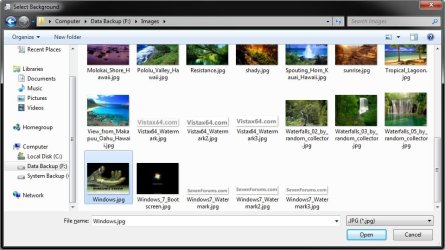
B) Navigate to and select the JPG image that you want to have as the new log on screen background, then click on Open. (see screenshot below)Tweaks-2.jpg

   Note
If the selected image is to large, then click on OK after clicking on Open to have it automatically resized for you.

Note.jpg


C) Go to step 6.

5. To Restore the Default Log On Screen in Windows 7
NOTE: I find that this step doesn't work to well in this program. If you find the same, then you can use OPTION FOUR below to restore the default Windows 7 log on screen. A) Click on the Restore to Default Logon Screen button. (see screenshot below)Tweaks-4.jpg


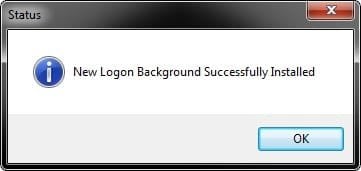
6. Click on OK. The log on screen has now been changed. (see screenshot below)Tweaks-3.jpg

7. If you would like, click on the Test button to see how the new logon screen looks in case you change your mind and wish to change it again.
NOTE: This will take you to the Lock screen. You can log on again to your user account to be right back where you were without anything being closed.

8. When finished, close the program.


OPTION THREE

To Manually Change the Log On Screen in Windows 7


NOTE: This was discovered by Rafael Rivera at Within Windows. You should also visit his website for more detailed information on this.1. Unhide file type extensions.

2. Click on the Download button to download the file below.Use_Custom_Log_On_Screen.reg


Download


3. Save the .reg file to the desktop.

4. Right click on the extracted .reg file and click on Merge.

5. Click on Run, Yes (UAC), Yes, and OK when prompted.

6. Save the custom .jpg image you want to use to the desktop with the name backgroundDefault.jpg.
WARNING: The custom image that you use must be a .jpg image less than 256 KB in size, or this will not work.

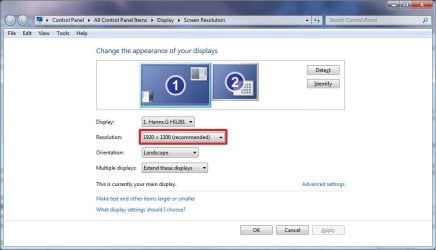
7. Check to see what your primary display screen resolution is. (See screenshot below)
NOTE: For example, mine is 1920 x 1280.Screen_Resolution.jpg

8. Open Paint, and click on the File icon (top left corner), Open, and navigate to and select the .jpg image from step 6.
NOTE: You can open Paint by typing mspaint.exe in the Start menu search line and pressing enter.

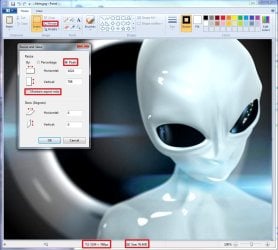
9. In Paint, click on Resize, dot Pixels, uncheck Maintain aspect ratio, then resize the .jpg image to the screen resolution size in step 7. (See screenshot below)Paint.jpg

10. In Paint, click on the File icon (top left corner), Save as, then save the new .jpg file to the desktop with the exact file name below with the screen resolution size of the image.
NOTE: For example, since by screen resolution is 1920 x 1280, I will resize the image to this size and save it with the name background1920×1200.jpg.
   Warning
The custom image that you use must be a .jpg image less than 256 KB in size, or this will not work. The backgroundDefault.jpg (step 6) image will be Streched to Fit and used by default if Windows 7 cannot find or use the correct screen resolution image file created in this step. These are the only sizes supported by the log on screen.
  • background768×1280.jpg
  • background960×1280.jpg
  • background900×1440.jpg
  • background1024×768.jpg
  • background1024×1280.jpg
  • background1280×768.jpg
  • background1280×960.jpg
  • background1280×1024.jpg
  • background1360×768.jpg
  • background1440×900.jpg
  • background1600×1200.jpg
  • background1920×1200.jpg


11. When done, close Paint.

12. In Windows Explorer, navigate to
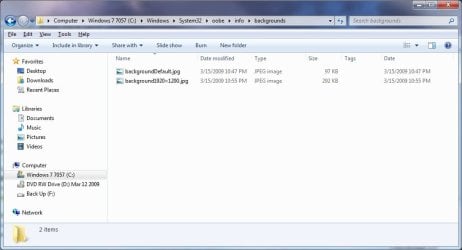
C:\Windows\System32\oobe\info\backgrounds. (See screenshot below step 13)
NOTE: If you do not have any of these folders (ex: info and backgrounds usually), then create a new folder for the missing folder and rename it to the missing folder's name. If you are prompted by UAC when creating and renaming the folders, just click on Yes to approve.

13. Copy and Paste the .jpg files from step 10, and from step 6 into the C:\Windows\system32\oobe\info\backgrounds folder, then close the window. (See screenshot below)backgrounds_Folder.jpg

14. You're logon screen is now changed. You can press Ctrl+Alt+Del to test it. Click on Cancel to return to the desktop.
NOTE: You can now delete the .reg and .zip files on the desktop if you like.

15. You can now hide the file extensions again if you like.

16. Depending on how light or dark your background image is, you may want to change the log on screen text shadow to make it look better as well.


OPTION FOUR

To Restore the Default Log On Screen


NOTE: This will restore the default Windows 7 log on screen if it was changed from either OPTION ONE, OPTION TWO, or OPTION THREE above.1. Click on the Download button to download the file below.Use_Default_Log_On_Screen.reg


Download


2. Save, and the .reg file to the desktop.

3. Right click on the extracted .reg file and click on Merge.

4. Click on Run, Yes (UAC), Yes, and OK when prompted.

5. You're logon screen is now changed back to the default one. You can press Ctrl+Alt+Del to test it. Click on Cancel to return to the desktop.
NOTE: You can now delete the downloaded .reg and .zip files if you like.

That's it,
Shawn


Attachments

Last edited:
or you can use the stardock app for vista users it works with win 7
 

My Computer

Computer Manufacturer/Model Number
power computing
OS
windows 7 64 bit
CPU
quad core pentium q6600 2.4ghz
Motherboard
p5kse/epu
Memory
4 gig
Graphics Card(s)
9800gt
Sound Card
realtek
Monitor(s) Displays
22 widescreen hanns.ghi221d
Hard Drives
1tb
Cooling
cool master
EDIT - nevermind I figured out the issue, i didn't have .NET framework 3.5.1 installed. remove post if you want

what??
.net framework 3.5 sp1 is included in windows 7 and enabled by default!

did you disable it in windows features?
 

My Computer

OS
Windows 7 RC
or you can use the stardock app for vista users it works with win 7

sure, but it alters the system file imageres.dll

it's better to use the official way in windows 7 to change the logon wallpaper!
no risk of messing with a future service pack
 

My Computer

OS
Windows 7 RC
That's a good point to make! Between Shawk's work in the system registry trying this out and the program you have developed there and still in progress to make better you are not seeing any alterations that will have negative effects later since this has all been with 7 not previous verions here.
 

My Computers

System One System Two

  • Computer type
    PC/Desktop
    Computer Manufacturer/Model Number
    Custom builds = 2
    OS
    W7 Ultimate x64/W10 Pro x64/W11 Pro Triple Boot - Main PC W7 Remote PC Micro ATX W7 Pro x64/W11 Pro
    CPU
    AMD Phenom II X4 975 Deneb 3.6ghz - 965 2nd remote pc
    Motherboard
    Gigabyte GA-790XTA-UD4-Gigabyte GA-880GM-D2H remote pc
    Memory
    Kingston Hyper X DDR3 1600 1.5v 16gb - Hyper X Fury 8gb 2nd
    Graphics Card(s)
    MSI HD Radeon 5750 1gb - MSI HD Radeon 6450 on mini tower
    Sound Card
    Creative Labs X-Fi Xtreme Audio P - Realtek onooard 2nd case
    Monitor(s) Displays
    ASUS VW199T-P 19" HP 2082a Main-HP 2082a 20" remote pc
    Screen Resolution
    Asus 1440x900 - HP 1600x900
    Hard Drives
    WD Black 1TB HD per OS W7, W10, and pending W11 presently on 500gb OS Drive - Pending Triple 1TB HDs for Spanned Storage/backup volume
    Single 2TB external USB enclosure, single 1TB System 7 Host/Boot drive, Pending 8TB external HD for system image b
    PSU
    Corsair 750TX - primary / Corsair CX600 - second
    Case
    Antec 900-2 - SSD compatible / NZXT Vulcan mini tower
    Cooling
    Zalman CNPS9900A
    Keyboard
    AZIO L70 Backlit Letters Gaming - ONN Cordless/USB
    Mouse
    MSI DS200 Programmable, Logitech Cordless
    Internet Speed
    30mbps upgrade - primary hard wired - mini tower usb WiFi
    Antivirus
    GFI VIPRE Internet Security 2014 on W7 2016 beta on W10,
    Browser
    Cyberfox, WaterFox 64bit FF variants, FireFox x64, Pale Moon
    Other Info
    Accomdata fan cooled usb 2.0 PIDE/Sata II, III external enclosure.
    Sambient usb/eSata PATA/Sata II, III external enclosure.
  • Computer type
    PC/Desktop
    System Manufacturer/Model Number
    CUSTOM ASSEMBLY
    OS
    W7 Pro x64/W11 Pro
    CPU
    AMD Deneb 3.6ghz - 965
    Motherboard
    Gigabyte GA-880GM-D2H remote pc
    Memory
    Kingston Hyper X Fury 8gb
    Graphics Card(s)
    MSI HD Radeon 6450 DVI Output
    Sound Card
    Realtek onooard Creative or Other separate PENDING
    Monitor(s) Displays
    VIZIO 32" LCD TV Separate LCD Pending
    Screen Resolution
    1600x1080
    Hard Drives
    WD 500GB OS Host/Boot WD Green 1TB Storage/Backup
    PSU
    Corsair 600W - THERMALTAKE 600W spare case
    Case
    NZXT Vulcan mini tower
    Cooling
    Twin 120mm Top Fans - 240mm Side Cover
    Keyboard
    ONN Cordless/USB Logitech Cordless
    Mouse
    ONN USB/Cordless - Logitech Cordless
    Internet Speed
    DSL 5G
    Browser
    MS Edge, FireFox, WaterFox x64, FireFox Nightly
    Other Info
    OS Testing-Remote Access to Main TeamViewer
Hey Brink see this picture, your icon account is big...how to?
sieuthiNHANH2009091926138mdjknti4m243993.jpeg
 

My Computer

OS
Windows 7
CPU
Core 2 Duo
Motherboard
ASUS P5GC-MX
Memory
King Max
Graphics Card(s)
Intel(R) 82945G Express Chipset Family
Sound Card
C-Media PCI Audio Device
Monitor(s) Displays
Sam Sung
Hello Areyouwant,

Only having one user account will have the single icon larger. If you have more than one user account, then all user icons will be there as smaller ones instead until you select one to log on with. :)
 

My Computer

Computer type
PC/Desktop
Computer Manufacturer/Model Number
Self built custom
OS
64-bit Windows 11 Pro for Workstations
CPU
Intel i7-8700K OC'd to 5 GHz
Motherboard
ASUS ROG Maximus XI Formula Z390
Memory
64 GB (4x16GB) G.SKILL TridentZ RGB DDR4 3600 MHz
Graphics Card(s)
ASUS ROG-STRIX-GTX1080TI-O11G-GAMING
Sound Card
Integrated
Monitor(s) Displays
2 x Samsung Odyssey G7 27"
Screen Resolution
2560x1440
Hard Drives
1TB Samsung 990 PRO M.2,
4TB Samsung 990 PRO PRO M.2,
TerraMaster F8 SSD Plus NAS
PSU
Seasonic Prime Titanium 850W
Case
Thermaltake Core P3
Cooling
Corsair Hydro H115i
Keyboard
Logitech wireless K800
Mouse
Logitech MX Master 4
Internet Speed
2 Gb/s Download and 100 Mb/s Upload
Antivirus
Malwarebyte Anti-Malware Premium
Browser
Google Chrome
Other Info
Logitech Z625 speaker system,
Logitech BRIO 4K Pro webcam,
HP Color LaserJet Pro MFP M477fdn,
APC SMART-UPS RT 1000 XL - SURT1000XLI,
Galaxy S23 Plus phone
I have a simple question - before you apply any of the changes, where is the image of the default background located? I have the RTM x64 and I do not have those info folders. I have the oobe folders, two of them (in System32 and SysWOW64). Both of them have a file 'background.bmp' which is exactly the image of the default background. I thought that by replacing these images by something else of the same size and resolution would change the log on screen image for me, but I was mistaken. I changed these files, but nothing changed on the log on screen.

But now, having searched for .bmp and .jpg files I can't find any other file with the original image. Does anyone know where is it? Or is it hidden in some dll or something?
 

My Computer

Computer Manufacturer/Model Number
Dell Inspiron 530
OS
Windows 7 Ultimate (x64)
CPU
Q6600
Memory
8 GB
Graphics Card(s)
ATI Radeon HD 2600 XT
Monitor(s) Displays
Samsung Syncmaster P2450
Screen Resolution
1920x1080
Hard Drives
Samsung HD103UJ
Samsung HD501LJ
Internet Speed
25 Mb/s
Hello Unifex,

The yellow tip box at the top of the tutorial has the information you seek. Including a download to restore the default background.bmp image. :)
 

My Computer

Computer type
PC/Desktop
Computer Manufacturer/Model Number
Self built custom
OS
64-bit Windows 11 Pro for Workstations
CPU
Intel i7-8700K OC'd to 5 GHz
Motherboard
ASUS ROG Maximus XI Formula Z390
Memory
64 GB (4x16GB) G.SKILL TridentZ RGB DDR4 3600 MHz
Graphics Card(s)
ASUS ROG-STRIX-GTX1080TI-O11G-GAMING
Sound Card
Integrated
Monitor(s) Displays
2 x Samsung Odyssey G7 27"
Screen Resolution
2560x1440
Hard Drives
1TB Samsung 990 PRO M.2,
4TB Samsung 990 PRO PRO M.2,
TerraMaster F8 SSD Plus NAS
PSU
Seasonic Prime Titanium 850W
Case
Thermaltake Core P3
Cooling
Corsair Hydro H115i
Keyboard
Logitech wireless K800
Mouse
Logitech MX Master 4
Internet Speed
2 Gb/s Download and 100 Mb/s Upload
Antivirus
Malwarebyte Anti-Malware Premium
Browser
Google Chrome
Other Info
Logitech Z625 speaker system,
Logitech BRIO 4K Pro webcam,
HP Color LaserJet Pro MFP M477fdn,
APC SMART-UPS RT 1000 XL - SURT1000XLI,
Galaxy S23 Plus phone
Hello Brink,

The yellow tip box at the top of the tutorial has the information you seek. Including a download to restore the default background.bmp image. :)

I think my question was a bit different - you see, I have changed that default file (I kept a copy of the original though, just renamed it, so there is no need for a download), but the log on screen still shows the original image. Now, where is it coming from? It has got to be stored on my hard drive somewhere, right?
 

My Computer

Computer Manufacturer/Model Number
Dell Inspiron 530
OS
Windows 7 Ultimate (x64)
CPU
Q6600
Memory
8 GB
Graphics Card(s)
ATI Radeon HD 2600 XT
Monitor(s) Displays
Samsung Syncmaster P2450
Screen Resolution
1920x1080
Hard Drives
Samsung HD103UJ
Samsung HD501LJ
Internet Speed
25 Mb/s
Unifex,

I suppose that you can search your C: drive for background.bmp to find all locations that it may be at, but I'm afraid that it may all be in vane. :(

If you wanted to just change the image, then the tutorial will allow you to instead of trying to do it that way.
 

My Computer

Computer type
PC/Desktop
Computer Manufacturer/Model Number
Self built custom
OS
64-bit Windows 11 Pro for Workstations
CPU
Intel i7-8700K OC'd to 5 GHz
Motherboard
ASUS ROG Maximus XI Formula Z390
Memory
64 GB (4x16GB) G.SKILL TridentZ RGB DDR4 3600 MHz
Graphics Card(s)
ASUS ROG-STRIX-GTX1080TI-O11G-GAMING
Sound Card
Integrated
Monitor(s) Displays
2 x Samsung Odyssey G7 27"
Screen Resolution
2560x1440
Hard Drives
1TB Samsung 990 PRO M.2,
4TB Samsung 990 PRO PRO M.2,
TerraMaster F8 SSD Plus NAS
PSU
Seasonic Prime Titanium 850W
Case
Thermaltake Core P3
Cooling
Corsair Hydro H115i
Keyboard
Logitech wireless K800
Mouse
Logitech MX Master 4
Internet Speed
2 Gb/s Download and 100 Mb/s Upload
Antivirus
Malwarebyte Anti-Malware Premium
Browser
Google Chrome
Other Info
Logitech Z625 speaker system,
Logitech BRIO 4K Pro webcam,
HP Color LaserJet Pro MFP M477fdn,
APC SMART-UPS RT 1000 XL - SURT1000XLI,
Galaxy S23 Plus phone
I suppose that you can search your C: drive for background.bmp to find all locations that it may be at, but I'm afraid that it may all be in vane. :(

Indeed. That's what I wrote before - I found all instances of that file, changed them, but the log on background was still the same.

Sure, I used the tutorial.

But I just want to understand where does Windows keep the original image - if all instances of background.bmp are changed and no other picture file (i.e. jpg, png, etc.) contain the default image anymore.
 

My Computer

Computer Manufacturer/Model Number
Dell Inspiron 530
OS
Windows 7 Ultimate (x64)
CPU
Q6600
Memory
8 GB
Graphics Card(s)
ATI Radeon HD 2600 XT
Monitor(s) Displays
Samsung Syncmaster P2450
Screen Resolution
1920x1080
Hard Drives
Samsung HD103UJ
Samsung HD501LJ
Internet Speed
25 Mb/s
Hi Unifex,

Check here: %windir%\system32\oobe\info\backgrounds

Steven

Hi Steven, thanks for your suggestion. Unfortunately my RTM does not have such a folder.
 

My Computer

Computer Manufacturer/Model Number
Dell Inspiron 530
OS
Windows 7 Ultimate (x64)
CPU
Q6600
Memory
8 GB
Graphics Card(s)
ATI Radeon HD 2600 XT
Monitor(s) Displays
Samsung Syncmaster P2450
Screen Resolution
1920x1080
Hard Drives
Samsung HD103UJ
Samsung HD501LJ
Internet Speed
25 Mb/s
will try..

not loving the image it has.

does this affects the startup time or performance in any kind?
 

My Computer

Computer Manufacturer/Model Number
HP Pavilion DV3510nr
OS
WIndows 7 Ultimate 64x
CPU
Intel Core 2 Duo P7350 2.00GHz
Memory
4GB
Graphics Card(s)
Nvidia GeForce 9300M GS
Hard Drives
320 GB
Hello Hellraiser, and welcome to Seven Forums.

No, this has no noticeable affect on the startup time by changing the log on screen background image. :)
 

My Computer

Computer type
PC/Desktop
Computer Manufacturer/Model Number
Self built custom
OS
64-bit Windows 11 Pro for Workstations
CPU
Intel i7-8700K OC'd to 5 GHz
Motherboard
ASUS ROG Maximus XI Formula Z390
Memory
64 GB (4x16GB) G.SKILL TridentZ RGB DDR4 3600 MHz
Graphics Card(s)
ASUS ROG-STRIX-GTX1080TI-O11G-GAMING
Sound Card
Integrated
Monitor(s) Displays
2 x Samsung Odyssey G7 27"
Screen Resolution
2560x1440
Hard Drives
1TB Samsung 990 PRO M.2,
4TB Samsung 990 PRO PRO M.2,
TerraMaster F8 SSD Plus NAS
PSU
Seasonic Prime Titanium 850W
Case
Thermaltake Core P3
Cooling
Corsair Hydro H115i
Keyboard
Logitech wireless K800
Mouse
Logitech MX Master 4
Internet Speed
2 Gb/s Download and 100 Mb/s Upload
Antivirus
Malwarebyte Anti-Malware Premium
Browser
Google Chrome
Other Info
Logitech Z625 speaker system,
Logitech BRIO 4K Pro webcam,
HP Color LaserJet Pro MFP M477fdn,
APC SMART-UPS RT 1000 XL - SURT1000XLI,
Galaxy S23 Plus phone
yeah i already changed the startup screen. thnx
 

My Computer

Computer Manufacturer/Model Number
HP Pavilion DV3510nr
OS
WIndows 7 Ultimate 64x
CPU
Intel Core 2 Duo P7350 2.00GHz
Memory
4GB
Graphics Card(s)
Nvidia GeForce 9300M GS
Hard Drives
320 GB
You're welcome Hellraiser. Enjoy the new startup screen. :)
 

My Computer

Computer type
PC/Desktop
Computer Manufacturer/Model Number
Self built custom
OS
64-bit Windows 11 Pro for Workstations
CPU
Intel i7-8700K OC'd to 5 GHz
Motherboard
ASUS ROG Maximus XI Formula Z390
Memory
64 GB (4x16GB) G.SKILL TridentZ RGB DDR4 3600 MHz
Graphics Card(s)
ASUS ROG-STRIX-GTX1080TI-O11G-GAMING
Sound Card
Integrated
Monitor(s) Displays
2 x Samsung Odyssey G7 27"
Screen Resolution
2560x1440
Hard Drives
1TB Samsung 990 PRO M.2,
4TB Samsung 990 PRO PRO M.2,
TerraMaster F8 SSD Plus NAS
PSU
Seasonic Prime Titanium 850W
Case
Thermaltake Core P3
Cooling
Corsair Hydro H115i
Keyboard
Logitech wireless K800
Mouse
Logitech MX Master 4
Internet Speed
2 Gb/s Download and 100 Mb/s Upload
Antivirus
Malwarebyte Anti-Malware Premium
Browser
Google Chrome
Other Info
Logitech Z625 speaker system,
Logitech BRIO 4K Pro webcam,
HP Color LaserJet Pro MFP M477fdn,
APC SMART-UPS RT 1000 XL - SURT1000XLI,
Galaxy S23 Plus phone
Any way to change the icon overlay? The one in explorer.exe only changes it in the start menu.
 

My Computer

Computer Manufacturer/Model Number
Dell Inspiron 1420
OS
Windows 7 Enterprise SP1 x64
CPU
Intel Core 2 Duo T7300 2GHz
Memory
3GB
Graphics Card(s)
GeForce 8400M GS
Screen Resolution
1440x900

My Computer

Computer type
PC/Desktop
Computer Manufacturer/Model Number
Self built custom
OS
64-bit Windows 11 Pro for Workstations
CPU
Intel i7-8700K OC'd to 5 GHz
Motherboard
ASUS ROG Maximus XI Formula Z390
Memory
64 GB (4x16GB) G.SKILL TridentZ RGB DDR4 3600 MHz
Graphics Card(s)
ASUS ROG-STRIX-GTX1080TI-O11G-GAMING
Sound Card
Integrated
Monitor(s) Displays
2 x Samsung Odyssey G7 27"
Screen Resolution
2560x1440
Hard Drives
1TB Samsung 990 PRO M.2,
4TB Samsung 990 PRO PRO M.2,
TerraMaster F8 SSD Plus NAS
PSU
Seasonic Prime Titanium 850W
Case
Thermaltake Core P3
Cooling
Corsair Hydro H115i
Keyboard
Logitech wireless K800
Mouse
Logitech MX Master 4
Internet Speed
2 Gb/s Download and 100 Mb/s Upload
Antivirus
Malwarebyte Anti-Malware Premium
Browser
Google Chrome
Other Info
Logitech Z625 speaker system,
Logitech BRIO 4K Pro webcam,
HP Color LaserJet Pro MFP M477fdn,
APC SMART-UPS RT 1000 XL - SURT1000XLI,
Galaxy S23 Plus phone

My Computer

Computer Manufacturer/Model Number
* BFK Customs *
OS
W 7 64-bit Ultimate
CPU
Intel Q9550 Yorkfield
Motherboard
ASUS P5Q Pro
Memory
8GB Dominator 8500C5D
Graphics Card(s)
ATI : XFX 5870
Sound Card
Realtek HD Audio 7-1
Monitor(s) Displays
1x 47" LCD HDMI & 3x 26" LCD HDMI
Screen Resolution
1920x1080P & 1920x1200
Hard Drives
1x 80GB Intel X25-M G2 SSD : 1x 500GB & 1x 640GB WD Caviar Black(s)
PSU
Corsair 620HX
Case
Cooler Master RC-690
Cooling
Tuniq Tower 120, 2x 140mm and 3x 120mm case fans
Keyboard
Microsoft 500
Mouse
Razer Diamondback 3G
Internet Speed
14 Mb/s
Other Info
1x Koutech 3Gb/s SATA HDD Hot Swap Rack
Back
Top