Map Network Drive

How to Map a Network Drive in Windows 7

   Information
This will show you how to map or unmap a share folder on your computer or shared network folder from a computer on your network to create a shortcut of it as a drive with a drive letter in the Computer window for easier access.
   Note
You will need to be connected to your network to be able to map a shared network folder as a drive from it.

You will be able to map a shared folder on your computer as a drive whether you are connected to a network or not since it's on your computer and does not require a network connection to access it.

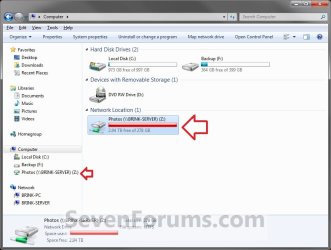
EXAMPLE: A Mapped Network Drive
NOTE: For example, this is a shared network folder from a server on my network that was mapped as a drive on my computer.
Step6.jpg


OPTION ONE

To Map a Network Drive


Method One

Using the Command Prompt


1. Open a command prompt.

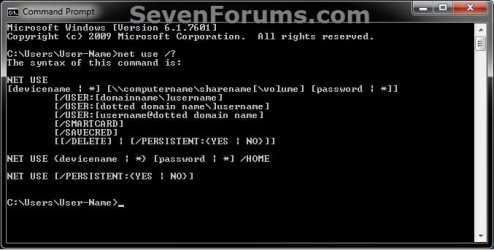
2. In the command prompt, type in the command below for what you want to do and press Enter.


   Note

  • Substitute ComputerName in the commands below with the actual remote or homegroup computer name that the share folder is on.
  • Substitute ShareFolderName in the commands below with the actual name of the network share folder.
  • Substitute Z: in the first command below with an unused drive letter you want to be given to the mapped network drive in your Computer window.
  • You can use * in the second command below to have Windows 7 automatically assign an unused drive letter to the mapped network drive in your Computer window starting from Z: up.

net_use.jpg
3. When finshed, close the command prompt. The network drive shoud now be mapped in your Computer window.


Method Two

From within the Computer Window


1. Open the Start Menu and click on the Computer button on the right dark side.

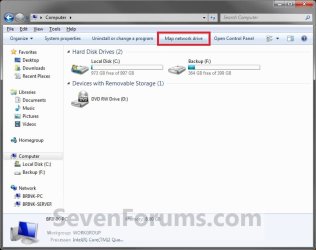
2. Click on the Map network drive toolbar button. (see screenshot below)
Step1.jpg
3. Select a drive letter that you want to be assigned to this mapped network drive. (see screenshot below)
Step2.jpg
4. Click on the Browse button. (see screenshot below)
Step3.jpg
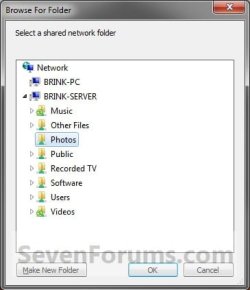
5. Select a listed shared folder on your computer OR a shared network folder that you want to have mapped as a drive, then click on OK. (see screenshot below)
Step4.jpg
6. If you want to always have the map network drive available in the Computer window, then check the Reconnect at logon box. (see screenshot below)
NOTE: If you do not check the Reconnect at logon box, then the mapped network drive in Computer will be disconnected (unmapped) automatically whenever you log off or restart the computer next.

7. If you want to log on to the network for the shared network folder with a different user name and password than what you already have set for this network connection, then check the Connect using different credentials box. (see screenshot below step 9)
NOTE: Normally you would leave this option unchecked unless you wanted to log on as a different user on the network than the default one you already have set up.
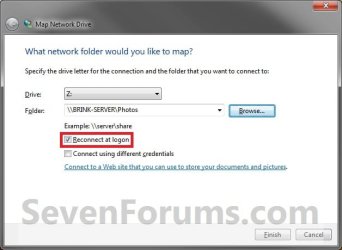
Step5.jpg
8. Click on Finish. (see screenshot below step 6)

9. If you checked the Connect using different credentials box in step 7, then you will now be prompted to enter the user name and password that you want to use instead to log on to the network with. If you want to be automatically logged on each time you open the mapped network drive, then check the Remember my credentials box. Click on OK after entering them. (see screenshot below)
NOTE: If not, then skip this step and continue to step 10.

   Note
If you are mapping drives/folders on a NAS, then you will need to use something like User-name@User-PC as your username instead + password.

Step6B.jpg
10. You will now have a mapped network drive of this shared folder or shared network folder in Computer. (see screenshot below)
Step6.jpg


OPTION TWO

To Unmap a Network Drive


NOTE: This will disconnect the mapped network drive to only remove it from the Computer window. It will not delete the shared folder or shared network folder.


Method One

Using the Command Prompt


1. Open a command prompt.

2. In the command prompt, type in the command below and press Enter.


NOTE: substitute Z: in the command below with the actual drive letter of the mapped network drive that you want to unmap (remove) from your Computer window.
  • net use Z: /delete
3. When finshed, close the command prompt. The mapped network drive shoud now be removed from your Computer window.


Method Two

From within the Computer Window


1. Open the Start Menu and click on the Computer button on the right dark side.

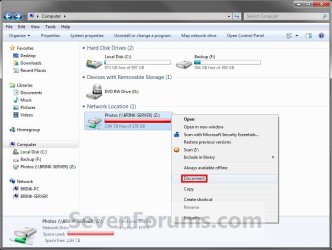
2. Right click on the mapped network drive that you want to unmap, and click on Disconnect. (see screenshot below)
Step7.jpg
3. The mapped network drive is now unmapped, and will no longer show in the Computer window.
That's it,
Shawn


Last edited:
i can't see the mapped network drive in Computer... in this situation, how can i remove (unmap) it?
 

My Computer

Computer type
PC/Desktop
Computer Manufacturer/Model Number
2015 Home Made with Great Performance
OS
Windows 8.1 x64 Enterprise
CPU
i5 4690K
Motherboard
Gigabyte GA-Z87X-UD5H
Memory
Corsair 16 GB DDR3 2000Mhz
Graphics Card(s)
Asus GTX760 2GB 256bit
Sound Card
Realtek OnBoard
Monitor(s) Displays
Samsung SyncMaster SA350 + LG 42LA660S
Screen Resolution
1920x1080 Full HD
Hard Drives
1x 640GB Western Digital SATA
1x 4TB Western Digital Green SATA
3x 2TB Western Digital Caviar Green RS SATA
1x 3TB Western Digital Caviar Green SATA
1x 128GB Corsair Force Red SSD
PSU
Corsair CX 600W
Case
Nexus Prominent 5
Cooling
CPU: Artic Cooler Freezer 13 + 5x120mm Case Fans @ 700RPM
Keyboard
Microsoft Wired Keyboard 600
Mouse
Microsoft Wireless Mobile Mouse 1000
Internet Speed
FO 1 Gbit/s
Antivirus
ESET / Malwarebytes
Browser
Opera / Chrome
Other Info
- Fan Controller Aerocool X-Vision 5
- 1x 1TB Hitachi DeskPlus External USB
- 1x 1TB Western Digital Passport External USB3
Hello Maranello,

I'm not sure if I understand. If it's not displayed in the Computer window, then it would normally not be mapped anymore there. Could you post a screenshot showing the mapped network drive's location?
 

My Computer

Computer type
PC/Desktop
Computer Manufacturer/Model Number
Self built custom
OS
64-bit Windows 11 Pro for Workstations
CPU
Intel i7-8700K OC'd to 5 GHz
Motherboard
ASUS ROG Maximus XI Formula Z390
Memory
64 GB (4x16GB) G.SKILL TridentZ RGB DDR4 3600 MHz
Graphics Card(s)
ASUS ROG-STRIX-GTX1080TI-O11G-GAMING
Sound Card
Integrated
Monitor(s) Displays
2 x Samsung Odyssey G7 27"
Screen Resolution
2560x1440
Hard Drives
1TB Samsung 990 PRO M.2,
4TB Samsung 990 PRO PRO M.2,
TerraMaster F8 SSD Plus NAS
PSU
Seasonic Prime Titanium 850W
Case
Thermaltake Core P3
Cooling
Corsair Hydro H115i
Keyboard
Logitech wireless K800
Mouse
Logitech MX Master 4
Internet Speed
2 Gb/s Download and 100 Mb/s Upload
Antivirus
Malwarebyte Anti-Malware Premium
Browser
Google Chrome
Other Info
Logitech Z625 speaker system,
Logitech BRIO 4K Pro webcam,
HP Color LaserJet Pro MFP M477fdn,
APC SMART-UPS RT 1000 XL - SURT1000XLI,
Galaxy S23 Plus phone
i have an old problem with drives appearing in Computer (Explorer), if i stuck more that 2 usb sticks, they wouldn't show up anymore, but i can access them if i type the drive letter in Explorer address bar...

same thing happened when i mapped a drive from my laptop, connected with a cross-over cable to my desktop, the mapped drive doesn't appear in Computer (Explorer), but i can access it if i type the drive letter in the address bar, also i can't see it in Disk Management application...

i'll try to take a screenshoot from home...
 

My Computer

Computer type
PC/Desktop
Computer Manufacturer/Model Number
2015 Home Made with Great Performance
OS
Windows 8.1 x64 Enterprise
CPU
i5 4690K
Motherboard
Gigabyte GA-Z87X-UD5H
Memory
Corsair 16 GB DDR3 2000Mhz
Graphics Card(s)
Asus GTX760 2GB 256bit
Sound Card
Realtek OnBoard
Monitor(s) Displays
Samsung SyncMaster SA350 + LG 42LA660S
Screen Resolution
1920x1080 Full HD
Hard Drives
1x 640GB Western Digital SATA
1x 4TB Western Digital Green SATA
3x 2TB Western Digital Caviar Green RS SATA
1x 3TB Western Digital Caviar Green SATA
1x 128GB Corsair Force Red SSD
PSU
Corsair CX 600W
Case
Nexus Prominent 5
Cooling
CPU: Artic Cooler Freezer 13 + 5x120mm Case Fans @ 700RPM
Keyboard
Microsoft Wired Keyboard 600
Mouse
Microsoft Wireless Mobile Mouse 1000
Internet Speed
FO 1 Gbit/s
Antivirus
ESET / Malwarebytes
Browser
Opera / Chrome
Other Info
- Fan Controller Aerocool X-Vision 5
- 1x 1TB Hitachi DeskPlus External USB
- 1x 1TB Western Digital Passport External USB3
Hello Maranello,

Did you already add (map) the network drives into the Computer window as in the tutorial?
 

My Computer

Computer type
PC/Desktop
Computer Manufacturer/Model Number
Self built custom
OS
64-bit Windows 11 Pro for Workstations
CPU
Intel i7-8700K OC'd to 5 GHz
Motherboard
ASUS ROG Maximus XI Formula Z390
Memory
64 GB (4x16GB) G.SKILL TridentZ RGB DDR4 3600 MHz
Graphics Card(s)
ASUS ROG-STRIX-GTX1080TI-O11G-GAMING
Sound Card
Integrated
Monitor(s) Displays
2 x Samsung Odyssey G7 27"
Screen Resolution
2560x1440
Hard Drives
1TB Samsung 990 PRO M.2,
4TB Samsung 990 PRO PRO M.2,
TerraMaster F8 SSD Plus NAS
PSU
Seasonic Prime Titanium 850W
Case
Thermaltake Core P3
Cooling
Corsair Hydro H115i
Keyboard
Logitech wireless K800
Mouse
Logitech MX Master 4
Internet Speed
2 Gb/s Download and 100 Mb/s Upload
Antivirus
Malwarebyte Anti-Malware Premium
Browser
Google Chrome
Other Info
Logitech Z625 speaker system,
Logitech BRIO 4K Pro webcam,
HP Color LaserJet Pro MFP M477fdn,
APC SMART-UPS RT 1000 XL - SURT1000XLI,
Galaxy S23 Plus phone
Hi Brink,

I'm not sure if this is specific to mapping drives on a NAS, but I found that "Reconnect at logon" will not do so unless you specify the credentials as:

User@User-PC

So, in your example, it might be Brink@Brink-PC, and then of course the password.

Perhaps its specific to a NAS (in my case a Thecus N2200), but perhaps worth keeping in mind, or adding that as an alternate step 9 option for people mapping drives/folders on a NAS.

This is the thread where the issue was discovered and solved:

http://www.sevenforums.com/network-...omatically-reconnect-mapped-drives-login.html

Regards,
Golden
 

My Computer

Computer type
PC/Desktop
Computer Manufacturer/Model Number
Golden Mk. I.4
OS
Windows 10 Pro x64 ; Xubuntu x64
CPU
Intel i7 860 @ 2.80 GHz O/C'ed to 4.0GHz
Motherboard
Gigabyte P55A-UD3R Rev.1. Award BIOS F13
Memory
16GB Corsair Vengance DDR3 @ 661 MHz Dual Channel (9-9-9-24)
Graphics Card(s)
EVGA NVidia GTX 560 1024MB
Sound Card
Realtek Integrated
Monitor(s) Displays
Dual Samsung SyncMaster 2494HS
Screen Resolution
1920*1080 and 1920*1080
Hard Drives
1*Samsung 840 EVO 120GB SSD;
1*OCZ Vertex 2 60GB SSD;
2*Samsung F3 SpinPoint 1TB in RAID0;
1*Samsung F1 SpinPoint 1TB;
2*Western Digital 1TB External USB 3.0
1*Western Digital 500GB External USB 3.0
1*Seagate 500GB External USB 2.0
PSU
Thermaltake ToughPower QFan 750W
Case
Thermaltake Element S VK60001W2Z
Cooling
Corsair H60 Water Cooling, 2*230mm and 2*80mm case fans
Keyboard
Logitech G110
Mouse
Logitech MX518
Hello Maranello,

Did you already add (map) the network drives into the Computer window as in the tutorial?

yep, i'm using these exact steps for all the computers i work on, but my desktop home pc is the only one that has problems with drives appearance in Explorer...

i guess the only solution is to disable the shared drive on my Laptop, but i don't consider this a stable fix, i would like to resolve the problem on my Desktop, without interfering with the Laptop...
 

My Computer

Computer type
PC/Desktop
Computer Manufacturer/Model Number
2015 Home Made with Great Performance
OS
Windows 8.1 x64 Enterprise
CPU
i5 4690K
Motherboard
Gigabyte GA-Z87X-UD5H
Memory
Corsair 16 GB DDR3 2000Mhz
Graphics Card(s)
Asus GTX760 2GB 256bit
Sound Card
Realtek OnBoard
Monitor(s) Displays
Samsung SyncMaster SA350 + LG 42LA660S
Screen Resolution
1920x1080 Full HD
Hard Drives
1x 640GB Western Digital SATA
1x 4TB Western Digital Green SATA
3x 2TB Western Digital Caviar Green RS SATA
1x 3TB Western Digital Caviar Green SATA
1x 128GB Corsair Force Red SSD
PSU
Corsair CX 600W
Case
Nexus Prominent 5
Cooling
CPU: Artic Cooler Freezer 13 + 5x120mm Case Fans @ 700RPM
Keyboard
Microsoft Wired Keyboard 600
Mouse
Microsoft Wireless Mobile Mouse 1000
Internet Speed
FO 1 Gbit/s
Antivirus
ESET / Malwarebytes
Browser
Opera / Chrome
Other Info
- Fan Controller Aerocool X-Vision 5
- 1x 1TB Hitachi DeskPlus External USB
- 1x 1TB Western Digital Passport External USB3
Hi Brink,

I'm not sure if this is specific to mapping drives on a NAS, but I found that "Reconnect at logon" will not do so unless you specify the credentials as:

User@User-PC

So, in your example, it might be Brink@Brink-PC, and then of course the password.

Perhaps its specific to a NAS (in my case a Thecus N2200), but perhaps worth keeping in mind, or adding that as an alternate step 9 option for people mapping drives/folders on a NAS.

This is the thread where the issue was discovered and solved:

http://www.sevenforums.com/network-...omatically-reconnect-mapped-drives-login.html

Regards,
Golden

Thank you Golden. I added a note at that step for this. :)
 

My Computer

Computer type
PC/Desktop
Computer Manufacturer/Model Number
Self built custom
OS
64-bit Windows 11 Pro for Workstations
CPU
Intel i7-8700K OC'd to 5 GHz
Motherboard
ASUS ROG Maximus XI Formula Z390
Memory
64 GB (4x16GB) G.SKILL TridentZ RGB DDR4 3600 MHz
Graphics Card(s)
ASUS ROG-STRIX-GTX1080TI-O11G-GAMING
Sound Card
Integrated
Monitor(s) Displays
2 x Samsung Odyssey G7 27"
Screen Resolution
2560x1440
Hard Drives
1TB Samsung 990 PRO M.2,
4TB Samsung 990 PRO PRO M.2,
TerraMaster F8 SSD Plus NAS
PSU
Seasonic Prime Titanium 850W
Case
Thermaltake Core P3
Cooling
Corsair Hydro H115i
Keyboard
Logitech wireless K800
Mouse
Logitech MX Master 4
Internet Speed
2 Gb/s Download and 100 Mb/s Upload
Antivirus
Malwarebyte Anti-Malware Premium
Browser
Google Chrome
Other Info
Logitech Z625 speaker system,
Logitech BRIO 4K Pro webcam,
HP Color LaserJet Pro MFP M477fdn,
APC SMART-UPS RT 1000 XL - SURT1000XLI,
Galaxy S23 Plus phone
Hello Maranello,

Did you already add (map) the network drives into the Computer window as in the tutorial?

yep, i'm using these exact steps for all the computers i work on, but my desktop home pc is the only one that has problems with drives appearance in Explorer...

i guess the only solution is to disable the shared drive on my Laptop, but i don't consider this a stable fix, i would like to resolve the problem on my Desktop, without interfering with the Laptop...

Maranello,

You might check to see if your issue is what Golden posted above for what you used as your username in the log on credentials.
 

My Computer

Computer type
PC/Desktop
Computer Manufacturer/Model Number
Self built custom
OS
64-bit Windows 11 Pro for Workstations
CPU
Intel i7-8700K OC'd to 5 GHz
Motherboard
ASUS ROG Maximus XI Formula Z390
Memory
64 GB (4x16GB) G.SKILL TridentZ RGB DDR4 3600 MHz
Graphics Card(s)
ASUS ROG-STRIX-GTX1080TI-O11G-GAMING
Sound Card
Integrated
Monitor(s) Displays
2 x Samsung Odyssey G7 27"
Screen Resolution
2560x1440
Hard Drives
1TB Samsung 990 PRO M.2,
4TB Samsung 990 PRO PRO M.2,
TerraMaster F8 SSD Plus NAS
PSU
Seasonic Prime Titanium 850W
Case
Thermaltake Core P3
Cooling
Corsair Hydro H115i
Keyboard
Logitech wireless K800
Mouse
Logitech MX Master 4
Internet Speed
2 Gb/s Download and 100 Mb/s Upload
Antivirus
Malwarebyte Anti-Malware Premium
Browser
Google Chrome
Other Info
Logitech Z625 speaker system,
Logitech BRIO 4K Pro webcam,
HP Color LaserJet Pro MFP M477fdn,
APC SMART-UPS RT 1000 XL - SURT1000XLI,
Galaxy S23 Plus phone
nop, had no problems with the reconnect at logon process...

but i have searched all over the net and have discovered that my issue it's not network / drive mapping related, i have a lot of drives connected (8, - the mapped ones) and it seems that Windows messed up some info about drive letter association and it cant display all the drives in Explorer anymore

fix... i haven't found any fix yet, i just type the drive letter in the address bar to access it, but this is a faulty workaround, because, when i want to remove my usb stick drive, i can't stop it first from the devices menu and i risk damaging the drive

well... maybe someday i will be able to solve this little issue, it's the third Win 7 clean installation that gets messed up...
 

My Computer

Computer type
PC/Desktop
Computer Manufacturer/Model Number
2015 Home Made with Great Performance
OS
Windows 8.1 x64 Enterprise
CPU
i5 4690K
Motherboard
Gigabyte GA-Z87X-UD5H
Memory
Corsair 16 GB DDR3 2000Mhz
Graphics Card(s)
Asus GTX760 2GB 256bit
Sound Card
Realtek OnBoard
Monitor(s) Displays
Samsung SyncMaster SA350 + LG 42LA660S
Screen Resolution
1920x1080 Full HD
Hard Drives
1x 640GB Western Digital SATA
1x 4TB Western Digital Green SATA
3x 2TB Western Digital Caviar Green RS SATA
1x 3TB Western Digital Caviar Green SATA
1x 128GB Corsair Force Red SSD
PSU
Corsair CX 600W
Case
Nexus Prominent 5
Cooling
CPU: Artic Cooler Freezer 13 + 5x120mm Case Fans @ 700RPM
Keyboard
Microsoft Wired Keyboard 600
Mouse
Microsoft Wireless Mobile Mouse 1000
Internet Speed
FO 1 Gbit/s
Antivirus
ESET / Malwarebytes
Browser
Opera / Chrome
Other Info
- Fan Controller Aerocool X-Vision 5
- 1x 1TB Hitachi DeskPlus External USB
- 1x 1TB Western Digital Passport External USB3

My Computer

Computer type
PC/Desktop
Computer Manufacturer/Model Number
Self built custom
OS
64-bit Windows 11 Pro for Workstations
CPU
Intel i7-8700K OC'd to 5 GHz
Motherboard
ASUS ROG Maximus XI Formula Z390
Memory
64 GB (4x16GB) G.SKILL TridentZ RGB DDR4 3600 MHz
Graphics Card(s)
ASUS ROG-STRIX-GTX1080TI-O11G-GAMING
Sound Card
Integrated
Monitor(s) Displays
2 x Samsung Odyssey G7 27"
Screen Resolution
2560x1440
Hard Drives
1TB Samsung 990 PRO M.2,
4TB Samsung 990 PRO PRO M.2,
TerraMaster F8 SSD Plus NAS
PSU
Seasonic Prime Titanium 850W
Case
Thermaltake Core P3
Cooling
Corsair Hydro H115i
Keyboard
Logitech wireless K800
Mouse
Logitech MX Master 4
Internet Speed
2 Gb/s Download and 100 Mb/s Upload
Antivirus
Malwarebyte Anti-Malware Premium
Browser
Google Chrome
Other Info
Logitech Z625 speaker system,
Logitech BRIO 4K Pro webcam,
HP Color LaserJet Pro MFP M477fdn,
APC SMART-UPS RT 1000 XL - SURT1000XLI,
Galaxy S23 Plus phone
ok, thanks Brink for your answers, I'll look into it ;)
 

My Computer

Computer type
PC/Desktop
Computer Manufacturer/Model Number
2015 Home Made with Great Performance
OS
Windows 8.1 x64 Enterprise
CPU
i5 4690K
Motherboard
Gigabyte GA-Z87X-UD5H
Memory
Corsair 16 GB DDR3 2000Mhz
Graphics Card(s)
Asus GTX760 2GB 256bit
Sound Card
Realtek OnBoard
Monitor(s) Displays
Samsung SyncMaster SA350 + LG 42LA660S
Screen Resolution
1920x1080 Full HD
Hard Drives
1x 640GB Western Digital SATA
1x 4TB Western Digital Green SATA
3x 2TB Western Digital Caviar Green RS SATA
1x 3TB Western Digital Caviar Green SATA
1x 128GB Corsair Force Red SSD
PSU
Corsair CX 600W
Case
Nexus Prominent 5
Cooling
CPU: Artic Cooler Freezer 13 + 5x120mm Case Fans @ 700RPM
Keyboard
Microsoft Wired Keyboard 600
Mouse
Microsoft Wireless Mobile Mouse 1000
Internet Speed
FO 1 Gbit/s
Antivirus
ESET / Malwarebytes
Browser
Opera / Chrome
Other Info
- Fan Controller Aerocool X-Vision 5
- 1x 1TB Hitachi DeskPlus External USB
- 1x 1TB Western Digital Passport External USB3
You're welcome. I hope that you get them sorted.
 

My Computer

Computer type
PC/Desktop
Computer Manufacturer/Model Number
Self built custom
OS
64-bit Windows 11 Pro for Workstations
CPU
Intel i7-8700K OC'd to 5 GHz
Motherboard
ASUS ROG Maximus XI Formula Z390
Memory
64 GB (4x16GB) G.SKILL TridentZ RGB DDR4 3600 MHz
Graphics Card(s)
ASUS ROG-STRIX-GTX1080TI-O11G-GAMING
Sound Card
Integrated
Monitor(s) Displays
2 x Samsung Odyssey G7 27"
Screen Resolution
2560x1440
Hard Drives
1TB Samsung 990 PRO M.2,
4TB Samsung 990 PRO PRO M.2,
TerraMaster F8 SSD Plus NAS
PSU
Seasonic Prime Titanium 850W
Case
Thermaltake Core P3
Cooling
Corsair Hydro H115i
Keyboard
Logitech wireless K800
Mouse
Logitech MX Master 4
Internet Speed
2 Gb/s Download and 100 Mb/s Upload
Antivirus
Malwarebyte Anti-Malware Premium
Browser
Google Chrome
Other Info
Logitech Z625 speaker system,
Logitech BRIO 4K Pro webcam,
HP Color LaserJet Pro MFP M477fdn,
APC SMART-UPS RT 1000 XL - SURT1000XLI,
Galaxy S23 Plus phone
If you are mapping drives/folders on a NAS, then you will need to use something like User-name@User-PC as your username instead + password.

This was THE most important note in order for my PC running Win 7 Pro x-64 to remember my mapped network drive credentials to a NAS via the Credential Manager control panel. Ish!!!! There were lots of convoluted work-around solutions on the web (there are some really confused people out there!), and your step-by-step with screenshots was by far the simplest and best solution, kudos!!!

For whatever reason if my User name was set to: User-PC\User-name (e.g.), then Persistence was set to: Logon Session. This resulted in having to manually connect to my mapped network drive manually every time I logged back in. But when my User name was set to: User-name@User-PC (e.g.), then Persistence was set to: Enterprise. Which now lets my mapped network drive connect automatically every time I log in.

The key here is to get Persistence: Enterprise.

Oddly enough though, I can use User-PC\User-name with Persistence: Enterprise to access a MacBook Pro laptop.

Just wondering, why couldn't I use Uer-PC\User-name with Persistence: Enterprise for my NAS? My NAS is an Apple Time Capsule which in Win7 reads it like a FAT32 drive. I suppose the MacBook Pro and the Time Capsule have slightly different file sharing protols.

What is the best way to take control of the Persistence setting in Credentail Manger?

Thanks Brink!
 

My Computer

Computer Manufacturer/Model Number
Velocity Micro|ProMagix
OS
Windows 7 Professional x64
CPU
Intel Core 2 Duo Processor E6700
Motherboard
Intel DP35DP
Memory
6GB
Graphics Card(s)
256MB eVGA NVIDIA GeoForce 8600 GTS
Sound Card
Intel High Definition 8-channel Audio
Monitor(s) Displays
Samsung SyncMaster 213T
Hard Drives
500GB Seagate ST3500418AS
250GB Hitachi HDT725025VLA380
PSU
500 Watt
Case
LX Silver (Pure Aluminum)
Cooling
Arctic Cooling Freezer 7 Pro
Hello Sampdoria, and welcome to Seven Forums.

To be honest I don't know a technical reason why either other than that's just the way it works with them. I wish I could give a better answer. :(
 

My Computer

Computer type
PC/Desktop
Computer Manufacturer/Model Number
Self built custom
OS
64-bit Windows 11 Pro for Workstations
CPU
Intel i7-8700K OC'd to 5 GHz
Motherboard
ASUS ROG Maximus XI Formula Z390
Memory
64 GB (4x16GB) G.SKILL TridentZ RGB DDR4 3600 MHz
Graphics Card(s)
ASUS ROG-STRIX-GTX1080TI-O11G-GAMING
Sound Card
Integrated
Monitor(s) Displays
2 x Samsung Odyssey G7 27"
Screen Resolution
2560x1440
Hard Drives
1TB Samsung 990 PRO M.2,
4TB Samsung 990 PRO PRO M.2,
TerraMaster F8 SSD Plus NAS
PSU
Seasonic Prime Titanium 850W
Case
Thermaltake Core P3
Cooling
Corsair Hydro H115i
Keyboard
Logitech wireless K800
Mouse
Logitech MX Master 4
Internet Speed
2 Gb/s Download and 100 Mb/s Upload
Antivirus
Malwarebyte Anti-Malware Premium
Browser
Google Chrome
Other Info
Logitech Z625 speaker system,
Logitech BRIO 4K Pro webcam,
HP Color LaserJet Pro MFP M477fdn,
APC SMART-UPS RT 1000 XL - SURT1000XLI,
Galaxy S23 Plus phone
I have almost the same problem. I have a NAS usb drive connected to a server. The server itself has restrictions where only certain accounts (admin accounts) can access the server. This one user has both a regular and an admin account. He first logs onto his own desktop using his regular account. He can map to the c:\drive on the server by checking "Connect using different credentials" then mapping. But he cannot use this same process to map to the NAS usb drive(z:\). If he logs into the desktop with his admin account, he can map both the c and z off of the server. But here's the catch-he can log in on another desktop using his regular account, that's on the same domain, and go through the process of mapping the drives from the server for both the c and z drive using the "Connect using different credentials" with no problems. FYI-when this user tries to map the z drive from the first computer by "Connect using different credentials" and the screen comes up to enter the other credentials. After entering his "admin" credentials, nothing happens-no errors or warnings. The screen just stays there with his admin account name and the password line is blank. Another FYI-I can map the NAS z"\ drive by following the same procedures and the first user. It looks like a profile problem but what?
 

My Computer

Computer type
PC/Desktop
Computer Manufacturer/Model Number
HP z420
OS
Windows 7 Pro 64-bit
CPU
Xeon E5-1620
Memory
16GB
Graphics Card(s)
NVIDIA Quadro K2000
Hard Drives
SATA WD 250GB
Antivirus
Symantec
Browser
IE 11
greetings - I followed to this tutorial from tenforums how to remove map network drive in windows 10 - Windows 10 Forums where inimitable Brink directed an "unmap" query to this tutorial, specifying Option 2. I am running win10 build 14393.693

When I follow the instructions, Option 2, Method 1 the system responds that the drive is not found. I had previously attempted the 'easy way', but what that did was leave the mapped network drive alive and well, but with the red-X associated, marked "disconnected", as though we were sleeping and had just awakened [which is the original issue I've been trying to remedy]. I can browse that 'disconnected' drive just fine. If I right click and pull the context menu, it shows the "disconnect" command; no "connect" command. :confused:

since I know the mapping routine [but obviously not the UNmapping routine], I would like to be rid of the network drive mapping, then recreate it. How do I do that for real?

thx z
 

My Computer

Computer Manufacturer/Model Number
HP DC7600, HP DC7600[2], HP DC7100, Samsung NC10
OS
Windows XP Pro SP3, Windows 7 Pro 32-bit, Windows 7 Ultimate 64bit, Windows XP Home SP3
CPU
Pentium 4 3.2GHz, Pentium 4 3.4GHz 64bit, Atom,
Motherboard
Dunno
Memory
4GB matched, 1GB, 2.5GB, 4.0 GB
Graphics Card(s)
Geforce 8400 GS and others
Sound Card
RealteK ALC260 and others
Monitor(s) Displays
Asus HD
Screen Resolution
1920x1080
Hard Drives
WD Caviar 640gb SATA
Cooling
We Be Cool

My Computer

Computer type
PC/Desktop
Computer Manufacturer/Model Number
Self built custom
OS
64-bit Windows 11 Pro for Workstations
CPU
Intel i7-8700K OC'd to 5 GHz
Motherboard
ASUS ROG Maximus XI Formula Z390
Memory
64 GB (4x16GB) G.SKILL TridentZ RGB DDR4 3600 MHz
Graphics Card(s)
ASUS ROG-STRIX-GTX1080TI-O11G-GAMING
Sound Card
Integrated
Monitor(s) Displays
2 x Samsung Odyssey G7 27"
Screen Resolution
2560x1440
Hard Drives
1TB Samsung 990 PRO M.2,
4TB Samsung 990 PRO PRO M.2,
TerraMaster F8 SSD Plus NAS
PSU
Seasonic Prime Titanium 850W
Case
Thermaltake Core P3
Cooling
Corsair Hydro H115i
Keyboard
Logitech wireless K800
Mouse
Logitech MX Master 4
Internet Speed
2 Gb/s Download and 100 Mb/s Upload
Antivirus
Malwarebyte Anti-Malware Premium
Browser
Google Chrome
Other Info
Logitech Z625 speaker system,
Logitech BRIO 4K Pro webcam,
HP Color LaserJet Pro MFP M477fdn,
APC SMART-UPS RT 1000 XL - SURT1000XLI,
Galaxy S23 Plus phone
thank you sir!
as it turned out :o [embarrassingly] I needed a full restart. after that, gone.
 

My Computer

Computer Manufacturer/Model Number
HP DC7600, HP DC7600[2], HP DC7100, Samsung NC10
OS
Windows XP Pro SP3, Windows 7 Pro 32-bit, Windows 7 Ultimate 64bit, Windows XP Home SP3
CPU
Pentium 4 3.2GHz, Pentium 4 3.4GHz 64bit, Atom,
Motherboard
Dunno
Memory
4GB matched, 1GB, 2.5GB, 4.0 GB
Graphics Card(s)
Geforce 8400 GS and others
Sound Card
RealteK ALC260 and others
Monitor(s) Displays
Asus HD
Screen Resolution
1920x1080
Hard Drives
WD Caviar 640gb SATA
Cooling
We Be Cool
Great news. :)
 

My Computer

Computer type
PC/Desktop
Computer Manufacturer/Model Number
Self built custom
OS
64-bit Windows 11 Pro for Workstations
CPU
Intel i7-8700K OC'd to 5 GHz
Motherboard
ASUS ROG Maximus XI Formula Z390
Memory
64 GB (4x16GB) G.SKILL TridentZ RGB DDR4 3600 MHz
Graphics Card(s)
ASUS ROG-STRIX-GTX1080TI-O11G-GAMING
Sound Card
Integrated
Monitor(s) Displays
2 x Samsung Odyssey G7 27"
Screen Resolution
2560x1440
Hard Drives
1TB Samsung 990 PRO M.2,
4TB Samsung 990 PRO PRO M.2,
TerraMaster F8 SSD Plus NAS
PSU
Seasonic Prime Titanium 850W
Case
Thermaltake Core P3
Cooling
Corsair Hydro H115i
Keyboard
Logitech wireless K800
Mouse
Logitech MX Master 4
Internet Speed
2 Gb/s Download and 100 Mb/s Upload
Antivirus
Malwarebyte Anti-Malware Premium
Browser
Google Chrome
Other Info
Logitech Z625 speaker system,
Logitech BRIO 4K Pro webcam,
HP Color LaserJet Pro MFP M477fdn,
APC SMART-UPS RT 1000 XL - SURT1000XLI,
Galaxy S23 Plus phone
Back
Top