MBR - Restore Windows 7 Master Boot Record

How to Restore the Windows 7 MBR (Master Boot Record)

   Information
If you have been dual booting with Linux, then you probably know one of the Linux boot managers like Grub or LILO has been installed in the MBR of your hard drive. What can you do when you no longer want Linux on that hard drive? This tutorial will show you how to use your 7 DVD and BOOTSECT.EXE to restore the "bootsector code" of the MBR and allow you to begin booting to Windows 7 again.
   Tip
You can use this method to update the bootsector code for Windows 7, Vista, XP, 2000 or switch between Bootmgr and NTLDR. Just check the Microsoft TechNet site for the correct command.


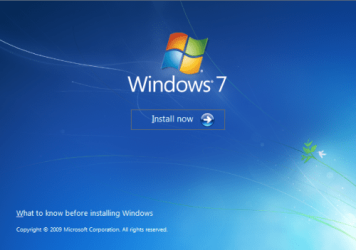
Here's How:1. Boot your computer to the Windows 7 DVD (or to a "Repair CD"). At this screen choose to install now.
25672d1251414873-mbr-restore-windows-7-master-boot-record-mbr_02.png


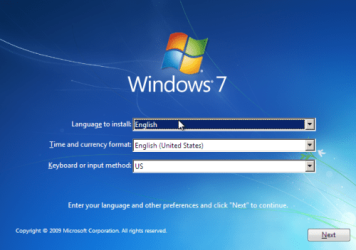
2. Select your language and click next.
25673d1251414836-mbr-restore-windows-7-master-boot-record-mbr_03.png


3. Click the button for "Use recovery tools".
25674d1251414836-mbr-restore-windows-7-master-boot-record-mbr_04.png


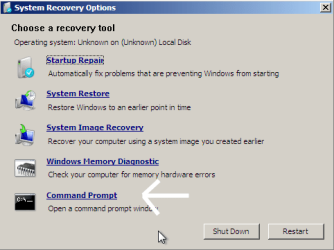
4. Then select "Command Prompt".
25675d1251414836-mbr-restore-windows-7-master-boot-record-mbr_05.png


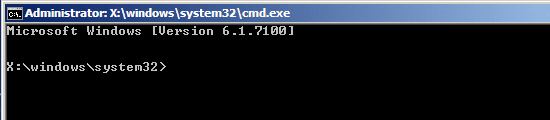
5. When open, the command prompt will look like this:
53598d1251414836-mbr-restore-windows-7-master-boot-record-mbr_16.png


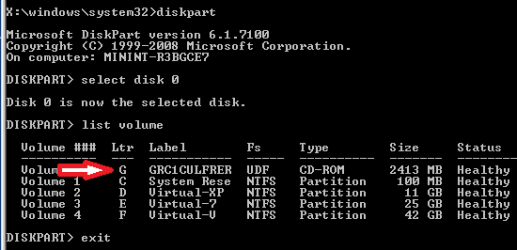
6. The command we will use, bootsect.exe, is in a folder (named boot) on the DVD.We need to know what drive letter has been assigned the DVD drive to access the folder.

Code:
Type: [B]diskpart[/B]
and press [B]Enter[/B]
 
Type: [B]select disk 0[/B] (zero)
and press [B]Enter[/B]
 
type: [B]list volume[/B]
and press [B]Enter[/B]
In this screen shot, the 7 DVD is letter: G
53599d1251414836-mbr-restore-windows-7-master-boot-record-mbr_17a.png


7. Use your DVD drive letter and

Code:
Type: [B]exit[/B]
and press [B]Enter[/B]
 
to close Diskpart
 
Type: [B]G:[/B] (use the letter of your DVD drive)
and press [B]Enter[/B]
 
Type: [B]cd boot[/B]
and press [B]Enter[/B]
 
Type: [B]dir[/B]
and press [B]Enter[/B]
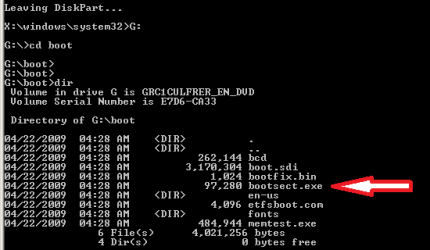
to verify that bootcect.exe is there (if you really need to)
53600d1251414836-mbr-restore-windows-7-master-boot-record-mbr_18a.png


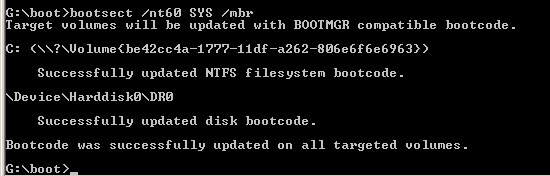
8. To restore the "bootsector code":

Code:
TYPE: [B]bootsect /nt60 SYS /mbr[/B]
and press [B]Enter[/B]
53601d1251414836-mbr-restore-windows-7-master-boot-record-mbr_19.png


NOTE: If this method fails to restore the MBR, you can try the bootrec command as it is also a tool for repairing the MBR.


9. When completed successfully,

Code:
Type: [B]exit[/B]
and press [B]Enter[/B]
This will close the command prompt window.

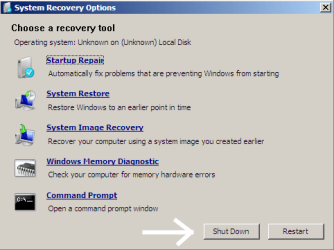
10. Now select Shut Down or Restart
25680d1251414836-mbr-restore-windows-7-master-boot-record-mbr_10.png


11. Then you can reboot your computer into Windows.
25681d1251414836-mbr-restore-windows-7-master-boot-record-mbr_12.png


Attachments

  • mbr_02.png
    mbr_02.png
    220.2 KB · Views: 1,640,315
  • mbr_03.png
    mbr_03.png
    212.8 KB · Views: 1,635,478
  • mbr_04.png
    mbr_04.png
    13.3 KB · Views: 1,633,763
  • mbr_05.png
    mbr_05.png
    25.7 KB · Views: 1,579,666
  • mbr_10.png
    mbr_10.png
    25 KB · Views: 1,576,678
  • mbr_12.png
    mbr_12.png
    18.2 KB · Views: 1,552,307
  • mbr_16.png
    mbr_16.png
    6.1 KB · Views: 1,554,623
  • mbr_17a.png
    mbr_17a.png
    13.4 KB · Views: 1,565,873
  • mbr_18a.png
    mbr_18a.png
    14.7 KB · Views: 1,620,585
  • mbr_19.png
    mbr_19.png
    5.3 KB · Views: 1,569,958
Last edited by a moderator:
Hey, a friend came over and did magicky things on screens I've never thought of and seems to think that it's the hard disk itself that broke and not anything on it. With this information, I'm not going to take the time fixing it and instead replace it with a duo or trio of hard drives, most likely 3 500 Gb drives, with RAID 5, seeing as it seems the most useful RAID available. If you have any advice on that, could you message that to me please? Thanks for your help.
-Adrien
 

My Computer

OS
7 home premium x64
CPU
i7-960 3.2 quad core
Memory
8 Gb DDR SDRAM at 1066MHz
Graphics Card(s)
ATI Radeon HD 5770 1Gb GDDR5
Monitor(s) Displays
Dell st2410
Screen Resolution
1920x1018@60hz
Hard Drives
1 tb SATA 2 @ 7200
Hey, a friend came over and did magicky things on screens I've never thought of and seems to think that it's the hard disk itself that broke and not anything on it. With this information, I'm not going to take the time fixing it and instead replace it with a duo or trio of hard drives, most likely 3 500 Gb drives, with RAID 5, seeing as it seems the most useful RAID available. If you have any advice on that, could you message that to me please? Thanks for your help.
-Adrien
I found RAID fun to play with, but Windows 7 has an excellent backup that is much simpler and less time consuming than RAID.

Cheers!
Robert
 

My Computer

OS
...
This is nice, however in step 3 i have nothing to select the box is empty.

I tried the startup repair, it says my boot record is corrupt and was unable to repair.

All I did is re-boot the machine ... and it came up with a no OS Error.

Can you install win 7 over the top of itself?
 

My Computer

Computer Manufacturer/Model Number
home built
OS
Windows 7 Ultimate 32 bit
CPU
Q9550
Motherboard
Asus P5k-e
Memory
4 Gig
Graphics Card(s)
295 GTX
Sound Card
on board
Monitor(s) Displays
dell 24:
PSU
1K watt
Case
Gigabye
Cooling
standard
This is nice, however in step 3 i have nothing to select the box is empty.

I tried the startup repair, it says my boot record is corrupt and was unable to repair.

All I did is re-boot the machine ... and it came up with a no OS Error.

Can you install win 7 over the top of itself?
Hello Zino1, and welcome to Windows Seven Forums!

There must be a reason your computer cannot find the OS. Before reinstalling, I would suggest doing some checking first. For example: does the BIOS recognize the hard drive during the bootup process? Is the hard drive with the OS the first hard drive in boot order?

Also when your Windows 7 Ultimate was installed on your home built computer, did you allow Windows to create the 100MB "System Reserved" partition? Is this partition marked "Active"? If the partition with the "Boot Files" is not the "Active" partition, Windows may not be able to see there is an OS there.

Cheers!
Robert
 

My Computer

OS
...
Robert,

Thanks for the reply,

I downloaded Data Lifeguard Diagnostic for Windows from the WD web site .. it does show the drive, but i am not sure what else the program does.
my BIOS shows the drive also ....

there is the 100MB "system reserved" present from the WD utility.

i ran the repair several times from the Win 7 CD but no change
 

My Computer

Computer Manufacturer/Model Number
home built
OS
Windows 7 Ultimate 32 bit
CPU
Q9550
Motherboard
Asus P5k-e
Memory
4 Gig
Graphics Card(s)
295 GTX
Sound Card
on board
Monitor(s) Displays
dell 24:
PSU
1K watt
Case
Gigabye
Cooling
standard
Robert,

Thanks for the reply,

I downloaded Data Lifeguard Diagnostic for Windows from the WD web site .. it does show the drive, but i am not sure what else the program does.
my BIOS shows the drive also ....

there is the 100MB "system reserved" present from the WD utility.

i ran the repair several times from the Win 7 CD but no change
"Partition Wizard" is a handy tool to have around:

Best Free Partition Manager Freeware and free partition magic for Windows 7, Windows 8, Windows Vista and Windows XP 32 bit & 64 bit. MiniTool Free Partition Manager Software Home Edition.

Burn it to a bootable CD, boot to it and see if the 100MB "System Reserved" partition is the "Active" one. If not, you can mark it "Active" with "Partition Wizard".

Data Lifeguard Diagnostic will check the hard drive for damage to the platter surface where data is stored. If enough of the surface is failing, it will warn you to save the data and replace the hard drive.

Cheers!
Robert
 

My Computer

OS
...
i just downloaded it ... running it now ...
 

My Computer

Computer Manufacturer/Model Number
home built
OS
Windows 7 Ultimate 32 bit
CPU
Q9550
Motherboard
Asus P5k-e
Memory
4 Gig
Graphics Card(s)
295 GTX
Sound Card
on board
Monitor(s) Displays
dell 24:
PSU
1K watt
Case
Gigabye
Cooling
standard
Ran Partition Wizard, it shows i have a MBR active, yet it will not boot ...no operating system error
 

My Computer

Computer Manufacturer/Model Number
home built
OS
Windows 7 Ultimate 32 bit
CPU
Q9550
Motherboard
Asus P5k-e
Memory
4 Gig
Graphics Card(s)
295 GTX
Sound Card
on board
Monitor(s) Displays
dell 24:
PSU
1K watt
Case
Gigabye
Cooling
standard
i set another one active and now i get bootmgr is missing "Press Ctrl+Alt+Del" to restart ...
not sure what will do since all it does is reboot the computer .... which i have done many times...
 

My Computer

Computer Manufacturer/Model Number
home built
OS
Windows 7 Ultimate 32 bit
CPU
Q9550
Motherboard
Asus P5k-e
Memory
4 Gig
Graphics Card(s)
295 GTX
Sound Card
on board
Monitor(s) Displays
dell 24:
PSU
1K watt
Case
Gigabye
Cooling
standard
i set another one active and now i get bootmgr is missing "Press Ctrl+Alt+Del" to restart ...
not sure what will do since all it does is reboot the computer .... which i have done many times...
First make sure the 100MB "System Reserved" partition is marked active. Then using your Windows 7 Ultimate DVD (or a Windows 7 "Repair CD" if you created one) boot to the DVD and follow the steps in this tutorial. Do not do another "Startup repair" but go to the command prompt and enter the code as described in the tutorial.

Question: How many hard drives are connected to your computer? For testing purposes, only connect the hard drive with the OS.

If all else fails, you can use "Partition Wizard" to create another partition on the hard drive and reinstall Windows 7. Hopefully, you will then also have access to your files on the original Windows 7 partition?

Cheers!
Robert
 

My Computer

OS
...
well. the 100MB partiion is on an older drive (must have been a boot drive on one of my older systems).
I took out the drives and put them in another computer and my system drive is dead.
it is still under warrenty, but it that does not help with the data.

Anyway thanks for the assistance, Partition Wizard is a good tool and i can use it.


Thanks.,

Zino
 

My Computer

Computer Manufacturer/Model Number
home built
OS
Windows 7 Ultimate 32 bit
CPU
Q9550
Motherboard
Asus P5k-e
Memory
4 Gig
Graphics Card(s)
295 GTX
Sound Card
on board
Monitor(s) Displays
dell 24:
PSU
1K watt
Case
Gigabye
Cooling
standard
well the partiion that was there was from an old drive, I took out the system drive and put in another computer and it is dead .... oh well.... thanks for the help and Partion Wizard is a good find. I can use it.

Thanks,
Zino
 

My Computer

Computer Manufacturer/Model Number
home built
OS
Windows 7 Ultimate 32 bit
CPU
Q9550
Motherboard
Asus P5k-e
Memory
4 Gig
Graphics Card(s)
295 GTX
Sound Card
on board
Monitor(s) Displays
dell 24:
PSU
1K watt
Case
Gigabye
Cooling
standard
well the partiion that was there was from an old drive, I took out the system drive and put in another computer and it is dead .... oh well.... thanks for the help and Partion Wizard is a good find. I can use it.

Thanks,
Zino
You are most welcome!

Yes, unfortunately hard drives do fail. Backups are always a good idea.

Also for future installations of Windows 7, it is helpful to only have the hard drive you wish to put the OS on connected. It much easier to add OSs to a dual boot menu afterwards for example. Having parts of your system scattered across different hard drives gets annoying.

Cheers!
Robert
 

My Computer

OS
...
I am not sure if I need to start a new thread I have an external hard drive SATA.. I can see it in the management panel but it is telling me its offline and not initialized..seems nothing I can do The MBR is corrupt or damaged...Hard disk Re-generator informs me Can I restore the MBR in any way on this drive.. If I cannot do that how can I format the damaged drive if indeed it can be formatted ..can anyone help or guide me please
 

My Computer

Computer type
PC/Desktop
Computer Manufacturer/Model Number
Compaq Presario
OS
Windows 7 64 bit
I am not sure if I need to start a new thread I have an external hard drive SATA.. I can see it in the management panel but it is telling me its offline and not initialized..seems nothing I can do The MBR is corrupt or damaged...Hard disk Re-generator informs me Can I restore the MBR in any way on this drive.. If I cannot do that how can I format the damaged drive if indeed it can be formatted ..can anyone help or guide me please
Hello artinusa!

I would suggest putting the hard drive into a computer and checking it out there, if possible. Use the Hard Drive Utilities from a manufacturer as often suggested here to see whether the hard drive is useable at all. If it can be used, then try to connect it as an external again.

If you need further assistance you could start a new thread in "Hardware and Devices".

Cheers!
Robert
 

My Computer

OS
...
Thank you

Hi

After installing a new SSD and new windows 7, I got a boot up error saying boot from cd: system disk failure please inset disc.

After trying everything including a new OS disk, system repair tools multiple times, command prompt with bootrec fix, bcd rebuild, diskpart active and reinstalling about & times. Also using easybcd etc. Your solution is the only one that worked.

I've been looking and trying solutions for a week and 2 days. So you must imagine that I have tried some crazy fixes.

I would just like to say thank you, seriously thank you man. you saved my home business. :D
 

My Computer

OS
windows 7 ultimate 64 bit
Hi

After installing a new SSD and new windows 7, I got a boot up error saying boot from cd: system disk failure please inset disc.

After trying everything including a new OS disk, system repair tools multiple times, command prompt with bootrec fix, bcd rebuild, diskpart active and reinstalling about & times. Also using easybcd etc. Your solution is the only one that worked.

I've been looking and trying solutions for a week and 2 days. So you must imagine that I have tried some crazy fixes.

I would just like to say thank you, seriously thank you man. you saved my home business. :D
Welcome to Windows Seven Forums, kyuubimk! I am so glad you found a solution that worked for you. Thanks for letting us know!

Backups are always a good idea as well!

Cheers!
Robert
 

My Computer

OS
...
I need some help fixing my main partition, which has Windows 7 x64 installed. I do not have any other OS's installed on this PC. I have two SSD's with one partition each - a primary one that contains Windows, and a secondary drive/partition for general storage. There is no 100MB reserved partition. I need some advice as to what to try next. I have a long summary of symptoms below, but I've tried other steps, as well, to no avail. Based on TestDisk, it looks like the OS partition still has all the files intact, but I that my partition table and/or MBR are messed up.

I should note that bootsect and bootrec commands from the Command Prompt (from the OS DVD > Startup Repair) have not helped... probably due to my OS partition not being recognized as formatted in NTFS.

A few days ago, I was infected with what seems to be (after some research) a TDL4 rootkit. I was doing some browsing and opened a few links, when Firefox crashed on me. I restarted Firefox (and reopened the same tabs I was on before), and then Firefox "crashed" on me again. Except that the process was still running. After a couple of seconds, I saw a stream of error messages pop up ("write errors" or something). As I closed them, some other mysterious pop-up quickly came up that I accidentally clicked on. The PC instantly restarted. Instead of booting to Windows, I was taken directly to Startup Repair.

Originally, Startup Repair would launch right away (without having the Windows DVD in my optical drive). I don't remember whether or not it saw the OS partition - I believe not.

I think the root of my problem is that I tried using TestDisk (from a LiveCD) too early and unsafely. I tried a couple of the available options which I thought seemed safe enough, after which I could only get to the Startup Repair tool from the Windows DVD. I probably messed around too much with an already messed-up Boot Manager / MBR.

After doing some reading online, I started looking for a small partition that wasn't previously available. I didn't see it on the hard-drive where Windows is installed, so I thought I was free of rootkits. Then, I noticed it in GParted on my second hard-drive - a ~2MB hidden partition with the "boot" flag enabled. I promptly deleted it, but it didn't solve my problems.

Attempting to start Windows from my SSD gives me a "Windows failed to start" error:
Status: 0xc000000e
Info: The boot selection failed because a required device is inaccessible.

Alternatively, especially after trying to make some changes, I may get a "BOOTMGR is missing" error, instead. After such errors, running the automatic System Restore from the Windows DVD gets me back to the "Windows failed to start" error, after it supposedly does repairs to my partition table.

Currently, when running Startup Repair from the Windows DVD:
1st step shows Windows installed on an unknown partition of 0 MB.
Running the automatic startup repair on the following step gives me a "Startup Repair cannot repair this computer automatically" error. Problem details include:
"Problem Event Name: StartupRepairOffline
Problem Signature 01: 6.1.7600.16385
...
Problem Signature 07: CorruptBootConfigData
..."

Attempting to run (automatic) System Restore gives me the following error:
"There was an unexpected error:
The parameter is incorrect. (0x80070057)
Please close System Restore and try again."

Based on the Command Prompt, C: is assigned to the only partition on my secondary drive.
D: is assigned to the actual OS drive, but attempting to access it gives me this error:
"The file or directory is corrupted and unreadable."

Using "diskpart" from the Command Prompt, I see that the D partition looks like it's formatted as "RAW" and does not have a Label, although the Status is shown as Healthy.

Based on GParted (run from a LiveCD), both of my partitions (1 on each SSD) are showing up, formatted as NTFS and with the "boot" (active) flags enabled. There is nothing suspicious in TestDisk, either, and it shows the partition as healthy and formatted as NTFS.
 

My Computer

OS
Windows 7 Professional x64
Hard Drives
Crucial M4 256GB SSD
Intel 600GB SSD
Hello shleepy, and welcome to Windows Seven Forums.

Your description is very complete and very much appreciated. It does raise some questions for me, but first be assured the techs here will try to assist you as best as we can with your issues. Also, if you could capture a screenshot of the GParted drive map and post it, that may be of help to us.

My first recommendation would be to disconnect all drives but the one with the OS. Then reinstall Windows Seven and apply your backup to restore your computer because this would take much less time, possibly, than trying to figure out what has happened. Hopefully, when you reconnect the second drive, the data will be available to you.

If that isn't going to work for you, I must make some guesses as I am not there. First, if you had both hard drives installed when you installed Windows Seven, then the 2MB hidden partition you identified on the "second hard drive" may have been the "hidden system reserved partition" needed to boot to Windows. Since the repair utilities are copied into that partition and you were unable to boot to startup repair after deleting the partition, my guess is you deleted the boot code from your computer when you deleted the partition. When Windows installs, it puts the "system reserved" partition on the "0" drive based on what the BIOS reports during bootup, and not on what hard drive you choose to be the OS drive. It is a good practice then to only have one hard drive connected when installing Windows Seven to maintain control of what happens.

You might be able to restore your boot code if you were to have only the Windows Seven hard drive connected, verify the Windows Seven partition is marked active, and perform the "Startup Repair' at least 2 times and perhaps more. This would put the boot code in the Windows Seven partition and eliminate the need for the "system reserved" partition and possibly restore bootup. Then when you reconnect the second hard drive, make sure there are no partitions on it marked "Active" as you only want one bootable partition on your computer as you only have one OS. (I have questions about your statement: "both of my partitions (1 on each SSD) are showing up, formatted as NTFS and with the "boot" (active) flags enabled" as the hard drive with the "data partition" does not need to be "active" or bootable. This may have been confusing your repair attempts.)

If none of these steps restore booting to Windows and you wish to persue the rootkit issue, I recommend moving this post to the "System Security" area for more help on that. Please let me know and I can take care of that for you.

Cheers!
Robert
 

My Computer

OS
...
Thanks, Robert.
I have a small but significant update... After using an EaseUS live CD, I managed to get my "Windows partition" visible in the System Repair tool (i.e., I no longer see it as "RAW" or corrupt). The EaseUS live CD actually allowed me to run chkdsk on that partition and fixed some corrupt files. So, in System Repair the appropriate drive is now visible as C, while the secondary drive is D.

That said, I'm still not having any luck with bootrec or bootsect. Without the Windows DVD, attempting to boot from my SSD's gives me the usual BOOTMGR IS MISSING error. (Automatic) Startup Repair seems to do the same thing, regardless of how many times in a row I let it run, but does not seem to fix anything.

I should mention that running most of the bootrec commands results an an "Element not found" error. Specifically:
/fixmbr results in "The operation completed successfully."
/fixboot results in "Element not found."
/rebuildbcd does a scan that correctly identifies a Windows installation on C:\Windows. But pressing "Yes" to add installation to boot list results in "Element not found."

Oh, and you seem to be right about the two SSD's being plugged in at time of installation probably messing something up. I noticed that C: is missing \boot, but that it is present on D:, which has never had a Windows installation.
I do think that the ~2MB partition I deleted was something created by the rootkit, though... I never noticed it before, and it was not the usual 100MB size.
Also, I cannot get rid of the "Active" flags on either C: or D:. If I get rid of the flag in GParted, it returns when I restart the computer. I thought that one partition had to be active per physical drive, anyway, and that it doesn't necessarily indicate that an OS will boot from there - just that the partition takes priority.... Am I wrong?

I'll try a couple more things before giving up and reinstalling Windows. However, I do feel better now that C: partition files are accessible, and I can copy any of the things that I did not back up to an external drive. Any last minute suggestions are very welcome. :)
 

My Computer

OS
Windows 7 Professional x64
Hard Drives
Crucial M4 256GB SSD
Intel 600GB SSD
Back
Top