
How to Restore the Windows 7 MBR (Master Boot Record)
Information
If you have been dual booting with Linux, then you probably know one of the Linux boot managers like Grub or LILO has been installed in the MBR of your hard drive. What can you do when you no longer want Linux on that hard drive? This tutorial will show you how to use your 7 DVD and BOOTSECT.EXE to restore the "bootsector code" of the MBR and allow you to begin booting to Windows 7 again.
Tip
You can use this method to update the bootsector code for Windows 7, Vista, XP, 2000 or switch between Bootmgr and NTLDR. Just check the Microsoft TechNet site for the correct command.
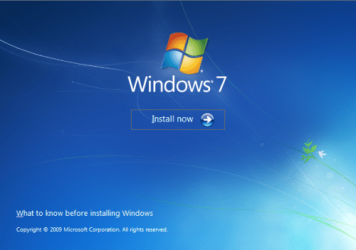
Here's How:1. Boot your computer to the Windows 7 DVD (or to a "Repair CD"). At this screen choose to install now.

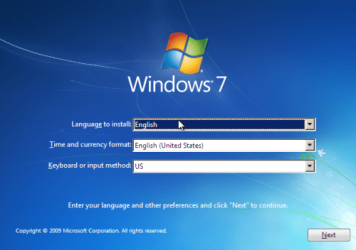
2. Select your language and click next.

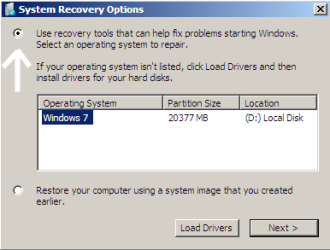
3. Click the button for "Use recovery tools".

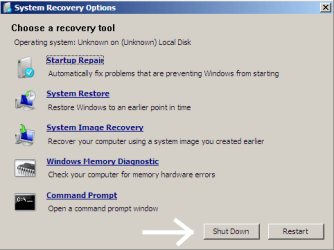
4. Then select "Command Prompt".

5. When open, the command prompt will look like this:

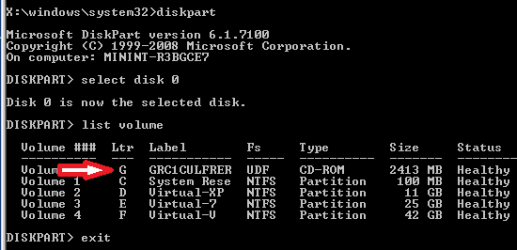
6. The command we will use, bootsect.exe, is in a folder (named boot) on the DVD.We need to know what drive letter has been assigned the DVD drive to access the folder.
Code:
Type: [B]diskpart[/B]
and press [B]Enter[/B]

Type: [B]select disk 0[/B] (zero)
and press [B]Enter[/B]

type: [B]list volume[/B]
and press [B]Enter[/B]
7. Use your DVD drive letter and
Code:
Type: [B]exit[/B]
and press [B]Enter[/B]

to close Diskpart

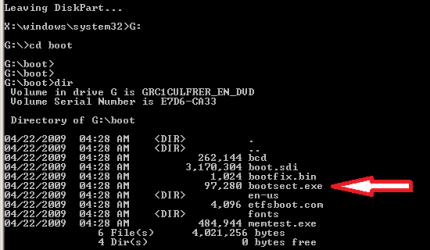
Type: [B]G:[/B] (use the letter of your DVD drive)
and press [B]Enter[/B]

Type: [B]cd boot[/B]
and press [B]Enter[/B]

Type: [B]dir[/B]
and press [B]Enter[/B]
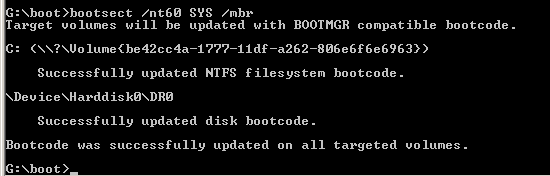
8. To restore the "bootsector code":
Code:
TYPE: [B]bootsect /nt60 SYS /mbr[/B]
and press [B]Enter[/B]
NOTE: If this method fails to restore the MBR, you can try the bootrec command as it is also a tool for repairing the MBR.
9. When completed successfully,
Code:
Type: [B]exit[/B]
and press [B]Enter[/B]10. Now select Shut Down or Restart

11. Then you can reboot your computer into Windows.

Attachments
-
 mbr_02.png53.7 KB · Views: 1,640,316
 -
 mbr_03.png54.3 KB · Views: 1,635,478
 -
 mbr_04.png6.9 KB · Views: 1,633,763
 -
 mbr_05.png10.5 KB · Views: 1,579,666
 -
 mbr_10.png10.4 KB · Views: 1,576,678
 -
 mbr_12.png5.3 KB · Views: 1,552,307
 -
 mbr_16.png3.3 KB · Views: 1,554,623
 -
 mbr_17a.png3.8 KB · Views: 1,565,873
 -
 mbr_18a.png3.7 KB · Views: 1,620,585
 -
 mbr_19.png2.4 KB · Views: 1,569,958
Last edited by a moderator:


