Memory - Set Maximum Amount Used by Windows

How to Set Maximum Memory to be Used by Windows 7 and Windows 8


   Information
This will show you how to specify the maximum amount of physical memory (RAM) to be used by Windows to simulate a low memory configuration by using less RAM, or to make sure that you are using all of your installed RAM.

Windows uses all of your installed RAM memory by default.

You must be logged in as an administrator to be able to do this tutorial.

   Note
32-bit (x86) Windows 7/8 Maximum RAM Limit
  • All editions: 4GB
64-bit (x64) Windows 7 Maximum RAM Limit per Edition
  • Home Basic: 8GB
  • Home Premium: 16GB
  • Professional: 192GB
  • Enterprise: 192GB
  • Ultimate: 192GB
64-bit (x64) Windows 8 and 8.1 Maximum RAM Limit per Edition

  • (core): 128GB
  • Pro: 512GB
  • Enterprise: 512GB
   Warning

  • If you have a integrated/onboard graphics chip on your motherboard and are using a graphics card instead, then double check your BIOS settings to make sure that you do not have any memory allocated to the integrated/onboard graphics chip (ex:hardware reserved) so that it will be used by Windows instead.
  • If you are using a integrated/onboard graphics chip on your motherboard to display your monitor from, then part of your memory (RAM) will be allocated to it as set in the BIOS.
  • Double check to see if you have a memory mapping option in your BIOS settings. If you do, enable it.

CONTENTS:

  • Option One: Set Maximum Memory for Windows in System Configuration (msconfig)
  • Option Two: Set Maximum Memory for Windows in Command Prompt in Windows
  • Option Three: Set Maximum Memory for Windows in Command Prompt at Boot


OPTION ONE

Set Maximum Memory for Windows in System Configuration (msconfig)

1. Press the Windows + R keys to open the Run dialog, type msconfig, and click/tap on OK.

2. If prompted by UAC, then click/tap on Yes.

3. Under the Boot tab in System Configuration, click/tap on the Advanced options button, and do step 4 or step 5 below for what you would like to do. (see screenshot below)Step1.jpg4. To Have Windows Use All Installed Memory
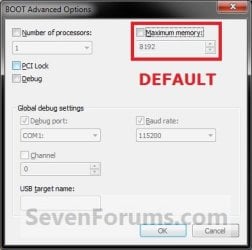
NOTE: This is the default setting.A) Uncheck the Maximum memory box, click/tap on OK, and go to step 6 below. (see screenshot below)
NOTE: If the box is not checked, then it does not matter what the selected number is since Windows will use all available RAM by default and ignore whatever value is in the box underneath.Default.jpg5. To Have Windows Use a Specified Maximum Amount of Memory
NOTE: Only when the box is checked, can you specify how much installed RAM you want to allow Windows to be able to use in the drop down box. A) Check the Maximum memory box, then type in how many MB of your installed Memory that you want Windows to only be able to use up to, click/tap on OK, and go to step 6 below. (see screenshot below)
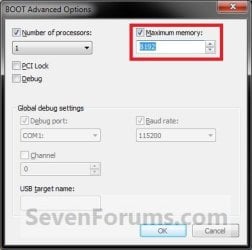
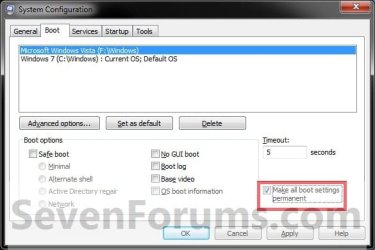
Set_Max_Memory.jpg6. Check the Make all boot settings permanent box, and click/tap on OK. (see screenshot below)
NOTE: You will still be able to come back and make changes again if you like.Step3.jpg
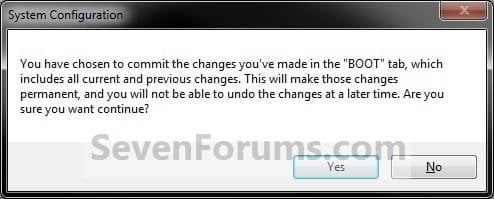
7. Click/tap on Yes. (see screenshot below)
NOTE: You will still be able to come back and make changes again if you like.Step4.jpg
8. Click/tap on the Restart button. (see screenshot below)
WARNING: This will restart the computer immediately. Make sure you save and close anything open that you do not want to lose first.

   Tip
If you checked the Don't show this message again box and would like to restore this Restart box to display again, then see: How to Restore the System Configuration Restart Prompt in Vista or Windows 7
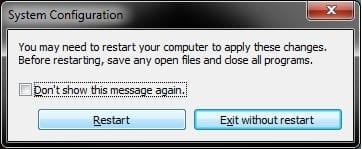
Step5.jpg
9. When Windows is finished restarting, it will now be using only the maximum amount of memory that you specified.
NOTE: You can look in Task Manager (CTRL+SHIFT+ESC) to confirm this amount of memory.Task_Manager.jpg


OPTION TWO

Set Maximum Memory for Windows in Command Prompt in Windows


1. Open an elevated command prompt in Windows 7 or Windows 8.

2. Do step 3 or step 4 below for what you would like to do.

3. To Have Windows Use a Specified Maximum Amount of MemoryA) In the elevated command prompt, type the command below, press Enter, and go to step 5 below. (see screenshot below) bcdedit /set {current} truncatememory bytes
   Note
Substitute bytes in the command above with how many actual bytes of maximum memory you want Windows to be able to use.

1073741824 bytes = 1 GB

(1073741824 x GB = bytes you type in command)


For example: If I wanted to set Windows to use 2 GB of maximum memory, then 1073741824 bytes x 2 GB = 2147483648. I would type this command below exactly.

bcdedit /set {current} truncatememory 2147483648
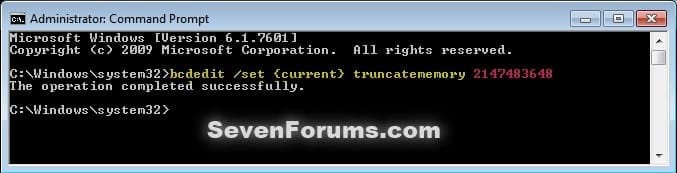


bcedit_truncatememory.jpg4. To Have Windows Use All Installed Memory
NOTE: This is the default setting.A) In the elevated command prompt, copy and paste the command below, press Enter, and go to step 5 below. (see screenshot below)

bcdedit /deletevalue {current} truncatememory
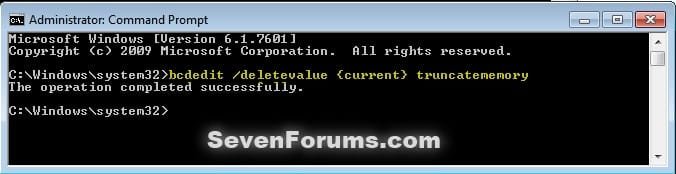

bcedit_deletevalue_truncatememory.jpg5. Restart the computer to apply.


OPTION THREE

Set Maximum Memory for Windows in Command Prompt at Boot


1. Open a command prompt at boot for Windows 7 or Windows 8.

2. Do step 3 or step 4 below for what you would like to do.

3. To Have Windows Use a Specified Maximum Amount of MemoryA) In the command prompt, type the command below, press Enter, and go to step 5 below. (see screenshot below)

bcdedit /set {default} truncatememory bytes


   Note
Substitute bytes in the command above with how many actual bytes of maximum memory you want Windows to be able to use.

1073741824 bytes = 1 GB

(1073741824 x GB = bytes you type in command)


For example: If I wanted to set Windows to use 2 GB of maximum memory, then 1073741824 bytes x 2 GB = 2147483648. I would type this command below exactly.

bcdedit /set {default} truncatememory 2147483648
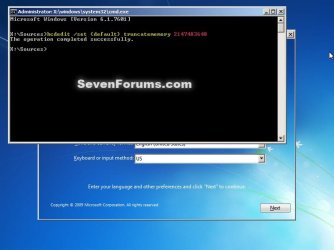


boot_bcedit_truncatememory.jpg
4. To Have Windows Use All Installed Memory
NOTE: This is the default setting.A) In the command prompt, type the command below, press Enter, and go to step 5 below. (see screenshot below)

bcdedit /deletevalue {default} truncatememory
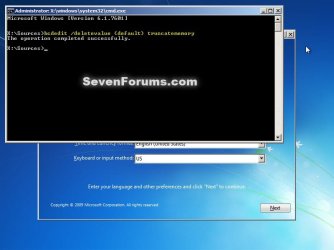

boot_bcedit_deletevalue_truncatememory.jpg
5. Restart the computer to apply.


That's it,
Shawn


Last edited:
followed step 1-4, and 6-8 precisely, all seems to take ok, but after system reboot:
Task Manager shows Total 4094MB.
Control Panel/System shows:
Windows7Professional, ServicePack1
Installed memory: 8.00GB(4.00GB useable)
System type: 64-bit Operating system

any ideas why it doesnt work? Works ok on another 64bit system I have.
Resource Monitor/Memory shows:
Hardware Reserved: 4098MB
In Use: 1259MB
Modified: 108MB

Standby: 1521MB
Free: 1207MB
Available: 2727MB
Cached: 1629MB
Total: 4094MB
Installed: 8192MB

No Integrated Graphics.
Bios is Version AMI 1208, 07/30/10
Bios under Main/ System Memory states:
Usable Size: 4095MB
MB: Asus P7P55D-ELX
Intel i7
Cant find anything in Bios to change Memory Size??
 
Last edited:

My Computer

Computer Manufacturer/Model Number
AsusP7P55D-E,
OS
Win7Pro64SP1
CPU
Intel Core i7
Motherboard
AsusP7P55D-E,
Memory
8gb
Graphics Card(s)
Nvidia geforceGTS250
Sound Card
VIA VTI708S
Monitor(s) Displays
Dual Samsung205BW
Hard Drives
WDC 10EARS ATA
PSU
500W
Case
tower
Cooling
Standard Intel
Hello Harald,

Double check the items in the red warning box at the top of the tutorial to see if any may apply to you in your BIOS settings.
 

My Computer

Computer type
PC/Desktop
Computer Manufacturer/Model Number
Self built custom
OS
64-bit Windows 11 Pro for Workstations
CPU
Intel i7-8700K OC'd to 5 GHz
Motherboard
ASUS ROG Maximus XI Formula Z390
Memory
64 GB (4x16GB) G.SKILL TridentZ RGB DDR4 3600 MHz
Graphics Card(s)
ASUS ROG-STRIX-GTX1080TI-O11G-GAMING
Sound Card
Integrated
Monitor(s) Displays
2 x Samsung Odyssey G7 27"
Screen Resolution
2560x1440
Hard Drives
1TB Samsung 990 PRO M.2,
4TB Samsung 990 PRO PRO M.2,
TerraMaster F8 SSD Plus NAS
PSU
Seasonic Prime Titanium 850W
Case
Thermaltake Core P3
Cooling
Corsair Hydro H115i
Keyboard
Logitech wireless K800
Mouse
Logitech MX Master 4
Internet Speed
2 Gb/s Download and 100 Mb/s Upload
Antivirus
Malwarebyte Anti-Malware Premium
Browser
Google Chrome
Other Info
Logitech Z625 speaker system,
Logitech BRIO 4K Pro webcam,
HP Color LaserJet Pro MFP M477fdn,
APC SMART-UPS RT 1000 XL - SURT1000XLI,
Galaxy S23 Plus phone
Solution: on MB: Asus P7P55D-ELX
Turned out to be a memory/Bios Setting issue:
8GB(4x2GB)installed, Bios and Win7_64 shows only 4GB, 4GB hardware reserved
Finally got it to work with 8GB:
What I did:
Power off
Clear CMOS: Short CLRT pins on MB, short pin2,3:, (Not just reload defaults in BIOS), and back to Normal: short Pin1,2
Press MemOK, a Asus MB feature that sets Memory timing parameters automatically
Power on
Delete, to get into BIOS:
Now BIOS/Main/System Info: Usable Size: 8191MB (and Win7_64 reports 8GB)
Note: unless Bios shows correct size, Windows wont see it.(even though CPU-Z will report it).
I had tried all else without luck. Key was to hardware clear CMOS on MB.
 

My Computer

Computer Manufacturer/Model Number
AsusP7P55D-E,
OS
Win7Pro64SP1
CPU
Intel Core i7
Motherboard
AsusP7P55D-E,
Memory
8gb
Graphics Card(s)
Nvidia geforceGTS250
Sound Card
VIA VTI708S
Monitor(s) Displays
Dual Samsung205BW
Hard Drives
WDC 10EARS ATA
PSU
500W
Case
tower
Cooling
Standard Intel
That's great news Harald. I'm happy to hear that you got it sorted. Thank you for posting back with your results and solution. :)
 

My Computer

Computer type
PC/Desktop
Computer Manufacturer/Model Number
Self built custom
OS
64-bit Windows 11 Pro for Workstations
CPU
Intel i7-8700K OC'd to 5 GHz
Motherboard
ASUS ROG Maximus XI Formula Z390
Memory
64 GB (4x16GB) G.SKILL TridentZ RGB DDR4 3600 MHz
Graphics Card(s)
ASUS ROG-STRIX-GTX1080TI-O11G-GAMING
Sound Card
Integrated
Monitor(s) Displays
2 x Samsung Odyssey G7 27"
Screen Resolution
2560x1440
Hard Drives
1TB Samsung 990 PRO M.2,
4TB Samsung 990 PRO PRO M.2,
TerraMaster F8 SSD Plus NAS
PSU
Seasonic Prime Titanium 850W
Case
Thermaltake Core P3
Cooling
Corsair Hydro H115i
Keyboard
Logitech wireless K800
Mouse
Logitech MX Master 4
Internet Speed
2 Gb/s Download and 100 Mb/s Upload
Antivirus
Malwarebyte Anti-Malware Premium
Browser
Google Chrome
Other Info
Logitech Z625 speaker system,
Logitech BRIO 4K Pro webcam,
HP Color LaserJet Pro MFP M477fdn,
APC SMART-UPS RT 1000 XL - SURT1000XLI,
Galaxy S23 Plus phone
MSConfig will not save memory settings

Hi,

I check the box and set the amount of ram to 4096 then make changes permanent and reboot and it shows 0 under max memory?

Is there a string that can be added to the environmental variables that will save this setting? I thought I saw it and the number of cores in there before?

Thank You
 

My Computer

Computer type
PC/Desktop
Computer Manufacturer/Model Number
Master Control (25 plus year old custom build)
OS
Windows 7 Premium 64 Bit
CPU
Opteron 185
Motherboard
DFI Lanparty N4 Ultra-d
Memory
4 gig OCZ High Performance Dual Channel @ 500 Mhz
Graphics Card(s)
ATI Radeon HD 5450 (Direct X11)
Sound Card
Creative SB Audigy Audio 2 ZS
Monitor(s) Displays
Dell 2208WFP (Digital)
Screen Resolution
1680 x 1050
Hard Drives
Plextor M3 Pro 128 Gb Sata 6 SSD (Main)

Western Digital Blue 320 Gb IDE 7200 RPM Internal Daily (Backup Drive)

Western Digital 2 TB RE4 SATA 3 Gb/s 7200 RPM 64 MB Cache Enterprise Hard Drive (External Data & Backup Drive).
PSU
OCZ GameXStream 850 Watt PSU.
Case
Antec Performance Series
Cooling
Working on it.
Keyboard
Saitek Eclipse II
Mouse
Kensington SlimBlade
Internet Speed
50 Gb
Antivirus
Microsoft Security Essentials
Browser
From Netscape to Internet Explorer.
Other Info
Got a mix of old and new hardware. Sound card hooked up to a 250 watt per channel Harman Kardon Amp to a pair of Dak 5 way old school acoustically suspended speakers.
Hello Rockit,

By default, that box should be left unchecked unless you wanted to limit how much RAM is being used for testing purposes only. When the box is left uncheck, Windows will use all available RAM by default.

Hope this helps, :)

Shawn
 

My Computer

Computer type
PC/Desktop
Computer Manufacturer/Model Number
Self built custom
OS
64-bit Windows 11 Pro for Workstations
CPU
Intel i7-8700K OC'd to 5 GHz
Motherboard
ASUS ROG Maximus XI Formula Z390
Memory
64 GB (4x16GB) G.SKILL TridentZ RGB DDR4 3600 MHz
Graphics Card(s)
ASUS ROG-STRIX-GTX1080TI-O11G-GAMING
Sound Card
Integrated
Monitor(s) Displays
2 x Samsung Odyssey G7 27"
Screen Resolution
2560x1440
Hard Drives
1TB Samsung 990 PRO M.2,
4TB Samsung 990 PRO PRO M.2,
TerraMaster F8 SSD Plus NAS
PSU
Seasonic Prime Titanium 850W
Case
Thermaltake Core P3
Cooling
Corsair Hydro H115i
Keyboard
Logitech wireless K800
Mouse
Logitech MX Master 4
Internet Speed
2 Gb/s Download and 100 Mb/s Upload
Antivirus
Malwarebyte Anti-Malware Premium
Browser
Google Chrome
Other Info
Logitech Z625 speaker system,
Logitech BRIO 4K Pro webcam,
HP Color LaserJet Pro MFP M477fdn,
APC SMART-UPS RT 1000 XL - SURT1000XLI,
Galaxy S23 Plus phone
Thanks
 

My Computer

Computer type
PC/Desktop
Computer Manufacturer/Model Number
Master Control (25 plus year old custom build)
OS
Windows 7 Premium 64 Bit
CPU
Opteron 185
Motherboard
DFI Lanparty N4 Ultra-d
Memory
4 gig OCZ High Performance Dual Channel @ 500 Mhz
Graphics Card(s)
ATI Radeon HD 5450 (Direct X11)
Sound Card
Creative SB Audigy Audio 2 ZS
Monitor(s) Displays
Dell 2208WFP (Digital)
Screen Resolution
1680 x 1050
Hard Drives
Plextor M3 Pro 128 Gb Sata 6 SSD (Main)

Western Digital Blue 320 Gb IDE 7200 RPM Internal Daily (Backup Drive)

Western Digital 2 TB RE4 SATA 3 Gb/s 7200 RPM 64 MB Cache Enterprise Hard Drive (External Data & Backup Drive).
PSU
OCZ GameXStream 850 Watt PSU.
Case
Antec Performance Series
Cooling
Working on it.
Keyboard
Saitek Eclipse II
Mouse
Kensington SlimBlade
Internet Speed
50 Gb
Antivirus
Microsoft Security Essentials
Browser
From Netscape to Internet Explorer.
Other Info
Got a mix of old and new hardware. Sound card hooked up to a 250 watt per channel Harman Kardon Amp to a pair of Dak 5 way old school acoustically suspended speakers.
You're most welcome Rockit. :)
 

My Computer

Computer type
PC/Desktop
Computer Manufacturer/Model Number
Self built custom
OS
64-bit Windows 11 Pro for Workstations
CPU
Intel i7-8700K OC'd to 5 GHz
Motherboard
ASUS ROG Maximus XI Formula Z390
Memory
64 GB (4x16GB) G.SKILL TridentZ RGB DDR4 3600 MHz
Graphics Card(s)
ASUS ROG-STRIX-GTX1080TI-O11G-GAMING
Sound Card
Integrated
Monitor(s) Displays
2 x Samsung Odyssey G7 27"
Screen Resolution
2560x1440
Hard Drives
1TB Samsung 990 PRO M.2,
4TB Samsung 990 PRO PRO M.2,
TerraMaster F8 SSD Plus NAS
PSU
Seasonic Prime Titanium 850W
Case
Thermaltake Core P3
Cooling
Corsair Hydro H115i
Keyboard
Logitech wireless K800
Mouse
Logitech MX Master 4
Internet Speed
2 Gb/s Download and 100 Mb/s Upload
Antivirus
Malwarebyte Anti-Malware Premium
Browser
Google Chrome
Other Info
Logitech Z625 speaker system,
Logitech BRIO 4K Pro webcam,
HP Color LaserJet Pro MFP M477fdn,
APC SMART-UPS RT 1000 XL - SURT1000XLI,
Galaxy S23 Plus phone
Hi there, realize it's a while since someone asked anything here but hopefully I'll get some help! My problem is that I did set the maximum memory too low and now the computer wont boot properly, it powers on but then nothing. Is there a way to reset this to default settings by doing something with the hardware since I can't actually start the computer? I tried removing the battery for bios for 5 minutes and then putting it back but didn't work.

Really appreaciate any help I can get!
 

My Computer

Computer type
PC/Desktop
OS
windows 7 Home Premium x64
Hello xendas, and welcome to Seven Forums.

What did you set it to?

You should be able to do a system restore at boot to select a restore point (if available) dated before this to undo it and hopefully help. :)
 

My Computer

Computer type
PC/Desktop
Computer Manufacturer/Model Number
Self built custom
OS
64-bit Windows 11 Pro for Workstations
CPU
Intel i7-8700K OC'd to 5 GHz
Motherboard
ASUS ROG Maximus XI Formula Z390
Memory
64 GB (4x16GB) G.SKILL TridentZ RGB DDR4 3600 MHz
Graphics Card(s)
ASUS ROG-STRIX-GTX1080TI-O11G-GAMING
Sound Card
Integrated
Monitor(s) Displays
2 x Samsung Odyssey G7 27"
Screen Resolution
2560x1440
Hard Drives
1TB Samsung 990 PRO M.2,
4TB Samsung 990 PRO PRO M.2,
TerraMaster F8 SSD Plus NAS
PSU
Seasonic Prime Titanium 850W
Case
Thermaltake Core P3
Cooling
Corsair Hydro H115i
Keyboard
Logitech wireless K800
Mouse
Logitech MX Master 4
Internet Speed
2 Gb/s Download and 100 Mb/s Upload
Antivirus
Malwarebyte Anti-Malware Premium
Browser
Google Chrome
Other Info
Logitech Z625 speaker system,
Logitech BRIO 4K Pro webcam,
HP Color LaserJet Pro MFP M477fdn,
APC SMART-UPS RT 1000 XL - SURT1000XLI,
Galaxy S23 Plus phone
256 is the value i set it too, the computer wont show anything on the screen and I've tried to start it with my windows 7 cd inside but doesn't help. The computer is acting like it starts to boot then fails and starts all over again. The fans spin much faster when i start it for a few seconds (allways has) then they calm down and the computer tries to boot, then the fans goes at it again like it tries to start over.
 

My Computer

Computer type
PC/Desktop
OS
windows 7 Home Premium x64
Sounds like you may have some other issue. What you set shouldn't matter outside of Windows at boot. That setting only applies to Windows itself.

Are you able to press the key at boot to enter the boot menu to select to temporarily boot from your Windows 7 installation DVD instead of waiting for the "Press a key to boot from CD/DVD" message to do so?
 

My Computer

Computer type
PC/Desktop
Computer Manufacturer/Model Number
Self built custom
OS
64-bit Windows 11 Pro for Workstations
CPU
Intel i7-8700K OC'd to 5 GHz
Motherboard
ASUS ROG Maximus XI Formula Z390
Memory
64 GB (4x16GB) G.SKILL TridentZ RGB DDR4 3600 MHz
Graphics Card(s)
ASUS ROG-STRIX-GTX1080TI-O11G-GAMING
Sound Card
Integrated
Monitor(s) Displays
2 x Samsung Odyssey G7 27"
Screen Resolution
2560x1440
Hard Drives
1TB Samsung 990 PRO M.2,
4TB Samsung 990 PRO PRO M.2,
TerraMaster F8 SSD Plus NAS
PSU
Seasonic Prime Titanium 850W
Case
Thermaltake Core P3
Cooling
Corsair Hydro H115i
Keyboard
Logitech wireless K800
Mouse
Logitech MX Master 4
Internet Speed
2 Gb/s Download and 100 Mb/s Upload
Antivirus
Malwarebyte Anti-Malware Premium
Browser
Google Chrome
Other Info
Logitech Z625 speaker system,
Logitech BRIO 4K Pro webcam,
HP Color LaserJet Pro MFP M477fdn,
APC SMART-UPS RT 1000 XL - SURT1000XLI,
Galaxy S23 Plus phone
Well I did play around with some other values on the computer and it restarted just fine, but when i set this value and it wanted to restart to apply it thats when it didn't start properly. I dont see anything on the screen and I've tried to hold f1, f2 etc when i start it but nothing happens. What key am I supposed to hold to get to the boot menu?
 

My Computer

Computer type
PC/Desktop
OS
windows 7 Home Premium x64
The key to press for the boot menu depends on the brand and model of your motherboard.

Normally, it will say briefly at boot what keys to press on the same screen as it does for "Setup" or "BIOS" for something like "Boot Menu" or "Boot Options".
 

My Computer

Computer type
PC/Desktop
Computer Manufacturer/Model Number
Self built custom
OS
64-bit Windows 11 Pro for Workstations
CPU
Intel i7-8700K OC'd to 5 GHz
Motherboard
ASUS ROG Maximus XI Formula Z390
Memory
64 GB (4x16GB) G.SKILL TridentZ RGB DDR4 3600 MHz
Graphics Card(s)
ASUS ROG-STRIX-GTX1080TI-O11G-GAMING
Sound Card
Integrated
Monitor(s) Displays
2 x Samsung Odyssey G7 27"
Screen Resolution
2560x1440
Hard Drives
1TB Samsung 990 PRO M.2,
4TB Samsung 990 PRO PRO M.2,
TerraMaster F8 SSD Plus NAS
PSU
Seasonic Prime Titanium 850W
Case
Thermaltake Core P3
Cooling
Corsair Hydro H115i
Keyboard
Logitech wireless K800
Mouse
Logitech MX Master 4
Internet Speed
2 Gb/s Download and 100 Mb/s Upload
Antivirus
Malwarebyte Anti-Malware Premium
Browser
Google Chrome
Other Info
Logitech Z625 speaker system,
Logitech BRIO 4K Pro webcam,
HP Color LaserJet Pro MFP M477fdn,
APC SMART-UPS RT 1000 XL - SURT1000XLI,
Galaxy S23 Plus phone
Ye well since nothing appears on the screen it's kinda hard to know if it wants me to press anything at all :)
 

My Computer

Computer type
PC/Desktop
OS
windows 7 Home Premium x64
!!! I reseated my graphicscard and then I saw what button to press, pressed it and I'm now able to start with the cd! :D Thx for the help!
 

My Computer

Computer type
PC/Desktop
OS
windows 7 Home Premium x64
Great news. :party:
 

My Computer

Computer type
PC/Desktop
Computer Manufacturer/Model Number
Self built custom
OS
64-bit Windows 11 Pro for Workstations
CPU
Intel i7-8700K OC'd to 5 GHz
Motherboard
ASUS ROG Maximus XI Formula Z390
Memory
64 GB (4x16GB) G.SKILL TridentZ RGB DDR4 3600 MHz
Graphics Card(s)
ASUS ROG-STRIX-GTX1080TI-O11G-GAMING
Sound Card
Integrated
Monitor(s) Displays
2 x Samsung Odyssey G7 27"
Screen Resolution
2560x1440
Hard Drives
1TB Samsung 990 PRO M.2,
4TB Samsung 990 PRO PRO M.2,
TerraMaster F8 SSD Plus NAS
PSU
Seasonic Prime Titanium 850W
Case
Thermaltake Core P3
Cooling
Corsair Hydro H115i
Keyboard
Logitech wireless K800
Mouse
Logitech MX Master 4
Internet Speed
2 Gb/s Download and 100 Mb/s Upload
Antivirus
Malwarebyte Anti-Malware Premium
Browser
Google Chrome
Other Info
Logitech Z625 speaker system,
Logitech BRIO 4K Pro webcam,
HP Color LaserJet Pro MFP M477fdn,
APC SMART-UPS RT 1000 XL - SURT1000XLI,
Galaxy S23 Plus phone
I have done everything you said to the T but it still shows that 8GB of my 16GB are usable, i have looked everywhere but i cant find a solution. when i first built this PC it was able to use all 16GB but as of late it is restricting me to only 8GB. i am a video editor and i need that other 8GB back. Is there a way you can help.
Pic 1 Pic 2 Pic 3
 

My Computer

Computer type
PC/Desktop
OS
Arkansas
Hello Ben, and welcome to Seven Forums.

Here's a few things to check for now. :)

Do you have a virtual machine running? If so, then whatever you set for virtual memory will be allocated from your RAM for the virtual machine.

If your motherboard has an integrated graphics chip included, then double check your BIOS settings to see how much memory (RAM) is set to be allocated for it. If you have a graphics card, then make sure the integrated graphics is disabled with zero memory allocated for it.

Did you overclock your RAM? If so, test it at default levels to see what's available afterwards.
 

My Computer

Computer type
PC/Desktop
Computer Manufacturer/Model Number
Self built custom
OS
64-bit Windows 11 Pro for Workstations
CPU
Intel i7-8700K OC'd to 5 GHz
Motherboard
ASUS ROG Maximus XI Formula Z390
Memory
64 GB (4x16GB) G.SKILL TridentZ RGB DDR4 3600 MHz
Graphics Card(s)
ASUS ROG-STRIX-GTX1080TI-O11G-GAMING
Sound Card
Integrated
Monitor(s) Displays
2 x Samsung Odyssey G7 27"
Screen Resolution
2560x1440
Hard Drives
1TB Samsung 990 PRO M.2,
4TB Samsung 990 PRO PRO M.2,
TerraMaster F8 SSD Plus NAS
PSU
Seasonic Prime Titanium 850W
Case
Thermaltake Core P3
Cooling
Corsair Hydro H115i
Keyboard
Logitech wireless K800
Mouse
Logitech MX Master 4
Internet Speed
2 Gb/s Download and 100 Mb/s Upload
Antivirus
Malwarebyte Anti-Malware Premium
Browser
Google Chrome
Other Info
Logitech Z625 speaker system,
Logitech BRIO 4K Pro webcam,
HP Color LaserJet Pro MFP M477fdn,
APC SMART-UPS RT 1000 XL - SURT1000XLI,
Galaxy S23 Plus phone
No i dont have a virtual machine, i have my own video card and i dont know how to overclock my ram :/ OH and my board doesnt have integrated graphics.

i am still quite new to this so i dont know much about the bios if it would help i have a sabertooth990fx motherboard.
 

My Computer

Computer type
PC/Desktop
OS
Arkansas
Back
Top