Memory usage maxes out 100% during file transfer, computer freezes

davidcom

New member
Local time
2:39 AM
Messages
14
Location
Montpellier, France
I'm really hoping someone can help me with this.

I've got 4 internal sata drives in my computer. A 80GB SSD, 1TB HDD, 2 TB HDD and 3TB HDD.

I recently moved overseas. For the move, I removed all the hard drives and the video card.

When I arrived, I reinstalled everything. Windows boots fine. All drives are accessible. All files on all drives are readable. It's when I started transferring files between drives is where the trouble began.

I think it's important to note that before I moved, everything was working fine. Now here's the problem:

I tried to transfer about 10GB of files from my 2TB to my 3TB. Transfer speed was fine in the beginning, starting at around 120mb/sec. But the speed quickly slows, goes to a crawl and eventually the transfer freezes, the computer freezes and the only thing I can do is a hard reset.

After a couple attempts, I launch Windows Task Manager to try to figure out what is going on.

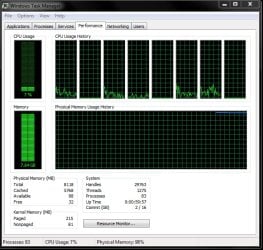
Looking at the performance tab of Task Manager during the transfer, I can see that the Memory level steadily climbs until it reaches its maximum (8GB memory). It's at this point that the computer freezes.

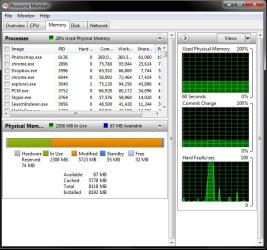
If I transfer a lower amount over, for example 3GB of files, the memory level grows by 3GB. The transfer completes, but the memory level does not go down after the transfer has completed. Clicking on the resource monitor I can see that the memory is being held in the orange "Modified" portion of the RAM. It just sits there. It does not go back down. (see screen shots below)So if I tranfer 4GB to the 3TB drive, the memory usage will climb up to around 6.5GB cached. After the transfer, it remains at 6.5GB for the session and only goes down once the computer has been restarted.

I've tried switching sata cables - no change in behavior.

I've tried adding full permissions to all users in the hard drive properties - no change in behavior.

I've tried disabling AVG antivirus - no change in behavior.

Note: This ONLY happens when I transfer files to the 3TB drive. When I transfer files, for example, FROM the 3TB drive to another drive, the memory usage spikes a little, but goes down once the transfer is complete, which I believe is normal behavior.

Can anyone please help me?! I've looked all over the net trying to find an answer. I've found posters with similar problems, but no fixes.

System:
Dell Optiplex 980
Windows 7 Professional 64bit, Service Pack 1
Intel i7 860@ 2.8GHz
 

Attachments
  • task mgr1.jpg
    task mgr1.jpg
    107 KB · Views: 56
  • task mgr2.jpg
    task mgr2.jpg
    98 KB · Views: 63

My Computer My Computer

OS
Windows 7 Professional 64bit
Looks like file caching behavior - you say everything worked fine before the move, but did you do this (copy large amounts to the 3TB drive) like this? Also, does this repro if you use xcopy or robocopy from a cmd prompt?
 

My Computer My Computer

Computer type
PC/Desktop
Computer Manufacturer/Model Number
Custom
OS
Windows 10 Pro x64
CPU
Intel Core i7 4790K @ 4.5GHz
Motherboard
Asus Maximus Hero VII
Memory
32GB DDR3
Graphics Card(s)
Nvidia GeForce GTX970
Sound Card
Realtek HD Audio
Screen Resolution
1920x1200
Hard Drives
1x Samsung 250GB SSD
4x WD RE 2TB (RAIDZ)
PSU
Corsair AX760i
Case
Fractal Design Define R4
Cooling
Noctua NH-D15
Hi cluberti. Thanks for the reply.

Yes, I work in video production, so most transfers to this drive have been large (8GB+).

I'm afraid I'm not very versed in cmd prompt. I googled robocopy, ran a test, and still had the same results. I tried to copy over a folder of around 10GB from my 2TB drive to the 3TB drive and had the same results - the cached memory just grew to the full 8GB and the computer froze, requiring a hard reboot.

Would really appreciate any further advice/help.
 

My Computer My Computer

OS
Windows 7 Professional 64bit
Would you be willing to take a trace (xperf) of the file copy for me? If you are willing, I will post installation instructions and the command line to run before starting the file copy.
 

My Computer My Computer

Computer type
PC/Desktop
Computer Manufacturer/Model Number
Custom
OS
Windows 10 Pro x64
CPU
Intel Core i7 4790K @ 4.5GHz
Motherboard
Asus Maximus Hero VII
Memory
32GB DDR3
Graphics Card(s)
Nvidia GeForce GTX970
Sound Card
Realtek HD Audio
Screen Resolution
1920x1200
Hard Drives
1x Samsung 250GB SSD
4x WD RE 2TB (RAIDZ)
PSU
Corsair AX760i
Case
Fractal Design Define R4
Cooling
Noctua NH-D15
Yes! No problem for the trace (xperf). I don't know what that is, but if you post instructions, I'll get it done.

Thank you again!
 

My Computer My Computer

OS
Windows 7 Professional 64bit
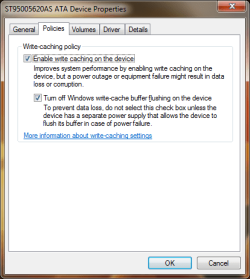
In Disk Management, on the bottom pane clicking on properties of Disk 0, or any other corresponding to your drives do they have the options in the image blow checked or unchecked? (Now if the 3TB has no onboard memory like 16-32 MB then it won't do much good)
 

Attachments

  • Untitled.png
    Untitled.png
    13.7 KB · Views: 55

My Computer My Computer

Computer type
PC/Desktop
Computer Manufacturer/Model Number
Alienware Aurora ALX R4
OS
Windows 10 Pro (x64)
CPU
Intel Core i7-3930K (3.2GHz - 4.5GHz)
Motherboard
Alienware Aurora-R4 x79
Memory
4x Samsung 4GB PC3-12800 DDR3 (16GB 1600MHz)
Graphics Card(s)
Nvidia Geforce GTX 690
Sound Card
SteelSeries Siberia Elite
Monitor(s) Displays
Dell UltraSharp U3011
Screen Resolution
2560x1600
Hard Drives
Samsung 850 Pro 256 GB, Seagate 1TB Desktop Hybrid HDD, 2x Western Digital 4TB Green HDD
PSU
875W Some Dell PSU <.<
Case
Alienware Aurora ALX
Cooling
Custom Liquid Cooling (EK CPU & GPU blocks) dual EK 480RAD
Keyboard
Logitech G710+ Mechanical
Mouse
Logitech G700s
Internet Speed
Verizon Fios (50 mbps average)
Other Info
Server: Intel NUC D54250WYK: i5-4250U, 16GB, 256 GB mSATA, Windows Server 2012 R2
You will need to install the Windows Performance Toolkit as per the first part of my guide, here ("Installing the tools") to take a trace. What you will need to do, considering you have an 80GB drive, a 2TB drive, and a 3TB drive, is to copy a very large file from your 80GB drive to your 3TB drive, and save the resulting trace file you will take during this time to your 2TB drive (make sense?).


Follow these instructions, if you will:
  1. Place a large file (2GB+) on your 80GB drive - copy a file of approximately this size there if one does not already exist; this is the file we will use during the test. Make sure this file will NOT cause you to be out of memory during the test, so be careful how much larger than 2GB this file is!
  2. Reboot, to be sure you've startingn from a clean slate (don't start any other applications other than what loads with Windows).
  3. Open resmon, and switch to the memory tab, so as to watch the memory issue happening (also to verify this test reproduces the issue).
  4. Open a Windows Explorer window; we will use this window to do the file copy.
  5. Open an elevated CMD prompt open, from which you will run the following command to start the tracing (if this wordwraps, be aware that the following command is all one line):
    xperf -on base+dispatcher+latency+syscall+disk_io_init+file_io+file_io_init -stackwalk readythread+threadcreate+profile+cswitch
  6. Next, copy the large file from your 80GB drive to your 3TB drive from Windows Explorer to reproduce the memory consumption issue.
  7. Last, execute the followingn command from the elevated CMD prompt to stop tracing and save the trace file:
    xperf -d <x>:\filecopy.etl
    (replacing "<x>" with the drive letter for your 2TB drive)
Please be aware that the resulting "filecopy.etl" file will take some time to initially create after you execute the last command, and it will be VERY large. You will need to compress this file (as highly as possible with a tool like 7-zip or WinRar) and upload it somewhere that I can get to it (a file hosting site is fine, and I have an FTP site available if that is easier to do). Any questions, please ask. Otherwise, I hope to see that you've generated a trace file shortly!
 

My Computer My Computer

Computer type
PC/Desktop
Computer Manufacturer/Model Number
Custom
OS
Windows 10 Pro x64
CPU
Intel Core i7 4790K @ 4.5GHz
Motherboard
Asus Maximus Hero VII
Memory
32GB DDR3
Graphics Card(s)
Nvidia GeForce GTX970
Sound Card
Realtek HD Audio
Screen Resolution
1920x1200
Hard Drives
1x Samsung 250GB SSD
4x WD RE 2TB (RAIDZ)
PSU
Corsair AX760i
Case
Fractal Design Define R4
Cooling
Noctua NH-D15
Hello logicearth. Thanks for joining in. I checked the 3TB hard drive.

Checked: Currently the box "Enable write caching on the device" is checked.

Not checked: "Turn off Windows write-cache buffer..." is not checked.

Of note: I looked at all my other drives (the two 2tb drives and the 80GB ssd drive, they have the same setup as the 3tb drive - "Enable write caching" is checked).

cluberti, I'll get going on the Toolkit and get back to you.

Thank you again!
 

My Computer My Computer

OS
Windows 7 Professional 64bit
Hi Cluberti. I've created the filecopy.etl. I've ftp'ed it a site. I'm not sure how to get the link to you. I don't want to post it publicly. I tried to send a PM, but it told me I didn't have permission.

Let me know how I can send you the link to the file.
 

My Computer My Computer

OS
Windows 7 Professional 64bit
Sorry, indeed you would not. Send me an email at cluberti [at] cluberti [dot] com with the information.
 

My Computer My Computer

Computer type
PC/Desktop
Computer Manufacturer/Model Number
Custom
OS
Windows 10 Pro x64
CPU
Intel Core i7 4790K @ 4.5GHz
Motherboard
Asus Maximus Hero VII
Memory
32GB DDR3
Graphics Card(s)
Nvidia GeForce GTX970
Sound Card
Realtek HD Audio
Screen Resolution
1920x1200
Hard Drives
1x Samsung 250GB SSD
4x WD RE 2TB (RAIDZ)
PSU
Corsair AX760i
Case
Fractal Design Define R4
Cooling
Noctua NH-D15
Great. Thanks cluberti. I emailed you the info.

Looking forward to hearing from you.
 

My Computer My Computer

OS
Windows 7 Professional 64bit
You have a few issues here I see already, some major:
  1. You aren't using Win7 SP1 on a lot of binaries (like usbport.sys, videoprt.sys, etc, which should have been updated - yours in this trace appear to be 6.0.7600.16385, rather than 6.0.7601.17514!!!), which could very easily mean you have a botched SP1 install.
  2. You have the old Intel Matrix drivers installed, rather than the new Intel RST drivers for your controller - given the DPC behavior with iastor and usbport, this is an issue.
  3. You're hitting a usbport bug that is fixed (only) in Windows 7 SP1, and you're not running SP1 binaries for a lot of things (going back to #1), so this might be a problem simply with a botched SP1 install over an RTM box.
  4. You need to update to later Intel storage drivers (you have the old Matrix package installed, and not the newer RST package with proper support for AF drives):
    http://downloadcenter.intel.com/Detail_Desc.aspx?agr=Y&DwnldID=20216&keyword=%22Intel+Rapid+Storage+Technology+(Intel+RST)%22&lang=eng

I really need you to test on a working Win7 SP1 install (and subsequent security updates, of course, if missing) with the right Intel storage drivers loaded. Hopefully after doing the above, so you're actually using the OS version *and Intel driver package* that is designed to work properly with Advanced Format drives, will resolve the issues.
 

My Computer My Computer

Computer type
PC/Desktop
Computer Manufacturer/Model Number
Custom
OS
Windows 10 Pro x64
CPU
Intel Core i7 4790K @ 4.5GHz
Motherboard
Asus Maximus Hero VII
Memory
32GB DDR3
Graphics Card(s)
Nvidia GeForce GTX970
Sound Card
Realtek HD Audio
Screen Resolution
1920x1200
Hard Drives
1x Samsung 250GB SSD
4x WD RE 2TB (RAIDZ)
PSU
Corsair AX760i
Case
Fractal Design Define R4
Cooling
Noctua NH-D15
cluberti, thanks for the feedback. The link you posted took me to Intel Rapid Storage Technology F6 Driver Diskettes. I downloaded them, but in looking at the readme, it appears that these need to be installed when first installing the OS.

Is there a way I can update all that needs to be updated without reinstalling Windows?

I looked at Windows Update, which says that my system is up to date, except for some C++ and MS Office updates needed.

But maybe Windows thinks I've got SP1 installed, even if it's botched.

Is there a way to uninstall SP1 and reinstall?

Sorry for all the questions, but I'm not quite sure what to do.

Thanks again.
 

My Computer My Computer

OS
Windows 7 Professional 64bit
If you haven't run disk cleanup or the dism command line to clean up your SP1 installation, then yes, you can use Add/Remove programs to remove Windows 7 SP1, and then try a reinstall. Otherwise, if that doesn't work (or you did indeed cleanup your disk and remove the SP1 uninstall information), then you'll be left with only the option to reinstall to fix (and you should use SP1 integrated media to do so).

For the Intel driver, there should be an "All OS" package here:
http://downloadcenter.intel.com/Detail_Desc.aspx?agr=Y&DwnldID=20181
 

My Computer My Computer

Computer type
PC/Desktop
Computer Manufacturer/Model Number
Custom
OS
Windows 10 Pro x64
CPU
Intel Core i7 4790K @ 4.5GHz
Motherboard
Asus Maximus Hero VII
Memory
32GB DDR3
Graphics Card(s)
Nvidia GeForce GTX970
Sound Card
Realtek HD Audio
Screen Resolution
1920x1200
Hard Drives
1x Samsung 250GB SSD
4x WD RE 2TB (RAIDZ)
PSU
Corsair AX760i
Case
Fractal Design Define R4
Cooling
Noctua NH-D15
Hi cluberti,

OK, here's what I did. I uninstalled SP1 by doing this:

  1. Click the Start button, click Control Panel, click Programs, and then click Programs and Features.
  2. Click View installed updates.
  3. Click Service Pack for Microsoft Windows (KB 976932), and then click Uninstall.

Next, I launched Windows Update. It gave me a list of 6 important updates to install, one of which was the SP1 update. I check marked them all and clicked Update All.

At the end of the update, I received this message:

Succeeded: 5 updates
Failed: 1 update
Error(s) found: Code 80070005 Windows Update encountered an unknown error.


The update that didn't install was SP1. After googling the error, I did this:

Click Start, All Programs, Right click on Windows Update, Run as Administrator, Click Yes/Confirm

The SP1 downloaded, but then I had another error: 0x80240016

I googled that error and got the following cause and did the following steps:

Cause: This issue occurs if a Windows Update client or a Microsoft Update client cannot access the user token.

Follow these steps:

  1. Close any Windows Update or Microsoft Update browser windows.
  2. Click Start, type Command Prompt, in the list of results, right-click Command
    Prompt, and then click Run as Administrator.
    If you are prompted for an administrator password or confirmation, type the password or provide confirmation.
  3. Type the following commands. Press ENTER after each command:
    net stop wuauserv
    net start wuauserv
  4. Close the Command prompt window.
  5. Try to install updates again.

Next, I ran Windows update again as an Administrator. This time, I got the message that SP1 had successfully installed.

Next I installed the Intel drive (RAID: Intel® Rapid Storage Technology Driver for Intel Desktop Boards) that you gave me at this link:
http://downloadcenter.intel.com/Deta...&DwnldID=20181

The installation completed successfully.

Finally, I ran the xperf trace again that you outlined in post #7. Unfortunatley, the problem hasn't been resolved. I'm still getting the same result -> I transferred a 2GB file to the 3TB drive and the memory usage jumped up to 3.8 and in resmon, the orange "Modified" memory filled to 2230MB and has not come down.

Cluberti, I updloaded the new file that the trace produced. I named it filecopy-2.rar. It's at the same link that I emailed you previously (www...../cluberti/ filecopy-2.rar) if it would be helpful to you to examine it, I would be greatly appreciative.

I'm still hoping to resolve this. Thanks for so much for all your help.
 

My Computer My Computer

OS
Windows 7 Professional 64bit
You'll need to fix that link, but good work so far :).
 

My Computer My Computer

Computer type
PC/Desktop
Computer Manufacturer/Model Number
Custom
OS
Windows 10 Pro x64
CPU
Intel Core i7 4790K @ 4.5GHz
Motherboard
Asus Maximus Hero VII
Memory
32GB DDR3
Graphics Card(s)
Nvidia GeForce GTX970
Sound Card
Realtek HD Audio
Screen Resolution
1920x1200
Hard Drives
1x Samsung 250GB SSD
4x WD RE 2TB (RAIDZ)
PSU
Corsair AX760i
Case
Fractal Design Define R4
Cooling
Noctua NH-D15
Hi cluberti,

I sent you the link to the latest xperf trace results file to cluberti [at] cluberti [dot] com.

Thank you!
 

My Computer My Computer

OS
Windows 7 Professional 64bit
Do you have a pagefile?
 

My Computer My Computer

Computer type
PC/Desktop
Computer Manufacturer/Model Number
Alienware Aurora ALX R4
OS
Windows 10 Pro (x64)
CPU
Intel Core i7-3930K (3.2GHz - 4.5GHz)
Motherboard
Alienware Aurora-R4 x79
Memory
4x Samsung 4GB PC3-12800 DDR3 (16GB 1600MHz)
Graphics Card(s)
Nvidia Geforce GTX 690
Sound Card
SteelSeries Siberia Elite
Monitor(s) Displays
Dell UltraSharp U3011
Screen Resolution
2560x1600
Hard Drives
Samsung 850 Pro 256 GB, Seagate 1TB Desktop Hybrid HDD, 2x Western Digital 4TB Green HDD
PSU
875W Some Dell PSU <.<
Case
Alienware Aurora ALX
Cooling
Custom Liquid Cooling (EK CPU & GPU blocks) dual EK 480RAD
Keyboard
Logitech G710+ Mechanical
Mouse
Logitech G700s
Internet Speed
Verizon Fios (50 mbps average)
Other Info
Server: Intel NUC D54250WYK: i5-4250U, 16GB, 256 GB mSATA, Windows Server 2012 R2
Sorry, no. Traveling all week.
 

My Computer My Computer

Computer type
PC/Desktop
Computer Manufacturer/Model Number
Custom
OS
Windows 10 Pro x64
CPU
Intel Core i7 4790K @ 4.5GHz
Motherboard
Asus Maximus Hero VII
Memory
32GB DDR3
Graphics Card(s)
Nvidia GeForce GTX970
Sound Card
Realtek HD Audio
Screen Resolution
1920x1200
Hard Drives
1x Samsung 250GB SSD
4x WD RE 2TB (RAIDZ)
PSU
Corsair AX760i
Case
Fractal Design Define R4
Cooling
Noctua NH-D15
Back
Top