Solved Microsoft Office 2007 shows phantom printers

Victek

New member
Guru
Local time
8:53 AM
Messages
587
So I was called to work on a computer because Microsoft Office 2007 apps weren't printing. It turned out that the Office apps were still listing printers that had been removed from "Devices and Printers" and were defaulting to one of the previously removed printers. The problem was solved by simply selecting the correct printer, but the question is how can the nonexistent printers be removed from the list of available printers? TIA
 
Last edited:

My Computer My Computer

Computer type
PC/Desktop
OS
Windows 7 x64
CPU
Intel Core2 Extreme Q6850 3.00GHz
Motherboard
EVGA 132-CK-NF79
Memory
8 GB
Graphics Card(s)
Radeon R7 260X
Sound Card
Xonar DS
Hard Drives
Hitachi Deskstar 1 tb
Go to Start Orb and select Devices and Printers.
If you see the old printer there just right click on it and select Remove Device.
 

My Computer My Computer

Computer type
PC/Desktop
Computer Manufacturer/Model Number
Home made Desktop
OS
Windows 10 Pro. 64/ version 1709 Windows 7 Pro/64
CPU
Intel i7-6800K @ 4.3
Motherboard
ASUS X-99 Deluxe II
Memory
Corsair Platinum 16 gig @2400
Graphics Card(s)
EVGA GTX 1070 OC
Monitor(s) Displays
Asus 27" LED LCD/VE278Q
Screen Resolution
1920-1080 or 1280-720 HDMI
Hard Drives
INTEL SSD 730-240 Gb Sata 3.0/
PSU
EVGA Platium 1200W
Case
Phanteks Luxe Tempered Glass 8 fans/ one radiator
Cooling
XSPC/ Water Cooled CPU
Keyboard
Das 4 Professional
Mouse
Logitech M705/MX Anywhere 2-S
Internet Speed
100 mbits
Antivirus
Microsoft Security Essentials/ Malwarebytes Premium 3.0/ SAS
Browser
I.E. 11 default/Firefox/ ISP Time Warner Cable/Spectrum
Other Info
LG BluRay Burner/
Sound system-KLipsch-THX/
Icy Dock ssd Hot Swap bays.
Go to Start Orb and select Devices and Printers.
If you see the old printer there just right click on it and select Remove Device.

Thanks for replying. Unfortunately I don't have access to Office 2007 at home to check that out, but I expect I'll be called back by that customer at some point. Meanwhile is something similar available in 2010 that I can check out?
 

My Computer My Computer

Computer type
PC/Desktop
OS
Windows 7 x64
CPU
Intel Core2 Extreme Q6850 3.00GHz
Motherboard
EVGA 132-CK-NF79
Memory
8 GB
Graphics Card(s)
Radeon R7 260X
Sound Card
Xonar DS
Hard Drives
Hitachi Deskstar 1 tb
Go to Start Orb and select Devices and Printers.
If you see the old printer there just right click on it and select Remove Device.

Thanks for replying. Unfortunately I don't have access to Office 2007 at home to check that out, but I expect I'll be called back by that customer at some point. Meanwhile is something similar available in 2010 that I can check out?

As suggested by Layback Bear the same method applies for removal of Printers & Devices from Windows, so this applies to the whole OS. So removal of an old not attached printer applies to all programs loaded on to the actual computer. Therefore it applies to Office 2010 as well.
Hope this helps.
 

My Computer My Computer

Computer type
PC/Desktop
Computer Manufacturer/Model Number
Self built using existing case
OS
Windows 7 Home Premium 64 bit sp1
CPU
Intel i5 3570 3.4Ghz Ivy Bridge SKT 1155 quad core
Motherboard
Gigabyte Z77-HD3 SKT 1155 2xSata 3, 4x USB 3.0
Memory
G-Skill Rip Jaws 16Gb (8x2) DDR3 -1600 PC3 12800 CL 10 red
Graphics Card(s)
Gigabyte NVIDIA GT610 1Gb DDR3 810/1200 PCI-E 2.0 Silent
Sound Card
NVIDIA High Definition & Realtech High Definition Audio
Monitor(s) Displays
2 x Philips 226V4L 16:9 aspect ratio
Screen Resolution
1920 x 1080 HD
Hard Drives
Samsung 840 Pro 256gb SSD, SATA 3.
Hitachi Touro Portable 1tb, USB 3.0 HDD used for image b/ups.
PSU
Corsair VS450
Case
Codeng
Cooling
PSU fan & CPU fan
Keyboard
Logitech
Mouse
Logitech Wireless trackball M570
Internet Speed
Wireless 3G. 3mg down & 550kb up.
Antivirus
Bitdefender Internet Security 2020
Browser
Opera (Current Version) & Firefox
Other Info
MS Office 2013 Pro. Davis weather station software. MGE Nova 600 avr UPS.
As suggested by Layback Bear the same method applies for removal of Printers & Devices from Windows, so this applies to the whole OS. So removal of an old not attached printer applies to all programs loaded on to the actual computer. Therefore it applies to Office 2010 as well.

That's what I would have thought also, but this is not the case. The old printers have been removed from "Printers and Devices" - in other words removed from the OS - and should not appear to be available to any application, and yet they appear on the list of available printers in Microsoft Office apps. It is possible to select one of these nonexistent printers and "print" to it though of course nothing happens since it doesn't exist.
 

My Computer My Computer

Computer type
PC/Desktop
OS
Windows 7 x64
CPU
Intel Core2 Extreme Q6850 3.00GHz
Motherboard
EVGA 132-CK-NF79
Memory
8 GB
Graphics Card(s)
Radeon R7 260X
Sound Card
Xonar DS
Hard Drives
Hitachi Deskstar 1 tb
When you are in Devices and Printers do you have the proper printer selected as default printer. Their should be a big green circle with a check mark.
If not right tick on the proper printer and select Select as default printer.
 

My Computer My Computer

Computer type
PC/Desktop
Computer Manufacturer/Model Number
Home made Desktop
OS
Windows 10 Pro. 64/ version 1709 Windows 7 Pro/64
CPU
Intel i7-6800K @ 4.3
Motherboard
ASUS X-99 Deluxe II
Memory
Corsair Platinum 16 gig @2400
Graphics Card(s)
EVGA GTX 1070 OC
Monitor(s) Displays
Asus 27" LED LCD/VE278Q
Screen Resolution
1920-1080 or 1280-720 HDMI
Hard Drives
INTEL SSD 730-240 Gb Sata 3.0/
PSU
EVGA Platium 1200W
Case
Phanteks Luxe Tempered Glass 8 fans/ one radiator
Cooling
XSPC/ Water Cooled CPU
Keyboard
Das 4 Professional
Mouse
Logitech M705/MX Anywhere 2-S
Internet Speed
100 mbits
Antivirus
Microsoft Security Essentials/ Malwarebytes Premium 3.0/ SAS
Browser
I.E. 11 default/Firefox/ ISP Time Warner Cable/Spectrum
Other Info
LG BluRay Burner/
Sound system-KLipsch-THX/
Icy Dock ssd Hot Swap bays.
When you are in Devices and Printers do you have the proper printer selected as default printer. Their should be a big green circle with a check mark.
If not right tick on the proper printer and select Select as default printer.

There is only one printer actually installed and it is the default printer.
 

My Computer My Computer

Computer type
PC/Desktop
OS
Windows 7 x64
CPU
Intel Core2 Extreme Q6850 3.00GHz
Motherboard
EVGA 132-CK-NF79
Memory
8 GB
Graphics Card(s)
Radeon R7 260X
Sound Card
Xonar DS
Hard Drives
Hitachi Deskstar 1 tb
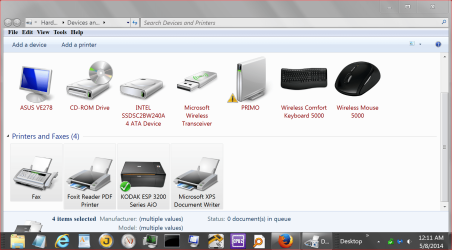
Could you post one of these.

Devices and Printers.PNG
 

My Computer My Computer

Computer type
PC/Desktop
Computer Manufacturer/Model Number
Home made Desktop
OS
Windows 10 Pro. 64/ version 1709 Windows 7 Pro/64
CPU
Intel i7-6800K @ 4.3
Motherboard
ASUS X-99 Deluxe II
Memory
Corsair Platinum 16 gig @2400
Graphics Card(s)
EVGA GTX 1070 OC
Monitor(s) Displays
Asus 27" LED LCD/VE278Q
Screen Resolution
1920-1080 or 1280-720 HDMI
Hard Drives
INTEL SSD 730-240 Gb Sata 3.0/
PSU
EVGA Platium 1200W
Case
Phanteks Luxe Tempered Glass 8 fans/ one radiator
Cooling
XSPC/ Water Cooled CPU
Keyboard
Das 4 Professional
Mouse
Logitech M705/MX Anywhere 2-S
Internet Speed
100 mbits
Antivirus
Microsoft Security Essentials/ Malwarebytes Premium 3.0/ SAS
Browser
I.E. 11 default/Firefox/ ISP Time Warner Cable/Spectrum
Other Info
LG BluRay Burner/
Sound system-KLipsch-THX/
Icy Dock ssd Hot Swap bays.
Update!

I was able to return to the customer and take another look at the phantom printer problem. What I discovered was although the printers had been deleted from "Devices and Printers" there was still software installed for them in "Programs and Features". When I uninstalled those entries the phantom printers in Microsoft Office were removed. My thanks to everyone who responded. I will mark the thread solved :geek:
 

My Computer My Computer

Computer type
PC/Desktop
OS
Windows 7 x64
CPU
Intel Core2 Extreme Q6850 3.00GHz
Motherboard
EVGA 132-CK-NF79
Memory
8 GB
Graphics Card(s)
Radeon R7 260X
Sound Card
Xonar DS
Hard Drives
Hitachi Deskstar 1 tb
Back
Top