
Introduction
The release of the Microsoft Safety Scanner has resulted in confusion about the available anti-malware tools provided by Microsoft and questions about when they should be used.
Read more at: Understanding Microsoft Anti-Malware Software ~ Security Garden
If you wanted to manually download and install new definition updates for MSE, instead of updating them from within MSE, then see:
Install the latest Microsoft Security Essentials definition updates - Get the latest definitions - Microsoft Malware Protection Center
Installation
First visit Microsoft's site devoted to all Security Essentials related material: http://www.microsoft.com/Security_Essentials/
That link may fizzle out over time, as MS likes to meddle with their websites often, if it dies... you can always google security essentials!
Once you arrive at the MS Security Essentials webpage, look for the "Download" button, and click it to start the download. See below:
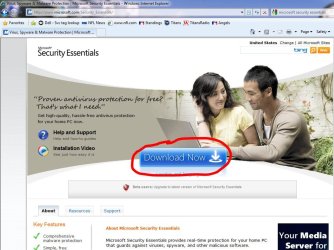
Once your download starts you will be presented with the infamous; "what do you want to do with me now" dialog box. You can Run, Save, or Cancel. For the purpose of this tutorial, I'm hitting the easy button :sarc: and going with RUN. See below:

Now you will see the first of several install screens, as always click Next to continue.
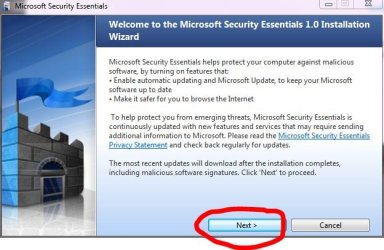
Don't forget the 500 word legal mumbojumbo we never read... click Next to continue.
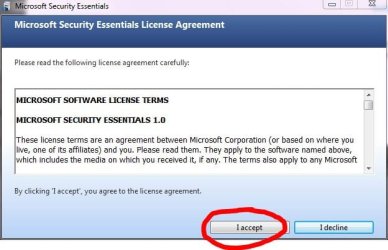

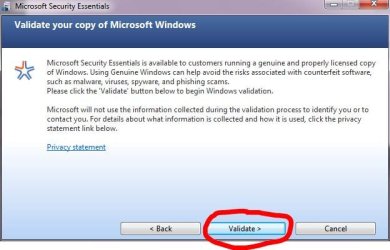
Part of the installation involves MS validating your copy of Win7 as Genuine, so if you have a hacked, cracked, or jacked copy... sorry no free anti-malware for you!
This is the part of the install where your Win7 install will be validated, choose Validate to continue.
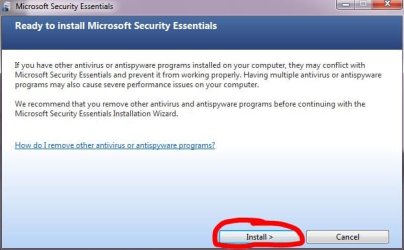
This portion of the installation is where you are warned that other anti-malware may interfere with the operation of MSE. Click Install to continue...
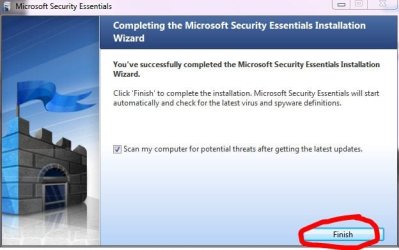
That's it... well almost! Once you click Finish, MSE will automatically connect to the MSE server and download the latest definitions...
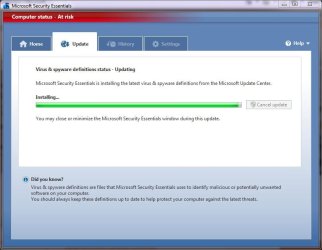
Below is a screenshot of the Update Install process:
And the automatic scan after update completed:
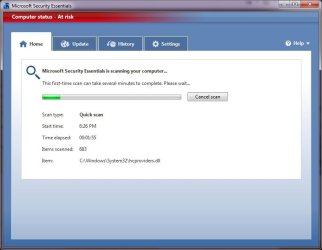
Scan nearly complete after 8 minutes below:

Scan complete:
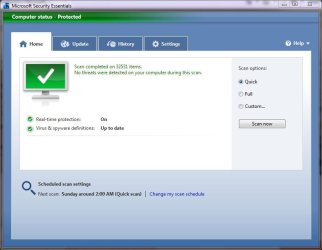
Your New MSE Interface
As we saw in the image above, when you are on the Home page of MSE, you have the option of scanning the PC in either Quick, Full, or Custom modes.
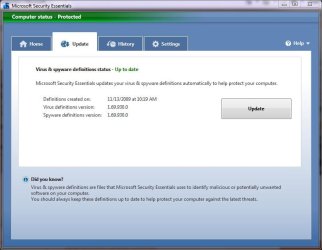
Naturally, the Update tab contains all the tools you need to keep your anti-malware definitions up to date.
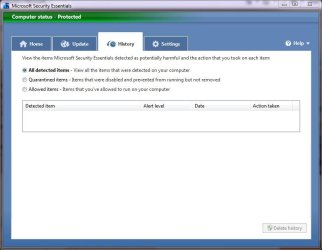
The History tab will show you any detected and/or potentially harmful items, and the action taken on each item. It will also give you the name, alert level, and date.
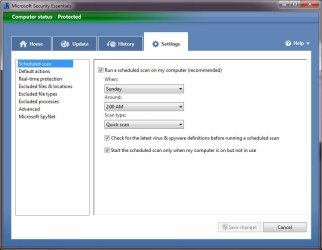
The Settings tab is where you can change the way MSE works for you. You can schedule scans, change defaults, or turn real-time protection on or off. You can also exclude locations, types, and processes, etc. We will discuss the various changes you can make in the Configuration section below:
Configuration
The following section outlines the various configuration pages available in MSE, and what settings those contain.
On the image above you see the first page of many MSE configuration pages. It contains all the settings you need to change anything scan related... these screenshots depict MSE in it's outta the box or default mode.
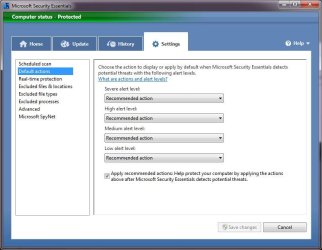
Below you see the Default Actions settings page where you can change what MSE does when it detects a possible malware.
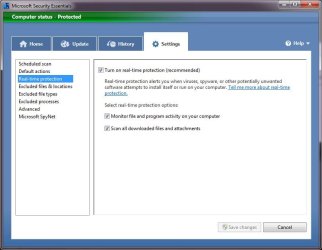
Here we see the Real-time protection settings... it;s on by default for a reason!
If you wish to exclude certain files or locations you can do so here:

Similar to the above settings this section below allows you to exclude certain file types from a scan.

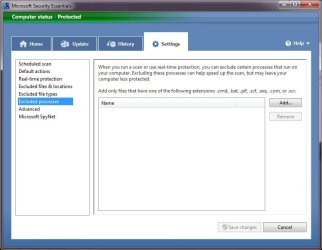
And this page lets you exclude processes such as: .cmd, .bat, .pif, .scf, .exe, and .scr
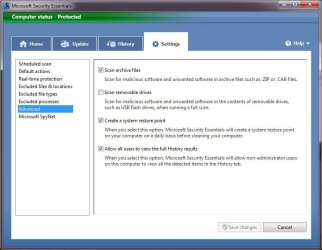
The Advanced section allows you to scan archive files like .zip and .cab files, scan removable drives, create restore points automatically, and give you access to the History.
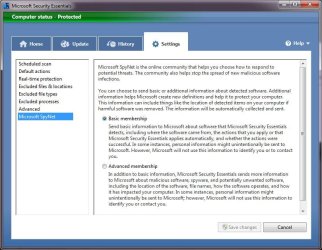
SpyNet is Microsofts online community that helps you choose how to respond to potential threats and helps prevent the spread of new malicious software. The last page allows you to choose your level of participation in this community.
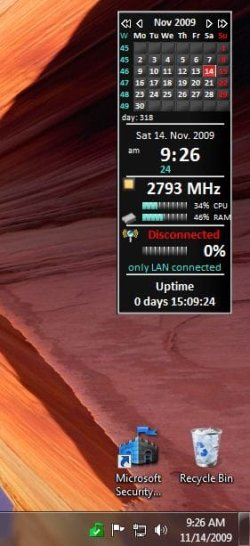
Oh yes, when you have installed MSE it places an icon on your desktop and an icon in the notification area as shown below. You can access any of the configuration pages by double clicking on either icon.
Information
Microsoft created Microsoft Security Essentials (MSE) to address a very simple problem: Too many PCs today are unprotected with either out-of-date anti-malware products or no anti-malware product at all.
Microsoft says there are a number of reasons for this:
Microsoft says there are a number of reasons for this:
- First, because many new PCs come with only a 30/60/90 day trial security solutions, some users believe they're protected even though the initial subscription period may have ended.
- Some don't even activate the free, bundled solutions at all.
- Some--especially those in emerging markets--can't or won't pay for security suites, most of which need to be renewed every year.
Note
The release of the Microsoft Safety Scanner has resulted in confusion about the available anti-malware tools provided by Microsoft and questions about when they should be used.
Read more at: Understanding Microsoft Anti-Malware Software ~ Security Garden
If you wanted to manually download and install new definition updates for MSE, instead of updating them from within MSE, then see:
Install the latest Microsoft Security Essentials definition updates - Get the latest definitions - Microsoft Malware Protection Center
There's been a lot of interest in Microsoft Security Essentials and I think it will prove quite a hit with users. It's free, effective, lightweight, and quiet and is, in other words, exactly what I'm looking for in a security solution. And it comes with no strings at all. As long as you're running a genuine Windows version, you can install this product without worrying about up-sell advertisements, yearly renewals, or other silliness. And you can do so on as many Windows-based PCs as you own. I'd like to see it just included with Windows, but what the heck: Free and easy is the next best thing. Microsoft Security Essentials is highly recommended, to all Windows users.
--Paul Thurrott
September 29, 2009
Installation
First visit Microsoft's site devoted to all Security Essentials related material: http://www.microsoft.com/Security_Essentials/
That link may fizzle out over time, as MS likes to meddle with their websites often, if it dies... you can always google security essentials!
Once you arrive at the MS Security Essentials webpage, look for the "Download" button, and click it to start the download. See below:
Once your download starts you will be presented with the infamous; "what do you want to do with me now" dialog box. You can Run, Save, or Cancel. For the purpose of this tutorial, I'm hitting the easy button :sarc: and going with RUN. See below:
Information
On my PC's I always choose SAVE first, and save to the built in downloads directory before I RUN and install any app. That way, I have an easy backup of any additional apps that I've ever been installed. Then if needed I don't have to search all over the Internet to reinstall them!
Now you will see the first of several install screens, as always click Next to continue.
Don't forget the 500 word legal mumbojumbo we never read... click Next to continue.
Warning
Part of the installation involves MS validating your copy of Win7 as Genuine, so if you have a hacked, cracked, or jacked copy... sorry no free anti-malware for you!
This is the part of the install where your Win7 install will be validated, choose Validate to continue.
This portion of the installation is where you are warned that other anti-malware may interfere with the operation of MSE. Click Install to continue...
That's it... well almost! Once you click Finish, MSE will automatically connect to the MSE server and download the latest definitions...
Note
If you leave the check mark in the box marked Scan my computer for... MSE will also run a Scan when it completes the definition updates
Warning
It is always advised that you run a scan after installing any anti-malware!
Below is a screenshot of the Update Install process:
And the automatic scan after update completed:
Scan nearly complete after 8 minutes below:
Scan complete:
Your New MSE Interface
As we saw in the image above, when you are on the Home page of MSE, you have the option of scanning the PC in either Quick, Full, or Custom modes.
Naturally, the Update tab contains all the tools you need to keep your anti-malware definitions up to date.
The History tab will show you any detected and/or potentially harmful items, and the action taken on each item. It will also give you the name, alert level, and date.
The Settings tab is where you can change the way MSE works for you. You can schedule scans, change defaults, or turn real-time protection on or off. You can also exclude locations, types, and processes, etc. We will discuss the various changes you can make in the Configuration section below:
Configuration
The following section outlines the various configuration pages available in MSE, and what settings those contain.
Note
For most users, the default settings for MSE are recommended!
On the image above you see the first page of many MSE configuration pages. It contains all the settings you need to change anything scan related... these screenshots depict MSE in it's outta the box or default mode.
Below you see the Default Actions settings page where you can change what MSE does when it detects a possible malware.
Here we see the Real-time protection settings... it;s on by default for a reason!
If you wish to exclude certain files or locations you can do so here:
Warning
You are advised that while this may speed up scans it may leave your PC less protected.
Similar to the above settings this section below allows you to exclude certain file types from a scan.
And this page lets you exclude processes such as: .cmd, .bat, .pif, .scf, .exe, and .scr
The Advanced section allows you to scan archive files like .zip and .cab files, scan removable drives, create restore points automatically, and give you access to the History.
SpyNet is Microsofts online community that helps you choose how to respond to potential threats and helps prevent the spread of new malicious software. The last page allows you to choose your level of participation in this community.
Oh yes, when you have installed MSE it places an icon on your desktop and an icon in the notification area as shown below. You can access any of the configuration pages by double clicking on either icon.
Related Tutorials
- How to Use the Microsoft Safety Scanner
- Enhanced Mitigation Experience Toolkit (EMET)
- How to Download and Use the Microsoft Windows Malicious Software Removal Tool
- Scan for Malware using Malwarebytes Anti-Malware Free
- Add an Explorer context menu 'Send to VirusTotal'
- How to Use Windows Defender Offline
- How to Create a Microsoft Security Essentials "Quick Scan" Shortcut
- How to Create a Microsoft Security Essentials "Update" Shortcut
- How to Create a Microsoft Security Essentials "Update & Quick Scan" Shortcut
- How to Create a Microsoft Security Essentials "Full Scan" Shortcut
- How to Create a Microsoft Security Essentials "Settings" Shortcut
- How to Add a "Microsoft Security Essentials" Cascading Desktop Context Menu in Windows 7
- How to Add or Remove "Scan with Microsoft Security Essentials" from Context Menu in Windows
- How to Scan Suspicious Files using Online Scanners
Last edited by a moderator:


