MiniTool clone cannot boot up

bertus3

New member
Local time
3:57 PM
Messages
9
I used MiniTool Partition Wizard to clone/copy my system to a newly installed hard drive.
I now have three hard drives installed, all identical in all aspects regarding manufacturer, model, size, speed, etc.

The copy/clone ran fine and took about fours hours. I can view/read all on the new hard drive.
When swopping out to check if I can boot up via the new hard drive it's a no go.
Checked with MiniTool and they said "Normally, to clone a bootable OS, you need to clone all system required partitions. Since the 2 required partitions are on 2 different disks, we suggest you set the target drive as first boot device in BIOS and try using a Windows installation media to repair system."

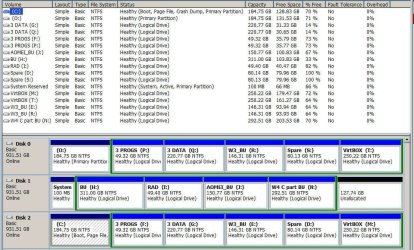
Currently I have a partition "System Reserved" (Active & Sytem) 100 GB NTFS/Primary on drive 2
and
"C:" (Boot) 185 GB NTFS/Primary on drive 3

The new clone hard drive is identified as drive 1

As I'm a niewby in this area it is too risky for me to just insert my DVD and select whatever.

Any suggestions where/how I should start will be highly appreciated.
 

My Computer

Computer type
PC/Desktop
OS
Windows 7 Pro x64 SP1
Hard Drives
WD10EZRZ Blue 1 TB (x3)
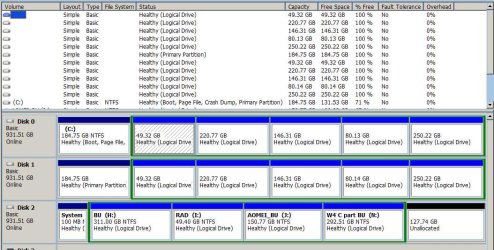
Welcome to the forum. Can you post a screenshot from disk Management so we can see. It looks like Windows was installed with more than one drive and it's got boot files on other drives all files need to go onto one disk so it will boot on its own
 

My Computer

Computer type
PC/Desktop
OS
win 8 32 bit
samuria, hope you'll be able to figure
 

Attachments

  • diskm_snap.jpg
    diskm_snap.jpg
    148.7 KB · Views: 3

My Computer

Computer type
PC/Desktop
OS
Windows 7 Pro x64 SP1
Hard Drives
WD10EZRZ Blue 1 TB (x3)
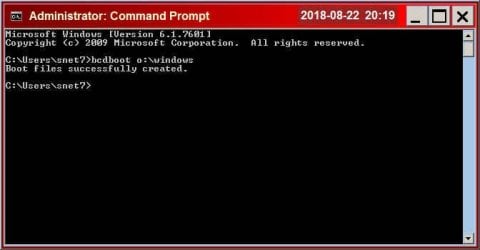
open an adminstrator command prompt, then type:

bcdboot o:\windows

then press enter.
 

My Computers

System One System Two

  • Computer type
    PC/Desktop
    OS
    7 X64
    CPU
    i5 8400
    Motherboard
    gigabyte b365m ds3h
    Memory
    2x8gb 3200mhz
    Hard Drives
    various
    PSU
    pure power 11 400w cm
    Case
    Coolermaster
    Cooling
    cryorig m9i
  • Computer type
    PC/Desktop
    OS
    7x64
    CPU
    g5400
    Motherboard
    ga b365m ds3h
    Memory
    8gb ddr4 2400
    PSU
    xfx pro 450w
Thanks SIW2, before I run the command, should it work can I get back to the current boot up?
I just want to check if the clone drive is effective and do not want to use it permanently. It will be a regular backup drive in future.
 

My Computer

Computer type
PC/Desktop
OS
Windows 7 Pro x64 SP1
Hard Drives
WD10EZRZ Blue 1 TB (x3)
before I run the command, should it work can I get back to the current boot up?

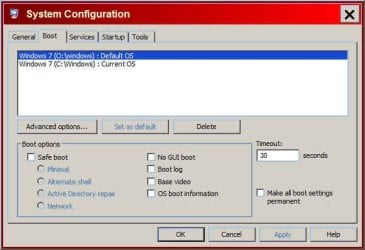
It creates an additional boot menu entry. It doesn't remove the existing entries. By default it will be the first entry on the list. You can change that by typing the word msconfig in start menu search box.

Click msconfig when it pops up.Click the BOOT tab. You can change the default menu entry and timeout there.
 

My Computers

System One System Two

  • Computer type
    PC/Desktop
    OS
    7 X64
    CPU
    i5 8400
    Motherboard
    gigabyte b365m ds3h
    Memory
    2x8gb 3200mhz
    Hard Drives
    various
    PSU
    pure power 11 400w cm
    Case
    Coolermaster
    Cooling
    cryorig m9i
  • Computer type
    PC/Desktop
    OS
    7x64
    CPU
    g5400
    Motherboard
    ga b365m ds3h
    Memory
    8gb ddr4 2400
    PSU
    xfx pro 450w
Thanks, I understand. Followed your instructions, results below.
Did a restart but same/current desktop appeared.
The clone's desktop will be very different by now.
Did I miss a step?
 

Attachments

  • created.jpg
    created.jpg
    18.5 KB · Views: 32
  • boot.jpg
    boot.jpg
    27.8 KB · Views: 32

My Computer

Computer type
PC/Desktop
OS
Windows 7 Pro x64 SP1
Hard Drives
WD10EZRZ Blue 1 TB (x3)
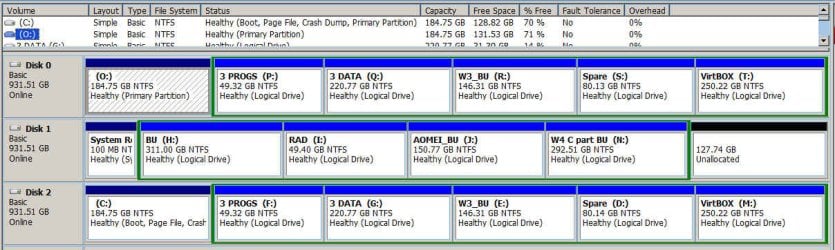
Open disk mgmt and see which disk you are on if you select the O entry.
 

My Computers

System One System Two

  • Computer type
    PC/Desktop
    OS
    7 X64
    CPU
    i5 8400
    Motherboard
    gigabyte b365m ds3h
    Memory
    2x8gb 3200mhz
    Hard Drives
    various
    PSU
    pure power 11 400w cm
    Case
    Coolermaster
    Cooling
    cryorig m9i
  • Computer type
    PC/Desktop
    OS
    7x64
    CPU
    g5400
    Motherboard
    ga b365m ds3h
    Memory
    8gb ddr4 2400
    PSU
    xfx pro 450w
I'm geeking over how many partitions the OP has in that computer! :)
 

My Computer

Computer type
PC/Desktop
Computer Manufacturer/Model Number
Antec desktop; Acer Aspire laptops
OS
Windows 7 Professional 64-bit
CPU
Desktop i5; Acers i5 & i7
Memory
desktop 16GB; 1 Acer 8GB & 1 Acer 16GB
Hard Drives
1TB split into 2 equal partitions [OS and data] usable by RJS
Internet Speed
AT&T DSL
Browser
FF, GChrome, msIE
Other Info
Windows 7 Firewall, Emsisoft AM/AV, MSE [scan-only], SpywareBlaster, Ruiware/BillP combine
They are all logical drives as well
 

My Computer

Computer type
PC/Desktop
OS
win 8 32 bit
SIW2, it seems nothing changed, the difference is still that within O: there's no "boot" shown?
 

Attachments

  • snap2.jpg
    snap2.jpg
    90.6 KB · Views: 2

My Computer

Computer type
PC/Desktop
OS
Windows 7 Pro x64 SP1
Hard Drives
WD10EZRZ Blue 1 TB (x3)
You boot from disk 1 then it passes control to disk 2 disk 0 has no boot files when you did this did you clone or copy as they are not the same. Save messing about and reclone with Macrium Software | Macrium Reflect Free
 

My Computer

Computer type
PC/Desktop
OS
win 8 32 bit

My Computers

System One System Two

  • Computer type
    PC/Desktop
    OS
    7 X64
    CPU
    i5 8400
    Motherboard
    gigabyte b365m ds3h
    Memory
    2x8gb 3200mhz
    Hard Drives
    various
    PSU
    pure power 11 400w cm
    Case
    Coolermaster
    Cooling
    cryorig m9i
  • Computer type
    PC/Desktop
    OS
    7x64
    CPU
    g5400
    Motherboard
    ga b365m ds3h
    Memory
    8gb ddr4 2400
    PSU
    xfx pro 450w
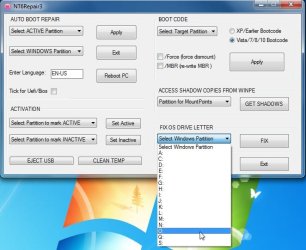
Only noticed your new entry when I opened the thread but before I follow yr advice regarding NT6REPAIRx86.exe please read below.

Good & bad news.
This morning after a hard boot up (not soft boot up repeatedly done yesterday) I got a screen with the option to select either "Windows 7" or "Windows 7".
I let it run the time out and the O drive came up with the older desktop, perfect.
Then noticed a warning that drive F has been deleted which caused 75% of my shortcuts on the desktop no longer active, all these icons w/o pictures.
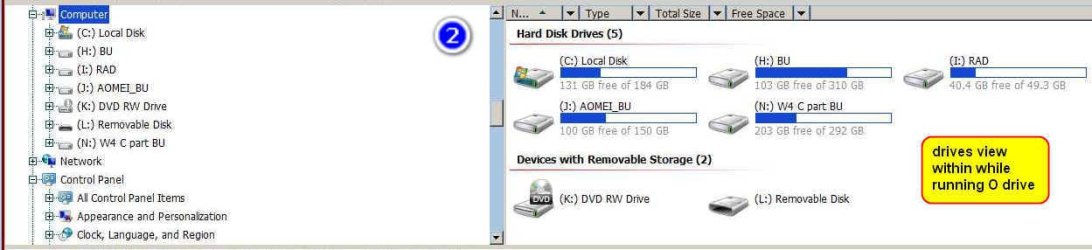
See screenshot while running O drive setup.
The tasbar similar, most icons w/o pictures.
Drive F is where I have all my portable progs installed.

2nd try hard reboot, now I attempt to select the other "Windows 7" but my keyboard inactive.
I let it boot up drive O and applied the command bcdboot c:\windows, result stated success.

3rd hard reboot, again O drive desktop opens, the command had no effect.

4th hard reboot but only after I plugged the keyboard in the front of the PC and not at the back where I've had it the past two years.
Success, during the option screen I selected the the second "Windows 7" and all's back to normal, the current C drive & desktop with drive F running as usual.

SIW2, can you make any deductions from all of this?
 

Attachments

  • drive O.jpg
    drive O.jpg
    102.6 KB · Views: 0

My Computer

Computer type
PC/Desktop
OS
Windows 7 Pro x64 SP1
Hard Drives
WD10EZRZ Blue 1 TB (x3)
This morning after a hard boot up (not soft boot up repeatedly done yesterday) I got a screen with the option to select either "Windows 7" or "Windows 7".
I let it run the time out and the O drive came up with the older desktop, perfect.

That is fine. No need to run FIXLETTER.

Success, during the option screen I selected the the second "Windows 7" and all's back to normal, the current C drive & desktop with drive F running as usual.

SIW2, can you make any deductions from all of this

Sounds like it has sorted itself out after the changes due to cloning.
 

My Computers

System One System Two

  • Computer type
    PC/Desktop
    OS
    7 X64
    CPU
    i5 8400
    Motherboard
    gigabyte b365m ds3h
    Memory
    2x8gb 3200mhz
    Hard Drives
    various
    PSU
    pure power 11 400w cm
    Case
    Coolermaster
    Cooling
    cryorig m9i
  • Computer type
    PC/Desktop
    OS
    7x64
    CPU
    g5400
    Motherboard
    ga b365m ds3h
    Memory
    8gb ddr4 2400
    PSU
    xfx pro 450w
Thanks SIW2, it is a big step forward, at least I can now start a clone.
The final step is to obtain the partitions MiniTool indicates it has cloned.
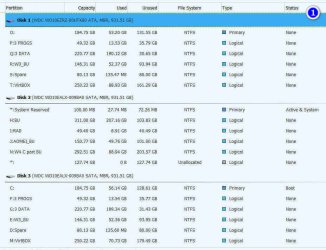
In screenshot 1 MiniTool shows an exact clone, O (Disk 1) is a precise clone of C (Disk 3)
Screenshot 2 shows the partitions I have when I start the cloned O drive. Very different?

The procedure I followed to generate the drive O clone which they also name "copy", a bit confusing.
Clone Hard Drive with Best Disk Cloning Software - MiniTool
 

Attachments

  • ss1.jpg
    ss1.jpg
    62.9 KB · Views: 0
  • ss2.jpg
    ss2.jpg
    41.7 KB · Views: 0

My Computer

Computer type
PC/Desktop
OS
Windows 7 Pro x64 SP1
Hard Drives
WD10EZRZ Blue 1 TB (x3)
Your system partition and boot partition are on 2 different hard disks, and both partitions are required to boot Windows. Copying one disk just copies one system required partition, and definitely Windows can't boot.

For your case, after cloning the source disk, you can connect the target disk only (disconnect other 2 disks), boot computer from Windows installation media, press on Shift + F10 keys to open CMD, and then run these commands:

diskpart
list disk
select 0
list patition
select partition N (replace N with the number of the OS partition)
active
exit
bootrec /fixmbr
bootrec /fixboot
bootrec /rebuildbcd
 

My Computer

Computer type
PC/Desktop
Computer Manufacturer/Model Number
Dell Vostro 470
OS
Windows 7 Ultimate (64 bit)
CPU
Intel(R) Core(TM) i5-3450
Motherboard
Dell 0NW73C
Minitool seems to have done what you asked it.

Your system partition is on Disk2. You can select to boot into either your windows installation on Disk1 or the installation on Disk3.

Disk 2 will need to be connected to do that. When you only had the one windows installation , you also needed to have disk2 connected. That is still the same.


Thanks SIW2, it is a big step forward, at least I can now start a clone.
The final step is to obtain the partitions MiniTool indicates it has cloned.
In screenshot 1 MiniTool shows an exact clone, O (Disk 1) is a precise clone of C (Disk 3)
Screenshot 2 shows the partitions I have when I start the cloned O drive. Very different?

The procedure I followed to generate the drive O clone which they also name "copy", a bit confusing.
Clone Hard Drive with Best Disk Cloning Software - MiniTool
 

My Computers

System One System Two

  • Computer type
    PC/Desktop
    OS
    7 X64
    CPU
    i5 8400
    Motherboard
    gigabyte b365m ds3h
    Memory
    2x8gb 3200mhz
    Hard Drives
    various
    PSU
    pure power 11 400w cm
    Case
    Coolermaster
    Cooling
    cryorig m9i
  • Computer type
    PC/Desktop
    OS
    7x64
    CPU
    g5400
    Motherboard
    ga b365m ds3h
    Memory
    8gb ddr4 2400
    PSU
    xfx pro 450w
If you want to be able to boot them independent of Disk2:

Boot into your Disk3 installation.Open disk management, rt click the c partition and mark it active. Then open an admin command prompt and type bcdboot c:\windows /s c:

Next boot into your Disk1 installation. Open disk management, rt click the c partition and mark it active. Then open an admin command prompt and type bcdboot c:\windows /s c:
 

My Computers

System One System Two

  • Computer type
    PC/Desktop
    OS
    7 X64
    CPU
    i5 8400
    Motherboard
    gigabyte b365m ds3h
    Memory
    2x8gb 3200mhz
    Hard Drives
    various
    PSU
    pure power 11 400w cm
    Case
    Coolermaster
    Cooling
    cryorig m9i
  • Computer type
    PC/Desktop
    OS
    7x64
    CPU
    g5400
    Motherboard
    ga b365m ds3h
    Memory
    8gb ddr4 2400
    PSU
    xfx pro 450w
Thanks SIW3, done but now I can no longer get out of the clone OS i.e. Disk 1.
I no longer receive an option when I boot up to select my default OS or the cloned OS.

BTW now both c partitions marked as active via disk management and I cannot change it.
How do I now get out of this loop?

Currently working from the cloned disk 1. Easy to recognize because the desktop much older.
 

My Computer

Computer type
PC/Desktop
OS
Windows 7 Pro x64 SP1
Hard Drives
WD10EZRZ Blue 1 TB (x3)
Back
Top