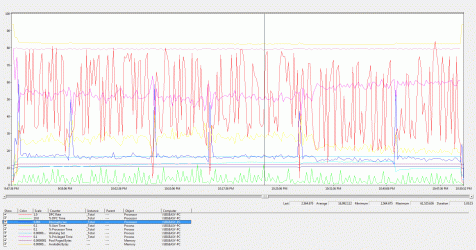
If you're talking about system load, there is a way to get an approximate, general idea of how much memory (actual, committed virtual address pages) your system is using via perfmon and a Data Collector Set, and also get an idea of CPU usage over this time as well (I'll focus on memory usage, because CPU usage isn't really as important as it may first seem). Again, it's going to be an estimate, but it's a pretty good, close estimate to what your usage patterns mean in terms of physical RAM or RAM + paging file usage (you can use this to determine if you need a paging file or not as well).
In perfmon as a User Defined Data Collector Set (start > run > perfmon > Data Collector Sets > User Defined > Action > New > Data Collector Set > Create manually (advanced) > Performance Counter), you can add the "Working Set" counter under the "Process" object, and select the "_Total" instance. Then, add the "Cache Bytes", "Pool Nonpaged Bytes", Pool Paged Bytes, and "Available Bytes" counters under the "Memory" object. These give you:
- Working Set - Gives you the amount of memory pages that have been used recently by running processes, and as such are almost all going to have been mapped into physical RAM. This number will be larger than the actual total process memory utilization due to shared pages between processes being counted multiple times as a process working set.
- Cache Bytes - This number gives you a real-time display of the value of the system cache, the system driver resident bytes, the system code resident bytes, and the kernel paged pool bytes that are cached in RAM.
- Pool Nonpaged Bytes - This counter gives you the amount of the kernel nonpaged pool resource size - this pool is ALWAYS mapped into RAM (thus nonpaged pool, and cannot be paged out to a paging file).
- Pool Paged Bytes - This counter gives you the amount of the kernel paged pool resource size - this pool contains memory data that can be written to disk (in the paging file) if necessary, but is usually stored in RAM until the memory manager determines it needs physical RAM pages (when the system RAM gets full/busy/etc).
- Available Bytes - This gives you the amount of physical RAM available for system use, and is equal to the total amount of memory assigned to the standby (cached), free, and zero page lists (I won't explain them here, it's too deep for this discussion - Windows Internals is good for a deep dive on these if you really want to learn more).
Next, add the "% Privileged Time", "% Processor Time", and "% User Time" counters under the "Process" object, and select the "_Total" instance. Then, add the "% DPC Time", "DPC Rate", and "Interrupts/sec" counters under the "Processor" object, and select the "<All instances>" instance. These give you:
- % Privileged Time - This is the percentage of time that a process had threads executing code in privileged (kernel) mode. Since calls to privileged mode require context switching, too much privileged time can mean lower performance of a process or system depending on the data the thread is accessing, although some privileged time is normal.
- % Processor Time - This number is the percentage of time all of the threads in a process were executing code on the CPU. This one is pretty self-explanatory.
- % User Time - This is the percentage of time that a process had threads executing code in non-privileged (user) mode, meaning this percentage contains only application code that runs outside the kernel.
- % DPC Time - This is the percentage of time that the CPU spent working on deferred procedure calls (DPC), which are interrupts in a system that don't run at as high a priority as a standard system-level interrupt, usually at DPC level 2. A system that does a lot of DPC processing, however, would indicate that the system is performing poorly and may be doing more than it's CPUs can handle. There's no hard-and-fast rule for this counter, but it's something you can monitor over time as you do more and more work with your computer to determine if your system is keeping up or not with the demands of the drivers on the system.
- DPC Rate - This counter gives you an idea of the numbers of DPCs that were added to the CPU's DPC queue as each processor timer ticks on the CPU clock. This number, coupled with the % DPC Time counter, can give you an idea of how fast your CPU is processing DPCs, and give you an idea if your system is keeping up with the load generated by driver calls and other system-level interrupts - if the % DPC Time stays fairly constant but the DPC rate increases regularly, you will know your system is just too busy to keep up with what it's doing, for example.
- Interrupts/sec - Interrupts/sec is the average rate (per second) that the processor handled hardware interrupts (not DPC interrupts). This gives an estimate of the activity of devices on the system that are generating interrupts, such as the system clock, mouse, disk, NICs, etc. Normal thread execution is suspended when the CPU is handling a hardware interrupt, so a machine with a high volume of interrupts would likely perform poorly. Again, as with the DPC counters, there's no hard-and-fast rule for this counter, but you monitor this over time as well to see if the system's devices are causing performance issues or not.
Now, spend a decent amount of time doing the things you'd normally do, and then go back into perfmon and stop/review your Data Collector log. Specifically, add up the averages and high-water marks for the 5 memory counters (they're all in bytes, keep that in mind - not MB or GB, but bytes), and you have an approximation of the actual virtual address footprint of your machine. To a very close approximation, you'll know how much virtual address pages your system uses, and in general, to where the pages are going. If this number is always less than the amount of physical RAM (in bytes) installed on your machine, you don't need a paging file (unless you run apps that explicitly don't run without one, and those are rare). If the number is ever close (and you'll have to determine what level of "close" you want to abide, if this is the case), you're going to want at least a smaller paging file, and if your usage patterns show numbers that are always way over the amount of physical RAM with your perfmon results, obviously, you need a paging file. You can also go back and look at the CPU usage patterns over this same time using those 6 CPU counters, to get an idea of what types of usage patterns you use, and if your CPU is keeping up with system demands (or if you're not using all of your CPU effectively as well

). You can use these numbers to determine if your system is adequate for your usage needs, or if you need an upgrade (or, of course, if you have a system that's overkill for what you need it to do as well).