
Mouse Hover Makes Window Active - Enable

How to Activate a Window by Hovering Over it with the Mouse Pointer

   Information
This will allow you to Activate a window by hovering over it with the mouse pointer for a second to make it easier to switch between open windows.


hello all.
I've been reading this great forum passively for a short while now, its quite the wonderful resource.
what i could not find, though, was information on how to focus on windows by simply hovering over them with the mouse.

Back in XP, you could enable this with Tweak UI, which called it X-mouse.
It was great, i didn't have to click on a window to work in it.
but how to enable this in 7?


OPTION #1
As this article points out, you can switch windows by hovering if you enable it through:
Control Panel> Ease of Access> Change How Your Mouse Works
scroll down, check box "Activate a window by hovering over it with the mouse"
this method raises windows to the front when you hover over them.
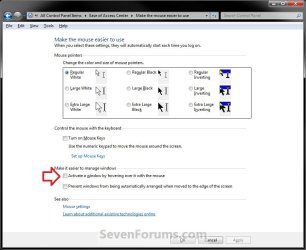
EAC.jpg
OPTION #2
For a true X-mouse experience, you could use this third party software TXMouse:
True X-Mouse Gizmo for Windows
if you are familiar with Linux x-mouse behaviour, you might appreciate its other functions.


OPTION #3
If you don't need those extra functions, you can make a couple swift changes in the registry and achieve the same effect:
[Thanks to original commenter unpaidbill for this particular option]
Step #1:
Open regedit, go to HKEY_CURRENT_USER\Control Panel\Desktop
Edit UserPreferenceMask value to be 9F 3E 07 80 12 00 00 00
[You should only have to modify the first pair]
NOTE: Default value is 98 12 07 80 12 00 00 00.

Step #2:
Also in HKEY_CURRENT_USER\Control Panel\Desktop
Edit ActiveWndTrkTimeout, change 'Base' to Decimal and put in 150 as the 'Value Data'
NOTE: Default value is 500.

[this value is time in milliseconds that it takes for the focus to change.
to avoid some issues with the taskbar I recommended using a value like 150 or so,
but if you'd like to have a different delay before the window loses focus, set it to whatever you like.]

Step #3:
Log off and log back in
   Information
(Added by John Galt)

Here is the registry key to do that if you don't want to edit the registry yourself. View attachment Hover window select.reg

Here is the registry key to restore the default values. View attachment Default Windows hover.reg


This results in windows being active (but not being raised) when you hover over them.


Last edited by a moderator:
Not quite

Thanks for the help, Dixon, but it's not right yet.
I ran XMouseSetting, unchecking Auto Raise (and logged off and back in), but the behavior is the same. Here is a simple example: I have open an Excel window and an Explorer window, slightly overlapping. If I hover the mouse over either, I can scroll with the mouse wheel or type, and the input is received correctly in whichever window has the mouse over it. But while clicking in the Explorer window always brings it to the front, clicking in the Excel window never does. I found the only way to bring it to the front is to click its title bar. (This actually always happens with Excel. Its window never comes to the front when I click inside it.) What I need is a setting that allows that click to override any other stacking or ordering being done, so that a clicked window always comes to the front.
I didn't run WizMouse, as it seems irrelevant to my issue. Thanks for your continued help.

-Imp
 

My Computer

Computer Manufacturer/Model Number
HP
OS
Windows 7 Home Premium 64bit
CPU
intel core i5
Memory
6 GB
I have no solution. I run into the same issues sometimes even with explorer windows.
Somtimes I have to click the title bar.
 

My Computer

Computer type
PC/Desktop
Computer Manufacturer/Model Number
Made by Dixon Butz
OS
Win7 Win 10, Win 8.1
CPU
AMD FX-8350, Corsair H100i
Motherboard
ASUS Crosshair V Formula-Z
Memory
16GB G.SKILL Ripjaws DDR3
Graphics Card(s)
EVGA GTX 980, EVGA GTX 860
Sound Card
Denon x4200 Dolby AMOS!
Monitor(s) Displays
65" Samsung 4K, +3 27inch
Screen Resolution
4K, 1080x3
Hard Drives
2TB Samsung hd204ui

1X Samsung 850 SSD
PSU
1000w EVGA, 2000VA UPS, 1000VA UPS and many others
Case
Lian Li
Cooling
Corsair H100i
Keyboard
Logitech K800
Mouse
Logitech Couch Mouse
Internet Speed
Gigabit!
Antivirus
Defender
Browser
Slimjet Chrome
I FOUND A SOLUTION!

I can bring the window to the front if I click in it BEFORE the mouse hover activates. Example: If I have notepad and Excel open, overlapping, I can hover over either and scroll within it. If I click in notepad, it moves to the front, but clicking in Excel never does. However, if I move the mouse over Excel and click in it before the mouse hover activates it, it will come to the front. So the hover delay continues to be an important setting.

Thanks, everyone, for this discussion. Windows 7 continues to impress me with its useful features.
 

My Computer

Computer Manufacturer/Model Number
HP
OS
Windows 7 Home Premium 64bit
CPU
intel core i5
Memory
6 GB
Oh I see. Nice find! What is you hover delay set at? I have mine set at 50ms I think.
 

My Computer

Computer type
PC/Desktop
Computer Manufacturer/Model Number
Made by Dixon Butz
OS
Win7 Win 10, Win 8.1
CPU
AMD FX-8350, Corsair H100i
Motherboard
ASUS Crosshair V Formula-Z
Memory
16GB G.SKILL Ripjaws DDR3
Graphics Card(s)
EVGA GTX 980, EVGA GTX 860
Sound Card
Denon x4200 Dolby AMOS!
Monitor(s) Displays
65" Samsung 4K, +3 27inch
Screen Resolution
4K, 1080x3
Hard Drives
2TB Samsung hd204ui

1X Samsung 850 SSD
PSU
1000w EVGA, 2000VA UPS, 1000VA UPS and many others
Case
Lian Li
Cooling
Corsair H100i
Keyboard
Logitech K800
Mouse
Logitech Couch Mouse
Internet Speed
Gigabit!
Antivirus
Defender
Browser
Slimjet Chrome
250 ms. Allows enough time to get to the systray icons, but not too long a wait when I'm actively scrolling between several windows. And so far, it's enough time for me to click in the Excel window when I want to bring it to the front. if I miss, I just head to the title bar or hover back to another window first.
 

My Computer

Computer Manufacturer/Model Number
HP
OS
Windows 7 Home Premium 64bit
CPU
intel core i5
Memory
6 GB
The issue I'm having is that when in Explorer, I can't use the scroll wheel when moving from the folder pane to the file pane without FIRST clicking somewhere in the file pane. Years ago I had a mouse driver that allows that and haven't seen that functionality for quite a while now. If anyone knows how to get the scroll wheel to work by placing the cursor within the pane (without having to click inside of that pane), please share how it's done. I miss that functionality!

FYI, the functionality I'm looking for in Explorer does work in Thunderbird. Clicking on a folder, I can hover over the emails list pane and begin scrolling that window with the wheel without having to click somewhere within it first.

Any answers?? This is my problem, too. I hate having to click every time I switch back and forth in the explorer window, one obvious reason is it changes what is in the right window depending on what you click to get the focus into the left window for scrolling, unless you painstakingly choose your spot (time waster!). This wasn't a problem in XP, why did MS change this functionality??

It still works in Outlook, but not explorer. Will the wonders never cease? :rolleyes:
 

My Computer

Computer Manufacturer/Model Number
ASUS home build
OS
Win7 home Premium
CPU
i7 950
Motherboard
P6x8D premium
Memory
6gb
Background:
About 6 months ago I moved from my long (and generally happy) relationship with XP to Win7 (so that I could run on newer hardware!) I customize my machine quite a lot, and hover mouse (Xmouse) is a top priority. It allows me to type in a "lower" window while reading from a "higher" window and even copy&paste from "higher" to "lower"... besides, I grew up in unix (before linux even), so when my company pushed me to XP, it was Tweak UI that made the transition tolerable. (That plus 'gvim'!=)

The .reg files I have picked up here are great, and by the time I began customizing Win7, even the confusion about 'ActiveWndTrkTimeout' had settled out, however I have recently begun to notice a minor annoyance and am hoping for some direction here on SevenForums. Perhaps something has changed on my PC (a system update?) or perhaps I just didn't notice it all that time???

I have become quite comfortable with Win7 now, and I generally prefer it to XP at last. I hate to try anything too "radical" that will mess with my existing, significant range of customizations and its current stability, but this recent annoyance (see below) has me looking around for answers now.
My subtle question:
My subtle annoyance is with the hover behavior for Internet Explorer. To get an IE window (either "lower" or even the one "on top"), to be active, say for scrolling, I have to hover over the "frame" of the window first, not just anywhere in the IE window's interior. And since my focus for hovering is virtually always in the "content" area, not the toolbar, this is an annoying inefficiency...

I have seen some comments in this thread regarding the timeout setting. I went with 150ms, and with this one exception of IE, everything is dandy, but now that this behavior has become annoying, I am wondering if changing the timeout length would help. Frankly, I doubt it since I can hover in the "interior" of IE indefinitely and get no activation until I move the mouse over the toolbar or the outer frame of the window.

Any help/suggestions will be greatly appreciated!
 

My Computer

Computer Manufacturer/Model Number
Hewlett-Packard
OS
Windows 7 Professional
CPU
Intel Core i5
Motherboard
?
Memory
6G
Graphics Card(s)
?
Sound Card
?
Monitor(s) Displays
laptop
Hard Drives
600G
Hello jdub, and welcome to Seven Forums.

As far as I know, this only works on the IE title bar, and not the interior of IE unlike you can with other windows, and cannot be changed. :(
 

My Computer

Computer type
PC/Desktop
Computer Manufacturer/Model Number
Self built custom
OS
64-bit Windows 11 Pro for Workstations
CPU
Intel i7-8700K OC'd to 5 GHz
Motherboard
ASUS ROG Maximus XI Formula Z390
Memory
64 GB (4x16GB) G.SKILL TridentZ RGB DDR4 3600 MHz
Graphics Card(s)
ASUS ROG-STRIX-GTX1080TI-O11G-GAMING
Sound Card
Integrated
Monitor(s) Displays
2 x Samsung Odyssey G7 27"
Screen Resolution
2560x1440
Hard Drives
1TB Samsung 990 PRO M.2,
4TB Samsung 990 PRO PRO M.2,
TerraMaster F8 SSD Plus NAS
PSU
Seasonic Prime Titanium 850W
Case
Thermaltake Core P3
Cooling
Corsair Hydro H115i
Keyboard
Logitech wireless K800
Mouse
Logitech MX Master 4
Internet Speed
2 Gb/s Download and 100 Mb/s Upload
Antivirus
Malwarebyte Anti-Malware Premium
Browser
Google Chrome
Other Info
Logitech Z625 speaker system,
Logitech BRIO 4K Pro webcam,
HP Color LaserJet Pro MFP M477fdn,
APC SMART-UPS RT 1000 XL - SURT1000XLI,
Galaxy S23 Plus phone
is there a way to add a delay to optipon 1?

Does anyone know of some registry key or anything that can make it so that there is a delay before the focus is swapped? maybe about 1 to 2 seconds? Because I only stumbled across this article trying to find how to do that...
 

My Computer

Computer Manufacturer/Model Number
HP G62-219CA
OS
Windows 7 Home Premium x64
CPU
Intel Pentium T4500
Motherboard
HP 1484 77.18
Memory
4GB DDR2
Graphics Card(s)
Mobile Intel(R) 4 Series Express Chipset Family
Hello GBT7,

Step 2 in OPTION #3 is the timing setting for this. :)
 

My Computer

Computer type
PC/Desktop
Computer Manufacturer/Model Number
Self built custom
OS
64-bit Windows 11 Pro for Workstations
CPU
Intel i7-8700K OC'd to 5 GHz
Motherboard
ASUS ROG Maximus XI Formula Z390
Memory
64 GB (4x16GB) G.SKILL TridentZ RGB DDR4 3600 MHz
Graphics Card(s)
ASUS ROG-STRIX-GTX1080TI-O11G-GAMING
Sound Card
Integrated
Monitor(s) Displays
2 x Samsung Odyssey G7 27"
Screen Resolution
2560x1440
Hard Drives
1TB Samsung 990 PRO M.2,
4TB Samsung 990 PRO PRO M.2,
TerraMaster F8 SSD Plus NAS
PSU
Seasonic Prime Titanium 850W
Case
Thermaltake Core P3
Cooling
Corsair Hydro H115i
Keyboard
Logitech wireless K800
Mouse
Logitech MX Master 4
Internet Speed
2 Gb/s Download and 100 Mb/s Upload
Antivirus
Malwarebyte Anti-Malware Premium
Browser
Google Chrome
Other Info
Logitech Z625 speaker system,
Logitech BRIO 4K Pro webcam,
HP Color LaserJet Pro MFP M477fdn,
APC SMART-UPS RT 1000 XL - SURT1000XLI,
Galaxy S23 Plus phone
Very thanx!!

The option #3 was by far the best one!!! Thanxxxxx:geek::geek::geek:
 

My Computer

Computer type
PC/Desktop
Computer Manufacturer/Model Number
Dell
OS
Windows 8.1 64
CPU
Intel i5
Memory
4 Gb
Graphics Card(s)
NVIDIA / Intel
Hard Drives
SSD 120 GB
Thanks. That solved two problems for me at once. First, that clicking (in Lightroom the mouse behaves properly, why not in Windows?) and the resizing of the window to fit the whole screen. Great tutorial. Didn't read past the first option though. Why import stuff if it's already tested with the set sold to me?
 

My Computer

Computer Manufacturer/Model Number
HP Pavilion p6745f
OS
Microsoft Windows 7 Home Premium 64-bit 7601 Multiprocessor Free Service Pack 1
CPU
Intel(R) Core(TM) i5-2300 CPU @ 2.80GHz
Motherboard
PEGATRON CORPORATION 2AB6
Memory
6 GB
Graphics Card(s)
Radeon 6750 1gb
Sound Card
(1) IDT High Definition Audio CODEC (2) Intel(R) Display A
Monitor(s) Displays
Acer x193w
Hard Drives
(1) WDC WD15EARS-60MVWB0 (2) Generic- Compact Flash USB Device (3) Generic- MS/MS-Pro USB Device (4) Generic- SD/MMC USB Device (5) Generic- SM/xD-Picture USB Device (6) WD My Book 1110 USB Device
PSU
Internal 500W (100V-240V)
Case
Mid-size ATX
Cooling
unknown
Keyboard
HP usb multimedia keyboard
Mouse
HP usb compliant mouse
Internet Speed
256 kbps
Other Info
Ver: CHI_713.bin vCHI7.13
Can you tell me how to change the mouse pointers in that top box? I have a program that checks the mouse hoover check box and when I uncheck it the apply button changes my mouse pointer to one of the 9 pointers available. Well I want to change one of those to my mouse pointer. Is there a way to do this?
 

My Computer

Computer type
PC/Desktop
Computer Manufacturer/Model Number
custome built
OS
Windows 7 64 Ultimate
CPU
I7-960
Motherboard
DX58SO2_
Memory
18G
Graphics Card(s)
GTX 8500
Hard Drives
2.0T x 3
Antivirus
Norton
Browser
FIrefox

My Computer

Computer type
PC/Desktop
Computer Manufacturer/Model Number
Self built custom
OS
64-bit Windows 11 Pro for Workstations
CPU
Intel i7-8700K OC'd to 5 GHz
Motherboard
ASUS ROG Maximus XI Formula Z390
Memory
64 GB (4x16GB) G.SKILL TridentZ RGB DDR4 3600 MHz
Graphics Card(s)
ASUS ROG-STRIX-GTX1080TI-O11G-GAMING
Sound Card
Integrated
Monitor(s) Displays
2 x Samsung Odyssey G7 27"
Screen Resolution
2560x1440
Hard Drives
1TB Samsung 990 PRO M.2,
4TB Samsung 990 PRO PRO M.2,
TerraMaster F8 SSD Plus NAS
PSU
Seasonic Prime Titanium 850W
Case
Thermaltake Core P3
Cooling
Corsair Hydro H115i
Keyboard
Logitech wireless K800
Mouse
Logitech MX Master 4
Internet Speed
2 Gb/s Download and 100 Mb/s Upload
Antivirus
Malwarebyte Anti-Malware Premium
Browser
Google Chrome
Other Info
Logitech Z625 speaker system,
Logitech BRIO 4K Pro webcam,
HP Color LaserJet Pro MFP M477fdn,
APC SMART-UPS RT 1000 XL - SURT1000XLI,
Galaxy S23 Plus phone
Option #3 was perfect for me except for one annoying side effect affecting Aero Snap. I frequently use Aero Snap to move windows around using windows key+side arrows combination. Moving a window away from the pointer causes this onhover feature to give focus to the window lying underneath the one I'm moving so that I will begin moving this window instead.

How can I fix this problem? Is there a way to make the mouse follow the moving window? Or is there a way to make option #3 activate only when the mouse is manually moved into another window?
 

My Computer

Computer type
PC/Desktop
OS
Windows 7 Ultimate x64
Opt. 3 Regs - Perfect!!!

TX a bunch gabeforprez & John Galt.
 

My Computer

OS
Windows 7 Home Premium 64bit SP1
Create shortcut to option #1 (activate window on mouse hover)

This thread helped me, and then I wanted to make this quick and easy to do, so I thought I'd share-- If you want to create a shortcut to option #1 to activate window on hover in ease of access settings, here's how--
1. right click in any folder in windows explorer folder → New → Shortcut
2. paste the following into the "Type a name for the shortcut" dialogue:
Code:
explorer shell:::{D555645E-D4F8-4c29-A827-D93C859C4F2A} -Microsoft.EaseOfAccessCenter\pageEasierToClick
3. Click next, and then name the shortcut whatever you want such as "Make mouse easier to use"
4. Here's a link to an icon to use for the shortcut if you are that kind of weirdo like myself :geek:
LBjLWJx.png

Shortcut codes from step #2 can be found at this link (Complete List of Windows 10 CLSID Key (GUID) Shortcuts).
 

My Computer

Computer type
PC/Desktop
OS
Win10 x64
Back
Top