
How to Set Mouse Pointer to Automatically Move to Default Button in Windows 7 and Windows 8
Information
This tutorial will show you how to set the mouse pointer to automatically move (snap) to the default button in a pop-up dialog box to make it easier to select in Windows 7 and Windows 8.
OPTION ONE
To Turn "Snap To" On or Off in Mouse Properties
1. Open the Control Panel (icons view) in Windows 7 or Windows 8.
2. Click/tap on the Mouse icon.
3. Click/tap on the Pointer Options tab. (See screenshot below)
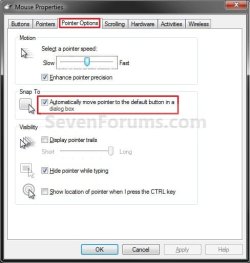
4. To Turn Snap To On A) Check the Automatically move pointer to the default button in a dialog box button, and click/tap on OK. (See screenshot above)
5. To Turn Snap To Off
NOTE: This is the default setting. A) Uncheck the Automatically move pointer to the default button in a dialog box button, and click/tap on OK. (See screenshot below step 3)
6. When finished, you can close the Control Panel if you like.
OPTION TWO
To Turn "Snap To" On or Off using a REG File Download
1. Do step 2 or 3 below for what you would like to do.
2. To Turn Snap To On A) Click/tap on the Download button below to download the file below, and go to step 4 below. Turn_On_Snap_To.reg
Download
3. To Turn Snap To Off
NOTE: This is the default setting. A) Click/tap on the Download button below to download the file below, and go to step 4 below.
Turn_Off_Snap_To.reg
Download
4. Save the REG file to you desktop.
5. Double click/tap on the downloaded REG file to merge it.
6. Click/tap on Run, Yes (UAC), Yes, and OK when prompted to approve the merge.
7. Log out and log in, or restart the computer to apply.
8. When done, you can delete the downloaded .reg file if you like.
That's it,
Shawn
Attachments
Last edited:


