Solved Moving Factory Image Partition, shrinking boot disk size

Remind me what your current system looks like. Maybe you can post a disk mamagement picture telling me which OS is in which partition and what your plans for each OS are. Then I will have a better picture what could be the best course of action.

PS: you probably do not want to clone the drive because you do not want another drive from which to boot - I think. But we'll see.
 

My Computer My Computer

At a glance

Vista, Windows7, Mint Mate, Zorin, Windows 8from 1.6GHz Duo to i7
Computer Manufacturer/Model Number
HP, Dell, Gateway, Toshiba - 4 laptops and 2 desktops
OS
Vista, Windows7, Mint Mate, Zorin, Windows 8
CPU
from 1.6GHz Duo to i7
Monitor(s) Displays
2x HP w2207
Hard Drives
5x HDD, 7x SSD, 12x Externals
Keyboard
with trackball - no mices
Mouse
Trackball mice
Internet Speed
DSL 6000
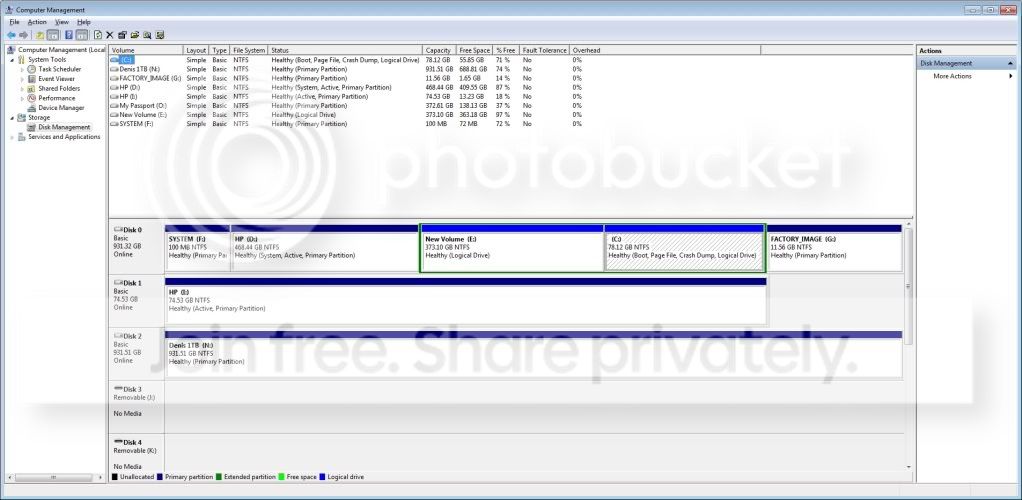
Here is my current layout. I'm currently booted off my big hdd C partition.
disklayout-1.jpg


Disk 0
HP (D: ) - original factory HP Build Win7
New Volume (E: ) - this is where I relocated my user data folders (pictures, downloads, favorites, etc)
(C: ) - new test Win7 image - non HP build, where I'm booted from right now
FACTORY_IMAGE (G: ) - HP build Factory Image

Disk 1
HP (I: ) - SSD drive where I initially cloned my HP factory build using Paragon

Disk 2
Denis 1TB (N: ) - USB 1TB drive being used for my backups
 

My Computer My Computer

At a glance

Windows 7 64bit Home PremiumAMD Phenom II X4 945 3.0GHz8GB
Computer Manufacturer/Model Number
HP HPE-210f
OS
Windows 7 64bit Home Premium
CPU
AMD Phenom II X4 945 3.0GHz
Memory
8GB
Hard Drives
Intel 320 Series SSD - 80GB
WD Green - 1TB
You realize you installed on a Logical partition, correct?

I would use Acronis True Image premium cloning/imaging app which comes free with any WD drive in the mix: WD Acronis free cloning app.
The manual is there on the Downloads page and will show you the steps.

There will be a setting where you choose to mark the target partition Primary and Active. You'll then need to repair it once it's Primary since System boot files cannot be written to a Logical partition. Startup Repair - Run 3 Separate Times

It would have helped if you'd mentioned you intend to image/clone this test install so we could have dealt with this earlier.
 
I didn't plan on imaging this partition and can definitely go a different route. The install went so well (thanks to yours and WHS excellent help) that I just figured, hey this Win7 install is great, might as well use it.

I can easily do another fresh install of Win7 on the SSD (the same way I did on the logical partition, which I didn't realize was a logical one) if that is recommended.

Then clean up my paritions on the big hdd....?
 

My Computer My Computer

At a glance

Windows 7 64bit Home PremiumAMD Phenom II X4 945 3.0GHz8GB
Computer Manufacturer/Model Number
HP HPE-210f
OS
Windows 7 64bit Home Premium
CPU
AMD Phenom II X4 945 3.0GHz
Memory
8GB
Hard Drives
Intel 320 Series SSD - 80GB
WD Green - 1TB
Hold it guys. There is nothing wrong with an OS in a logical partition as long as it is not the 'active' partition. But since your D is active, that works perfectly well.

As for the imaging part, I would image current C and current D seperately. Just be aware that current C has the bootmgr dependency on current D. But if that partition stays intact, you can also restore current C seperately. The imaging program will treat it like a data partition.

Imaging of the SSD is a completely seperate affair and can be done independent of the HDD partitions. It is so to speak 'stand alone'.

PS: does the SSD boot all by itself (with the HDD disconnected). Since you had problems with that earlier, I just wanted to make sure.
 

My Computer My Computer

At a glance

Vista, Windows7, Mint Mate, Zorin, Windows 8from 1.6GHz Duo to i7
Computer Manufacturer/Model Number
HP, Dell, Gateway, Toshiba - 4 laptops and 2 desktops
OS
Vista, Windows7, Mint Mate, Zorin, Windows 8
CPU
from 1.6GHz Duo to i7
Monitor(s) Displays
2x HP w2207
Hard Drives
5x HDD, 7x SSD, 12x Externals
Keyboard
with trackball - no mices
Mouse
Trackball mice
Internet Speed
DSL 6000
I wasn't aware he wanted to image D over, too.

If you only want C on the SSD then if you image it over choose it to be Primary Active and run the Repairs afterwards until it becomes System as well.

If you want to clean reinstall it might be easier, especially now that you have the practice: Reinstalling Windows 7
 
Greg, I thought he was done with the SSD. If anything, he should image his current D over or alternatively move the bootmgr from D to C and than move that image.
 

My Computer My Computer

At a glance

Vista, Windows7, Mint Mate, Zorin, Windows 8from 1.6GHz Duo to i7
Computer Manufacturer/Model Number
HP, Dell, Gateway, Toshiba - 4 laptops and 2 desktops
OS
Vista, Windows7, Mint Mate, Zorin, Windows 8
CPU
from 1.6GHz Duo to i7
Monitor(s) Displays
2x HP w2207
Hard Drives
5x HDD, 7x SSD, 12x Externals
Keyboard
with trackball - no mices
Mouse
Trackball mice
Internet Speed
DSL 6000
C must be converted to Primary first to accept the Active flag and System boot files, but there are already max Primaries so he would have to convert D to Logical after removing the Active flag. Then both would boot from C and it would be clone- or image-ready.

But if his cloning or imaging app doesn't allow to set the target to Primary Active then he can convert those afterwards using PW CD, then from Disk tab Rebuild MBR which may preclude the need to run Repairs x3.
 
Sorry guys for all the confusion, I know I have a lot of different things going on here!

I just rebooted and am up on my SSD with my SATA HDD physically disconnected. I did get an error because my desktop is located on the hdd and it could not be found, as expecte.

I think I have 2 options.
1. Do a brand new FRESH Win7 install on the SSD, then clean up all the partitions on my big hdd.
2. Image my FRESH Win7 install on my big hdd

I'm really confused about this whole bootmgr issue/consideration.
Any link I can read to give me a quick education?
I know I have the 100MB partition on my big HDD and my factory HP build bootmgr was moved from the 100MB partition to the C partition with easyBCD. So I though there was no more bootmgr in the 100MB partition and C was completely independent.
When I did my fresh Win7 install on my big HDD are you saying bootmgr for this installation is in the 100MB partition or in the D partition which is my factory Win7 install?

Again, I really appreciate all the help and patience!
 

My Computer My Computer

At a glance

Windows 7 64bit Home PremiumAMD Phenom II X4 945 3.0GHz8GB
Computer Manufacturer/Model Number
HP HPE-210f
OS
Windows 7 64bit Home Premium
CPU
AMD Phenom II X4 945 3.0GHz
Memory
8GB
Hard Drives
Intel 320 Series SSD - 80GB
WD Green - 1TB
If that option does not bother you, a fresh install on the SSD (with the HDD disconnected) is the easiest option.

Moving the current C to the SSD requires some gymnastics as Greg has explained. Moving your current D would be easier but would still require to clean and align the SSD - just to be on the safe side. But that is apparently not what you would like to do.

But since your current C is brand new too, it should not be very different to make a fresh install on the SSD (updates, etc.). Then you get all the settings and alignment and do not have to worry about that.

PS: If you later want to wipe the HDD, make sure you save your data first.
 

My Computer My Computer

At a glance

Vista, Windows7, Mint Mate, Zorin, Windows 8from 1.6GHz Duo to i7
Computer Manufacturer/Model Number
HP, Dell, Gateway, Toshiba - 4 laptops and 2 desktops
OS
Vista, Windows7, Mint Mate, Zorin, Windows 8
CPU
from 1.6GHz Duo to i7
Monitor(s) Displays
2x HP w2207
Hard Drives
5x HDD, 7x SSD, 12x Externals
Keyboard
with trackball - no mices
Mouse
Trackball mice
Internet Speed
DSL 6000
I would unplug the HD to clean reinstall to SSD.

What exactly do you wish to do with the HD once you have the SSD up and running?
 
I like the clean install on the SSD option. I was simple enough to do in my test hdd partition so I'm pretty comfortable with that level of complexity.

I plan to keep the hdd in the system and store all my user data on that drive.
A more high level goal would be to use my 80GB SSD as effeciently as possible to get the best performance out of my system. If there are certain types of data I should keep on the SSD, I'm happy to do so. Especially now that I'm going with a fresh install which is saving me over 20GB of HP bloatware and give me more freespace on the SSD.
 

My Computer My Computer

At a glance

Windows 7 64bit Home PremiumAMD Phenom II X4 945 3.0GHz8GB
Computer Manufacturer/Model Number
HP HPE-210f
OS
Windows 7 64bit Home Premium
CPU
AMD Phenom II X4 945 3.0GHz
Memory
8GB
Hard Drives
Intel 320 Series SSD - 80GB
WD Green - 1TB
I would start with User folders on SSD and gradually migrate them to HD as space tightens: User Folders - Change Default Location.

All Programs should go on SSD, but Page file can be moved off eventually: http://www.vistax64.com/tutorials/132201-virtual-memory-paging-file-change.html

When ready I'd wipe the HD with Diskpart Clean Command to clean the boot sector and prepare it for partitioning your storage as you wish. Partition or Volume - Create New

A very good use for it is to store Win7 backup images: Backup Complete Computer - Create an Image Backup
 
Ok, sounds like a plan. I'm heading out and will get back to this on Sunday. Thanks again guys. I've been on a lot of technical forums in my day and you two are the creme of crop. Very technical, very responsive and patient with the learners...
 

My Computer My Computer

At a glance

Windows 7 64bit Home PremiumAMD Phenom II X4 945 3.0GHz8GB
Computer Manufacturer/Model Number
HP HPE-210f
OS
Windows 7 64bit Home Premium
CPU
AMD Phenom II X4 945 3.0GHz
Memory
8GB
Hard Drives
Intel 320 Series SSD - 80GB
WD Green - 1TB
Glad to help. Keep us posted and note added info about moving page file above.
 
I have an SSD and an internall HDD (plus one on eSata and 3 on USB). The way I organized mine is:

1. All system files on the SSD. But I deleted the hiberfile. The command is powercfg -h off.

2. On the HDD is my data. But I did not move the default location. I left the default folders on the SSD because a lot of programs store their little files there (especially in Documents) and I did not want those to be mixed with my own data.

Instead, I made new Documents, Music, Pictures, Videos folders in one partition of my HDD and INCLUDED those folders into their respective libraries (just right click on the folders and you will see).

3. A second partition on the HDD is for images of the SSD. That is superfast - an image of the SSD is done in 4+ minutes with Macrium. That partition happens to be 380GB so that it can hold plenty of images.

4. A third and small 50GB partition I have on the HDD for miscellaneous purposes - I use it e.g. for video output from movie maker. Those files are usually only temporary and end up on one of my other external disks or in a data folder.

5. Since the data partition is on the HDD, I back that up to the 500GB HD that is attached via eSata. That is my fastest external disk.

6. In addition I use an external 640GB disk attached via USB. To that one I image the SSD and backup data from time to time. This disk and the eSata disk are always disconnected when not in use. Both sit on my desk and have a switch. In Germany I have those disks under the desk. There I switch them off with a remote controlled electrical switch - the kind you can buy in Home depot.

With that strategy I am covered for all eventualities. Works pretty well for me.
 

My Computer My Computer

At a glance

Vista, Windows7, Mint Mate, Zorin, Windows 8from 1.6GHz Duo to i7
Computer Manufacturer/Model Number
HP, Dell, Gateway, Toshiba - 4 laptops and 2 desktops
OS
Vista, Windows7, Mint Mate, Zorin, Windows 8
CPU
from 1.6GHz Duo to i7
Monitor(s) Displays
2x HP w2207
Hard Drives
5x HDD, 7x SSD, 12x Externals
Keyboard
with trackball - no mices
Mouse
Trackball mice
Internet Speed
DSL 6000
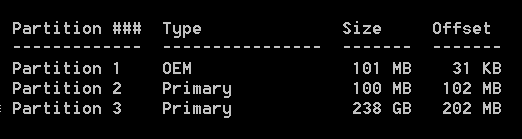
is this okay?
 

Attachments

  • Capture.PNG
    Capture.PNG
    1.1 KB · Views: 2

My Computer My Computer

At a glance

Windows Professional 64bitIntel Core i7 2820QM @ 2.30GHz, Sandy Bridge ...16GBGeneric PnP Monitor (1600x900@60Hz), NVIDIA G...
Computer Manufacturer/Model Number
Dell XPS 17
OS
Windows Professional 64bit
CPU
Intel Core i7 2820QM @ 2.30GHz, Sandy Bridge 32nm
Motherboard
03RG89, Intel Ver: A12
Memory
16GB
Graphics Card(s)
Generic PnP Monitor (1600x900@60Hz), NVIDIA GeForce GT 555m
Sound Card
High Definition Audio Device
Monitor(s) Displays
NVIDIA 3D
Screen Resolution
1600 x 900 3d
Hard Drives
250GB SAMSUNG SAMSUNG SSD PM810 2.5" 256GB ATA Device (SATA-SSD)
625GB SAMSUNG SAMSUNG HM640JJ ATA Device (SATA)
Other Info
Transend 64GB Memory Card, Lexar Echo ZE 32GB USB 2.0 Backup DriveLEHZE32GASBNA <---Newest thing and very small.
timlab please post a maximized Disk Mgmt. screenshot in a new thread you start rather than tagging onto the end of someone else's thread.
 
is this okay?
Yeah that looks OK. The first 101MB OEM partition is probably some tools partition. Don't worry about that. The 100MB system partition and the OS partition are aligned.

They were smart. They used the 101MB OEM partition to align the others. This is probably a Fat32 partition.

If you post a disk management snip as Greg suggested, we can reverify.
 

My Computer My Computer

At a glance

Vista, Windows7, Mint Mate, Zorin, Windows 8from 1.6GHz Duo to i7
Computer Manufacturer/Model Number
HP, Dell, Gateway, Toshiba - 4 laptops and 2 desktops
OS
Vista, Windows7, Mint Mate, Zorin, Windows 8
CPU
from 1.6GHz Duo to i7
Monitor(s) Displays
2x HP w2207
Hard Drives
5x HDD, 7x SSD, 12x Externals
Keyboard
with trackball - no mices
Mouse
Trackball mice
Internet Speed
DSL 6000
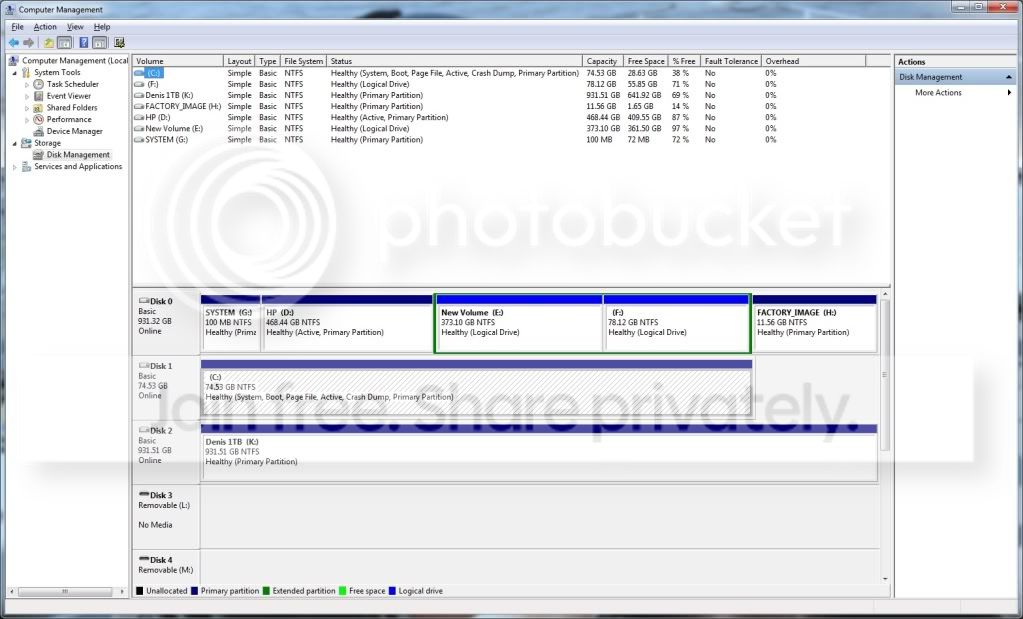
Ok - I completed my fresh install of Win7 on my SSD drive. All went smoothly as expected.
Here's my current disk layout. I have a couple of questions...

disklayout262012.jpg


My HDD had a 100MB SYSTEM partition - why doesn't my SSD drive require a similiar partition?
I want to:
1. Delete my D: partition (my old HP Win7 partition)
2. Extend my G: partition to unallocated space from deleting D:
3. Copy my user files from E: to G:
4. Delete E:, F: (F: is my Win7 test partition which I don't need) H: partitions
5. Extend G: to use the unallocated space from E:, F:, and H:

Once I have one huge partition then I will figure out if I want to shrink it and create a second partition on the disk for a backup target. I'll likely follow the layout of WHS, less the external eSata drive.
 

My Computer My Computer

At a glance

Windows 7 64bit Home PremiumAMD Phenom II X4 945 3.0GHz8GB
Computer Manufacturer/Model Number
HP HPE-210f
OS
Windows 7 64bit Home Premium
CPU
AMD Phenom II X4 945 3.0GHz
Memory
8GB
Hard Drives
Intel 320 Series SSD - 80GB
WD Green - 1TB
Back
Top