Solved Moving "My Documents"

Gudzilla

New member
Local time
12:00 PM
Messages
16
Hello forum;
I have a question about setting up a new SSD. I have installed the drive, and to save space I would like to move all the documents, pictures, music and other folders into my previous HDD.
I have seen a couple of posts and tutorials on the subject, some seem to say moving the most used folders is the best, while others say moving the entire user profile is the way to go. That route seems pretty complicated for me.
As far as moving say "My Documents". I have two versions of this folder. The version which was on the HDD that I had been using, and the version which was created when I installed Windows again. How do I move both of these to the same location? and how much of the excess from the old Documents folder can I safely delete? I see a lot of folders that are just a long string of characters, and other items I dont remember ever saving.
And if I can merge these two versions, does it make sense to create a separate partition for them?
 

My Computer

Computer Manufacturer/Model Number
Gateway GT5662
OS
Windows 7 Ultimate 32 bit
CPU
Phenom 9500
Motherboard
ECS MCP61PM-GM AM2 mATX
Memory
3 GB
Monitor(s) Displays
Two 21 inch
Option 2 of this tutorial http://www.sevenforums.com/tutorials/18629-user-folders-change-default-location.html should help you out.

You can move just documents, music, videos, etc. or you could move the entire user folder it's really your choice, I just recently did this and I moved everything except the Desktop and AppData folders to a different drive using the above tutorial and it worked flawlessly.

I'm not sure about the files with the long string of characters are they in your user folder or your documents folder?

Jerry
 

My Computer

Computer type
Laptop
Computer Manufacturer/Model Number
Sager NP9170
OS
Win 7 Pro x64 / Win 10 Pro
CPU
Intel(R) Core(TM) i7-3630QM CPU @ 2.40GHz
Motherboard
CLEVO P170EM
Memory
12 GB
Graphics Card(s)
(1) Intel(R) HD Graphics 4000 (2) NVIDIA GeForce GTX 675M
Sound Card
(1) Realtek High Definition Audio (2) Intel(R) Display Aud
Monitor(s) Displays
17.3
Screen Resolution
1920x1080
Hard Drives
(1) Samsung 860 EVO 500GB(OS) (1) Samsung 860 EVO 500GB(Data)
Keyboard
Backlite
Antivirus
MSE, Malwarebytes Pro
Browser
Firefox
Other Info
DESKTOP: Custom-built.
OS: Win 10 Pro x64.
CASE: Rosewill R5.
CPU: Intel I5 4670K CPU @ 3.40GHz.
CPU COOLER: Cool Master Hyper 212 EVO.
MOTHERBOARD: Asus Z87-A.
MEMORY: Kingston HyperX 2x4 GB.
GPU: Nvidia Geforce 650 TI.
PSU: Corsair TX750.
DRIVES: (1) Samsung 840 120 GB SSD (2) Western Digital blue 500 GB 7200 RPM.
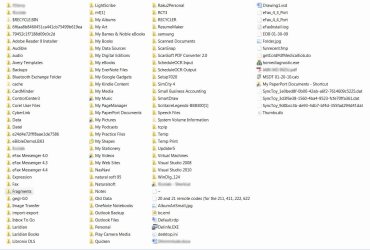
Here is what My documents looks like in the old system. I realize some of these are related to software I'vd only installed on the old system, but some look like jibberish to me. How do I tell which I can remove?

My_Docs.jpg
 

My Computer

Computer Manufacturer/Model Number
Gateway GT5662
OS
Windows 7 Ultimate 32 bit
CPU
Phenom 9500
Motherboard
ECS MCP61PM-GM AM2 mATX
Memory
3 GB
Monitor(s) Displays
Two 21 inch
and how much of the excess from the old Documents folder can I safely delete? I see a lot of folders that are just a long string of characters, and other items I dont remember ever saving.
And if I can merge these two versions, does it make sense to create a separate partition for them?

Here is what My documents looks like in the old system. I realize some of these are related to software I'vd only installed on the old system, but some look like jibberish to me. How do I tell which I can remove?

View attachment 251468

What I would do would be to go through your old My Documents folder and anything that was important or you know you need I would copy and paste into your new My Documents folder, If you don't already I would rename the old My Documents folder to something new and then just keep it for a short while to make sure everything is running okay and that you are not missing anything.
Depending on how big your old hard drive is you could make a small partition and store it there that would be your personal choice.

Jerry
 

My Computer

Computer type
Laptop
Computer Manufacturer/Model Number
Sager NP9170
OS
Win 7 Pro x64 / Win 10 Pro
CPU
Intel(R) Core(TM) i7-3630QM CPU @ 2.40GHz
Motherboard
CLEVO P170EM
Memory
12 GB
Graphics Card(s)
(1) Intel(R) HD Graphics 4000 (2) NVIDIA GeForce GTX 675M
Sound Card
(1) Realtek High Definition Audio (2) Intel(R) Display Aud
Monitor(s) Displays
17.3
Screen Resolution
1920x1080
Hard Drives
(1) Samsung 860 EVO 500GB(OS) (1) Samsung 860 EVO 500GB(Data)
Keyboard
Backlite
Antivirus
MSE, Malwarebytes Pro
Browser
Firefox
Other Info
DESKTOP: Custom-built.
OS: Win 10 Pro x64.
CASE: Rosewill R5.
CPU: Intel I5 4670K CPU @ 3.40GHz.
CPU COOLER: Cool Master Hyper 212 EVO.
MOTHERBOARD: Asus Z87-A.
MEMORY: Kingston HyperX 2x4 GB.
GPU: Nvidia Geforce 650 TI.
PSU: Corsair TX750.
DRIVES: (1) Samsung 840 120 GB SSD (2) Western Digital blue 500 GB 7200 RPM.
Thanks for your reply
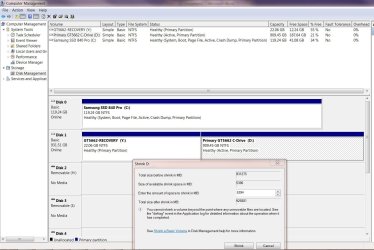
Ok, I’m ready to do that, ready to move my documents. I am thinking it would be best to create a partition on the old HDD to start putting these documents into, but I am running into this problem.
Disk management says the drive has 909.45 GB capacity, and 187.64 GB free space. When I go to shrink it so I can create the partition the response comes back as saying there is only 5396 MB available to shrink.
I have been following the tutorial for shrinking the volume but the numbers don’t add up. What might be going wrong here?
 

Attachments

  • Capture.JPG
    Capture.JPG
    220.7 KB · Views: 3

My Computer

Computer Manufacturer/Model Number
Gateway GT5662
OS
Windows 7 Ultimate 32 bit
CPU
Phenom 9500
Motherboard
ECS MCP61PM-GM AM2 mATX
Memory
3 GB
Monitor(s) Displays
Two 21 inch

My Computer

Computer Manufacturer/Model Number
Cooler Master
OS
Windows 7 Home Premium 64 Bit
CPU
Core I7 1155 3.4GHZ
Memory
8GB DDR 1600
Hard Drives
64 GB SSD - OS
1TB - DATA
PSU
340 Watt Corsair
Case
Cooler Master
Cooling
Cooler Master
Using Windows built-in disk management sometimes not the best to use, look at this tutorial http://www.sevenforums.com/tutorials/93322-partition-wizard-use-bootable-cd.html and download Partition Wizard and burn it to a CD then look at Option 3 it explains how to shrink the volume on the left side of C but is the same principle just use the slider on the right side on the drive you want to shrink. Read the warning about backing up.

Jerry
 

My Computer

Computer type
Laptop
Computer Manufacturer/Model Number
Sager NP9170
OS
Win 7 Pro x64 / Win 10 Pro
CPU
Intel(R) Core(TM) i7-3630QM CPU @ 2.40GHz
Motherboard
CLEVO P170EM
Memory
12 GB
Graphics Card(s)
(1) Intel(R) HD Graphics 4000 (2) NVIDIA GeForce GTX 675M
Sound Card
(1) Realtek High Definition Audio (2) Intel(R) Display Aud
Monitor(s) Displays
17.3
Screen Resolution
1920x1080
Hard Drives
(1) Samsung 860 EVO 500GB(OS) (1) Samsung 860 EVO 500GB(Data)
Keyboard
Backlite
Antivirus
MSE, Malwarebytes Pro
Browser
Firefox
Other Info
DESKTOP: Custom-built.
OS: Win 10 Pro x64.
CASE: Rosewill R5.
CPU: Intel I5 4670K CPU @ 3.40GHz.
CPU COOLER: Cool Master Hyper 212 EVO.
MOTHERBOARD: Asus Z87-A.
MEMORY: Kingston HyperX 2x4 GB.
GPU: Nvidia Geforce 650 TI.
PSU: Corsair TX750.
DRIVES: (1) Samsung 840 120 GB SSD (2) Western Digital blue 500 GB 7200 RPM.

My Computer

Computer type
Laptop
Computer Manufacturer/Model Number
HP ENVY 17-1150eg
OS
Windows 10 Pro x64 EN-GB
CPU
1.6 GHz Intel Core i7-720QM Processor
Memory
6 GB
Graphics Card(s)
ATI Mobility Radeon HD 5850 Graphics
Sound Card
Beats sound system with integrated subwoofer
Monitor(s) Displays
17" laptop display, 22" LED and 32" Full HD TV through HDMI
Screen Resolution
1600*900 (1), 1920*1080 (2&3)
Hard Drives
Internal: 2 x 500 GB SATA Hard Disk Drive 7200 rpm
External: 2TB for backups, 3TB USB3 network drive for media
Cooling
As Envy runs a bit warm, I have it on a Cooler Master pad
Keyboard
Logitech diNovo Media Desktop Laser (bluetooth)
Mouse
Logitech Performance Mouse MX
Internet Speed
50/10 Mbps VDSL
Antivirus
Windows Defender 4.3.9431.0
Browser
Maxthon 3.5.2., IE11
Back
Top