Multiple Drive and Partition Question

glennc

New member
Power User
VIP
Local time
12:46 AM
Messages
1,024
Hello,
Back to show my ignorance. I have a c: Drive 500 GB Drive with the System Reserved Partition on it. A second physical drive 1 TB partitioned as E: and F: are used solely for backup. What type of partition/type should each of the four sections of the two drives have. System, Logical, Primary, whatever the hey else there is?
If your kindness extends to a minor explanation it would be additionally appreciated. I am wondering if this is the reason I have the Disk 0 and Disk 1 assignment intermittent swap, noted in a previous thread. Thanks for any help.
glennc
 

My Computer

Computer type
PC/Desktop
Computer Manufacturer/Model Number
Self-Built
OS
Windows 7 Ultimate
CPU
AMD Phenom-II X4 965
Motherboard
Gigabyte GA-MA785GM-US2H
Memory
8192 MB DDR2-SDRAM
Graphics Card(s)
ATI Radeon HD 4200
Sound Card
ATI Radeon HD 4200 High Definition Audo
Monitor(s) Displays
LG Electronics W1943
Screen Resolution
1360 X 768
Hard Drives
C: 500 GB Caviar Black SATA
E: 500 GB Caviar Black SATA
PSU
Ultra LSP 750
Case
Ultra XBlaster
Cooling
2 Fans, CPU Fan, PS Fan
Keyboard
Acer
Mouse
Logitech
Internet Speed
6 MB
Hi glenc

If you could post a pic of disk mgmt that shows how it's set up, system reserved is a 100mb partition that's put there when you clean install Win 7 it doesn't get a drive letter, C: os, then your 1tb drive is 2 partitions E and F which are primary partitions also and that is fine, you are allowed 4 primary partitions, but when your setting it up with the wizard there is the option to make an extended or logical partition, make sure you never make a dynamic partition they cause big problems. But a pic is worth a thousand words.
 

My Computer

Computer Manufacturer/Model Number
Dell XPS 730
OS
Windows 7 Home Premium 64 bit
CPU
Intel Core 2 quad Extreme Q9770 @ 3.2 GHz
Memory
4x2 GB Muskin 1600 MHz ram
Graphics Card(s)
NVidia GTX 250
Sound Card
Soundblaster X-Fi Fatality Champion
Monitor(s) Displays
2 Dell 2007WFP Ultrascans
Screen Resolution
3360 x 1050
Hard Drives
WD Black 1TB sata, 2-WD Black 500 sata, 2-Seagate 500 Go external
PSU
1000 Watt
Cooling
air
Keyboard
MS Natrual Keyboard Pro
Mouse
Logitech Wireless Trackball
Internet Speed
DSL Elite
Hi glenc

If you could post a pic of disk mgmt that shows how it's set up, system reserved is a 100mb partition that's put there when you clean install Win 7 it doesn't get a drive letter, C: os, then your 1tb drive is 2 partitions E and F which are primary partitions also and that is fine, you are allowed 4 primary partitions, but when your setting it up with the wizard there is the option to make an extended or logical partition, make sure you never make a dynamic partition they cause big problems. But a pic is worth a thousand words.

Howdy 1Bowtie,
How would I get to disk management to get the view. Having no idea of the differences between the types of partitions, logical, dynamic etc. I am more severely lost. Thanks for answering the call.
glennc
 

My Computer

Computer type
PC/Desktop
Computer Manufacturer/Model Number
Self-Built
OS
Windows 7 Ultimate
CPU
AMD Phenom-II X4 965
Motherboard
Gigabyte GA-MA785GM-US2H
Memory
8192 MB DDR2-SDRAM
Graphics Card(s)
ATI Radeon HD 4200
Sound Card
ATI Radeon HD 4200 High Definition Audo
Monitor(s) Displays
LG Electronics W1943
Screen Resolution
1360 X 768
Hard Drives
C: 500 GB Caviar Black SATA
E: 500 GB Caviar Black SATA
PSU
Ultra LSP 750
Case
Ultra XBlaster
Cooling
2 Fans, CPU Fan, PS Fan
Keyboard
Acer
Mouse
Logitech
Internet Speed
6 MB
Sorry it took so long to get back, but to answer one of your questions, go to control panel / admin tools / then disk mgmt. It will show you all your drives and how they are set up, drive letters etc. There you can create new partitions, change drive letters, extend or shrink partitions. Let me know when you get there if you have specific questions, how to and i'll try to answer as i can
 

My Computer

Computer Manufacturer/Model Number
Dell XPS 730
OS
Windows 7 Home Premium 64 bit
CPU
Intel Core 2 quad Extreme Q9770 @ 3.2 GHz
Memory
4x2 GB Muskin 1600 MHz ram
Graphics Card(s)
NVidia GTX 250
Sound Card
Soundblaster X-Fi Fatality Champion
Monitor(s) Displays
2 Dell 2007WFP Ultrascans
Screen Resolution
3360 x 1050
Hard Drives
WD Black 1TB sata, 2-WD Black 500 sata, 2-Seagate 500 Go external
PSU
1000 Watt
Cooling
air
Keyboard
MS Natrual Keyboard Pro
Mouse
Logitech Wireless Trackball
Internet Speed
DSL Elite
If I understand correctly, you have 3 partitions across 2 drives.

Normally, I'd expect to see C with these characteristics in disk management: system, boot, page file, active, crash dump, and primary.

The other two may just be designated primary.

That will work fine. You don't need logicals, but there would be nothing particularly wrong with having them.

Avoid dynamic like the plague.

You can think of extended partitions like an outer container that contain logical partitions inside--kinda like a cigarette carton that contains individual packs. But you don't need logicals in your situation.

You may or may not also have a small "reserved partition" of 100 mb or 200 mb. Leave it alone if you have it. Whether or not you have it depends on the exact steps you took when you installed Windows. It can be avoided at the time of installation, but if you have it now, I would leave it alone rather than remove it.
 
Last edited:

My Computer

Computer type
PC/Desktop
Computer Manufacturer/Model Number
Ignatz Special; 4 speed manual gearbox; factory air conditioning; one of one
OS
Windows 7 Home Premium SP1, 64-bit
CPU
Intel Skylake i5-6600K, not overclocked
Motherboard
AsRock Z170M Extreme 4, micro ATX
Memory
8 GB HyperX DDR4-2666 (2 x 4 GB)
Graphics Card(s)
none; graphics are integrated on CPU
Sound Card
onboard: Realtek ALC1150; external: USB Behringer UF0-202
Monitor(s) Displays
Dell S2340M 23 inch IPS
Screen Resolution
1600 x 900
Hard Drives
System: Crucial MX100 series SSD, 128 GB;
Data: Samsung Spinpoint 103SJ, 1 TB;
Backup: WD Caviar Green WD30EZRX-00D8PB0, 3 TB
PSU
Rosewill SilentNight 500 watt fanless, semi-modular
Case
Antec Solo II
Cooling
Noctua NH-U12S; Noctua F12 intake, Noctua S12A exhaust
Keyboard
Microsoft 200 6JH-00001 USB
Mouse
Dell or Microsoft optical wired; USB
Antivirus
Microsoft Security Essentials and Malwarebytes Premium
Browser
Pale Moon
Other Info
All fans PWM; speeds at idle: CPU circa 500 rpm; intake circa 600 rpm; exhaust circa 600 rpm; CPU temps 27 idle and 47 C load in a warm room (27 C/81 F) when running Intel Extreme Tuning Utility stress test.
Hello to all,
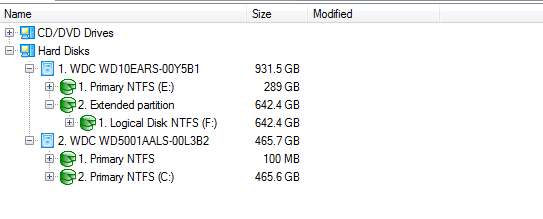
Can't find the Disk Manager under Administrator tools in Control Panel. Made these following examples from Paragon.

Capture.PNG


Capture1.PNG

Hope they help you more than they do me. Also notice how the first drive is the 1 TB and the C: drive 500 GB is listed second. That is an old problem that maybe I might figure out the primary, logical, extended etc: thing.
Thanks Gentlemen
glennc
 
Last edited:

My Computer

Computer type
PC/Desktop
Computer Manufacturer/Model Number
Self-Built
OS
Windows 7 Ultimate
CPU
AMD Phenom-II X4 965
Motherboard
Gigabyte GA-MA785GM-US2H
Memory
8192 MB DDR2-SDRAM
Graphics Card(s)
ATI Radeon HD 4200
Sound Card
ATI Radeon HD 4200 High Definition Audo
Monitor(s) Displays
LG Electronics W1943
Screen Resolution
1360 X 768
Hard Drives
C: 500 GB Caviar Black SATA
E: 500 GB Caviar Black SATA
PSU
Ultra LSP 750
Case
Ultra XBlaster
Cooling
2 Fans, CPU Fan, PS Fan
Keyboard
Acer
Mouse
Logitech
Internet Speed
6 MB
Type disk management in the start button search box and you will find it.

I don't see anything wrong in the 2 pictures you did post. F is a logical partition inside an extended partition. You have the 100 mb reserved partition on Disk 2, which is your boot drive.
 

My Computer

Computer type
PC/Desktop
Computer Manufacturer/Model Number
Ignatz Special; 4 speed manual gearbox; factory air conditioning; one of one
OS
Windows 7 Home Premium SP1, 64-bit
CPU
Intel Skylake i5-6600K, not overclocked
Motherboard
AsRock Z170M Extreme 4, micro ATX
Memory
8 GB HyperX DDR4-2666 (2 x 4 GB)
Graphics Card(s)
none; graphics are integrated on CPU
Sound Card
onboard: Realtek ALC1150; external: USB Behringer UF0-202
Monitor(s) Displays
Dell S2340M 23 inch IPS
Screen Resolution
1600 x 900
Hard Drives
System: Crucial MX100 series SSD, 128 GB;
Data: Samsung Spinpoint 103SJ, 1 TB;
Backup: WD Caviar Green WD30EZRX-00D8PB0, 3 TB
PSU
Rosewill SilentNight 500 watt fanless, semi-modular
Case
Antec Solo II
Cooling
Noctua NH-U12S; Noctua F12 intake, Noctua S12A exhaust
Keyboard
Microsoft 200 6JH-00001 USB
Mouse
Dell or Microsoft optical wired; USB
Antivirus
Microsoft Security Essentials and Malwarebytes Premium
Browser
Pale Moon
Other Info
All fans PWM; speeds at idle: CPU circa 500 rpm; intake circa 600 rpm; exhaust circa 600 rpm; CPU temps 27 idle and 47 C load in a warm room (27 C/81 F) when running Intel Extreme Tuning Utility stress test.
Hello to all,
Can't find the Disk Manager under Administrator tools in Control Panel. Made these following examples from Paragon.

View attachment 139721


View attachment 139722

Hope they help you more than they do me. Also notice how the first drive is the 1 TB and the C: drive 500 GB is listed second. That is an old problem that maybe I might figure out the primary, logical, extended etc: thing.
Thanks Gentlemen
glennc

You posted a screenshot of Disk management in post 7 of
http://www.sevenforums.com/hardware-devices/139573-strange-intermittent-reassignment-hardrives.html

How did you do that one?
 

My Computer

OS
ME/XP/Vista/Win7
The drives shown as 1 and 2 in Paragon would presumably appear as 0 and 1 in disk management.

I've operated for years with my boot drive shown as disk 1 in disk management.

If you prefer it to show as disk 0, you could probably do that by switching just swapping cables, but I don't know that I would bother. I seem to recall someone saying on these forums a month or so ago that switching cables like that can occasionally cause problems.
 

My Computer

Computer type
PC/Desktop
Computer Manufacturer/Model Number
Ignatz Special; 4 speed manual gearbox; factory air conditioning; one of one
OS
Windows 7 Home Premium SP1, 64-bit
CPU
Intel Skylake i5-6600K, not overclocked
Motherboard
AsRock Z170M Extreme 4, micro ATX
Memory
8 GB HyperX DDR4-2666 (2 x 4 GB)
Graphics Card(s)
none; graphics are integrated on CPU
Sound Card
onboard: Realtek ALC1150; external: USB Behringer UF0-202
Monitor(s) Displays
Dell S2340M 23 inch IPS
Screen Resolution
1600 x 900
Hard Drives
System: Crucial MX100 series SSD, 128 GB;
Data: Samsung Spinpoint 103SJ, 1 TB;
Backup: WD Caviar Green WD30EZRX-00D8PB0, 3 TB
PSU
Rosewill SilentNight 500 watt fanless, semi-modular
Case
Antec Solo II
Cooling
Noctua NH-U12S; Noctua F12 intake, Noctua S12A exhaust
Keyboard
Microsoft 200 6JH-00001 USB
Mouse
Dell or Microsoft optical wired; USB
Antivirus
Microsoft Security Essentials and Malwarebytes Premium
Browser
Pale Moon
Other Info
All fans PWM; speeds at idle: CPU circa 500 rpm; intake circa 600 rpm; exhaust circa 600 rpm; CPU temps 27 idle and 47 C load in a warm room (27 C/81 F) when running Intel Extreme Tuning Utility stress test.
Type disk management in the start button search box and you will find it.

I don't see anything wrong in the 2 pictures you did post. F is a logical partition inside an extended partition. You have the 100 mb reserved partition on Disk 2, which is your boot drive.

Hello ignatzatsonic,
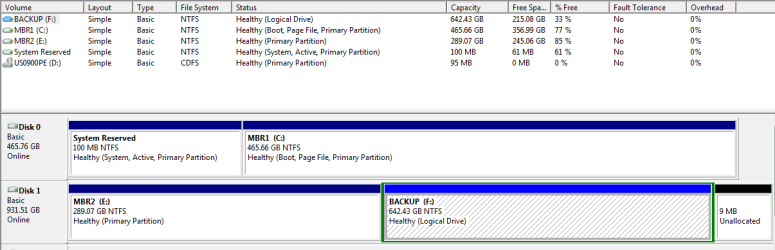
Well duh, on me!! Thought I was getting the hang of running from a standard user account. Disk Management did not appear there! Back as quasi-Admin account, runs just fine. See below.

Capture.PNG

Notice, as a secondary problem that this shows the C: Drive 500 MB as disk 0 and the 1 TB drive as disk 1.
Thanks
glennc
 

My Computer

Computer type
PC/Desktop
Computer Manufacturer/Model Number
Self-Built
OS
Windows 7 Ultimate
CPU
AMD Phenom-II X4 965
Motherboard
Gigabyte GA-MA785GM-US2H
Memory
8192 MB DDR2-SDRAM
Graphics Card(s)
ATI Radeon HD 4200
Sound Card
ATI Radeon HD 4200 High Definition Audo
Monitor(s) Displays
LG Electronics W1943
Screen Resolution
1360 X 768
Hard Drives
C: 500 GB Caviar Black SATA
E: 500 GB Caviar Black SATA
PSU
Ultra LSP 750
Case
Ultra XBlaster
Cooling
2 Fans, CPU Fan, PS Fan
Keyboard
Acer
Mouse
Logitech
Internet Speed
6 MB
Hello to all,
Can't find the Disk Manager under Administrator tools in Control Panel. Made these following examples from Paragon.

View attachment 139721


View attachment 139722

Hope they help you more than they do me. Also notice how the first drive is the 1 TB and the C: drive 500 GB is listed second. That is an old problem that maybe I might figure out the primary, logical, extended etc: thing.
Thanks Gentlemen
glennc

You posted a screenshot of Disk management in post 7 of
http://www.sevenforums.com/hardware-devices/139573-strange-intermittent-reassignment-hardrives.html

How did you do that one?


Hey theog,
Thanks for the memory kickstart. Still showing the disk assignment swapping. Oh well.
glennc
 

My Computer

Computer type
PC/Desktop
Computer Manufacturer/Model Number
Self-Built
OS
Windows 7 Ultimate
CPU
AMD Phenom-II X4 965
Motherboard
Gigabyte GA-MA785GM-US2H
Memory
8192 MB DDR2-SDRAM
Graphics Card(s)
ATI Radeon HD 4200
Sound Card
ATI Radeon HD 4200 High Definition Audo
Monitor(s) Displays
LG Electronics W1943
Screen Resolution
1360 X 768
Hard Drives
C: 500 GB Caviar Black SATA
E: 500 GB Caviar Black SATA
PSU
Ultra LSP 750
Case
Ultra XBlaster
Cooling
2 Fans, CPU Fan, PS Fan
Keyboard
Acer
Mouse
Logitech
Internet Speed
6 MB
Notice, as a secondary problem that this shows the C: Drive 500 MB as disk 0 and the 1 TB drive as disk 1.

Why is this a problem?
 

My Computer

Computer type
PC/Desktop
Computer Manufacturer/Model Number
Ignatz Special; 4 speed manual gearbox; factory air conditioning; one of one
OS
Windows 7 Home Premium SP1, 64-bit
CPU
Intel Skylake i5-6600K, not overclocked
Motherboard
AsRock Z170M Extreme 4, micro ATX
Memory
8 GB HyperX DDR4-2666 (2 x 4 GB)
Graphics Card(s)
none; graphics are integrated on CPU
Sound Card
onboard: Realtek ALC1150; external: USB Behringer UF0-202
Monitor(s) Displays
Dell S2340M 23 inch IPS
Screen Resolution
1600 x 900
Hard Drives
System: Crucial MX100 series SSD, 128 GB;
Data: Samsung Spinpoint 103SJ, 1 TB;
Backup: WD Caviar Green WD30EZRX-00D8PB0, 3 TB
PSU
Rosewill SilentNight 500 watt fanless, semi-modular
Case
Antec Solo II
Cooling
Noctua NH-U12S; Noctua F12 intake, Noctua S12A exhaust
Keyboard
Microsoft 200 6JH-00001 USB
Mouse
Dell or Microsoft optical wired; USB
Antivirus
Microsoft Security Essentials and Malwarebytes Premium
Browser
Pale Moon
Other Info
All fans PWM; speeds at idle: CPU circa 500 rpm; intake circa 600 rpm; exhaust circa 600 rpm; CPU temps 27 idle and 47 C load in a warm room (27 C/81 F) when running Intel Extreme Tuning Utility stress test.
Notice, as a secondary problem that this shows the C: Drive 500 MB as disk 0 and the 1 TB drive as disk 1.

Why is this a problem?

A misunderstanding. The above configuration is correct. Often it shows disks the other way around. Changing when it (the ethereal machine) wants. I was referencing the Paragon shows it one way and the Disk Management, another. Both will swap.
Problem, well maybe no, but a inconvenience, Yes.
glennc
 

My Computer

Computer type
PC/Desktop
Computer Manufacturer/Model Number
Self-Built
OS
Windows 7 Ultimate
CPU
AMD Phenom-II X4 965
Motherboard
Gigabyte GA-MA785GM-US2H
Memory
8192 MB DDR2-SDRAM
Graphics Card(s)
ATI Radeon HD 4200
Sound Card
ATI Radeon HD 4200 High Definition Audo
Monitor(s) Displays
LG Electronics W1943
Screen Resolution
1360 X 768
Hard Drives
C: 500 GB Caviar Black SATA
E: 500 GB Caviar Black SATA
PSU
Ultra LSP 750
Case
Ultra XBlaster
Cooling
2 Fans, CPU Fan, PS Fan
Keyboard
Acer
Mouse
Logitech
Internet Speed
6 MB
Hi again glennc

Your drives look to be set up fine, there are a couple changes i would make. Hdd's like to be in order such as C:, D:, E:, and then your CD or DVD drives F:, G:, etc. Also i don't name my drives MBR1 and MBR2 only because it's confussing, it will only boot from the system drive which has the mbr on it.
 

My Computer

Computer Manufacturer/Model Number
Dell XPS 730
OS
Windows 7 Home Premium 64 bit
CPU
Intel Core 2 quad Extreme Q9770 @ 3.2 GHz
Memory
4x2 GB Muskin 1600 MHz ram
Graphics Card(s)
NVidia GTX 250
Sound Card
Soundblaster X-Fi Fatality Champion
Monitor(s) Displays
2 Dell 2007WFP Ultrascans
Screen Resolution
3360 x 1050
Hard Drives
WD Black 1TB sata, 2-WD Black 500 sata, 2-Seagate 500 Go external
PSU
1000 Watt
Cooling
air
Keyboard
MS Natrual Keyboard Pro
Mouse
Logitech Wireless Trackball
Internet Speed
DSL Elite
Hi again glennc

Your drives look to be set up fine, there are a couple changes i would make. Hdd's like to be in order such as C:, D:, E:, and then your CD or DVD drives F:, G:, etc. Also i don't name my drives MBR1 and MBR2 only because it's confussing, it will only boot from the system drive which has the mbr on it.

Hey 1Bowtie,
Thanks for the info. The naming is just fooling around, showing my lack of knowledge. How important is the HDs being together. How would you change it, physically or trick the computer?
glennc
 

My Computer

Computer type
PC/Desktop
Computer Manufacturer/Model Number
Self-Built
OS
Windows 7 Ultimate
CPU
AMD Phenom-II X4 965
Motherboard
Gigabyte GA-MA785GM-US2H
Memory
8192 MB DDR2-SDRAM
Graphics Card(s)
ATI Radeon HD 4200
Sound Card
ATI Radeon HD 4200 High Definition Audo
Monitor(s) Displays
LG Electronics W1943
Screen Resolution
1360 X 768
Hard Drives
C: 500 GB Caviar Black SATA
E: 500 GB Caviar Black SATA
PSU
Ultra LSP 750
Case
Ultra XBlaster
Cooling
2 Fans, CPU Fan, PS Fan
Keyboard
Acer
Mouse
Logitech
Internet Speed
6 MB
You can reassign drive letters in Disk Management.

I'd also rename them to something that describes the content, such as:

C: System
D: Data
E: Backup

Choose your own names, since I don't know the purposes of your partitions.

A and B are off limits. C is Windows by default. Normally, you then try to assign other hard drive partitions as D, E, F, etc.

In your case, you'd just have C on the first drive and then D and E on the second drive.

Then your CD/DVD drives would be last: F, G, etc.

Disk Management won't let you assign a letter to a partition if that letter is already in use, so you may have to temporarily reassign a partition labeled D to J or something down in the alphabet so you can then reassign D to the partition of your choice.

What's the purpose of that 9 MB portion at the right end of the second drive??
 

My Computer

Computer type
PC/Desktop
Computer Manufacturer/Model Number
Ignatz Special; 4 speed manual gearbox; factory air conditioning; one of one
OS
Windows 7 Home Premium SP1, 64-bit
CPU
Intel Skylake i5-6600K, not overclocked
Motherboard
AsRock Z170M Extreme 4, micro ATX
Memory
8 GB HyperX DDR4-2666 (2 x 4 GB)
Graphics Card(s)
none; graphics are integrated on CPU
Sound Card
onboard: Realtek ALC1150; external: USB Behringer UF0-202
Monitor(s) Displays
Dell S2340M 23 inch IPS
Screen Resolution
1600 x 900
Hard Drives
System: Crucial MX100 series SSD, 128 GB;
Data: Samsung Spinpoint 103SJ, 1 TB;
Backup: WD Caviar Green WD30EZRX-00D8PB0, 3 TB
PSU
Rosewill SilentNight 500 watt fanless, semi-modular
Case
Antec Solo II
Cooling
Noctua NH-U12S; Noctua F12 intake, Noctua S12A exhaust
Keyboard
Microsoft 200 6JH-00001 USB
Mouse
Dell or Microsoft optical wired; USB
Antivirus
Microsoft Security Essentials and Malwarebytes Premium
Browser
Pale Moon
Other Info
All fans PWM; speeds at idle: CPU circa 500 rpm; intake circa 600 rpm; exhaust circa 600 rpm; CPU temps 27 idle and 47 C load in a warm room (27 C/81 F) when running Intel Extreme Tuning Utility stress test.
Hello ignatzatsonic,
Thanks you for your explanations and assistance. Since C: is my Disk 0 and E: and F:
are partitions of my second Drive, while D: is the CD/DVD. I am not sure what I will be gaining by reassigning the Drive letters, flat don't know. While I am positive that as well said about the actual reassignment operation went over my head. I am just starting my second cup of coffee so maybe it will sink in.
Currently C: holds everything system, programs and data. E: is a storage facility to back up date to using SyncToy. F: is the actual partition that houses my system image backups from the Paragon and Macrium backup programs.
Where that 9 MB portion came about is unknown. I was new partitioning a different data storage scheme way back that had 3 partitions on the Drive 1. Maybe I messed up in rearranging it. My reptile brain now wants it back along with the 2 MB stolen on the C: Drive as unallocated. It is my money. I was told previously that in the grand scheme of things to "Don't Worry, Be Happy!". I got a lot more space than I need.
Actually thinking of eventually getting an SSD when prices come down, using my 500 GB as my secondary data and taking the 1 TB out and making it a usb backup.
Take care.
glennc
 

My Computer

Computer type
PC/Desktop
Computer Manufacturer/Model Number
Self-Built
OS
Windows 7 Ultimate
CPU
AMD Phenom-II X4 965
Motherboard
Gigabyte GA-MA785GM-US2H
Memory
8192 MB DDR2-SDRAM
Graphics Card(s)
ATI Radeon HD 4200
Sound Card
ATI Radeon HD 4200 High Definition Audo
Monitor(s) Displays
LG Electronics W1943
Screen Resolution
1360 X 768
Hard Drives
C: 500 GB Caviar Black SATA
E: 500 GB Caviar Black SATA
PSU
Ultra LSP 750
Case
Ultra XBlaster
Cooling
2 Fans, CPU Fan, PS Fan
Keyboard
Acer
Mouse
Logitech
Internet Speed
6 MB
Hello ignatzatsonic,
Thanks you for your explanations and assistance. Since C: is my Disk 0 and E: and F:
are partitions of my second Drive, while D: is the CD/DVD. I am not sure what I will be gaining by reassigning the Drive letters, flat don't know. While I am positive that as well said about the actual reassignment operation went over my head. I am just starting my second cup of coffee so maybe it will sink in.
Currently C: holds everything system, programs and data. E: is a storage facility to back up date to using SyncToy. F: is the actual partition that houses my system image backups from the Paragon and Macrium backup programs.
Where that 9 MB portion came about is unknown. I was new partitioning a different data storage scheme way back that had 3 partitions on the Drive 1. Maybe I messed up in rearranging it. My reptile brain now wants it back along with the 2 MB stolen on the C: Drive as unallocated. It is my money. I was told previously that in the grand scheme of things to "Don't Worry, Be Happy!". I got a lot more space than I need.
Actually thinking of eventually getting an SSD when prices come down

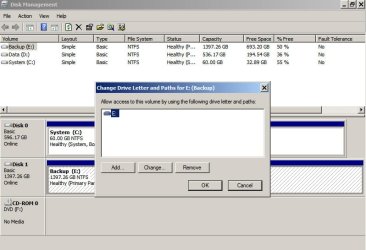
To reassign drive letters, you go to disk management and right click a partition in the lower area. A window will pop open as seen in my disk management below.

The only reason to reassign drive letters is convention. You certainly don't need to do it. The standard convention is hard drive partitions get the earliest letters in the alphabet, beginning with C and DVD/CD drives come last.

I'd recommend renaming (as opposed to relettering) because in some situations in some applications your drive letters might be scrambled and it is always good to be able to look at a partition name and know what is in it, regardless of its assigned drive letter. So, what is E now might appear as D or F in certain situations. And a name like "MBR 1" is not descriptive.

The point is to avoid confusion and possible errors where you can hose your data or Windows. A rare occurrence, but it happens.

I think the fact that one partition is a logical partition might make it difficult for you to reclaim that 9 MB portion. If it was not a logical partition, you could likely add the 9 MB to it easily. You still could, but I think it's more difficult and might require a third party application?
 

Attachments

  • Untitled-1.jpg
    Untitled-1.jpg
    69 KB · Views: 5

My Computer

Computer type
PC/Desktop
Computer Manufacturer/Model Number
Ignatz Special; 4 speed manual gearbox; factory air conditioning; one of one
OS
Windows 7 Home Premium SP1, 64-bit
CPU
Intel Skylake i5-6600K, not overclocked
Motherboard
AsRock Z170M Extreme 4, micro ATX
Memory
8 GB HyperX DDR4-2666 (2 x 4 GB)
Graphics Card(s)
none; graphics are integrated on CPU
Sound Card
onboard: Realtek ALC1150; external: USB Behringer UF0-202
Monitor(s) Displays
Dell S2340M 23 inch IPS
Screen Resolution
1600 x 900
Hard Drives
System: Crucial MX100 series SSD, 128 GB;
Data: Samsung Spinpoint 103SJ, 1 TB;
Backup: WD Caviar Green WD30EZRX-00D8PB0, 3 TB
PSU
Rosewill SilentNight 500 watt fanless, semi-modular
Case
Antec Solo II
Cooling
Noctua NH-U12S; Noctua F12 intake, Noctua S12A exhaust
Keyboard
Microsoft 200 6JH-00001 USB
Mouse
Dell or Microsoft optical wired; USB
Antivirus
Microsoft Security Essentials and Malwarebytes Premium
Browser
Pale Moon
Other Info
All fans PWM; speeds at idle: CPU circa 500 rpm; intake circa 600 rpm; exhaust circa 600 rpm; CPU temps 27 idle and 47 C load in a warm room (27 C/81 F) when running Intel Extreme Tuning Utility stress test.
Hello ignatzatsonic,
Thanks you for your explanations and assistance. Since C: is my Disk 0 and E: and F:
are partitions of my second Drive, while D: is the CD/DVD. I am not sure what I will be gaining by reassigning the Drive letters, flat don't know. While I am positive that as well said about the actual reassignment operation went over my head. I am just starting my second cup of coffee so maybe it will sink in.
Currently C: holds everything system, programs and data. E: is a storage facility to back up date to using SyncToy. F: is the actual partition that houses my system image backups from the Paragon and Macrium backup programs.
Where that 9 MB portion came about is unknown. I was new partitioning a different data storage scheme way back that had 3 partitions on the Drive 1. Maybe I messed up in rearranging it. My reptile brain now wants it back along with the 2 MB stolen on the C: Drive as unallocated. It is my money. I was told previously that in the grand scheme of things to "Don't Worry, Be Happy!". I got a lot more space than I need.
Actually thinking of eventually getting an SSD when prices come down

To reassign drive letters, you go to disk management and right click a partition in the lower area. A window will pop open as seen in my disk management below.

The only reason to reassign drive letters is convention. You certainly don't need to do it. The standard convention is hard drive partitions get the earliest letters in the alphabet, beginning with C and DVD/CD drives come last.

I'd recommend renaming (as opposed to relettering) because in some situations in some applications your drive letters might be scrambled and it is always good to be able to look at a partition name and know what is in it, regardless of its assigned drive letter. So, what is E now might appear as D or F in certain situations. And a name like "MBR 1" is not descriptive.

The point is to avoid confusion and possible errors where you can hose your data or Windows. A rare occurrence, but it happens.

I think the fact that one partition is a logical partition might make it difficult for you to reclaim that 9 MB portion. If it was not a logical partition, you could likely add the 9 MB to it easily. You still could, but I think it's more difficult and might require a third party application?

Hello ignatzatsonic,
Thanks for the outlook. It makes sense and I believe I will rename the drives more appropriately. Better to be safe than sorry. Take care.
glennc
 

My Computer

Computer type
PC/Desktop
Computer Manufacturer/Model Number
Self-Built
OS
Windows 7 Ultimate
CPU
AMD Phenom-II X4 965
Motherboard
Gigabyte GA-MA785GM-US2H
Memory
8192 MB DDR2-SDRAM
Graphics Card(s)
ATI Radeon HD 4200
Sound Card
ATI Radeon HD 4200 High Definition Audo
Monitor(s) Displays
LG Electronics W1943
Screen Resolution
1360 X 768
Hard Drives
C: 500 GB Caviar Black SATA
E: 500 GB Caviar Black SATA
PSU
Ultra LSP 750
Case
Ultra XBlaster
Cooling
2 Fans, CPU Fan, PS Fan
Keyboard
Acer
Mouse
Logitech
Internet Speed
6 MB
Back
Top