Multiple Monitor Support

MishGEA

New member
Local time
6:05 PM
Messages
11
I am running Oracle Virtual Machine Windows 7 32 bit , on a Sony Computer running Windows 7 64 bit

Everything runs fine
I have a dual monitor setup - running extended

I can move windows from the physical machine and back, but not windows created in the virtual machine.

I tried setting the Virtual machine monitor count to 2 but that created a black empty window that I could not do anything with. And I still could not move windows across monitors.

Is there something I need to do to move windows back and forth.

One more thing. I am running Oracle virtual machine version 3.2.12

Thanks
Mish
 

My Computer My Computer

OS
Windows 7 ultimate 64
I am running Oracle Virtual Machine Windows 7 32 bit , on a Sony Computer running Windows 7 64 bit

Everything runs fine
I have a dual monitor setup - running extended

I can move windows from the physical machine and back, but not windows created in the virtual machine.

I tried setting the Virtual machine monitor count to 2 but that created a black empty window that I could not do anything with. And I still could not move windows across monitors.

Is there something I need to do to move windows back and forth.

One more thing. I am running Oracle virtual machine version 3.2.12

Thanks
Mish

Sounds like something I'd report to Oracle.
 

My Computer My Computer

Computer type
Laptop
Computer Manufacturer/Model Number
Apple
OS
El Capitan / Windows 10
CPU
i7-4980HQ
Memory
16GB
Graphics Card(s)
Iris 5200
I tried setting the Virtual machine monitor count to 2 but that created a black empty window that I could not do anything with. And I still could not move windows across monitors.

Hi Mish, welcome to the Seven Forums.

That is totally normal and correct behavior of the VirtualBox. The black empty window is what you are supposed to get when you set the guest OS monitor count to two.

The next step is to run Screen Resolution tool on the guest OS and choose either duplicated or extended display mode. After that, the "black window" is no longer empty.

By the way, did you know Oracle has already released version 4.04 of VirtualBox? http://www.sevenforums.com/virtualization/145288-oracle-vm-virtualbox-4-0-4-released.html

Kari
 

My Computer My Computer

Computer type
Laptop
Computer Manufacturer/Model Number
HP ENVY 17-1150eg
OS
Windows 10 Pro x64 EN-GB
CPU
1.6 GHz Intel Core i7-720QM Processor
Memory
6 GB
Graphics Card(s)
ATI Mobility Radeon HD 5850 Graphics
Sound Card
Beats sound system with integrated subwoofer
Monitor(s) Displays
17" laptop display, 22" LED and 32" Full HD TV through HDMI
Screen Resolution
1600*900 (1), 1920*1080 (2&3)
Hard Drives
Internal: 2 x 500 GB SATA Hard Disk Drive 7200 rpm
External: 2TB for backups, 3TB USB3 network drive for media
Cooling
As Envy runs a bit warm, I have it on a Cooler Master pad
Keyboard
Logitech diNovo Media Desktop Laser (bluetooth)
Mouse
Logitech Performance Mouse MX
Internet Speed
50/10 Mbps VDSL
Antivirus
Windows Defender 4.3.9431.0
Browser
Maxthon 3.5.2., IE11
The next step is to run Screen Resolution tool on the guest OS and choose either duplicated or extended display mode. After that, the "black window" is no longer empty.

Not sure what the screen resolution tool is or where to find it.

Aware of the new release but I could not get my import to open up with it. Saw on the internet someone else had the same problem and solved it by uninstalling the new version and putting on the one I had.

That worked for me too.
So I am a bit leery of putting the new release on.
Although perhaps now that I am up and running, perhaps it is OK.
Mish
 

My Computer My Computer

OS
Windows 7 ultimate 64
Not sure what the screen resolution tool is or where to find it.

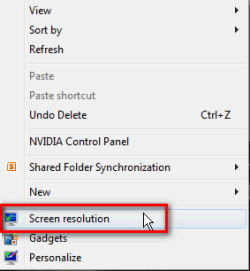
1. Right click on an empty spot of guest OS desktop (i.e. the virtual machine desktop, not that of your host), select Screen Resolution:

Screen_Resolution_tool.png

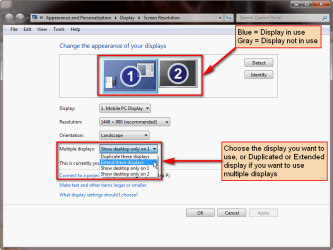
2. Choose your display mode (Display 1 or 2 only, duplicated, extended):

Screen_Resolution_tool_2.png

Kari
 

My Computer My Computer

Computer type
Laptop
Computer Manufacturer/Model Number
HP ENVY 17-1150eg
OS
Windows 10 Pro x64 EN-GB
CPU
1.6 GHz Intel Core i7-720QM Processor
Memory
6 GB
Graphics Card(s)
ATI Mobility Radeon HD 5850 Graphics
Sound Card
Beats sound system with integrated subwoofer
Monitor(s) Displays
17" laptop display, 22" LED and 32" Full HD TV through HDMI
Screen Resolution
1600*900 (1), 1920*1080 (2&3)
Hard Drives
Internal: 2 x 500 GB SATA Hard Disk Drive 7200 rpm
External: 2TB for backups, 3TB USB3 network drive for media
Cooling
As Envy runs a bit warm, I have it on a Cooler Master pad
Keyboard
Logitech diNovo Media Desktop Laser (bluetooth)
Mouse
Logitech Performance Mouse MX
Internet Speed
50/10 Mbps VDSL
Antivirus
Windows Defender 4.3.9431.0
Browser
Maxthon 3.5.2., IE11
1. Right click on an empty spot of guest OS desktop (i.e. the virtual machine desktop, not that of your host), select Screen Resolution:

OK I set monitors back to 2
Set resolution to extend
Did that on the Guest OS
I have two windows
One has stuff (the one I am typing in)
The other instead of being all black is all white
I can actually move that over to my laptop monitor
I cannot move this window I am typing in over there.
I tried changing which monitor was #1 but that did not help
Mish
 

My Computer My Computer

OS
Windows 7 ultimate 64
I have some difficulties to understand what your issue is.

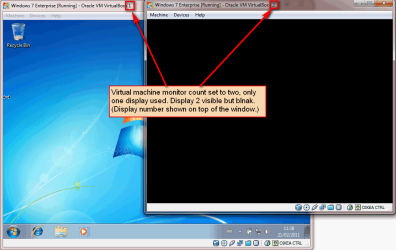
This is how it looks when you have set monitor count to 2 in vm's settings but not activated the second virtual display on guest OS:

VBox_multiple_displays_1.png

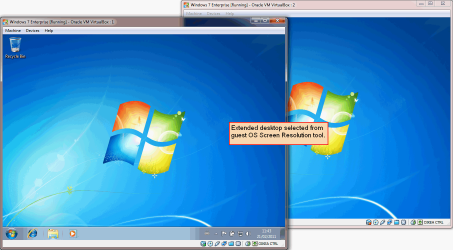
After using Screen Resolution tool and activating second virtual display, both are active and in use:

VBox_multiple_displays_2.png

You move Explorer or other application and browser windows between the virtual displays as in any other dual display system, by dragging a window over to another display:


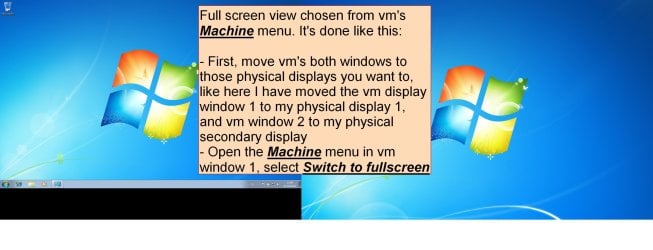
If you want to use your real, physical displays to show your virtual displays in full screen, you just drag virtual displays to those physical displays you want to, and choose Switch to full screen from vm's Machine menu. Here my guest OS in fullscreen on my physical dual display system:

VBox_multiple_displays_3.jpg

Kari
 

My Computer My Computer

Computer type
Laptop
Computer Manufacturer/Model Number
HP ENVY 17-1150eg
OS
Windows 10 Pro x64 EN-GB
CPU
1.6 GHz Intel Core i7-720QM Processor
Memory
6 GB
Graphics Card(s)
ATI Mobility Radeon HD 5850 Graphics
Sound Card
Beats sound system with integrated subwoofer
Monitor(s) Displays
17" laptop display, 22" LED and 32" Full HD TV through HDMI
Screen Resolution
1600*900 (1), 1920*1080 (2&3)
Hard Drives
Internal: 2 x 500 GB SATA Hard Disk Drive 7200 rpm
External: 2TB for backups, 3TB USB3 network drive for media
Cooling
As Envy runs a bit warm, I have it on a Cooler Master pad
Keyboard
Logitech diNovo Media Desktop Laser (bluetooth)
Mouse
Logitech Performance Mouse MX
Internet Speed
50/10 Mbps VDSL
Antivirus
Windows Defender 4.3.9431.0
Browser
Maxthon 3.5.2., IE11
I have some difficulties to understand what your issue is.

I have a laptop
I have a second monitor attached to it

In extended mode I can drag items from one PHYSICAL monitor to another

Windows I open up inside my virtual screen, I cannot drag to the other monitor

Mish
 

My Computer My Computer

OS
Windows 7 ultimate 64
Thanks Everyone!

I was able to play around some more in full screen mode and get this to work!

Mish
 

My Computer My Computer

OS
Windows 7 ultimate 64
I am not sure the procedure but this thread can be closed
Thanks Again

Mish
 

My Computer My Computer

OS
Windows 7 ultimate 64
Mish - to close the thread simply click on the red exclamation mark in your 1st post, and in the text box type SOLVED. The admins will see that and mark it as such.
 

My Computer My Computer

Computer type
PC/Desktop
Computer Manufacturer/Model Number
Golden Mk. I.4
OS
Windows 10 Pro x64 ; Xubuntu x64
CPU
Intel i7 860 @ 2.80 GHz O/C'ed to 4.0GHz
Motherboard
Gigabyte P55A-UD3R Rev.1. Award BIOS F13
Memory
16GB Corsair Vengance DDR3 @ 661 MHz Dual Channel (9-9-9-24)
Graphics Card(s)
EVGA NVidia GTX 560 1024MB
Sound Card
Realtek Integrated
Monitor(s) Displays
Dual Samsung SyncMaster 2494HS
Screen Resolution
1920*1080 and 1920*1080
Hard Drives
1*Samsung 840 EVO 120GB SSD;
1*OCZ Vertex 2 60GB SSD;
2*Samsung F3 SpinPoint 1TB in RAID0;
1*Samsung F1 SpinPoint 1TB;
2*Western Digital 1TB External USB 3.0
1*Western Digital 500GB External USB 3.0
1*Seagate 500GB External USB 2.0
PSU
Thermaltake ToughPower QFan 750W
Case
Thermaltake Element S VK60001W2Z
Cooling
Corsair H60 Water Cooling, 2*230mm and 2*80mm case fans
Keyboard
Logitech G110
Mouse
Logitech MX518
Back
Top