Solved Navigation Pane Text

sioto

New member
Hi guys,

I was wondering how to change the font of the navigation pane in windows explorer? I'm using Ave's Windows7 Style Builder and have tried nearly every entry under Explorer&Shell to no avail. It's the basic Aero theme btw if that makes any difference, thanks for any tips! Cheers!
 

My Computer

Computer type
PC/Desktop
OS
Win7
Welcome to the Seven Forums

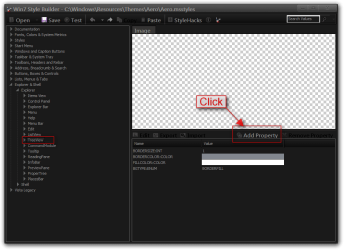
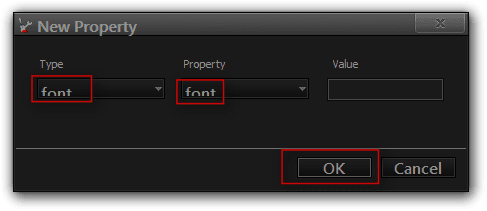
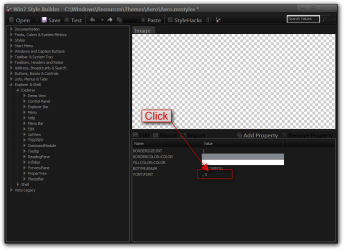
You need at add font properties at:
Explorer & Shell > Explorer > TreeView

Look at screenshots
Jerry
1.png


Font Font

2.png

3.png

4.png

5.png
 

My Computer

Computer type
Laptop
Computer Manufacturer/Model Number
Sager NP9170
OS
Win 7 Pro x64 / Win 10 Pro
CPU
Intel(R) Core(TM) i7-3630QM CPU @ 2.40GHz
Motherboard
CLEVO P170EM
Memory
12 GB
Graphics Card(s)
(1) Intel(R) HD Graphics 4000 (2) NVIDIA GeForce GTX 675M
Sound Card
(1) Realtek High Definition Audio (2) Intel(R) Display Aud
Monitor(s) Displays
17.3
Screen Resolution
1920x1080
Hard Drives
(1) Samsung 860 EVO 500GB(OS) (1) Samsung 860 EVO 500GB(Data)
Keyboard
Backlite
Antivirus
MSE, Malwarebytes Pro
Browser
Firefox
Other Info
DESKTOP: Custom-built.
OS: Win 10 Pro x64.
CASE: Rosewill R5.
CPU: Intel I5 4670K CPU @ 3.40GHz.
CPU COOLER: Cool Master Hyper 212 EVO.
MOTHERBOARD: Asus Z87-A.
MEMORY: Kingston HyperX 2x4 GB.
GPU: Nvidia Geforce 650 TI.
PSU: Corsair TX750.
DRIVES: (1) Samsung 840 120 GB SSD (2) Western Digital blue 500 GB 7200 RPM.
You rock Bongo! You forgot one step though, I figured it out ..Cheers!
 

My Computer

Computer type
PC/Desktop
OS
Win7
Hey Bongo/anyone,

Sorry, I have one more question if you would indulge me. How would I go about changing the font in task manager as well? I changed the file menu, but the font of the processes/services remains default. Thanks again!
 

My Computer

Computer type
PC/Desktop
OS
Win7
You're welcome
What step did I forget?
That font for that part of the task manager cannot be changed with WSB sorry.

First do http://www.sevenforums.com/tutorials/697-system-restore-point-create.html and/or http://www.sevenforums.com/tutorials/4230-registry-backup-restore.html

But if you are comfortable changing the registry I have two .reg files from a different theme 1 is Set_New_Default_Font.reg and 1 is Restore Default_Fonts.reg.
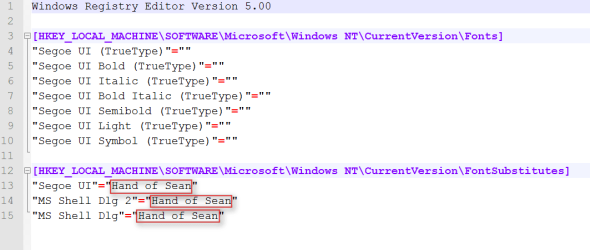
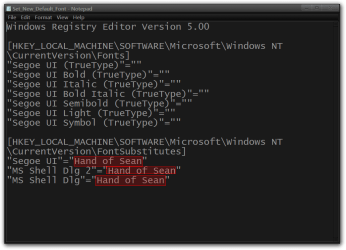
Open Set_New_Default_Font.reg with Notepad and change Hand of Sean to what ever font you want to use (make sure you have that font installed first) save it and then double-click on it to change the registry you will get a window popping up asking if you want to make that change clicked on yes/OK. Then you will need to log off and then log back on for the changes to take effect. If you ever want to go back just to use the Restore Default_Fonts.reg. And it will restore it back.
I have provided a screenshot showing what to change highlighted in red where you need to make the changes. The .reg files are in the zip folder at the bottom of this post.
after.PNG
Jerry

Jerry
 

Attachments

My Computer

Computer type
Laptop
Computer Manufacturer/Model Number
Sager NP9170
OS
Win 7 Pro x64 / Win 10 Pro
CPU
Intel(R) Core(TM) i7-3630QM CPU @ 2.40GHz
Motherboard
CLEVO P170EM
Memory
12 GB
Graphics Card(s)
(1) Intel(R) HD Graphics 4000 (2) NVIDIA GeForce GTX 675M
Sound Card
(1) Realtek High Definition Audio (2) Intel(R) Display Aud
Monitor(s) Displays
17.3
Screen Resolution
1920x1080
Hard Drives
(1) Samsung 860 EVO 500GB(OS) (1) Samsung 860 EVO 500GB(Data)
Keyboard
Backlite
Antivirus
MSE, Malwarebytes Pro
Browser
Firefox
Other Info
DESKTOP: Custom-built.
OS: Win 10 Pro x64.
CASE: Rosewill R5.
CPU: Intel I5 4670K CPU @ 3.40GHz.
CPU COOLER: Cool Master Hyper 212 EVO.
MOTHERBOARD: Asus Z87-A.
MEMORY: Kingston HyperX 2x4 GB.
GPU: Nvidia Geforce 650 TI.
PSU: Corsair TX750.
DRIVES: (1) Samsung 840 120 GB SSD (2) Western Digital blue 500 GB 7200 RPM.
Nice! It worked! The step I was referring it was after making the property, I had to go down a level to "treeitem" and change the font there as well, minor thing really.

Anyhow, I didn't realize the fonts for processes/services are not the same as the tabs above (e.g. performance,networking,users, etc.) or the live CPU usage/physical memory reader below. How would I change those as well? Basically, I want to make all the fonts in task manager the same...Thanks for the advice! You're a legend!
 

My Computer

Computer type
PC/Desktop
OS
Win7
The live CPU usage/physical you need to add font property to:
Buttons, Boxes & Controls > Buttons > Button > GroupBox

For the tab text you will need to add the font property to:
Lists, Menus & Tabs > Tab > TabItem
all way to:
Lists, Menus & Tabs > Tab > TopTabItemBothEdge
8 different tab areas.

Jerry
 

My Computer

Computer type
Laptop
Computer Manufacturer/Model Number
Sager NP9170
OS
Win 7 Pro x64 / Win 10 Pro
CPU
Intel(R) Core(TM) i7-3630QM CPU @ 2.40GHz
Motherboard
CLEVO P170EM
Memory
12 GB
Graphics Card(s)
(1) Intel(R) HD Graphics 4000 (2) NVIDIA GeForce GTX 675M
Sound Card
(1) Realtek High Definition Audio (2) Intel(R) Display Aud
Monitor(s) Displays
17.3
Screen Resolution
1920x1080
Hard Drives
(1) Samsung 860 EVO 500GB(OS) (1) Samsung 860 EVO 500GB(Data)
Keyboard
Backlite
Antivirus
MSE, Malwarebytes Pro
Browser
Firefox
Other Info
DESKTOP: Custom-built.
OS: Win 10 Pro x64.
CASE: Rosewill R5.
CPU: Intel I5 4670K CPU @ 3.40GHz.
CPU COOLER: Cool Master Hyper 212 EVO.
MOTHERBOARD: Asus Z87-A.
MEMORY: Kingston HyperX 2x4 GB.
GPU: Nvidia Geforce 650 TI.
PSU: Corsair TX750.
DRIVES: (1) Samsung 840 120 GB SSD (2) Western Digital blue 500 GB 7200 RPM.
Great, the tab text works beautifully!

But, the font property added for CPU usage/physical at:
Buttons, Boxes & Controls > Buttons > Button > GroupBox

Didn't seem to do the trick, I even tried going down a level to Normal/Disabled just under >Groupbox and that didn't work either. Are there more steps involved? The End task/Switch to/New task buttons are default font as well, are these all related somehow? How can I effectively change all of these? Thanks again!
 

My Computer

Computer type
PC/Desktop
OS
Win7
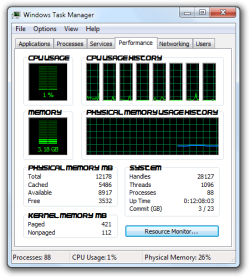
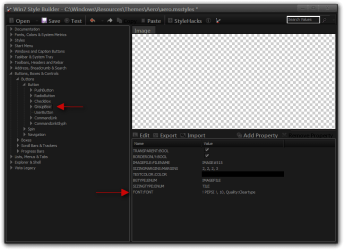
Adding the font properties to Buttons, Boxes & Controls > Buttons > Button > GroupBox should have worked look at my screenshot below shows I only added the font properties there.
Windows Task Manager.pngWin7 Style Builder - CWindowsResourcesThemesAeroaero.msstyles.png


The buttons you will need to add the font property to Buttons, Boxes & Controls > Buttons > Button > PushButton as you can see in my screenshots below. This will effect all the button text font.
Windows Task Manager2.png2.png

Jerry
 

My Computer

Computer type
Laptop
Computer Manufacturer/Model Number
Sager NP9170
OS
Win 7 Pro x64 / Win 10 Pro
CPU
Intel(R) Core(TM) i7-3630QM CPU @ 2.40GHz
Motherboard
CLEVO P170EM
Memory
12 GB
Graphics Card(s)
(1) Intel(R) HD Graphics 4000 (2) NVIDIA GeForce GTX 675M
Sound Card
(1) Realtek High Definition Audio (2) Intel(R) Display Aud
Monitor(s) Displays
17.3
Screen Resolution
1920x1080
Hard Drives
(1) Samsung 860 EVO 500GB(OS) (1) Samsung 860 EVO 500GB(Data)
Keyboard
Backlite
Antivirus
MSE, Malwarebytes Pro
Browser
Firefox
Other Info
DESKTOP: Custom-built.
OS: Win 10 Pro x64.
CASE: Rosewill R5.
CPU: Intel I5 4670K CPU @ 3.40GHz.
CPU COOLER: Cool Master Hyper 212 EVO.
MOTHERBOARD: Asus Z87-A.
MEMORY: Kingston HyperX 2x4 GB.
GPU: Nvidia Geforce 650 TI.
PSU: Corsair TX750.
DRIVES: (1) Samsung 840 120 GB SSD (2) Western Digital blue 500 GB 7200 RPM.
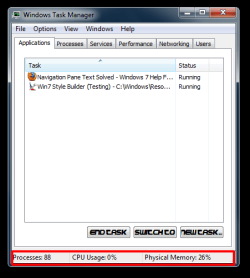
Apologies, I should have included a screenshot of what I meant instead of just assuming you understood exactly where I was talking about. This is the physical memory/cpu usage I was referring to:


261464d1364474595-navigation-pane-text-windows-task-manager2.png

I tried adding a font property to nearly everything and still no luck. Everything else worked perfectly, thanks so much!
 

My Computer

Computer type
PC/Desktop
OS
Win7
I should have asked for a screenshot earlier I thought we knew what we were talking about, who knew.

You will need to add the font property at Toolbars, Headers and Rebar > Toolbars & Headers > Status

Jerry
 

My Computer

Computer type
Laptop
Computer Manufacturer/Model Number
Sager NP9170
OS
Win 7 Pro x64 / Win 10 Pro
CPU
Intel(R) Core(TM) i7-3630QM CPU @ 2.40GHz
Motherboard
CLEVO P170EM
Memory
12 GB
Graphics Card(s)
(1) Intel(R) HD Graphics 4000 (2) NVIDIA GeForce GTX 675M
Sound Card
(1) Realtek High Definition Audio (2) Intel(R) Display Aud
Monitor(s) Displays
17.3
Screen Resolution
1920x1080
Hard Drives
(1) Samsung 860 EVO 500GB(OS) (1) Samsung 860 EVO 500GB(Data)
Keyboard
Backlite
Antivirus
MSE, Malwarebytes Pro
Browser
Firefox
Other Info
DESKTOP: Custom-built.
OS: Win 10 Pro x64.
CASE: Rosewill R5.
CPU: Intel I5 4670K CPU @ 3.40GHz.
CPU COOLER: Cool Master Hyper 212 EVO.
MOTHERBOARD: Asus Z87-A.
MEMORY: Kingston HyperX 2x4 GB.
GPU: Nvidia Geforce 650 TI.
PSU: Corsair TX750.
DRIVES: (1) Samsung 840 120 GB SSD (2) Western Digital blue 500 GB 7200 RPM.
Your statement is my question?

I'm not sure I'm posting this in the correct format but here goes.
I followed the thread and your reply of "That font for that part of the task manager cannot be changed with WSB sorry" is exactly what my question is? WSB is not the tool so how to do it and with what tool.
Thank you in advance if this gets posted correctly.
Clzme

You're welcome
What step did I forget?
That font for that part of the task manager cannot be changed with WSB sorry.


First do http://www.sevenforums.com/tutorials/697-system-restore-point-create.html and/or http://www.sevenforums.com/tutorials/4230-registry-backup-restore.html

But if you are comfortable changing the registry I have two .reg files from a different theme 1 is Set_New_Default_Font.reg and 1 is Restore Default_Fonts.reg.
Open Set_New_Default_Font.reg with Notepad and change Hand of Sean to what ever font you want to use (make sure you have that font installed first) save it and then double-click on it to change the registry you will get a window popping up asking if you want to make that change clicked on yes/OK. Then you will need to log off and then log back on for the changes to take effect. If you ever want to go back just to use the Restore Default_Fonts.reg. And it will restore it back.
I have provided a screenshot showing what to change highlighted in red where you need to make the changes. The .reg files are in the zip folder at the bottom of this post.
View attachment 260995
Jerry

Jerry
 

My Computer

Computer type
Laptop
Computer Manufacturer/Model Number
dell E6500
OS
win7 pro 64
CPU
P8600
Memory
*GB
Graphics Card(s)
nvidia nvs 160m
Hard Drives
Samsung ssd 840 250GB
Antivirus
Comodo
Browser
Firefox Chrome IE 11
I'm not sure I'm posting this in the correct format but here goes.
I followed the thread and your reply of "That font for that part of the task manager cannot be changed with WSB sorry" is exactly what my question is? WSB is not the tool so how to do it and with what tool.
Thank you in advance if this gets posted correctly.
Clzme

You're welcome
What step did I forget?
That font for that part of the task manager cannot be changed with WSB sorry.


First do http://www.sevenforums.com/tutorials/697-system-restore-point-create.html and/or http://www.sevenforums.com/tutorials/4230-registry-backup-restore.html

But if you are comfortable changing the registry I have two .reg files from a different theme 1 is Set_New_Default_Font.reg and 1 is Restore Default_Fonts.reg.
Open Set_New_Default_Font.reg with Notepad and change Hand of Sean to what ever font you want to use (make sure you have that font installed first) save it and then double-click on it to change the registry you will get a window popping up asking if you want to make that change clicked on yes/OK. Then you will need to log off and then log back on for the changes to take effect. If you ever want to go back just to use the Restore Default_Fonts.reg. And it will restore it back.
I have provided a screenshot showing what to change highlighted in red where you need to make the changes. The .reg files are in the zip folder at the bottom of this post.
View attachment 260995
Jerry

Jerry

It's not a tool it's a registry change, by following the post it will change the font.

If you need help let me know.

Open in notepad and change what is highlighted in red to the font you want and than save it.
Set_New_Default_Font - Notepad.png

Jerry
 

My Computer

Computer type
Laptop
Computer Manufacturer/Model Number
Sager NP9170
OS
Win 7 Pro x64 / Win 10 Pro
CPU
Intel(R) Core(TM) i7-3630QM CPU @ 2.40GHz
Motherboard
CLEVO P170EM
Memory
12 GB
Graphics Card(s)
(1) Intel(R) HD Graphics 4000 (2) NVIDIA GeForce GTX 675M
Sound Card
(1) Realtek High Definition Audio (2) Intel(R) Display Aud
Monitor(s) Displays
17.3
Screen Resolution
1920x1080
Hard Drives
(1) Samsung 860 EVO 500GB(OS) (1) Samsung 860 EVO 500GB(Data)
Keyboard
Backlite
Antivirus
MSE, Malwarebytes Pro
Browser
Firefox
Other Info
DESKTOP: Custom-built.
OS: Win 10 Pro x64.
CASE: Rosewill R5.
CPU: Intel I5 4670K CPU @ 3.40GHz.
CPU COOLER: Cool Master Hyper 212 EVO.
MOTHERBOARD: Asus Z87-A.
MEMORY: Kingston HyperX 2x4 GB.
GPU: Nvidia Geforce 650 TI.
PSU: Corsair TX750.
DRIVES: (1) Samsung 840 120 GB SSD (2) Western Digital blue 500 GB 7200 RPM.
Back
Top