Need Help with confusing audio settings in Win 7(Adobe Aud 3 affected)

Gkaywood

New member
Local time
6:04 PM
Messages
9
I recently got a Toshiba Satellite S55 laptop with Windows 7 and I am very pleased with it.

I couldn't get my copy of Cool Edit Pro v2.1 to run on it, but was lucky enough to get a copy of Adobe Audition 3, which installed without any problems, and is very much like Cool Edit Pro, with many of the controls in the same locations onscreen. It has worked fine for editing existing audio.

I needed to record some audio directly off the Internet (legally) and everything seemed to work fine. Went to get a cup of coffee and when I returned, the short audio was done, so I stopped the recording and listened to make sure I had it. What I heard was the audio as it was recorded from the computer's built-in microphone and not directly from the computer. Horrible room ambience, as you can imagine.

First thing I did was to right-click on the speaker icon on the toolbar, then "recording devices," and disable the microphone. The caption reads: "Conexant SmartAudio HD" and was greyed out with note "disabled."

When I re-opened Adobe Audition, I got a message that said something about no audio (sorry, did not catch the exact wording). Clicking on it again opened the program, but the level indicators showed no audio at all going in. And I couldn't undo the greyed-out microphone icon to see if ANY audio was going in at all.

So, I googled around a bit for an answer and wound up deleting Conexant SmartAudio HD and then downloaded and installed the most recent version of it from the Toshiba website. I assume that's an audio driver? But the problem was not solved, so after more googling, I downloaded and installed ASIO4ALL2.

I was able to partially re-set a few settings and thought all was solved, but it is not. I am essentially back where I started from and find the ASIO instruction manual more confusing than straightforward.

It looks like I'm dancing around the edges of a solution, so if you can give me a hand with this, I would really appreciate it. Thanks for your time and attention.
 

My Computer My Computer

Computer type
Laptop
Computer Manufacturer/Model Number
Toshiba
OS
Windows 7 Pro 64 bit
Memory
1TB
Hard Drives
1
Antivirus
Eset Nod 32
Browser
Firefox,Google
First avoid ASIO4ALL unless there is no other choice. Also ASIO4ALL has a 50/50 chance of working. I have a recording studio (using Sonar X3) and on the recording forums, the majority of posts about ASIO4ALL is negative.

You need the Stereo Mix to be set as the default recording device to record audio from the internet (and for audio work in many programs). Go to the Control Panel/Hardware and Sound and finally the Sound Panel, Recording Section. If Stereo Mix is shown, make it the default recording device. If its not shown, RIGHT click in a blank area in that panel and then click to Show Disabled and Disconnected Devices. Stereo Mix should now show up and you can enable it and make it the Default Recording Device.

With Stereo Mix you shouldn't need ASIO4ALL (which is just an emulator for ASIO).
 

My Computer My Computer

Computer type
PC/Desktop
Computer Manufacturer/Model Number
My Own Build
OS
Windows 10 64 bit
CPU
Intel i7 6700K
Motherboard
ASUS ROG Maximus VIII Hero
Memory
16GB Corsair Dominator
Graphics Card(s)
Intel CPU Graphics
Sound Card
RealTek
Monitor(s) Displays
27" Dell S2719dgf
Screen Resolution
2560X1440
Hard Drives
1 TB Samsung 850 EVO SSD for Win 10 Pro
500GB Samsung 850 EVO SSD for Win 10 Insider
2 TB drive for backup
PSU
EVGA Supernova 750G2
Case
BeQuiet Silent Base 600
Cooling
Deepcool Captain 120EX
Keyboard
Microsoft Wireless 2000
Mouse
Microsoft wireless
Internet Speed
100 MB/sec (Cable)
Antivirus
Microsoft Defender and Malwarebytes
Browser
Edge/Firefox
Other Info
Cakewalk (Sonar) by BandLab and Studio One 4.1 Pro recording studio software. MOTU 896Mk3 Hybrid recording interface, Frontier Tranzport wireless control unit, Behringer X-Touch Control Surface.
Five USB connected optical drives for CD Audio production using Nero BurningROM
fireberd, thanks for the reply, but the problem is still alive and well, unfortunately.

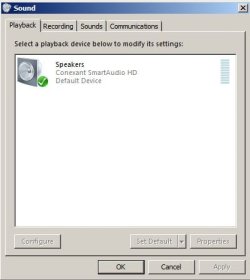
Here's why: there is no listing titled "Hardware and Sound" in my Control Panel listings. (Note that I have seen this situation multiple times--that is, being told to check for a particular item in Control Panel and finding that there is no listing titled as such.) There was a listing for "Sound," and it generates this:

sound panel.jpg

Forget the Sounds and Communications folders; they don't relate to the problem at hand. When in the Playback folder, a right-click brings up the options of "Show Disabled Device: and "Show Disconnected Drives." Neither brings up "Stereo Mix." Ditto for the "Recording" folder--all it displays is the Microphone (greyed out) that is the computer's built-in microphone.

Any ideas on where to go from here?
 

My Computer My Computer

Computer type
Laptop
Computer Manufacturer/Model Number
Toshiba
OS
Windows 7 Pro 64 bit
Memory
1TB
Hard Drives
1
Antivirus
Eset Nod 32
Browser
Firefox,Google
Did you RIGHT click and check in the RECORDING section? Not the Playback section.

The Stereo Mix is key to recording in most cases.

Next suggestion is to download and install the Conexant drivers from Toshiba.
 

My Computer My Computer

Computer type
PC/Desktop
Computer Manufacturer/Model Number
My Own Build
OS
Windows 10 64 bit
CPU
Intel i7 6700K
Motherboard
ASUS ROG Maximus VIII Hero
Memory
16GB Corsair Dominator
Graphics Card(s)
Intel CPU Graphics
Sound Card
RealTek
Monitor(s) Displays
27" Dell S2719dgf
Screen Resolution
2560X1440
Hard Drives
1 TB Samsung 850 EVO SSD for Win 10 Pro
500GB Samsung 850 EVO SSD for Win 10 Insider
2 TB drive for backup
PSU
EVGA Supernova 750G2
Case
BeQuiet Silent Base 600
Cooling
Deepcool Captain 120EX
Keyboard
Microsoft Wireless 2000
Mouse
Microsoft wireless
Internet Speed
100 MB/sec (Cable)
Antivirus
Microsoft Defender and Malwarebytes
Browser
Edge/Firefox
Other Info
Cakewalk (Sonar) by BandLab and Studio One 4.1 Pro recording studio software. MOTU 896Mk3 Hybrid recording interface, Frontier Tranzport wireless control unit, Behringer X-Touch Control Surface.
Five USB connected optical drives for CD Audio production using Nero BurningROM
fireberd, note that in my reply I did say "ditto" regarding right-clicking on in the RECORDING section. Right-clicking generates a box with a check in both "Show disabled devices" and "Show disconnected Devices." But none are listed. Also, I have already downloaded and installed the Conexant drivers from Toshiba, and there is nothing different than before I did that.
 

My Computer My Computer

Computer type
Laptop
Computer Manufacturer/Model Number
Toshiba
OS
Windows 7 Pro 64 bit
Memory
1TB
Hard Drives
1
Antivirus
Eset Nod 32
Browser
Firefox,Google
I have seen a few (very few) vendors that have disabled that function, but I would question that happening here.
As this is a relatively new PC (?) I would contact Toshiba. There may be a problem, and if there is Toshiba is the one to handle any warranty issue.

My only other suggestion would be to do a "factory" reinstall (last resort).
 

My Computer My Computer

Computer type
PC/Desktop
Computer Manufacturer/Model Number
My Own Build
OS
Windows 10 64 bit
CPU
Intel i7 6700K
Motherboard
ASUS ROG Maximus VIII Hero
Memory
16GB Corsair Dominator
Graphics Card(s)
Intel CPU Graphics
Sound Card
RealTek
Monitor(s) Displays
27" Dell S2719dgf
Screen Resolution
2560X1440
Hard Drives
1 TB Samsung 850 EVO SSD for Win 10 Pro
500GB Samsung 850 EVO SSD for Win 10 Insider
2 TB drive for backup
PSU
EVGA Supernova 750G2
Case
BeQuiet Silent Base 600
Cooling
Deepcool Captain 120EX
Keyboard
Microsoft Wireless 2000
Mouse
Microsoft wireless
Internet Speed
100 MB/sec (Cable)
Antivirus
Microsoft Defender and Malwarebytes
Browser
Edge/Firefox
Other Info
Cakewalk (Sonar) by BandLab and Studio One 4.1 Pro recording studio software. MOTU 896Mk3 Hybrid recording interface, Frontier Tranzport wireless control unit, Behringer X-Touch Control Surface.
Five USB connected optical drives for CD Audio production using Nero BurningROM
Thanks for the suggestions. I'll follow up on contacting Toshiba. In my efforts to resolve this, I downloaded a free trial of a program called Audio Record Wizard, which installed very fast. Essentially, it is an audio driver although it isn't (yeah, I don't get that, either) . But it works. You can record from the Internet, as it is its own recorder, and save the audio in your choice of various formats. Easy volume control and high quality audio. Now, if only it worked WITH Adobe Audition to bypass the extra step of recording it there and then loading the audio into Audition to work with, it would be absolutely the perfect answer.
 

My Computer My Computer

Computer type
Laptop
Computer Manufacturer/Model Number
Toshiba
OS
Windows 7 Pro 64 bit
Memory
1TB
Hard Drives
1
Antivirus
Eset Nod 32
Browser
Firefox,Google
Back
Top