
How to Set the Network Location Type in Windows 7
Information
This will show you how to change the Windows 7 network location to be either a Home network, Work network (private), or Public network type.
During the installation of Windows 7, or the first time that you connect to a network, you must choose a network location. Based on the network location you choose, Windows automatically assigns a network discovery state to the network and sets the appropriate Windows Firewall and security settings for that type of network location. If you connect to networks in different locations (for example, a network at your home, at a local coffee shop, or at work), choosing a network location can help ensure that your computer is always set to an appropriate security level.
During the installation of Windows 7, or the first time that you connect to a network, you must choose a network location. Based on the network location you choose, Windows automatically assigns a network discovery state to the network and sets the appropriate Windows Firewall and security settings for that type of network location. If you connect to networks in different locations (for example, a network at your home, at a local coffee shop, or at work), choosing a network location can help ensure that your computer is always set to an appropriate security level.
Note
There are four network locations:
- Choose Home network for home networks or when you know and trust the people and devices on the network. Computers on a home network can belong to a homegroup. Network discovery is turned on for home networks, which allows you to see other computers and devices on the network and allows other network users to see your computer.
- Computers on a home network must belong to a workgroup, but they can also belong to a homegroup. A homegroup makes it easy to share pictures, music, videos, documents, and printers with other people on a home network.
- A homegroup is protected with a password, but you only need to type the password once, when adding your computer to the homegroup
- Choose Work network (private) for small office or other workplace networks. Network discovery, which allows you to see other computers and devices on a network and allows other network users to see your computer, is on by default, but you can't create or join a homegroup.
- All computers are peers; no computer has control over another computer.
- Each computer has a set of user accounts. To log on to any computer in the workgroup, you must have an account on that computer.
- There are typically no more than twenty computers.
- A workgroup is not protected by a password.
- All computers must be on the same local network or subnet.
- Choose Public network for networks in public places (such as coffee shops or airports). This location is designed to keep your computer from being visible to other computers around you and to help protect your computer from any malicious software from the Internet. HomeGroup is not available on public networks, and network discovery is turned off. You should also choose this option if you're connected directly to the Internet without using a router, or if you have a mobile broadband connection.
- The Domain network location is used for domain networks such as those at enterprise workplaces. This type of network location is controlled by your network administrator and can't be selected or changed.
- One or more computers are servers. Network administrators use servers to control the security and permissions for all computers on the domain. This makes it easy to make changes because the changes are automatically made to all computers. Domain users must provide a password or other credentials each time they access the domain.
- If you have a user account on the domain, you can log on to any computer on the domain without needing an account on that computer.
- You probably can make only limited changes to a computer's settings because network administrators often want to ensure consistency among computers.
- There can be thousands of computers in a domain.
- The computers can be on different local networks.
Warning
If you know you will not need to share files or printers, the safest choice is public network.
OPTION ONE
To Set Network Location of Unidentified Networks
OPTION TWO
To Set Network Location in Network and Sharing Center
2. Under Network, click on either the Home network, Work network, or Public network link depending on what you currently have selected as your network location. (see screenshot below)
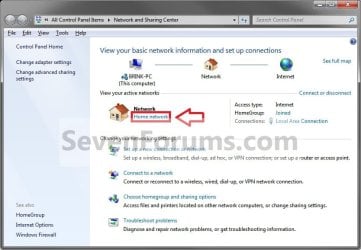

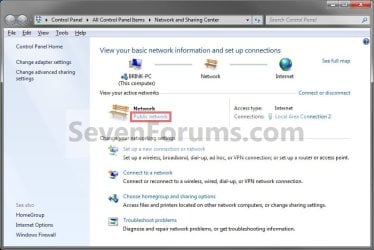
3. Select a location that fits your network location needs. (see screenshot below)
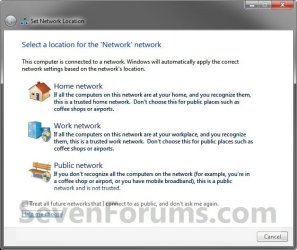
4. If prompted by UAC, then click on Yes.
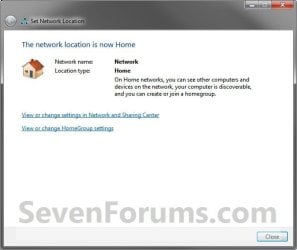
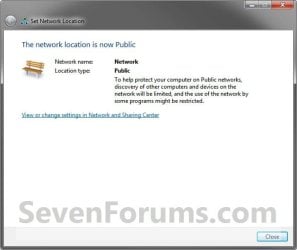
5. The network location has now been changed to what you selected in step 3. Click on Close. (see screenshots below)

6. When done, close the Network and Sharing Center.
OPTION THREE
To Set Network Location in Registry Editor
2. If prompted by UAC, then click/tap on Yes.
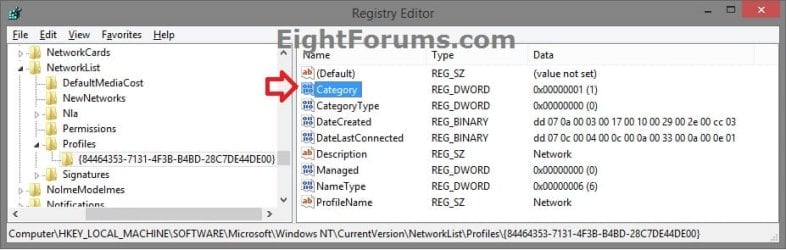
3. In Registry Editor, navigate to the location below. (see screenshot below)
Code:
HKEY_LOCAL_MACHINE\SOFTWARE\Microsoft\Windows NT\CurrentVersion\NetworkList\Profiles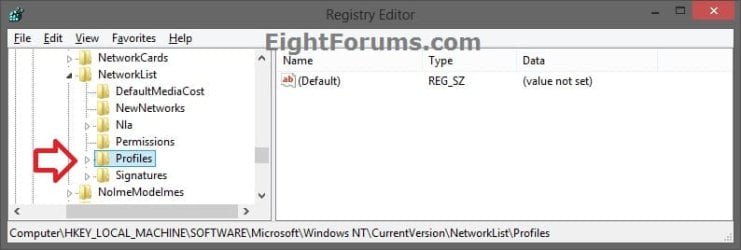
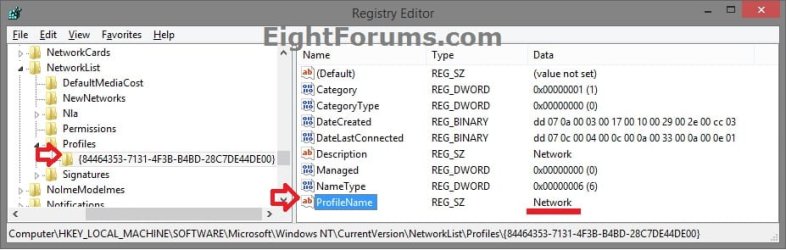
4. Double click/tap on the Profiles key in the left pane to expand it. Click/tap on each long GUID number subkey, and look at it's PofileName string value in the right pane to see if it has the current network name (ex: Network) until found. (see screenshots below)
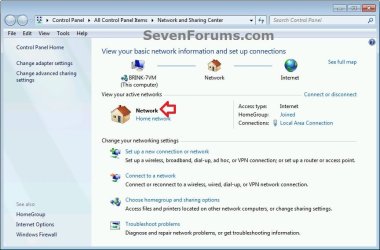
5. When you find the correct PofileName for your network name, double click/tap on the Category DWORD value in the same right pane to modify it. (see screenshot below)
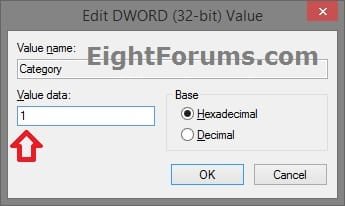
6. Type in a new Data value number in the table below for the network location you want, and click/tap on OK. (see screenshot below)
| Network Location | Data Value |
|---|---|
| Public | 0 |
| Home | 1 |
| Domain | 2 |
7. When finished, you can now close Registry Editor if you like.
8. Sometimes you may need to sign out and in of your user account to apply the new network location.
That's it,
Shawn Brink
Related Tutorials
- How to Set Unidentified Networks to be a Private or Public Network Location
- How to View and Change the Workgroup Name in Windows 7
- How to View and Change the Computer Name in Windows 7
- How to Join or Add a Computer to a Windows 7 Homegroup
- How to Change the Network Name and Icon in Windows 7
- How to Create a Network and Sharing Center Shortcut in Windows 7
- How to Enable or Disable Changing Network Locations in Windows 7
- How to Turn Network Discovery On or Off in Windows 7
Last edited:


