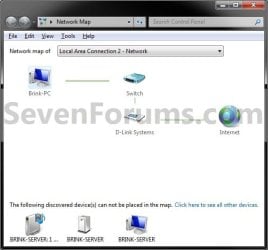
Network Map Shortcut - Create

How to Create a "Network Map" Shortcut in Windows 7

   Information
The network map is a graphical view of the computers and devices on your network that shows how they're connected.

This will show you how to create or download a Network Map shortcut to see the full map of your network.

   Note
This opens the same thing as if you clicked on the See full map link in the Network and Sharing Center.

NSC.jpg


EXAMPLE: Network Map
Network_Map.jpg


OPTION ONE

To Download a "Network Map" Shortcut


1. Click on the Download button below to download the Network_Map.zip file.

Download


2. Save the .zip file to the desktop.

3. Open the .zip file and extract the Network Map shortcut to the desktop.

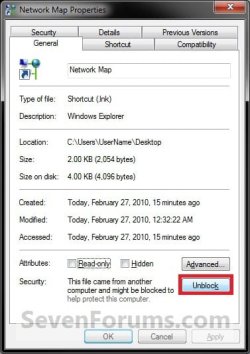
4. Right click on the Network Map shortcut, and click on Properties, General tab, and on the Unblock button. (See screenshot below)
NOTE: If you do not have a Unblock button under the General tab, then the shortcut is already unblocked and you can continue on to step 5.
Unblock.jpg
5. You can now Pin to Taskbar or Pin to Start Menu this shortcut, assign a keyboard shortcut to it, or move it where you like for easy use.

6. When done, you can delete the downloaded .zip file on the desktop if you like, or save it to use again.


OPTION TWO

To Manually Create a "Network Map" Shortcut


1. Right click on a empty area on desktop, and click on New and Shortcut.

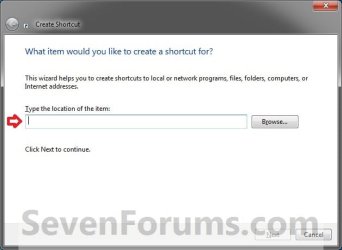
2. Type the location below into the location area, and click on the Next button. (See screenshot below)
%windir%\explorer.exe shell:::{E7DE9B1A-7533-4556-9484-B26FB486475E}
Step1.jpg
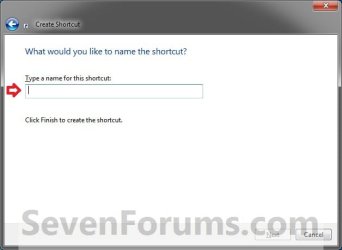
3. Type Network Map for the name, and click on the Finish button. (See screenshot below)
NOTE: You can name this anything you would like though.
Step2.jpg
4. Right click on the new Network Map shortcut on the Desktop and click on Properties.

5. Click on the Shortcut tab, then click on the Change Icon button. (See screenshot below)
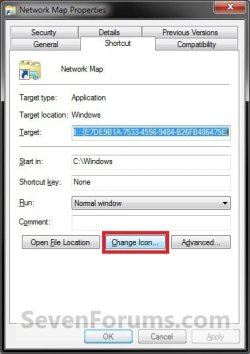
Step3.jpg
6. In the line under "Look for icons in this file", type the location below and press Enter. (See screenshot below)
%SystemRoot%\system32\NetworkMap.dll
Step4.jpg
7. Select the icon highlighted in blue above and click on OK. (See screenshot above)
NOTE: You can use any icon that you would like instead though.

8. Click on OK. (See screenshot below)
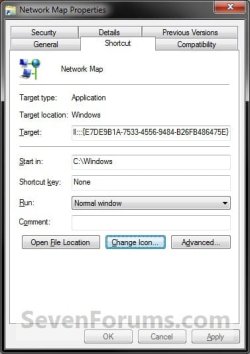
Step5.jpg
9. You can now Pin to Taskbar or Pin to Start Menu this shortcut, assign a keyboard shortcut to it, or move it where you like for easy use.
That's it,
Shawn


Attachments

Last edited:
This is exactly what I was looking for. Works perfectly. I simply typed Network Map shortcut in Google search and you were the number 1 result. Thanks for all of the great information you supply concerning Windows 7.
 

My Computer

Computer Manufacturer/Model Number
xFx AMD Nvidia #1
OS
Windows 7 Ultimate x64 SP1
CPU
AMD Phenom(tm) II X4 945 Processor 3.00 Ghz
Motherboard
xFx MD-A72P-7509 Ver 1.1 750a
Memory
OCZ Platinum XTC 8GB DDR2 PC2-8900 (555 MHz)
Graphics Card(s)
Nvidia GeForce GTX 560 Ti, Nvidia nForce 750a SLI
Sound Card
internal
Monitor(s) Displays
HP w2408 24", ViewSonic VX910 19", Panasonic TC-P50GT25 55"
Screen Resolution
1920 x 1200
Hard Drives
Revo SSD PCI-E 120GB Boot Drive,
SeaGate Barracuda HDD SATA-3G 1TB Drive 7200.12
PSU
Corsair 650W
Case
Coolermaster Elite 334 Nvidia Edition
Cooling
stock cpu fan & case fan
Keyboard
Microsoft Natural Multimedia Keyboard 1.0A
Mouse
Microsoft blue laser
Internet Speed
10 Mb/s cable-modem
Other Info
My computer built by me on a budget.
You're most welcome Ed. Thank you. :)
 

My Computer

Computer type
PC/Desktop
Computer Manufacturer/Model Number
Self built custom
OS
64-bit Windows 11 Pro for Workstations
CPU
Intel i7-8700K OC'd to 5 GHz
Motherboard
ASUS ROG Maximus XI Formula Z390
Memory
64 GB (4x16GB) G.SKILL TridentZ RGB DDR4 3600 MHz
Graphics Card(s)
ASUS ROG-STRIX-GTX1080TI-O11G-GAMING
Sound Card
Integrated
Monitor(s) Displays
2 x Samsung Odyssey G7 27"
Screen Resolution
2560x1440
Hard Drives
1TB Samsung 990 PRO M.2,
4TB Samsung 990 PRO PRO M.2,
TerraMaster F8 SSD Plus NAS
PSU
Seasonic Prime Titanium 850W
Case
Thermaltake Core P3
Cooling
Corsair Hydro H115i
Keyboard
Logitech wireless K800
Mouse
Logitech MX Master 4
Internet Speed
2 Gb/s Download and 100 Mb/s Upload
Antivirus
Malwarebyte Anti-Malware Premium
Browser
Google Chrome
Other Info
Logitech Z625 speaker system,
Logitech BRIO 4K Pro webcam,
HP Color LaserJet Pro MFP M477fdn,
APC SMART-UPS RT 1000 XL - SURT1000XLI,
Galaxy S23 Plus phone
Is there a way to get a map of network via command prompt?
 

My Computer

OS
Windows 7 Ultimate x64
Hello Gufo, and welcome to Seven Forums.

It's not the same as the network map, but you could use the Net View command to view a list of computer or network resources. The link below is for XP, but it's the same in Windows 7.

How to Use the NET VIEW Command in Windows XP

Hope this helps some,
Shawn
 

My Computer

Computer type
PC/Desktop
Computer Manufacturer/Model Number
Self built custom
OS
64-bit Windows 11 Pro for Workstations
CPU
Intel i7-8700K OC'd to 5 GHz
Motherboard
ASUS ROG Maximus XI Formula Z390
Memory
64 GB (4x16GB) G.SKILL TridentZ RGB DDR4 3600 MHz
Graphics Card(s)
ASUS ROG-STRIX-GTX1080TI-O11G-GAMING
Sound Card
Integrated
Monitor(s) Displays
2 x Samsung Odyssey G7 27"
Screen Resolution
2560x1440
Hard Drives
1TB Samsung 990 PRO M.2,
4TB Samsung 990 PRO PRO M.2,
TerraMaster F8 SSD Plus NAS
PSU
Seasonic Prime Titanium 850W
Case
Thermaltake Core P3
Cooling
Corsair Hydro H115i
Keyboard
Logitech wireless K800
Mouse
Logitech MX Master 4
Internet Speed
2 Gb/s Download and 100 Mb/s Upload
Antivirus
Malwarebyte Anti-Malware Premium
Browser
Google Chrome
Other Info
Logitech Z625 speaker system,
Logitech BRIO 4K Pro webcam,
HP Color LaserJet Pro MFP M477fdn,
APC SMART-UPS RT 1000 XL - SURT1000XLI,
Galaxy S23 Plus phone
Thanks, but the command provides only the list of shared resources. No information about the router / gateway as the network infrastructure ...
 

My Computer

OS
Windows 7 Ultimate x64
Back
Top