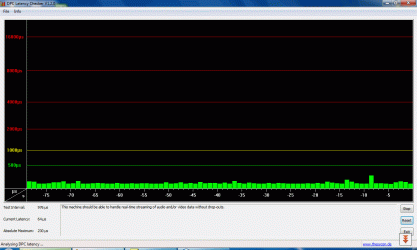
Network usage causes high DPC Latency

Yes, disabling the network adapter resolves the issue, but I've tried several different adapters, including two integrated adapters in the two different mobo's that I've tried, and a usb-based adapter, so the issue is not a specific adapter, but rather something in the OS that is related to the adapter.

Thanks for the reply though!
 

My Computer

Computer Manufacturer/Model Number
Custom
OS
Windows 7
CPU
Intel Core2 Quad 2330
Motherboard
P5QL PRO
Memory
8 GB
Graphics Card(s)
GeForce GT 220 1024 PCI-E
Sound Card
Realtek High def
Yes, disabling the network adapter resolves the issue, but I've tried several different adapters, including two integrated adapters in the two different mobo's that I've tried, and a usb-based adapter, so the issue is not a specific adapter, but rather something in the OS that is related to the adapter.

Thanks for the reply though!

Ah, got it. That is frustrating... :(
 

My Computer

OS
Windows 7 Professional x64
CPU
AMD Phenom II 940BE @3.6
Motherboard
Gigabyte GA-MA770-UD3 (Rev 2.1)
Memory
4x2GB G.Skill PC2-8000
Graphics Card(s)
Gigabyte GTX 460 1gb (GV-N460OC-1GI)
Sound Card
x-Fi XtremeGamer
Monitor(s) Displays
Samsung T240
Screen Resolution
1920x1200 (native)
Hard Drives
G.SKILL Phoenix Pro 60GB SSD
Samsung & Western Digital 5Tb total
PSU
Corsair 650TX
Case
Antec Three Hundred
Cooling
Air cooling all the way!
Internet Speed
Teksavvy (DSL)
Add me...

I also tried external / internal sound cards, did not help.

If changing drivers and / or hardware does not change the problem, it should be a Windows 7 problem, right?

BTW, to get the latency into the green, it is sufficient for me to deactivate the network adapter and activate it again. It needs some time for the system to stabilize, but then the sound is fine until I start to actually use the network again. Surfing, downloading will bring me back into the reds within a few seconds. I'm testing if lowering the concurrent connections lowers also the lag... seems like
 

My Computer

OS
Windows 7 Professional 64bit
CPU
Intel Core i7 CPU 920 @ 2.67 GHz
Graphics Card(s)
NVIDIA GeForce GTX 260
Welcome the the club of woe! I've replaced every component in my system except the CPU (yes, I even replaced the mother board!), so it's either a problem in the OS or in the CPU, and I still have the same issue.

My CPU is a Intel Quad CPU Q8200 @ 2.33GHz. I wonder if we should poll people with this problem to see if it's a CPU issue.
 

My Computer

Computer Manufacturer/Model Number
Custom
OS
Windows 7
CPU
Intel Core2 Quad 2330
Motherboard
P5QL PRO
Memory
8 GB
Graphics Card(s)
GeForce GT 220 1024 PCI-E
Sound Card
Realtek High def
It's a Windows 7 Problem

Your comment gave me the idea to try with a different OS (since I don't have another CPU).
I started a virtual machine (Windows Vurtual PC) with Windows XP installed. I setup a bittorrent client and downloaded open office. If I'd do that in the host machine, I'd have latencies about more than 100000 µs, doing that on the virtual PC, I have a maximum of 1600 µs!

With that, I am sure that it is a OS problem in Windows 7.
 

My Computer

OS
Windows 7 Professional 64bit
CPU
Intel Core i7 CPU 920 @ 2.67 GHz
Graphics Card(s)
NVIDIA GeForce GTX 260
I have the exact same problem and started googling around found this thread.
I had the same happen: very high latency when downloading at high ~100Mbps speeds using utorrent.
And behold I solved the problem! Updated utorrent from 1.8.5 to the latest 2.0.4 (Build 21586). Also i unticked "Disable windows caching of disk writes/reads" from disk cache options. And now the lag is gone :) I'm not sure unticking the settings were the key, but I wont dare to touch anything now. It would make sense, that having windows caching disable could cause an immense amount of interrupts.
 

My Computer

OS
Windows 7 Ultimate x64
.. i unticked "Disable windows caching of disk writes/reads" from disk cache options. And now the lag is gone :) I'm not sure unticking the settings were the key, but I wont dare to touch anything now. It would make sense, that having windows caching disable could cause an immense amount of interrupts.

I "unticked" it too and had no lag for 5 seconds, then back to the previous high lag. :shock:

Why should disable caching cause interrupts???
 

My Computer

OS
Windows 7 Professional 64bit
CPU
Intel Core i7 CPU 920 @ 2.67 GHz
Graphics Card(s)
NVIDIA GeForce GTX 260
Good luck getting this resolved. I gave up on my system after replacing every component including the motherboard and Power Supply. So I foolishly went out and bought a new computer. An HP HPE-150f running Windows 7 x64. Guess what? Exactly the same problem. The only common factor is Windows 7 x64. The only workaround is to reboot the computer several times a day.
 

My Computer

Computer Manufacturer/Model Number
Custom
OS
Windows 7
CPU
Intel Core2 Quad 2330
Motherboard
P5QL PRO
Memory
8 GB
Graphics Card(s)
GeForce GT 220 1024 PCI-E
Sound Card
Realtek High def
The only common factor is Windows 7 x64. The only workaround is to reboot the computer several times a day.


Or try a different OS, like Win 7 32-bit, XP, or Linux.

I tried Microsoft's Windows Performance Toolkit to isolate with xperf.exe which driver is causing the lag... it was
<drumroll>
Microsoft's ndis.sys
Since it is related to network traffic, I'll try it with a different (better) network adapter.. I don't have much hope but I'm willing to give it a try.
 

My Computer

OS
Windows 7 Professional 64bit
CPU
Intel Core i7 CPU 920 @ 2.67 GHz
Graphics Card(s)
NVIDIA GeForce GTX 260
In may case, it was really NIC driver related. After chasing this issue with Windows Performance Analyzer, I came to conclusion that high DPC is related to my Atheros 8121 driver.

My mobo manufacturer Asus is not very vivid on updating their support site unfortunately, so I found latest Atheros AR8121/AR8113/AR8114 drivers at: Atheros Communications

Only version 1.0.0.49+ is fixing this issue; I have now my machine with filesharing for days running and crated lots of traffic. All fine, DPC Latency Checker still shows green and low bars!
 

My Computer

OS
Win 7 x64
I tried an Intel Network card (instead of the onboard Realtek) and it did not help...

:/
 

My Computer

OS
Windows 7 Professional 64bit
CPU
Intel Core i7 CPU 920 @ 2.67 GHz
Graphics Card(s)
NVIDIA GeForce GTX 260
I have 2 PCs with W7 x64 . One has an Intel MB DH55HC with i7 860 CPU and an onboard Intel NIC . I get the high DPC latency, and tracked it down to NDIS.sys. I added a Realteck NIC, and for a few days it worked fine. But now this too has the high DPC when downloading, though not to the extent of the INtel NIC.
The second PC has an MSI board with nVidia chipset and NIC and core 2 duo CPU - has no problems at all with DPCs.
I hope MS updates NDIS.sys to solve this problem.
 
Last edited:

My Computer

OS
W7
I can confirm I am having issues with this right now.

I have been having issues with having to reboot to gain performance back.
Upon researching I found out about DPC latency and downloaded the app.

After seeing spikes upwards of 100,000 uS (YES actually that high), I knew this had to be the reason I was needing to reboot.

After messing around and disabling different drivers, I found it to be my Atheros AR8121/AR8113/AR8114 PCI-E Ethernet controller. As soon as I disable it, all latency peaks subside.

So, further experimenting, I found that I could reboot my laptop, and latency would be in the green zone. Within two minutes of starting uTorrent, blam, red spikes that progressively get bigger overtime.

So, I went to uTorrent forums and found this is a common issue, more so since more people are going to Win 7 OS.

I decided to download Vuze and install it. I then rebooted my PC, and started Vuze. About 5 minutes later, I started getting spikes.......
But much different. These spikes would come in equal intervals.....every 10 or so seconds and they never got higher than 5000 uS.
I even tried downloading the same three files with both bit torrent clients for a consistent test.

I could see there was clearly a difference between the two bit torrent clients.
If I have to choose, I'll take Vuze's symptoms over uTorrent's. The latency I see with Vuze doesn't seem to affect my PC stability, but it does with uTorrent, especially overnight.

I am an avid user of PS3 Media Server and I have noticed that this latency affects my streaming sometimes as well.

While using Vuze seems to be better than uTorrent, the trade-off is that Vuze uses much more CPU power than uTorrent. I hope this issue can be solved (whatever the root cause is), as I like to be able to download material at the same time I am serving other media over my network. As I sometimes need to transcode the material, the lower CPU usage from uTorrent is appealing vs Vuze's CPU usage, but I have HIGH DPC latency with uTorrent.

I have tried the latest Atheros drivers up to version 1.0.0.49 which seemed to help a little, but as soon as I get high network traffic, specifically internet traffic, then the problem creeps back.
LAN traffic (media serving) doesn't go nearly as crazy as downloading material over the internet.
 
Last edited:

My Computer

Computer Manufacturer/Model Number
Acer Aspire 6930///Compaq Presario SR5152NX
OS
Windows 7 Professional 32-bit///Vista Home Premium 32-bit
Memory
3GB RAM///2GB RAM
Graphics Card(s)
Built-in, crap///NVIDIA GeForce 6150SE nForce 430
Sound Card
Built-in, alright///Realtek HD audio
Monitor(s) Displays
Built in and 26" LCD/40" LCD (VGA splitter)
Screen Resolution
Laptop: 1366X768 26"Mon: 1366X768 40"Mon:1920X1080
Hard Drives
Internal 350GB///250GB
2 Seagate 1TB HDD Ext.
1 Verbatim 500GB HDD Ext.
Cooling
Stock fans
Keyboard
Intelli-Type Wireless multimedia keyboard
Mouse
MS Wireless Notebook Optical Mouse 3000
Internet Speed
15Mbps Telus DSL
Other Info
2 PS3's, 1 XBOX360, and a Panasonic Blu-Ray player rendering media to various locations in house via PS3 Media Server*****
DIR-655 Xtreme N Gb router w/DAP-1522 bridge/access point******Using Input Director to share keyboard and mouse across all screens and PC's in my room.
Still waiting for Intel support to solve this. In the mean time I found a way to restore normal DPC latency without rebooting: Go to Services and restart Base Filtering Engine. After this you need to restart Windows firewall from the Action Center in the systray .
 

My Computer

OS
W7
Eross! You are my hero! This is such an awesome workaround!

For anyone else: I created a batch file (restartservices.bat) to restart the service:

net stop "Base Filtering Engine"
net start "Base Filtering Engine"

(remember to right click the batch and click "run as administrator")
 

My Computer

Computer Manufacturer/Model Number
Custom
OS
Windows 7
CPU
Intel Core2 Quad 2330
Motherboard
P5QL PRO
Memory
8 GB
Graphics Card(s)
GeForce GT 220 1024 PCI-E
Sound Card
Realtek High def
Eross! You are my hero! This is such an awesome workaround!

For anyone else: I created a batch file (restartservices.bat) to restart the service:

net stop "Base Filtering Engine"
net start "Base Filtering Engine"

(remember to right click the batch and click "run as administrator")

Thanks for the batch file. To automatically answer Yes to the question in the batch file write it like this:
net stop "Base Filtering Engine" /Yes
net start "Base Filtering Engine"
 

My Computer

OS
W7
I have the same problem (and I'm not using any torrent or otherwise high network usage program). After a day or so, DPC latency creeps up and causes noise in my sound card. After system startup, latency is in the green levels, but after running a day or so, it's perpetually running in the red. If I then disable the network adapter (NIC), latency immediately drops to green levels. However, if I then enable the network adapter, it immediately spikes perpetually into the red. I have to reboot to reset the condition so that it's running in the green (so that I can listen to music without horrible crackles and stutters).

I also tried swapping the network adapter but I have exactly the same issue with both network adapters.

It took me many hours of troubleshooting just to get to the point where I can see the issue using the DPC Latency Checker (after swapping several sound cards, video cards and such). This is driving me nuts!

Thanks bundles for any suggestions!!


AHHHGHGHGHHGHHHGHGHG!!!!

I F---ing solved it !!!!:party::party::party::party::party::party::party::party::party::cry::cry::cry:

I made an account here just for posting this! I looked at this problem for 4 months and tried EVERYTHING!

All my symptoms are the same.. network traffic causes spikes. audio was jumping and popping. forget about HD video. every time I connected or disconnected to a network the spikes peaked at 33ms and stayed there for 5 minutes! you couldn't touch the computer. once every few hours when network traffic was very high (downloading at max speed) it froze completely and a reset was required. I tried every combination of driver and bios versions out there.
first of all there's this program
Resplendence Software - LatencyMon: DPC, ISR and pagefault execution monitor
it can tell you what driver exactly is causing the spikes
just run it - press play and go to drivers. there click on the highest execution to sort by it.
I saw that the major culprit was dxgkrnl.sys and ACPI.sys and nvlddmkm.sys and even USBPORT.sys. All of these had execution times higher than 1.0 ms. It was exactly the same as the latencies in the DPC latency checker.

apparently all (except the USBPORT.sys) are related to nvidia drivers. Specifically they are related to a feature that's called Powermizer. I found a tool to disable it easily:
Powermizer Switch.rar - File Shared from Box.net - Free Online File Storage
just run it click powermizer off and reboot!!! It solved everything for me! even the USBPORT.sys is under 0.4 constant now! (before they were all over 19.0ms and 18,000+ in dpc checker) check out my DPC! WOOOHOO! thank you everyone!!
 

Attachments

  • 2010-11-06_195123.gif
    2010-11-06_195123.gif
    25.9 KB · Views: 313

My Computer

Computer Manufacturer/Model Number
MSI GX630
OS
Windows 7 Ultimate 32bit
CPU
AMD Athlon X2 Dual Core QL-62 2.00 GHz
Memory
4GB
Graphics Card(s)
Nvidia Geforce 9600M GT
Sound Card
Realtek 7.1 onboard audio
Resplendence Software - LatencyMon: DPC, ISR and pagefault execution monitor
it can tell you what driver exactly is causing the spikes
just run it - press play and go to drivers. there click on the highest execution to sort by it.
I saw that the major culprit was dxgkrnl.sys and ACPI.sys and nvlddmkm.sys and even USBPORT.sys. All of these had execution times higher than 1.0 ms. It was exactly the same as the latencies in the DPC latency checker.

apparently all (except the USBPORT.sys) are related to nvidia drivers. Specifically they are related to a feature that's called Powermizer. I found a tool to disable it easily:
Powermizer Switch.rar - File Shared from Box.net - Free Online File Storage
just run it click powermizer off and reboot!!! It solved everything for me! even the USBPORT.sys is under 0.4 constant now! (before they were all over 19.0ms and 18,000+ in dpc checker) check out my DPC! WOOOHOO! thank you everyone!!

You sound very enthusiastic.
I downloaded the LatencyMon and had different results. It says that these drivers
tcpip.sys (TCP/IP Driver by Microsoft),
nvlddmkm.sys (NVIDIA Windows Kernal Mode Driver),
ntoskrnl.exe (Windows)
netbt.sys (MBT Transport Driver)m
dxgkrnl (DirectX, Microsoft)
ndis.sys (NDIS driver, Microsoft)
have the highest execution time, where the maximum is 0.76 ms.
So, while NVIDIA has only one driver in the top, Microsoft is the main knave.
Also, I observed that the problem is related to network (mainly ndis), and has not to do anything with graphics.

That's why I decided to not download an exe from a fileshare server and execute something from an author I never heard of before without knowing what (else) this software does.
 
Last edited:

My Computer

OS
Windows 7 Professional 64bit
CPU
Intel Core i7 CPU 920 @ 2.67 GHz
Graphics Card(s)
NVIDIA GeForce GTX 260
AHHHGHGHGHHGHHHGHGHG!!!!

I F---ing solved it !!!!:party::party::party::party::party::party::party::party::party::cry::cry::cry:

I made an account here just for posting this! I looked at this problem for 4 months and tried EVERYTHING!

All my symptoms are the same.. network traffic causes spikes. audio was jumping and popping. forget about HD video. every time I connected or disconnected to a network the spikes peaked at 33ms and stayed there for 5 minutes! you couldn't touch the computer. once every few hours when network traffic was very high (downloading at max speed) it froze completely and a reset was required. I tried every combination of driver and bios versions out there.
first of all there's this program
Resplendence Software - LatencyMon: DPC, ISR and pagefault execution monitor
it can tell you what driver exactly is causing the spikes
just run it - press play and go to drivers. there click on the highest execution to sort by it.
I saw that the major culprit was dxgkrnl.sys and ACPI.sys and nvlddmkm.sys and even USBPORT.sys. All of these had execution times higher than 1.0 ms. It was exactly the same as the latencies in the DPC latency checker.

apparently all (except the USBPORT.sys) are related to nvidia drivers. Specifically they are related to a feature that's called Powermizer. I found a tool to disable it easily:
Powermizer Switch.rar - File Shared from Box.net - Free Online File Storage
just run it click powermizer off and reboot!!! It solved everything for me! even the USBPORT.sys is under 0.4 constant now! (before they were all over 19.0ms and 18,000+ in dpc checker) check out my DPC! WOOOHOO! thank you everyone!!
Are you using a laptop PC? Because Powermizer is a feature only for battery operated PCs:
NVIDIA PowerMizer Technology
 

My Computer

OS
W7
You sound very enthusiastic.
I downloaded the LatencyMon and had different results. It says that these drivers
tcpip.sys (TCP/IP Driver by Microsoft),
nvlddmkm.sys (NVIDIA Windows Kernal Mode Driver),
ntoskrnl.exe (Windows)
netbt.sys (MBT Transport Driver)m
dxgkrnl (DirectX, Microsoft)
ndis.sys (NDIS driver, Microsoft)
have the highest execution time, where the maximum is 0.76 ms.
So, while NVIDIA has only one driver in the top, Microsoft is the main knave.
Also, I observed that the problem is related to network (mainly ndis), and has not to do anything with graphics.

That's why I decided to not download an exe from a fileshare server and execute something from an author I never heard of before without knowing what (else) this software does.

Ofcourse I was enthusiastic!! I told you I had this problem for about 4 months and I tried everything to solve it. I totally understand you not wanting to download this thing (now I'm a little worried because I myself don't have a clue who made this). So I looked up and here is the same solution without any program to download just tweak some reg keys:


\HKEY_LOCAL_MACHINE\SYSTEM\CurrentControlSet\Control\Video\{**a series of numbers that are different**}\0000\PerfLevelSrc


zivw5z.jpg


Step 3- What we need to do once you found PerfLevelSrc is edit it by double clickin and changing the value data from 3333 to 3322. Click ok.

2lihpx0.jpg


Step 4- Find "PowerMizerEnable" which is probably 5 ways down from "PerfLevelSrc". When you find it double click on PowerMizerEnable and change the value data from 1 to 0.

dxh1t0.jpg


This will disable Powermizer

Step 5 - Find PowermizerLevel and change the value to 1

Step 6- Find PowermizerLevelAC and change value to 1


this one i didnt try because the program worked for me but I guess its exactly the same. hope this works for you. But in any case, if nothing is going over 0.8ms or so in your case, this is a very good latency and its weird that you are still getting spikes in DPC latency checker. Do you?


Are you using a laptop PC? Because Powermizer is a feature only for battery operated PCs:
NVIDIA PowerMizer Technology

yea, I have MSI GX630 laptop with AMD athlon X2 QL-62, nvidia gforce 9600GT, 7.1 onboard realtek audio.
Maybe my problem was not the same as yours but I think that trying to disable the powermizer option can do no harm even if you have a desktop.

I should add a few details though on what it was like before the fix:
I never experienced any problem with win XP on the same machine (I have both windows installed on separate drives)
Also, when I disabled the network , WLAN and bluetooth devices everything calmed down to the green - but it took some serious red zone spikes before it did and after restarting the devices you couldn't do anything for a few minutes (spikes were constantly in the 30-60 thousands...) to the point where sometimes the computer froze entirely and a reset was required. I also should note that when I installed a fresh WIN7 (one of the first things I tried) before I installed ANYTHING else, the latency wasn't that bad - mostly yellow and only sometimes red, but after the sound drivers and especially the network and WLAN drivers were installed everything got crazy just like before.


Hope this helps I created an account & posted here just for this solution!

 

My Computer

Computer Manufacturer/Model Number
MSI GX630
OS
Windows 7 Ultimate 32bit
CPU
AMD Athlon X2 Dual Core QL-62 2.00 GHz
Memory
4GB
Graphics Card(s)
Nvidia Geforce 9600M GT
Sound Card
Realtek 7.1 onboard audio
Back
Top