Solved Networking Win 7 and XP, got something wrong :-(

Trapper

New member
Power User
Local time
9:55 PM
Messages
207
Location
Hertfordshire UK.
Hi.

I’ve spent around a week finding information about Networking and have printed out lots of information from this forum and MS. However I still cannot get it right so here a few questions that I hope/am sure you will be able to answer.

My setup is as follows, the main PC is running Win 7 Pro 64bit, I also have a PC running Win XP Home and my wife has a laptop also running Win XP Home. It is these three that I want to network and share files across our Belkin router.
There is also another PC and a laptop in the house using our network that I do NOT want to be able to access any of the above 3 computers.

I have managed on my WIN 7 PC to see a test folder on my Win XP PC, I can open this test folder and change its contents, so far so good. I have tried to share a folder on my Win 7 PC with that same XP PC but this seems far more complicated. I have, using the tutorial “Window 7 File sharing between XP and Windows 7… “ attempted to ‘Share’ a folder but only arrived at the “Share with other home computers running window 7?” Which won’t work as I am not connecting to another Win 7 PC.

When I try share with “Specific People” it asks for a ‘NAME’ then to click ADD, I have entered my XP PC’s Name, also my WORKGROUP Name but was advised they couldn’t be found. When I somehow managed to share a folder I was told I could email the link to the recipient (I assumed my XP PC) but on opening the email on the XP PC it couldn’t find the file! (As I could not enter a ‘NAME’ I selected my name on the list below, I didn’t know what else to do so tried it anyway!)

As you and see from the above I am not very PC Savvy, so here are some questions you may be able to answer.

How do I get folders on my Win 7 to appear on my XP PC and wife’s laptop?
How do make sure only the computers I want to can access files but not other computers on the same network?
I have the same logon password on both the Win 7 and XP Pc’s will this confuse the issue?

Many thanks.
Alan.
 

My Computer

Computer type
PC/Desktop
Computer Manufacturer/Model Number
Home Build
OS
Windows 7 Professional 64bit
CPU
i5-2500K 3.30Hz 6MB Cache
Motherboard
ASUS P8P67 Pro B3 Revision
Memory
16GB DDR3
Graphics Card(s)
ASUSGeforce GTX1050Ti 4GB
Sound Card
On-Board
Monitor(s) Displays
LG23MP65HQ-P
Hard Drives
WD Caviar Green 500gb
Maxtor 300gb
WD External USB 120gb
WD My Passport USB 2TB
LUX3 External USB 1TB
PSU
Corsair 800W
Case
Antec
Cooling
Arctic 13 Cooler
Antivirus
Bitdefender Total Security 2017
Browser
FireFox

My Computer

Computer type
PC/Desktop
Computer Manufacturer/Model Number
Home built
OS
Windows 7 Ult, Windows 8.1 Pro,
CPU
Q9650-4.275GHz, E8600 4.5GHz, E6750-3.8GHz
Motherboard
Evga 780i FTW
Memory
G.Skill PC2 9600 1200Mhz 5 5 5 15 2T
Graphics Card(s)
GTX480
Sound Card
Asus Xonar D2
Monitor(s) Displays
HannsG
Screen Resolution
1680X1050
Hard Drives
GSkill Phoenix Pro 120GB SSD
PSU
ThermalTake Toughpower 1000Watt modular
Case
ThermalTake XaserV
Cooling
Xigmatek S1283
Keyboard
Logitech G15
Mouse
Logitech G9
Internet Speed
T1
Hi Chev65.
Thanks for the link, its all printed out so hopefully my problems should be over.

:party:

Regards
Alan.
 

My Computer

Computer type
PC/Desktop
Computer Manufacturer/Model Number
Home Build
OS
Windows 7 Professional 64bit
CPU
i5-2500K 3.30Hz 6MB Cache
Motherboard
ASUS P8P67 Pro B3 Revision
Memory
16GB DDR3
Graphics Card(s)
ASUSGeforce GTX1050Ti 4GB
Sound Card
On-Board
Monitor(s) Displays
LG23MP65HQ-P
Hard Drives
WD Caviar Green 500gb
Maxtor 300gb
WD External USB 120gb
WD My Passport USB 2TB
LUX3 External USB 1TB
PSU
Corsair 800W
Case
Antec
Cooling
Arctic 13 Cooler
Antivirus
Bitdefender Total Security 2017
Browser
FireFox
Er, not yet :(.
Printed out all 5 guides from How- To Geek. These seem to be aimed at seeing either XP or Vista from Win 7 or Win 7 to Win 7. I need to access my Win 7 from a PC running XP.

I have no problem is seeing my shared file on the XP PC and work on it from my Win 7 PC. However I cannot even get to see my Win 7 PC from my XP PC so obviously cannot access any files on the Win 7 PC.

I put a folder in my win 7 Public/shared folders called 'My Shared Folder' I clicked properties and the sharing tab, I then clicked 'Share' and then 'Everyone'. Clicked OK and was informed I could 'Not share the folder' :cry:

Damned frustrating.

I do not want to go messing around with permissions etc without being sure I know what I am doing, as otherwise I will probably screw it up completely!
 

My Computer

Computer type
PC/Desktop
Computer Manufacturer/Model Number
Home Build
OS
Windows 7 Professional 64bit
CPU
i5-2500K 3.30Hz 6MB Cache
Motherboard
ASUS P8P67 Pro B3 Revision
Memory
16GB DDR3
Graphics Card(s)
ASUSGeforce GTX1050Ti 4GB
Sound Card
On-Board
Monitor(s) Displays
LG23MP65HQ-P
Hard Drives
WD Caviar Green 500gb
Maxtor 300gb
WD External USB 120gb
WD My Passport USB 2TB
LUX3 External USB 1TB
PSU
Corsair 800W
Case
Antec
Cooling
Arctic 13 Cooler
Antivirus
Bitdefender Total Security 2017
Browser
FireFox
Try putting the folder in the root of you C: hard drive. I hope you have the Win7 computers set up as a business type work network NOT Homegroup.
 

My Computer

Computer type
PC/Desktop
Computer Manufacturer/Model Number
Built them myself, Science Experiments !
OS
Win7 Enterprise, Win7 x86 (Ult 7600), Win7 x64 Ult 7600, TechNet RTM on AMD x64 (2.8Ghz)
CPU
AMD fx8350 4ghz, AMD-32 2400mhz, AMD-64 3200mhz, AMDx64 2.8G
Motherboard
SIS 755, ECS-K8M890M-M (Ult 7600), GigaByte & others
Memory
2gb, 4gb on the Ult 7600, 4gb on Technet RTM, 32gb on FX8350
Graphics Card(s)
Draw my own Graphics, several nVidia cards
Sound Card
on motherboard
Monitor(s) Displays
19" flat scr, 28" I-Inc widescr,22" Emprex Widescr, 23" Acer
Screen Resolution
1280 x 1024, 1440 x 900, 1920 x 1080
Hard Drives
6 pata Ide HD's & 2 Sata HD's
added 80gb external on Ult 7600 computer,
numerous extra 1tb, 2TB, 3Tb SATA HD's
A collection of ext HD Docks w/ HDs
PSU
430w, 550w, 600w, 700, 800, etc
Case
All Generic Full Towers
Cooling
Open Air & a few fans, some w/ colored LEDs
Keyboard
Compaq & Dell recycled from GoodWill
Mouse
Made in China Optical Wired Mouse
Internet Speed
Fast Cable InterNet
Antivirus
AVG Free on 24 different Desktops, NO Problems!
Browser
IE 8 is preferred, but use FireFox sometimes
Other Info
Linksys Routers, switches, & Hubs
Too Many USB Flash Drives to count, Biggest is 64GB !
Eight computers in my home network.
Sixteen computers at my business network.
Linked via TeamViewer !
Lots of old used spare computer parts everywhere!
Is the network wired or wireless? Also be aware that in XP the default workgroup name is MSHOME but this was changed in Vista and W7 to WORKGROUP. Unless you make them all the same you'll have problems using a work group.

If you already had some networking set up on the XP computers then I'd change the W7 computers to use MSHOME. For the 2 machines you want to isolate, just make a different work group for them. Like OTHER or whatever.
 

My Computer

Computer Manufacturer/Model Number
HP Media Center
OS
Windows 7 32 bit
CPU
AMD 5200+ dual core
Memory
2 GB
Graphics Card(s)
NVidia GeForce 6150SE 128 MB
Monitor(s) Displays
CRT
Screen Resolution
1280x1024
Hard Drives
500 GB Sata internal :

SIIG USB 3.0 docking stations w/WD Caviar Black 6 Gb/s drives
Keyboard
PS/2
Mouse
PS/2 Wheel Mouse
Other Info
SIIG USB 3.0 PCIexpress card.
Er, not yet :(.
Printed out all 5 guides from How- To Geek. These seem to be aimed at seeing either XP or Vista from Win 7 or Win 7 to Win 7. I need to access my Win 7 from a PC running XP.

I have no problem is seeing my shared file on the XP PC and work on it from my Win 7 PC. However I cannot even get to see my Win 7 PC from my XP PC so obviously cannot access any files on the Win 7 PC.

I put a folder in my win 7 Public/shared folders called 'My Shared Folder' I clicked properties and the sharing tab, I then clicked 'Share' and then 'Everyone'. Clicked OK and was informed I could 'Not share the folder' :cry:

Damned frustrating.

I do not want to go messing around with permissions etc without being sure I know what I am doing, as otherwise I will probably screw it up completely!

This will spell out the process in simpler terms.

This process will make the network a little less secure but it works well because a password isn’t used and everyone is allowed access.

1. First, know what the Computer name is and what Workgroup it belongs to.
The Workgroup name needs to be the same on all PC’s that are being networked; no matter the OS on each system. This is already setup, even if only by default, in the setup process while installing each OS.

Verify what the Windows 7 computer and workgroup names are by going to Control Panel > System and Security > System > and read information under “Computer name, domain, and workgroup settings” (The third category down).

2. Second, adjust Win7 settings to allow for sharing with older OS on other networked systems.

Now go to Control Panel > Network and Internet > Network and Sharing Center > Change Advanced Sharing Settings (side panel). Make sure Network Discovery, File and Printer Sharing, and Public Folder Sharing are all set to “on” and Password Protected Sharing is set to “off”.

Note: I recommend leaving Media sharing set to “on” and under Windows HomeGroup connections select “Allow Windows HomeGroup to manage Homegroup connections (recommended)”.

3. Third, choose which folders to share on the network and adjust properties to do so.
Drag any folders to be shared to the Public folder.
Or…
To share a specific Windows 7 folder or additional drives on the system, right-click it > Properties > Sharing Tab > Advanced Sharing > tick box for Share this folder > Apply > OK > Close. You only need to share the highest level folder, not every sub-folder. Two little people should appear on the icons of the folders that are shared.

4. Now, you MUST follow this step or the folders will not be shared despite previous steps followed.

Because Password Protected Sharing is turned off, the security permissions have to be changed on the folder(s) to allow Everyone access. Right-click the shared folder > Properties > Security Tab > Edit > Add and type “Everyone” (not the quotes) into the box and select OK. Tick the boxes next to the permissions you want to allow (e.g. Read or Write, etc.) then Apply > OK. Some messages may appear: “An error occurred while applying…” This is not unusual and can be ignored by clicking Continue.

5. Windows firewall is normally set to allow file and printer sharing but if you have a third-party firewall make sure file and printer sharing are enabled so that each machine can talk to the other(s). Do not disable the Windows firewall if it’s the only one running.

6. To see or copy files, click the Windows Orb (Start) > Network and the computers/folders/files should appear. Use two windows to drag files from one PC to another or you can copy paste them.

This post I created long ago which shows the required steps complete with pictures.
http://www.sevenforums.com/network-sharing/92521-hdd-sharing.html#post798310
 

My Computer

Computer type
PC/Desktop
Computer Manufacturer/Model Number
Home built
OS
Windows 7 Ult, Windows 8.1 Pro,
CPU
Q9650-4.275GHz, E8600 4.5GHz, E6750-3.8GHz
Motherboard
Evga 780i FTW
Memory
G.Skill PC2 9600 1200Mhz 5 5 5 15 2T
Graphics Card(s)
GTX480
Sound Card
Asus Xonar D2
Monitor(s) Displays
HannsG
Screen Resolution
1680X1050
Hard Drives
GSkill Phoenix Pro 120GB SSD
PSU
ThermalTake Toughpower 1000Watt modular
Case
ThermalTake XaserV
Cooling
Xigmatek S1283
Keyboard
Logitech G15
Mouse
Logitech G9
Internet Speed
T1
Thanks for the replies.
MilesAhead wrote:
Is the network wired or wireless?
The Win 7 PC is wired (Yellow Cable) to the router, the XP PC's are connected wireless all through the same router.

Chevy65 wrote:

4. Now, you MUST follow this step or the folders will not be shared despite previous steps followed.

Because Password Protected Sharing is turned off, the security permissions have to be changed on the folder(s) to allow Everyone access. Right-click the shared folder > Properties > Security Tab > Edit > Add and type “Everyone” (not the quotes) into the box and select OK. Tick the boxes next to the permissions you want to allow (e.g. Read or Write, etc.) then Apply > OK. Some messages may appear: “An error occurred while applying…” This is not unusual and can be ignored by clicking Continue.
Thank you for taking the time and trouble to give me the 'simple' details it really does help us 'simpletons' understand! Or should I say less educated?

As said on post 1 I have on our network other computers that I do not want to be able to connect to any of my computers, would selecting - Everyone - as in 4 above mean they could access my PC's?

If it was possible for them to connect to my PC's how could I block their access to the shared folder while allowing others access? Wife's access yes, sons access definitely not!!

I may not be able to try the suggestions for a day or so but will as soon as I have more time to spend on it and not try to rush it.

Many thanks
Alan.
 

My Computer

Computer type
PC/Desktop
Computer Manufacturer/Model Number
Home Build
OS
Windows 7 Professional 64bit
CPU
i5-2500K 3.30Hz 6MB Cache
Motherboard
ASUS P8P67 Pro B3 Revision
Memory
16GB DDR3
Graphics Card(s)
ASUSGeforce GTX1050Ti 4GB
Sound Card
On-Board
Monitor(s) Displays
LG23MP65HQ-P
Hard Drives
WD Caviar Green 500gb
Maxtor 300gb
WD External USB 120gb
WD My Passport USB 2TB
LUX3 External USB 1TB
PSU
Corsair 800W
Case
Antec
Cooling
Arctic 13 Cooler
Antivirus
Bitdefender Total Security 2017
Browser
FireFox
Thanks for the replies.
MilesAhead wrote:
Is the network wired or wireless?
The Win 7 PC is wired (Yellow Cable) to the router, the XP PC's are connected wireless all through the same router.

Chevy65 wrote:

4. Now, you MUST follow this step or the folders will not be shared despite previous steps followed.

Because Password Protected Sharing is turned off, the security permissions have to be changed on the folder(s) to allow Everyone access. Right-click the shared folder > Properties > Security Tab > Edit > Add and type “Everyone” (not the quotes) into the box and select OK. Tick the boxes next to the permissions you want to allow (e.g. Read or Write, etc.) then Apply > OK. Some messages may appear: “An error occurred while applying…” This is not unusual and can be ignored by clicking Continue.
Thank you for taking the time and trouble to give me the 'simple' details it really does help us 'simpletons' understand! Or should I say less educated?

As said on post 1 I have on our network other computers that I do not want to be able to connect to any of my computers, would selecting - Everyone - as in 4 above mean they could access my PC's?

If it was possible for them to connect to my PC's how could I block their access to the shared folder while allowing others access? Wife's access yes, sons access definitely not!!

I may not be able to try the suggestions for a day or so but will as soon as I have more time to spend on it and not try to rush it.

Many thanks
Alan.

Lets stick to getting your machines to share with each other for now.

We can move on to the more advanced sharing after you get it working.

Individual shares can be set up by adding the LAN PC's as a standard or local account on your machine, after that their names will show up on the sharing list but for someone with limited skills this can be a rather complicated procedure.
 

My Computer

Computer type
PC/Desktop
Computer Manufacturer/Model Number
Home built
OS
Windows 7 Ult, Windows 8.1 Pro,
CPU
Q9650-4.275GHz, E8600 4.5GHz, E6750-3.8GHz
Motherboard
Evga 780i FTW
Memory
G.Skill PC2 9600 1200Mhz 5 5 5 15 2T
Graphics Card(s)
GTX480
Sound Card
Asus Xonar D2
Monitor(s) Displays
HannsG
Screen Resolution
1680X1050
Hard Drives
GSkill Phoenix Pro 120GB SSD
PSU
ThermalTake Toughpower 1000Watt modular
Case
ThermalTake XaserV
Cooling
Xigmatek S1283
Keyboard
Logitech G15
Mouse
Logitech G9
Internet Speed
T1
That's good news!

Okay, that makes sense, I will try to get these talking to one another and progress from there:).
 

My Computer

Computer type
PC/Desktop
Computer Manufacturer/Model Number
Home Build
OS
Windows 7 Professional 64bit
CPU
i5-2500K 3.30Hz 6MB Cache
Motherboard
ASUS P8P67 Pro B3 Revision
Memory
16GB DDR3
Graphics Card(s)
ASUSGeforce GTX1050Ti 4GB
Sound Card
On-Board
Monitor(s) Displays
LG23MP65HQ-P
Hard Drives
WD Caviar Green 500gb
Maxtor 300gb
WD External USB 120gb
WD My Passport USB 2TB
LUX3 External USB 1TB
PSU
Corsair 800W
Case
Antec
Cooling
Arctic 13 Cooler
Antivirus
Bitdefender Total Security 2017
Browser
FireFox
Not good news so far.

These are the results so far;
Control Panel/Network & Sharing Centre.
Media Streaming Options - Choose media streaming options for Computer & Devices - Choose Homegroup and sharing options - ending with the screen 'This computer can't connect to Homegroup' Then ' With Windows 7 you can share files.......etc with Windows 7'.
Then The Homegroup is protected with a password'

Under Network & Sharing Centre my selections under Change Advanced Sharing Settings are as follows;
Network Discovery ON
File & Printer Sharing ON
Sharing ON
Media Streaming ON (Message reads - All devices are allowed to access your shared Media)
File Sharing Connections;
USE 128bit..... ON
Password Protection Sharing OFF
Homegroup Connections;
Allow Windows to manage.... ON

In your instruction No3
3. Third, choose which folders to share on the network and adjust properties to do so.
Drag any folders to be shared to the Public folder.
Or…
To share a specific Windows 7 folder or additional drives on the system, right-click it > Properties > Sharing Tab > Advanced Sharing > tick box for Share this folder > Apply > OK > Close. You only need to share the highest level folder, not every sub-folder. Two little people should appear on the icons of the folders that are shared.
This is going to get complicated but I will do my best to explain.
Which ever I try the same ending message appears. 'Your folder cannot be shared'

4. Now, you MUST follow this step or the folders will not be shared despite previous steps followed.

Because Password Protected Sharing is turned off, the security permissions have to be changed on the folder(s) to allow Everyone access. Right-click the shared folder > Properties > Security Tab > Edit > Add and type “Everyone” (not the quotes) into the box and select OK. Tick the boxes next to the permissions you want to allow (e.g. Read or Write, etc.) then Apply > OK. Some messages may appear: “An error occurred while applying…” This is not unusual and can be ignored by clicking Continue.
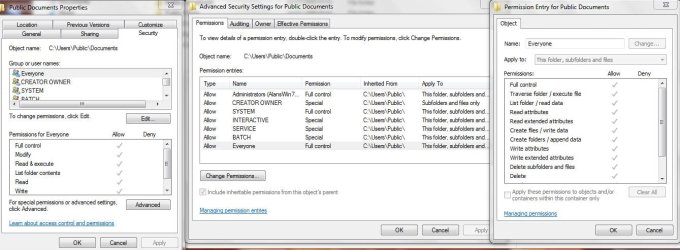
I have an entry Everyone already but even with Edit all seems to be greyed out, there seems to be no way I can actually change or edit the folder permissions.

I have put a snippet which I hope I can copy here, it may give you a clue as to where things are going wrong.

I don't know if this has anything to do with it but in System Properties - Allowed remote Assistance is ticked but Remote Desktop shows as 'Don't allow connections to this computer'

Grateful thanks for your patience.

Regards
Alan.
 

Attachments

  • Public Documents.JPG
    Public Documents.JPG
    137.4 KB · Views: 3

My Computer

Computer type
PC/Desktop
Computer Manufacturer/Model Number
Home Build
OS
Windows 7 Professional 64bit
CPU
i5-2500K 3.30Hz 6MB Cache
Motherboard
ASUS P8P67 Pro B3 Revision
Memory
16GB DDR3
Graphics Card(s)
ASUSGeforce GTX1050Ti 4GB
Sound Card
On-Board
Monitor(s) Displays
LG23MP65HQ-P
Hard Drives
WD Caviar Green 500gb
Maxtor 300gb
WD External USB 120gb
WD My Passport USB 2TB
LUX3 External USB 1TB
PSU
Corsair 800W
Case
Antec
Cooling
Arctic 13 Cooler
Antivirus
Bitdefender Total Security 2017
Browser
FireFox
:) Update.

I have got to see my Win 7 Public folders on my Win XP PC. Not exactly sure what I did after playing around for some time but that is a great improvement!!

One thing did seem to help, when I was trying to make a sub folder shared I had not realized that sub folders could not be shared on their own, the first main folder had to be shared which then allowed access to the sub folders. Can you please confirm if this is correct and if so can certain sub folders within that main folder be denied sharing access?

On the XP PC 'My Network Places' the files on my Win 7 PC are shown as Internet and not LAN, as there is no password protection at present (Turned off as per Chey65 helpful post) I am concerned that my PC's may not be as secure as they should be. How do I make access to my PC's safe?

I am not going to put anything important into any public folder yet.

I turned on Password Protection in Advanced Settings on a 'my shared folder' in my Public Folders in Win7 and tried to access it from the XP PC. The message appeared that;
'.......my shared folder file was not available....'and that; 'You might not have permission.......' then; 'Log on Failure: Unknown username or password. OK'.

I was not asked for a username and password so how do I use passwords when password in ON in Win 7 and I am not able to enter them when trying to accessing the file from Win XP? Hope that makes sense!!


Regards
Alan.
 

My Computer

Computer type
PC/Desktop
Computer Manufacturer/Model Number
Home Build
OS
Windows 7 Professional 64bit
CPU
i5-2500K 3.30Hz 6MB Cache
Motherboard
ASUS P8P67 Pro B3 Revision
Memory
16GB DDR3
Graphics Card(s)
ASUSGeforce GTX1050Ti 4GB
Sound Card
On-Board
Monitor(s) Displays
LG23MP65HQ-P
Hard Drives
WD Caviar Green 500gb
Maxtor 300gb
WD External USB 120gb
WD My Passport USB 2TB
LUX3 External USB 1TB
PSU
Corsair 800W
Case
Antec
Cooling
Arctic 13 Cooler
Antivirus
Bitdefender Total Security 2017
Browser
FireFox
After a lot of struggling I have now sorted it, access on two XP PC's, one Win 7 PC and password protected.


Thanks for all your help......
 

My Computer

Computer type
PC/Desktop
Computer Manufacturer/Model Number
Home Build
OS
Windows 7 Professional 64bit
CPU
i5-2500K 3.30Hz 6MB Cache
Motherboard
ASUS P8P67 Pro B3 Revision
Memory
16GB DDR3
Graphics Card(s)
ASUSGeforce GTX1050Ti 4GB
Sound Card
On-Board
Monitor(s) Displays
LG23MP65HQ-P
Hard Drives
WD Caviar Green 500gb
Maxtor 300gb
WD External USB 120gb
WD My Passport USB 2TB
LUX3 External USB 1TB
PSU
Corsair 800W
Case
Antec
Cooling
Arctic 13 Cooler
Antivirus
Bitdefender Total Security 2017
Browser
FireFox
Back
Top