no boot option screen

graveller39

New member
Local time
4:25 PM
Messages
34
I have installed Windows 7 as a dual boot with my previously installed XP Pro. The new install seems fine, except there is no boot option screen when I boot the machine -- it boots into Win 7 with no option for my "previously installed version" or whatever its supposed to say.

The only way I can get back into XP is to change the boot order of my hardrives (the 2 systems are installed on separate physical drives), but then I don't have the option to choose Windows 7.

Did I miss something during the install? Or is there a simple way to edit the boot manager to see the option screen?

XP is installed on the 1st partition of my 1st disk -- Win 7 is installed on the 1st partition of my 2nd disk.

I tried EasyBCD (in XP), but I get an error message when it starts saying it can't find Vista (I don't have it). Should I be using EasyBCD within Win 7 instead?
 

My Computers

System One System Two

  • Computer type
    PC/Desktop
    OS
    Windows 7 Pro
    CPU
    AMD FX-8350
    Motherboard
    ASUS M5A99X EVO R2.0 V2
    Memory
    2 x 8 GB G. Skill Sniper
    Graphics Card(s)
    ASUS
    Monitor(s) Displays
    Dell 2415
    Hard Drives
    (250GB SanDisk SSD plus several data drives
    PSU
    650W or so (I've forgotten)
    Case
    Antec SLK1650B
    Cooling
    3 or 4 case fans
    Antivirus
    ESET
  • Antivirus
    ESET Internet Security
I have installed Windows 7 as a dual boot with my previously installed XP Pro. The new install seems fine, except there is no boot option screen when I boot the machine -- it boots into Win 7 with no option for my "previously installed version" or whatever its supposed to say.

The only way I can get back into XP is to change the boot order of my hardrives (the 2 systems are installed on separate physical drives), but then I don't have the option to choose Windows 7.

Did I miss something during the install? Or is there a simple way to edit the boot manager to see the option screen?

XP is installed on the 1st partition of my 1st disk -- Win 7 is installed on the 1st partition of my 2nd disk.

I tried EasyBCD (in XP), but I get an error message when it starts saying it can't find Vista (I don't have it). Should I be using EasyBCD within Win 7 instead?

there is another app built into win 7 called bcdedit that does much the same thing and is easier to use. These are the instructions for its use. http://www.sevenforums.com/tutorials/2676-bcdedit-how-use.html?ltr=B

Good Luck and let us know if you need help


Ken
 

My Computer

Computer Manufacturer/Model Number
HP Pavillion dv-7 1005 Tx
OS
Win 8 Release candidate 8400
CPU
[email protected]
Memory
4 gigs
Graphics Card(s)
Nvidia 9600M
Sound Card
HD built-in
Monitor(s) Displays
17" Wxga
Screen Resolution
1440x900
Cooling
none
Internet Speed
45Mb down 5Mb up
I tried EasyBCD (in XP), but I get an error message when it starts saying it can't find Vista (I don't have it). Should I be using EasyBCD within Win 7 instead?

Yes, run EasyBCD 2.0 from within Win7 to Add XP. It will prompt to add boot files. Then highlight new XP listing above and Save.

Or keep the boot managed via BIOS, using the shortcut key given for Boot Menu on first bootup screen. This makes the HD's independent and can come and go as you please.
 
What you did was to install Win 7 when it was the primary (listed first in Bios) drive. Because of that, it did not see the XP install and did not set up the dual boot. The F12 key gregrocker refers to, which I do not have, seems to set the drive priority. I do not know if this makes the drive order permanent, or just for the one boot.

I always ask concerning a Win 7 install if the Small 100 mb partition called System Reserve was added. If it is, you may need to add a drive letter, like S:, to it allowing the dual boot to work. If you used EasyBCD prior to doing this, you probably should remove the XP entry and redo.
 

My Computer

Computer Manufacturer/Model Number
Homebuilt
OS
Windows 7 x64
CPU
i7-2600K
Motherboard
Asus P8Z77-v Pro
Memory
8 G
Graphics Card(s)
GTX 480
Sound Card
Onboard
Monitor(s) Displays
LG W2753V
Screen Resolution
1920x1080
Hard Drives
Crucial M4 128 G SSD
what now...?

so, I didn't make any further changes, but now it doesn't matter which hard drive is selected to boot first, Windows XP is the OS that starts... ie. I don't even know how to get Windows 7 to boot up.

any ideas?
 

My Computers

System One System Two

  • Computer type
    PC/Desktop
    OS
    Windows 7 Pro
    CPU
    AMD FX-8350
    Motherboard
    ASUS M5A99X EVO R2.0 V2
    Memory
    2 x 8 GB G. Skill Sniper
    Graphics Card(s)
    ASUS
    Monitor(s) Displays
    Dell 2415
    Hard Drives
    (250GB SanDisk SSD plus several data drives
    PSU
    650W or so (I've forgotten)
    Case
    Antec SLK1650B
    Cooling
    3 or 4 case fans
    Antivirus
    ESET
  • Antivirus
    ESET Internet Security
Boot the Win7 DVD Repair console, click through to Recovery Tools list to run Startup Repair up to 3 separate times to repair/rewrite the MBR to Win7.

Post back a screenshot of Win7 Disk management drive map, using Snipping Tool in Start Menu, attach file using paper clip in Reply box.

Did you use EasyBCD 2.0 beta in your previous attempt to set up dual boot? You would know as it requires quick registration on their site to use the beta, which is automated version.
 
just to be clear...

run Startup Repair up to 3 separate times to repair/rewrite the MBR to Win7.
I'm guessing this option will be fairly clear? but why 3 times...?

and no, I've not yet used EasyBCD as I've been unable to boot back into Win 7.
 

My Computers

System One System Two

  • Computer type
    PC/Desktop
    OS
    Windows 7 Pro
    CPU
    AMD FX-8350
    Motherboard
    ASUS M5A99X EVO R2.0 V2
    Memory
    2 x 8 GB G. Skill Sniper
    Graphics Card(s)
    ASUS
    Monitor(s) Displays
    Dell 2415
    Hard Drives
    (250GB SanDisk SSD plus several data drives
    PSU
    650W or so (I've forgotten)
    Case
    Antec SLK1650B
    Cooling
    3 or 4 case fans
    Antivirus
    ESET
  • Antivirus
    ESET Internet Security
As long as Win7 is marked Active, Startup Repair will attempt to repair and finally rewrite the MBR to start Win7. This sometimes takes up to 3 separate attempts if there are multiple issues.

To make sure Win7 partition is marked active, first boot into Win7 DVD Repair console, select Command Line and type:

DISKPART
LIST DISK
SELECT DISK # (for Win7 HD)
LIST PARTITION
SELECT PARTITION # (for Win7 partition)
ACTIVE
EXIT

Now return to Recovery Tools list and run Startup Repair up to 3 separate times.
 
I guess I don't understand. You said originally you could boot to XP or Win 7 by changing the boot order in the bios. Is that option no longer available?

A snipping tool picture of your disk management window (diskmgmt.msc), as gregrocker says, attached would really help expain your situation.
 

My Computer

Computer Manufacturer/Model Number
Homebuilt
OS
Windows 7 x64
CPU
i7-2600K
Motherboard
Asus P8Z77-v Pro
Memory
8 G
Graphics Card(s)
GTX 480
Sound Card
Onboard
Monitor(s) Displays
LG W2753V
Screen Resolution
1920x1080
Hard Drives
Crucial M4 128 G SSD
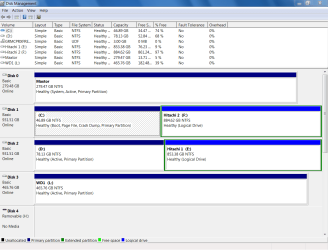
ok - I did the repair with the Windows 7 DVD -- it didn't indicate any problems, but I was able to boot into Win 7 afterwards -- I took a screenshot and attached the file here. hope this helps...

yes Saltgrass, changing the boot order in the BIOS was no longer working - I don't know why - I hadn't changed anything...

I don't quite get which of the Hitachis is disk 1 and which is disk 2 -- I was sure XP was on disk 1 -- shows here as drive D:

I also notice my drive C: (the Win 7 partition) is not active -- should it be?
 

Attachments

  • Drive Map.PNG
    Drive Map.PNG
    36.6 KB · Views: 46
Last edited:

My Computers

System One System Two

  • Computer type
    PC/Desktop
    OS
    Windows 7 Pro
    CPU
    AMD FX-8350
    Motherboard
    ASUS M5A99X EVO R2.0 V2
    Memory
    2 x 8 GB G. Skill Sniper
    Graphics Card(s)
    ASUS
    Monitor(s) Displays
    Dell 2415
    Hard Drives
    (250GB SanDisk SSD plus several data drives
    PSU
    650W or so (I've forgotten)
    Case
    Antec SLK1650B
    Cooling
    3 or 4 case fans
    Antivirus
    ESET
  • Antivirus
    ESET Internet Security
What is on DISK0, as it is System drive holding the MBR? D:XP is marked active, while C:Win7 isn't.

This means your MBR was originally derailed to DISK0, and needs to be corrected as it is blocking your dual boot.

Burn to CD and boot free Partition Wizard, select 1 for screen res, then rightclick DISK0 to Modify>Set Inactive, OK.

Now rightclick D: partition XP, Modify>Set Inactive, OK.

Now rightclick C: Win7 to Modify>Set Active. Apply all steps.

Now boot into Win7 DVD to run Startup Repair up to 3 separate times with reboots to write the System MBR to Win7.

Then check Disk Mgmt and make sure Win7 is System Active Boot partition, and none others are marked Active.

Now install EasyBCD 2.0 beta after quick registration to use beta. Add XP on Add/Remove tab: Accept when it offers to install boot files, click Add OS, then highlight XP in list above and Save.

Post back EasyBCD screenshot if any problems persist.
 
Last edited:
Well, you have the Maxtor drive as primary drive and is where the boot files are located.

The Win 7 files are on disk 1, partition 1.

You have 2, 1 TB drives, but you need to set the Win 7 partition active and then set that drive as primary in the bios.

You then need to add the boot files to the Win 7 partition, which running Startup repair twice will do. There are command line functions that will do this, but I am not that familiar with them. The boot files necessary are hidden system files and are "bootmgr" and a "boot" folder.

Once you get Win 7 booting normally, then you can use EasyBCD to set up the dual boot. What it will do is modify the BCD store to add the listing for XP and copy the ntldr, boot.ini (modified), and ntdetect to the root directory of the Win 7 partition (if you are using EasyBCD 2.00).

I am sorry I did not see gregrocker's response, but it took me some time to submit mine.
 

My Computer

Computer Manufacturer/Model Number
Homebuilt
OS
Windows 7 x64
CPU
i7-2600K
Motherboard
Asus P8Z77-v Pro
Memory
8 G
Graphics Card(s)
GTX 480
Sound Card
Onboard
Monitor(s) Displays
LG W2753V
Screen Resolution
1920x1080
Hard Drives
Crucial M4 128 G SSD
thanks for the quick responses gregrocker and Saltgrass...

I'll have to wait 'til Sun or Mon to get back to this -- I'll let you know how I made out though.

As far as DISK0 goes (the Maxtor drive), it's a PATA drive with music files only.
Anytime I've done an XP install, this causes drive letter problems -- I have to disconnect the drive during the install, otherwise XP will see it as the C: drive and install the OS on the D: or some other drive. I thought Windows 7 wouldn't have this problem, but it seems it still messes things up.

I noticed this drive doesn't show up in Windows Explorer -- is this to be expected with the present configuration? Once things are repaired I'll see it then?

And how do I know how many times to run Startup Repair? or should I just run it 3 times to be sure?
 

My Computers

System One System Two

  • Computer type
    PC/Desktop
    OS
    Windows 7 Pro
    CPU
    AMD FX-8350
    Motherboard
    ASUS M5A99X EVO R2.0 V2
    Memory
    2 x 8 GB G. Skill Sniper
    Graphics Card(s)
    ASUS
    Monitor(s) Displays
    Dell 2415
    Hard Drives
    (250GB SanDisk SSD plus several data drives
    PSU
    650W or so (I've forgotten)
    Case
    Antec SLK1650B
    Cooling
    3 or 4 case fans
    Antivirus
    ESET
  • Antivirus
    ESET Internet Security
Run Startup Repair until Win7 starts.

The installer looks for first active partition to place or refresh the MBR, so having the data drive marked Active and in DISK0 slot caused the MBR to be placed there.

I don't know why you can't see the drive in explorer. How are you able to access its files?
 
I don't know why you can't see the drive in explorer. How are you able to access its files?

I can only access the files in XP; if and when I can boot there.
 

My Computers

System One System Two

  • Computer type
    PC/Desktop
    OS
    Windows 7 Pro
    CPU
    AMD FX-8350
    Motherboard
    ASUS M5A99X EVO R2.0 V2
    Memory
    2 x 8 GB G. Skill Sniper
    Graphics Card(s)
    ASUS
    Monitor(s) Displays
    Dell 2415
    Hard Drives
    (250GB SanDisk SSD plus several data drives
    PSU
    650W or so (I've forgotten)
    Case
    Antec SLK1650B
    Cooling
    3 or 4 case fans
    Antivirus
    ESET
  • Antivirus
    ESET Internet Security
so, I set all drives to Inactive, except the Windows 7 partition -- I set it to Active.

I tried the Repair and booted into Windows 7 -- the C: drive was Active, but so was the Maxtor...

I've forgotten exactly what all happened next -- I know I ran across some unexpected screens. Most times I went to Repair, no OS could be found -- at one point it checked online for a fix -- with no success (it took over 20 minutes that time).

I finally disconnected the Maxtor and ran the Repair four times -- no luck. so, I re-installed Windows 7 with the Maxtor still disconnected. Now when I boot up, I get the option screen -- only one problem... when I select Windows 7, the machine just reboots. When I select previous version, XP boots up fine.

Any idea whats up now...?
 

My Computers

System One System Two

  • Computer type
    PC/Desktop
    OS
    Windows 7 Pro
    CPU
    AMD FX-8350
    Motherboard
    ASUS M5A99X EVO R2.0 V2
    Memory
    2 x 8 GB G. Skill Sniper
    Graphics Card(s)
    ASUS
    Monitor(s) Displays
    Dell 2415
    Hard Drives
    (250GB SanDisk SSD plus several data drives
    PSU
    650W or so (I've forgotten)
    Case
    Antec SLK1650B
    Cooling
    3 or 4 case fans
    Antivirus
    ESET
  • Antivirus
    ESET Internet Security
You need to boot the Win7 DVD, select Repair my Computer on second screen, click through to recovery tools list and run Startup Repair up to 3 separate times with reboots to start Win7.

If this doesn't work, then Win7 needs to be marked active. Do you have a bootable disk manager like Partition Wizard? If not, I can give you Diskpart commands to run from the booted Win7 installer Repair console.
 
You need to boot the Win7 DVD, select Repair my Computer on second screen, click through to recovery tools list and run Startup Repair up to 3 separate times with reboots to start Win7.
That's exactly what I did before -- then I re-installed Windows 7. Why would I need to repair immediately after I installed it?

If this doesn't work, then Win7 needs to be marked active.
Win7 is Active.

Do you have a bootable disk manager like Partition Wizard?
Yes, I burned the disk for the previous repair attempt.
 

My Computers

System One System Two

  • Computer type
    PC/Desktop
    OS
    Windows 7 Pro
    CPU
    AMD FX-8350
    Motherboard
    ASUS M5A99X EVO R2.0 V2
    Memory
    2 x 8 GB G. Skill Sniper
    Graphics Card(s)
    ASUS
    Monitor(s) Displays
    Dell 2415
    Hard Drives
    (250GB SanDisk SSD plus several data drives
    PSU
    650W or so (I've forgotten)
    Case
    Antec SLK1650B
    Cooling
    3 or 4 case fans
    Antivirus
    ESET
  • Antivirus
    ESET Internet Security
ok, I booted with the Win7 DVD and ran Startup Repair -- it did not find any errors.

I tried booting into Win7 again, but the same thing happened -- it got to the "Starting Windows" screen and then shutdown (rebooted).

I booted with the Win7 DVD and ran Startup Repair again -- this time Startup Repair couldn't automatically fix the errors. Startup Repair tried connecting to microsoft to automatically fix the errors, with no success.

I can only boot into XP now and according to PartitionWizard, my C: drive (XP) is "Active & Boot & System" and my E: drive (Win7) is "Active". I do not know how E: became active again -- it was "Inactive" before I tried the Startup Repair.

Should I try another install and hope it takes this time? or is the Win7 install somehow getting messed up with the two hard drives?

(any idea why this page is translating "Win" as "Windows" -- ie. when I type "Win" on this post, "Windows" is displayed. Actually, it only does this when I type "7" afterwards -- kind of odd don't you think?)
 
Last edited:

My Computers

System One System Two

  • Computer type
    PC/Desktop
    OS
    Windows 7 Pro
    CPU
    AMD FX-8350
    Motherboard
    ASUS M5A99X EVO R2.0 V2
    Memory
    2 x 8 GB G. Skill Sniper
    Graphics Card(s)
    ASUS
    Monitor(s) Displays
    Dell 2415
    Hard Drives
    (250GB SanDisk SSD plus several data drives
    PSU
    650W or so (I've forgotten)
    Case
    Antec SLK1650B
    Cooling
    3 or 4 case fans
    Antivirus
    ESET
  • Antivirus
    ESET Internet Security
Back
Top