no boot option screen

I've never heard of the booted DVD connecting to MS to complete any kind of repairs in the Repair console.

Are you sure you are booting the Win7 DVD, choosing Repair My computer on second screen, then clicking through to Recovery Tools list to choose Startup Repair at least three separate times with reboots? http://www.sevenforums.com/tutorials/681-startup-repair.html?ltr=S

If Partition Wizard shows Win7 is marked active when it wasn't before it may mean Startup Repair was on path to fixing the MBR but you didn't go back for enough repeat fixes so that it could finish the job.
 
I've never heard of the booted DVD connecting to MS to complete any kind of repairs in the Repair console.
All I know is it's done this to me twice now -- I suppose I should say, the repair console gave me the option to connect.

Are you sure you are booting the Win7 DVD, choosing Repair My computer on second screen, then clicking through to Recovery Tools list to choose Startup Repair at least three separate times with reboots? http://www.sevenforums.com/tutorials/681-startup-repair.html?ltr=S
yes, that's exactly what I did.

If Partition Wizard shows Win7 is marked active when it wasn't before it may mean Startup Repair was on path to fixing the MBR but you didn't go back for enough repeat fixes so that it could finish the job.
No, it was the XP partition I had set to Inactive (before the Startup Repair) and now it's Active again.
The Win7 partition I previously set to Active, as you suggested, and it's still Active.
At this point, I don't know where the MBR is, as I'm unable to boot into Win7.
 
Last edited:

My Computers

System One System Two

  • Computer type
    PC/Desktop
    OS
    Windows 7 Pro
    CPU
    AMD FX-8350
    Motherboard
    ASUS M5A99X EVO R2.0 V2
    Memory
    2 x 8 GB G. Skill Sniper
    Graphics Card(s)
    ASUS
    Monitor(s) Displays
    Dell 2415
    Hard Drives
    (250GB SanDisk SSD plus several data drives
    PSU
    650W or so (I've forgotten)
    Case
    Antec SLK1650B
    Cooling
    3 or 4 case fans
    Antivirus
    ESET
  • Antivirus
    ESET Internet Security
Anytime changes are made, perhaps you could just go ahead an post another Disk Management picture. That is the only way I can see what is going on. You have made so many changes, gregrocker might be able to follow, but the original picture is completely out of date.

Also, indicate which drive you show first priority in the bios and please put OS labels on the partitions. You might also use the view options to show hidden and system files. Then look at the partitions to see where bootmgr and ntldr files are located (probably 2 or even 3 different partitions).

The Maxtor partition does not have a drive letter, just like the Win 7 system reserved partition doesn't. If you look at if from XP, it will.

Could the connection mentioned be the install trying to access the net to activate?

Please remember, if you disconnect a drive and then reboot, you have possibly changed the drive order.
 

My Computer

Computer Manufacturer/Model Number
Homebuilt
OS
Windows 7 x64
CPU
i7-2600K
Motherboard
Asus P8Z77-v Pro
Memory
8 G
Graphics Card(s)
GTX 480
Sound Card
Onboard
Monitor(s) Displays
LG W2753V
Screen Resolution
1920x1080
Hard Drives
Crucial M4 128 G SSD
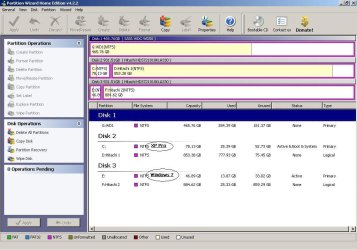
Here's the latest screenshot from PartitionWizard.
The Maxtor drive is disconnected as it appears it was likely part of the original problem.

The HDD with Windows 7 is selected as first boot in the BIOS.

I could not find any ntldr files, but I found these:

I found this file in C:\boot -

;
;Warning: Boot.ini is used on Windows XP and earlier operating systems.
;Warning: Use BCDEDIT.exe to modify Windows Vista boot options.
;
[boot loader]
timeout=30
default=multi(0)disk(0)rdisk(0)partition(1)\WINDOWS
[operating systems]
multi(0)disk(0)rdisk(0)partition(1)\WINDOWS="Microsoft Windows XP Professional" /NOEXECUTE=OPTIN /FASTDETECT /USEPMTIMER

I found bootmgr here –
E:\Windows\Boot\PCAT\bootmgr

I'm not sure what else to look for.

Could the connection mentioned be the install trying to access the net to activate?
I don't think so, the Repair console specifically said it was connecting to microsoft to automatically fix.
 

Attachments

  • PW2a.JPG
    PW2a.JPG
    88.7 KB · Views: 13
Last edited:

My Computers

System One System Two

  • Computer type
    PC/Desktop
    OS
    Windows 7 Pro
    CPU
    AMD FX-8350
    Motherboard
    ASUS M5A99X EVO R2.0 V2
    Memory
    2 x 8 GB G. Skill Sniper
    Graphics Card(s)
    ASUS
    Monitor(s) Displays
    Dell 2415
    Hard Drives
    (250GB SanDisk SSD plus several data drives
    PSU
    650W or so (I've forgotten)
    Case
    Antec SLK1650B
    Cooling
    3 or 4 case fans
    Antivirus
    ESET
  • Antivirus
    ESET Internet Security
thanks gregrocker,
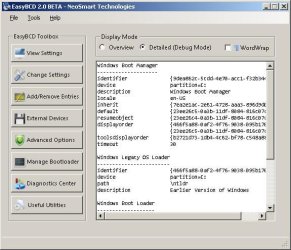
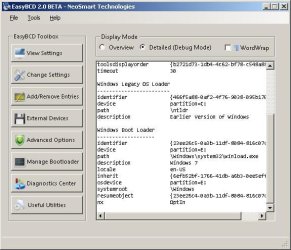
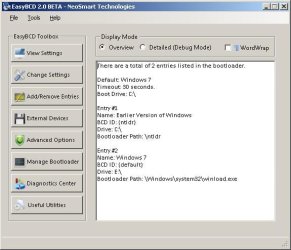
I ran EasyBCD and this what it shows -- do I still need to add Windows 7?
It looks like its already there...
 

Attachments

  • EasyBCD.JPG
    EasyBCD.JPG
    35.9 KB · Views: 8
  • EasyBCD Detail A.JPG
    EasyBCD Detail A.JPG
    49.7 KB · Views: 5
  • EasyBCD Detail B.JPG
    EasyBCD Detail B.JPG
    46.1 KB · Views: 5

My Computers

System One System Two

  • Computer type
    PC/Desktop
    OS
    Windows 7 Pro
    CPU
    AMD FX-8350
    Motherboard
    ASUS M5A99X EVO R2.0 V2
    Memory
    2 x 8 GB G. Skill Sniper
    Graphics Card(s)
    ASUS
    Monitor(s) Displays
    Dell 2415
    Hard Drives
    (250GB SanDisk SSD plus several data drives
    PSU
    650W or so (I've forgotten)
    Case
    Antec SLK1650B
    Cooling
    3 or 4 case fans
    Antivirus
    ESET
  • Antivirus
    ESET Internet Security
graveller39 do not worry about this post, these are observations for gregrocker only.

If the E: partition is active and primary drive, why is there no boot error? I could understand the C: partition being the system partition if there were no active partitions prior to it, but if the Win 7 drive is the primary drive, it should have hit that and caused an error if no boot system was encountered.

I don't think he was checking hidden system files since he did not see bootmgr or ntldr in the root directories.

Just an observation, no response expected.
 

My Computer

Computer Manufacturer/Model Number
Homebuilt
OS
Windows 7 x64
CPU
i7-2600K
Motherboard
Asus P8Z77-v Pro
Memory
8 G
Graphics Card(s)
GTX 480
Sound Card
Onboard
Monitor(s) Displays
LG W2753V
Screen Resolution
1920x1080
Hard Drives
Crucial M4 128 G SSD
you're right Saltgrass - I didn't have the "hide protected operating system files" box unchecked.
I do have ntldr and bootmgr in the C:\ drive.
sorry about that...
 

My Computers

System One System Two

  • Computer type
    PC/Desktop
    OS
    Windows 7 Pro
    CPU
    AMD FX-8350
    Motherboard
    ASUS M5A99X EVO R2.0 V2
    Memory
    2 x 8 GB G. Skill Sniper
    Graphics Card(s)
    ASUS
    Monitor(s) Displays
    Dell 2415
    Hard Drives
    (250GB SanDisk SSD plus several data drives
    PSU
    650W or so (I've forgotten)
    Case
    Antec SLK1650B
    Cooling
    3 or 4 case fans
    Antivirus
    ESET
  • Antivirus
    ESET Internet Security
is boot.ini in C: root also?

Try removing Win7 in Easy Add/Remove tab, then Add it again.

See if you can boot into Win7 then.

We may need SIW2 to look at this.
 
hi gregrocker,
yes, boot.ini is also in C:\
I tried removing Win7 in the Add/Remove tab, then added it again;
still won't boot into Win7 - it gets to the "Starting Windows" screen and then shuts down.
Booting to XP is not a problem.
 

My Computers

System One System Two

  • Computer type
    PC/Desktop
    OS
    Windows 7 Pro
    CPU
    AMD FX-8350
    Motherboard
    ASUS M5A99X EVO R2.0 V2
    Memory
    2 x 8 GB G. Skill Sniper
    Graphics Card(s)
    ASUS
    Monitor(s) Displays
    Dell 2415
    Hard Drives
    (250GB SanDisk SSD plus several data drives
    PSU
    650W or so (I've forgotten)
    Case
    Antec SLK1650B
    Cooling
    3 or 4 case fans
    Antivirus
    ESET
  • Antivirus
    ESET Internet Security
I'm not sure why Win7 HD is set first HD to boot in BIOS since XP holds the System Active MBR.

Try entering BIOS setup to set XP HD first HD to boot (after DVD) and report back what happens with dual boot.

See if you get the same drive listings by booting Partition Wizard CD. That Disk0 HD might still hold the MBR and isn't showing it now.

How much trouble would it be for you to plug XP into Disk0 slot and Win7 into Disk1 slot, then set XP as first HD to boot without the data drive plugged in. Next try Win7 as first HD to boot w/o data drive.
 
I can set the XP drive to be first boot and see what happens, although I thought the Win7 bootmgr was the one that controlled things once Win7 has been installed? - I don't fully understand the boot process though.

I was thinking another fresh install of Win7 might fix things up, so I tried that, but I'm still in the same spot - Win7 can't/won't boot. I'm wondering if the install itself isn't quite finishing as I'm running into this problem at the very end of the Win7 install process - it may never have quite finished as it couldn't boot back into Win7, although it did at least once during the install.

The remaining data drive (Disk 1 according to PartitionWizard) is connected to a SATA card - not directly to the motherboard. Could this drive also be interfering with the install as I believe the PATA drive was? I could disconnect this one too and try the install once more. I'll have to try that tomorrow though as its getting late...

oh, I forgot mention - after trying to reinstall Win7 again, I noticed my E: drive (Win7 ) is no longer active. Is this to be expected?

thanks for your patience and help.
 
Last edited:

My Computers

System One System Two

  • Computer type
    PC/Desktop
    OS
    Windows 7 Pro
    CPU
    AMD FX-8350
    Motherboard
    ASUS M5A99X EVO R2.0 V2
    Memory
    2 x 8 GB G. Skill Sniper
    Graphics Card(s)
    ASUS
    Monitor(s) Displays
    Dell 2415
    Hard Drives
    (250GB SanDisk SSD plus several data drives
    PSU
    650W or so (I've forgotten)
    Case
    Antec SLK1650B
    Cooling
    3 or 4 case fans
    Antivirus
    ESET
  • Antivirus
    ESET Internet Security
I think if I were gregrocker, I would suggest you take out all the drives except the win 7 drive. Get Win 7 running and worry about the rest later.
 

My Computer

Computer Manufacturer/Model Number
Homebuilt
OS
Windows 7 x64
CPU
i7-2600K
Motherboard
Asus P8Z77-v Pro
Memory
8 G
Graphics Card(s)
GTX 480
Sound Card
Onboard
Monitor(s) Displays
LG W2753V
Screen Resolution
1920x1080
Hard Drives
Crucial M4 128 G SSD
I agree with Saltgrass. If you unplug all of the other drives and install Win7 by itself, then you can plug back in the XP drive, set one as default to boot first in BIOS, or choose the other by using the BIOS shortcut key given on first bootup screen for Boot Menu.

This keeps the HD's independent and can come and go as you please.

If you're set on having a Windows-managed Dual Boot, you can try adding XP from Win7 using Easy BCD or try another Win7 install with only the 7/XP HD's plugged in.

If you are pre-formatting the Win7 drive to set it Active, this is not necessary - use the Win7 DVD Custom Drive Tools to format.
 
Last edited:
A maximum of four primary partitions can be placed on any hard disk. The limitation of four is one that is imposed on the system by the way that the master boot record is structured. Only one partition may be designated, at any given time, as active. That partition will be used for booting the system.

So only 1 ACTIVE partition !!!!

And bootmgr , boot folder with BCD and ntldr should be on that partition as far as I know.

BCD should be something like this:
Code:
Windows Boot Manager
--------------------
identifier              {bootmgr}
device                  partition=D:
description             Windows Boot Manager
locale                  en-US
inherit                 {globalsettings}
default                 {current}
resumeobject            {e183bfc2-0b9a-11df-8e0a-c37636dd1cce}
displayorder            {ntldr}
                        {current}
toolsdisplayorder       {memdiag}
timeout                 5

Windows Legacy OS Loader
------------------------
identifier              {ntldr}
device                  partition=D:
path                    \ntldr
description             Earlier Version of Windows

Windows Boot Loader
-------------------
identifier              {current}
device                  partition=C:
path                    \Windows\system32\winload.exe
description             Windows 7
locale                  en-US
inherit                 {bootloadersettings}
recoverysequence        {e183bfc4-0b9a-11df-8e0a-c37636dd1cce}
recoveryenabled         Yes
osdevice                partition=C:
systemroot              \Windows
resumeobject            {e183bfc2-0b9a-11df-8e0a-c37636dd1cce}
nx                      OptIn
 
Last edited:

My Computer

OS
WIN 7 x64
I tried installing Win7 once more with only the two physical drives connected.
SATA 1: XP
SATA 2: Win7
Exactly the same thing happened - dual-boot was setup fine, but I can't boot into Win7 - in fact, the install never really finishes...

I'm not sure why Win7 HD is set first HD to boot in BIOS since XP holds the System Active MBR.
I can set either HD to boot first, it doesn't seem to make any difference. What I don't get is why my XP drive holds the System Active MBR... shouldn't this be on the Win7 drive and should I not have only one active drive and maybe that is why Win7 won't boot? Maybe there's something I'm missing about how the MBR works.

If I unplug the XP drive and install Win7 with just the one drive connected, will I run into problems booting into XP once its connected again? You can understand my concern - I really don't want to be stuck without XP as my experience with Win7 so far is pretty poor...as in I'm very close to giving up and writing it off as another MS dud.
 

My Computers

System One System Two

  • Computer type
    PC/Desktop
    OS
    Windows 7 Pro
    CPU
    AMD FX-8350
    Motherboard
    ASUS M5A99X EVO R2.0 V2
    Memory
    2 x 8 GB G. Skill Sniper
    Graphics Card(s)
    ASUS
    Monitor(s) Displays
    Dell 2415
    Hard Drives
    (250GB SanDisk SSD plus several data drives
    PSU
    650W or so (I've forgotten)
    Case
    Antec SLK1650B
    Cooling
    3 or 4 case fans
    Antivirus
    ESET
  • Antivirus
    ESET Internet Security
What you're experiencing is very unusual. For some reason, Win7 won't install correctly or configure the dual boot with XP.

It is correct for XP to be System Active as the MBR remains there and is updated for dual boot during 7 install. But Win7 partition is supposed to hold the Boot and it is not.

In this case, it is best to disconnect all other drives and install Win7 to its own drive with its own System Active Boot. Then I would set Win7 HD first HD to boot in BIOS, after DVD drive. If you decide to boot XP, use the key given on first bootup screen for Boot Menu to intervene and boot XP instead of 7.

This is actually a better way to dual boot in the eyes of many of us here since it keeps the HD's independent so they can come and go as you please.

However, if you want a Windows-managed Dual Boot, then install EasyBCD in Windows 7 and add XP on the Add/Remove tab.
 
Disconnected all drives except the one SATA for Win7. It created the 100MB partition this time - I thought maybe its working... but no - it still quits near the end of the install and won't boot into Win7.

Strange though, as soon as I reconnected the 2nd SATA drive (with XP), the dual-boot option was there.
Is it stored on the XP drive then...?

Anyway, I'm right back to where I was - with an extra 100MB system partition...

I'm thinking its definitely an install problem - checking several other forums, I see many others have had the same problem.
Seems MS really messed up with this one - and its supposed to be better than Vista ???

right...
 

My Computers

System One System Two

  • Computer type
    PC/Desktop
    OS
    Windows 7 Pro
    CPU
    AMD FX-8350
    Motherboard
    ASUS M5A99X EVO R2.0 V2
    Memory
    2 x 8 GB G. Skill Sniper
    Graphics Card(s)
    ASUS
    Monitor(s) Displays
    Dell 2415
    Hard Drives
    (250GB SanDisk SSD plus several data drives
    PSU
    650W or so (I've forgotten)
    Case
    Antec SLK1650B
    Cooling
    3 or 4 case fans
    Antivirus
    ESET
  • Antivirus
    ESET Internet Security
Back
Top