No OS detected in System Recovery

Mr Azure

New member
Local time
3:32 AM
Messages
4
I'll try to be both as brief and descriptive as I can.

I'm trying to fix my girlfriend's laptop. I have only passing knowledge of computers, and she's entirely tech-illiterate. When the computer powers on, it goes to a black screen with a flashing "_" in the upper left corner. Holding F8 to get to system recovery doesn't work. I have a system repair disc which I can use to get to the system recovery. However, it doesn't show an OS.

The computer has a genuine copy of Windows 7 on it, but neither of us are sure if it's 32 or 64. The bottom of the computer says its an Inspiron N4010.

Here are a few pictures I've taken with the hopes that they might have some useful information.

Image - TinyPic - Free Image Hosting, Photo Sharing & Video Hosting - This is the bottom of the computer. Not sure what help this is.

Then I see these windows:
Image - TinyPic - Free Image Hosting, Photo Sharing & Video Hosting

The issue was caused while trying to reformat the computer, and had to do with a partition being messed with or something. The end goal here is to do a factory reset and turn the thing back to the way that it originally was.

Any help is appreciated.
 

My Computer My Computer

At a glance

Windows 7 Home Premium 32 bit
OS
Windows 7 Home Premium 32 bit
You almost certainly have a 64bit system.

Run chkdsk and System File Checker (SFC) from the Recovery Console
  • Boot your Vista or Windows 7 installation DVD[/*]
  • When you see "Press any key to boot from CD or DVD", press Enter[/*]
  • At the "Install Windows" screen, click on Repair your computer at lower left[/*]
  • At the System Recovery Options screen, make note of the drive letter assigned to your boot drive (normally C: ) and click Next[/*]
  • At the Chose a Recovery Tool window, click on Command Prompt. You will be sitting at X:\Sources directory[/*]
  • Run chkdsk then SFC[/*]
  • If you did not note the drive letter of your boot disk, you can enter bcdedit and look at the osdevice line to see what it is.[/*]
  • For chkdsk, type chkdsk c: /r and press Enter (use the letter from above if not C: ).[/*]
  • For sfc, type sfc /scannow /offbootdir=c:\ /offwindir=c:\windows and press Enter (use the letter from above)[/*]
Let either run to completion undisturbed.

If you do not have a Windows 7 installation DVD, or it's not up to the Service Pack level currently installed, you can download a legal copy with SP1 integrated from here:

Windows 7 Direct Download Links

Make sure you get the same version you have, Home Premium, Pro or Ultimate and 32 or 64 bit. Note that Basic or Starter is not available.

I recommend using ImgBurn at 4X speed (or the slowest available) to create the DVD from the downloaded .iso file. Just be careful during the install not to accidentally install some of the bundled junk that comes with it. Always take The Custom Install option.

You can do this on any computer capable of burning a DVD.

YOU MUST HAVE A VALID KEY TO INSTALL THIS .ISO.
The one on the COA sticker on your computer will work.

If you are just using the Recovery Console you do not need a key.

You can also create a bootable USB Flash drive (4GB or larger) to install Windows 7 from.
  1. Download and run Universal USB Installer Easy as 1 2 3[/*]
  2. Select Windows 7 from the first drop down list, all the way to the bottom[/*]
  3. Select the downloaded Windows 7 iso file[/*]
  4. Select your USB flash drive[/*]
  5. Click Create[/*]
For techies or folks who work on computers:

Create Windows 7 Universal ISO With All Editions Selection On Install with ei.cfg Removal Utility.

This will fit on a 6GB flash drive or can be burned to a DVD.

Once that's done, see if you can get into the Recovery process as described below.

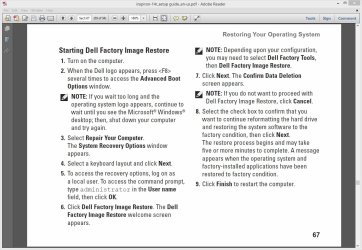
Dell N4010 Recovery.jpg
 

My Computer My Computer

At a glance

Windows 10 Pro X64Intel Quad Core i7-4770 @ 3.4Ghz16.0GB PC3-12800 DDR3 SDRAM 1600 MHzIntel Integrated HD Graphics
Computer type
PC/Desktop
Computer Manufacturer/Model Number
Lenovo IdeaCenter 450
OS
Windows 10 Pro X64
CPU
Intel Quad Core i7-4770 @ 3.4Ghz
Memory
16.0GB PC3-12800 DDR3 SDRAM 1600 MHz
Graphics Card(s)
Intel Integrated HD Graphics
Sound Card
Realtek HD Audio
Monitor(s) Displays
HP 22" LCD
Screen Resolution
1680 x 1050
Hard Drives
250GB Samsung EVO SATA-3 SSD
2TB Seagate ST2000DM001 SATA-2
1.5TB Seagate ST3150041AS SATA
Keyboard
Dell USB
Mouse
Lenovo USB
Internet Speed
Cable via Road Runner 3MB Upload, 30MB Download
Antivirus
Windows Defender, MBAM Pro, MBAE
Browser
Seamonkey
Other Info
UEFI/GPT
PLDS DVD-RW DH16AERSH
Thank you for getting back to me! I'm currently checking it out.

I ran the CHKDSK and it said "Windows has checked the file system and found no problems". When I ran the SFC though it says "Windows Resource Protection could not start the repair service." An issue could be that C: isn't the right drive. However, when I type BCDEDIT it says "The boot configuration data store could not be opened. The system cannot find the file specified."

Edit: Just saw the second reply, thank you for doing so. As a note, there is no data on the computer that needs to be recovered.
 

My Computer My Computer

At a glance

Windows 7 Home Premium 32 bit
OS
Windows 7 Home Premium 32 bit
The drive letters may be different in recovery environment.

Did you obscure the Product Key on the COA sticker in screenshot? If not and its rubbed off you are limited because it is needed for doing the Clean Reinstall - Factory OEM Windows 7.

Absent that you can try running Dell Windows 7 PC Restore unless you have or can order a Dell Win7 Reinstallation Disk which is a clean copy of Win7 with activation baked into it.

If you do the reinstall I'd use 32 bit if it still has the 4gb RAM that model ships with: Dell Inspiron 14R (model N4010) Laptop specs

There are 32 bit drivers for a Clean Reinstall of Win7 here: Drivers for Inspiron 14R (N4010) But first get your drivers from enabling Automatically deliver drivers via Windows Update (Step 3) and then running all rounds of Important and Optional Windows Updates, then only supply drivers missing in Device Manager - or the wireless driver if it isn't provided during install so you can get online.

I would cross check any drivers you use from that list with the ones Dell's website offers when you input the Dell tag number off of the bottom of the PC which can narrow down the choices more exactly.

Finally if you do the Clean Reinstall be sure to read the Special Note to Dell Owners at the end of Clean Reinstall - Factory OEM Windows 7. It tells how to preserve the onboard diagnostics which I would run now to see if they will still boot and run and to see what they find.
 
Some success to be reported! The computer now "works". I had to format all of its drives and delete all the partitions, then install a new copy of Windows. Unfortunately, I think all of the dell software that originally came on this thing is gone as well, so I can't do a factory restore of it, or get the wireless adapter to work.
 

My Computer My Computer

At a glance

Windows 7 Home Premium 32 bit
OS
Windows 7 Home Premium 32 bit
Hello? I spent over an hour researching your model and posted back everything you need to know in detail, with links in blue to the exact web pages to find your drivers and step-by-step tutorials to do a flawless reinstall. Why would you proceed without even acknowledging those steps as though you hadn't ever seen them? Are you unaware that this is the top tech site in the world which specializes in these reinstalls?

Did you miss the link I gave you to Clean Reinstall - Factory OEM Windows 7, even reminding you to read the SPecial Note to Dell Owners at the end? Following these steps will assure you get and keep a perfect reinstall without the crippling factory bloatware, just as we've done for tens of thousands of others here.

Now go to the drivers link I posted and install your wireless driver, enable Automatically deliver drivers via Windows Update (Step 3) then run all rounds of Important and Optional Windows Updates, with reboots, until there are no more offered when you Check for Updates. Any drivers still missing in Device Manager can then be imported from the list I provided, or by inputting your Dell tag number into the Dell Support Downloads webpage.
 
Back
Top