feralfreak
Drive order is set in the BIOS, access to that on my computer is <F2> this is not the same as the below instructions which is a one time boot choice. Say you wish to boot from CD/DVD one time and not change normal boot order.
If you wish to boot from a different drive, say CD/DVD instead of C: Drive,
Start the computer and begin pressing <F9> (that is the key on my HP Desktop) repeatedly in approximately 1 second intervals
If you move the selection arrow to say CD/DVD it will boot from that once.
If you change the boot order, i.e. move a device to top of menu, that will be the first drive to attempt booting. If the drive is not bootable, or say it is CD/DVD drive with no media, the next device will try to boot.
<F9> Boot Menu Screenshot
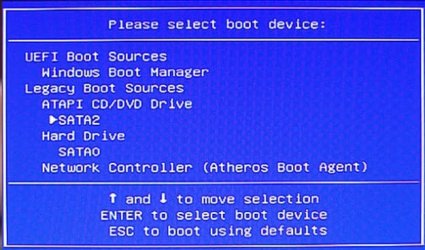
The boot order starts with Windows Boot Manager, as it appears in the screenshot, boot from CD/DVD is selected (see the -> next to CD/DVD) to boot when enter is pressed and it boots from CD/DVD. This is a one time action, and the boot order will remain starting with Windows Boot Manager.
To change boot order permanently, or until you wish to change it again, you press the <F2> key, enter the BIOS, select boot tab change boot order exit.