How to Customize the Notification Area Icons in Windows 7
Information
This will show you how to change the Notification Area icons to be any custom icon you would like instead in Windows 7.
Note
Tools needed :
1. Resource Hacker .
2. System File Replacer
3. IcoFX - The Free Icon Editor ; if you want to make or edit icons .
1. Resource Hacker .
2. System File Replacer
3. IcoFX - The Free Icon Editor ; if you want to make or edit icons .
Warning
To be safe and secured, it is better to http://www.sevenforums.com/tutorials/663-backup-complete-computer-create-image-backup.html before starting any customization activities. Moreover, I recommend to have manual backup (copy and paste in a secured place) of the files before modifying, so that it may be changed easily to default as and when it is needed .
From
 to
to 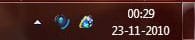
(In the preview, the icons are from Alpha Dista Pack )
OPTION ONE
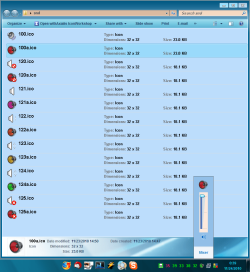
Change Volume Notification Icon
NOTE: To change the volume icon, it is to edit SndVolSSO.dll ; situated in C:\Windows\system32.
1. Open Resource Hacker ; Browse to C:\Windows\system32\SndVolSSO.dll .
2. Change the icon group numbers in the box with appropriate icons as stated in step 3.
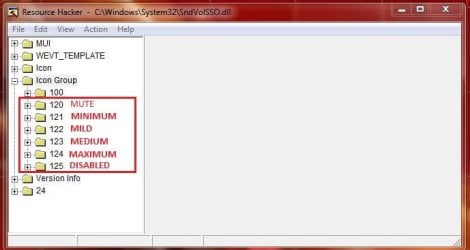
3. Expand (click on theplus sign before) 120 , click on 1033 .
4. Now Click on Action > Replace icon . In the resulting window click on "Open File With a New Icon" and then "Replace" .
NOTE: If in between this action it says "Out of System Resources", dont worry, nad just click on "OK" button . If the original or replacement icon dont have all the 12 layers, such notification occurs. Do the same thing for the rest icon group numbers.
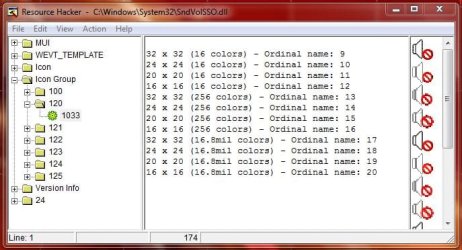
5. Now Click File > Save As ... give the name "SndVolSSO.dll ; and save it on Desktop.
6. Open System File Replacer, browse to the original first, then browse to the new, replace file and reboot . The change will take place after restart.
OPTION TWO
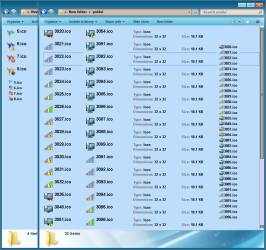
Change Network Notification Icon
NOTE: To change the Network icon, it is to edit pnidui.dll , situated in C:Windows\system32. 1. Open Resource Hacker and browse to C:\Windows\System32\pnidui.dll
2. Change the icon groups located in the box with appropriate icons.
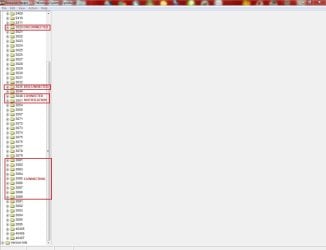
3. Proceed as in volume icon , when finished save the file as pnidui.dll on desktop.
4. Replace the newly created file with the original using System File Replacer and reboot . The change will take place just after the reboot .
OPTION THREE
Change Action Center Notification Icon
NOTE: To change the Network icon, it is to edit ActionCenter.dll , situated in C:Windows\system32. 1. Open Resource Hacker and browse to C:\Windows\System32\ActionCenter.dll
2. Change the icon groups located in the box with appropriate icons . (Usually it is not needed to change 8 and 9; but you may do it if you want .)
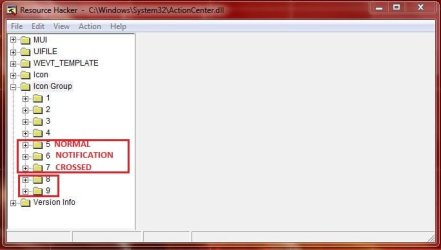
3. Proceed as in volume icon , when finished save the file as ActionCenter.dll on desktop .
4. Replace the newly created file with the original using System File Replacer and reboot. The change will take place just after the reboot .
OPTION FOUR
How to Restore Default Icons
NOTE: To restore defaults, you are to get the dll files back up manually, in a secured place . Just replace the modded files in system location with the original dll files from your backup, and restart your computer . All the defaults will be restored .
This tutorial is incomplete ; as I dont know which file reveals the Power (battery) icon . If anybody can add it, it would be great .
Related Tutorials
- How to Hide or Show System Icons and Notifications in Windows 7 and Windows 8
- How to Turn System Icons On or Off in Windows 7 and Windows 8
- How to Enable or Disable System Icons on Taskbar in Windows 7 and Windows 8
- Add or Remove the Notification Area from the Taskbar in Windows 7 and Windows 8
- How to Create a "Notification Area Icons" Shortcut in Windows 7 and Windows 8
- Reset and Clean Out Old Notification Area Icons in Vista, Windows 7, and Windows 8
- How to Enable or Disable Changing "Notification Area Icons" Settings in Windows 7
Last edited by a moderator:


 And most welcome to SF