

Hello everyone, thanks for viewing.
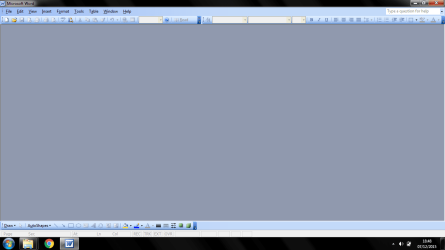
So I logged onto my laptop to work on my university assignment some more, and poof, it won't open.
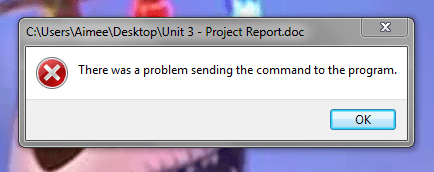
I keep getting the same error every time.
I can open the file in WordPad but I just get fifteen pages of ">:£:%<":?&:"
I can open it in OpenOffice but the formatting all changes, headers/footers disappear, images disappear, text boxes containing quotes aren't there.
I copied the Open Office version into a new blank Word page; and filled in the blanks (which took me an hour) but when I saved and opened the file; I got the same error.
Hoping it was me doing something wrong with the way I saved it or the default program to open it, I repeated the process taking up another hour; but I'd done it right, and got the same error code.
The default program to open it is Office 2003, the same format I made/saved the replacement file in.
It makes no sense to me. Also, why now? What changed? It was working fine yesterday.
Not done any downloads or scans so I don't know what the changed factor is.
Please can anyone help me, these assignments are dawning upon me and I need to get my finishing touches done before I can submit them, I also don't want to risk submitting a faulty file.
Thank you so much!
So I logged onto my laptop to work on my university assignment some more, and poof, it won't open.
I keep getting the same error every time.
I can open the file in WordPad but I just get fifteen pages of ">:£:%<":?&:"
I can open it in OpenOffice but the formatting all changes, headers/footers disappear, images disappear, text boxes containing quotes aren't there.
I copied the Open Office version into a new blank Word page; and filled in the blanks (which took me an hour) but when I saved and opened the file; I got the same error.
Hoping it was me doing something wrong with the way I saved it or the default program to open it, I repeated the process taking up another hour; but I'd done it right, and got the same error code.
The default program to open it is Office 2003, the same format I made/saved the replacement file in.
It makes no sense to me. Also, why now? What changed? It was working fine yesterday.
Not done any downloads or scans so I don't know what the changed factor is.
Please can anyone help me, these assignments are dawning upon me and I need to get my finishing touches done before I can submit them, I also don't want to risk submitting a faulty file.
Thank you so much!
Attachments
My Computer
- Computer type
- Laptop
- Computer Manufacturer/Model Number
- HP
- OS
- Windows 7 Professional 64 bit.
- CPU
- AMD A8
- Memory
- 8GB
- Graphics Card(s)
- AMD Radeon R5
- Hard Drives
- 1 TB
- Internet Speed
- 150 mb
- Antivirus
- Norton
- Browser
- Google Chrome


