
Offline Files Folder Shortcut - Create

How to Create an "Offline Files Folder" Shortcut in Windows 7 and Windows 8

   Information
This tutorial will show you how to create or download an Offline Files Folder shortcut to be able to view your offline files easier and faster in Windows 7 and Windows 8.

   Note
In Windows 7, offline files is only available in the Windows 7 Professional, Ultimate, and Enterprise editions.

In Windows 8, offline files is only available in the Windows 8 Pro and Windows 8 Enterprise editions.


EXAMPLE: Offline Files Folder
Offline_Files_Folder.jpg


OPTION ONE

To Download an "Offline Files Folder" Shortcut


1. To Download the "Offline Files Folder" Shortcut
A) Click/tap on the Download button below to download the file below, and go to step 4 below.
Offline_Files_Folder.zip

Download


2. To Download the "Computers" Offline File Folder Shortcut
A) Click/tap on the Download button below to download the file below, and go to step 4 below.
Computers - Offline Files Folder.zip

Download


3. To Download the "Mapped Network Drives" Offline File Folder Shortcut
A) Click/tap on the Download button below to download the file below, and go to step 4 below.
Mapped Network Drives - Offline Files Folder.zip

Download


4. Save the .zip file to your desktop.

5. Open the downloaded .zip file and extract (drag and drop) the shortcut to the desktop.

6. Right click on the extracted shortcut, and click/tap on Properties, General tab, and on the Unblock button.
NOTE: If you do not have a Unblock button under the General tab, then the shortcut is already unblocked and you can continue on to step 7.

7. In Windows 7, you can now Pin to Taskbar or Pin to Start Menu, add to Quick Launch, assign a keyboard shortcut to it, or move this shortcut to where you like for easy use.

8. In Windows 8, you can Pin to Taskbar on desktop, Pin to Start screen, add to Quick Launch, assign a keyboard shortcut to it, or move this shortcut to where you like for easy use.

9. When finished, you can delete the downloaded .zip file if you like.


OPTION TWO

To Manually Create an "Offline Files Folder" Shortcut


1. Right click or press and hold on an empty area on desktop, and click/tap on New and Shortcut.

2. Copy and paste the location below for the shortcut you want into the location area, and click/tap on the Next button. (See screenshot below)
For the "Offline Files Folder" Shortcut
Code:
%windir%\explorer.exe shell:::{AFDB1F70-2A4C-11d2-9039-00C04F8EEB3E}
For the "Computers" Offline File Folder Shortcut
Code:
%windir%\explorer.exe shell:::{AFDB1F70-2A4C-11d2-9039-00C04F8EEB3E}\Computers
For the "Mapped Network Drives" Offline File Folder Shortcut
Code:
%windir%\explorer.exe shell:::{AFDB1F70-2A4C-11d2-9039-00C04F8EEB3E}\MappedDrives
Step1.jpg
3. Type in a name you would like for this shortcut, and click/tap on the Finish button. (See screenshot below)
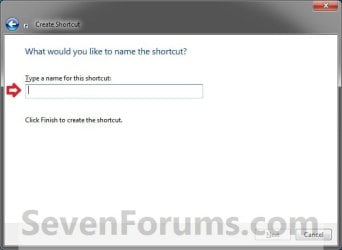
Step2.jpg
4. Right click on the new shortcut on the Desktop, and click/tap on Properties.

5. Click/tap on the Shortcut tab, then click/tap on the Change Icon button. (See screenshot below)
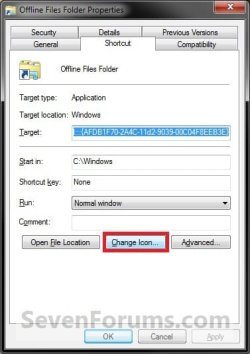
Step3.jpg
6. In the line under "Look for icons in this file", copy and paste the location below and press Enter. (see screenshot below)
%SystemRoot%\System32\cscui.dll
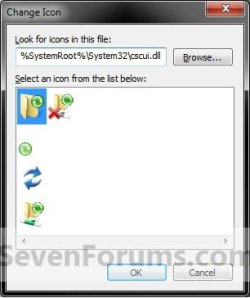
Step4.jpg
7. Select the icon highlighted in blue above, and click/tap on OK. (See screenshot above)
NOTE: You can use any icon that you would like instead though.

8. Click/tap on OK. (see screenshot below)
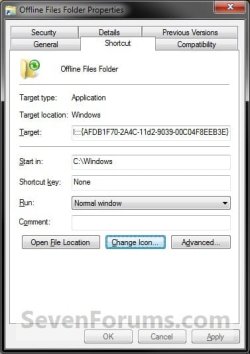
Step5.jpg
9. In Windows 7, you can now Pin to Taskbar or Pin to Start Menu, add to Quick Launch, assign a keyboard shortcut to it, or move this shortcut to where you like for easy use.

10. In Windows 8, you can Pin to Taskbar on desktop, Pin to Start screen, add to Quick Launch, assign a keyboard shortcut to it, or move this shortcut to where you like for easy use.

That's it,
Shawn


Attachments

Last edited:
Good Job Shawn ... Thanks for the Tutorial :)

I have a quick question how any Tutorials you have created so far :D
 

My Computer

Computer Manufacturer/Model Number
Samsung NP550P5C-S02IN
OS
Windows 7 Ultimate - 64-bit | Windows 8 Pro - 64-bit
CPU
Intel® Core™ i7 Processor 3,610QM (2.30Hz, 6MB L3 Cach
Memory
8 GB
Graphics Card(s)
NVIDIA® GeForce® GT 650M 2GB Graphics, Optimus™ techno
Sound Card
SoundAlive™ JBL 3 Speakers (With sub-Woofer)
Monitor(s) Displays
39.62cm (15.6) SuperBright 300nit HD+ LED Display
Screen Resolution
1,600 x 900, Anti-Reflective
Hard Drives
1TB S-ATA II Hard Drive (5,400RPM)
You're welcome Shyam. Thank you.

I'm not sure exactly how many, but just a few or so. ;)
 

My Computer

Computer type
PC/Desktop
Computer Manufacturer/Model Number
Self built custom
OS
64-bit Windows 11 Pro for Workstations
CPU
Intel i7-8700K OC'd to 5 GHz
Motherboard
ASUS ROG Maximus XI Formula Z390
Memory
64 GB (4x16GB) G.SKILL TridentZ RGB DDR4 3600 MHz
Graphics Card(s)
ASUS ROG-STRIX-GTX1080TI-O11G-GAMING
Sound Card
Integrated
Monitor(s) Displays
2 x Samsung Odyssey G7 27"
Screen Resolution
2560x1440
Hard Drives
1TB Samsung 990 PRO M.2,
4TB Samsung 990 PRO PRO M.2,
TerraMaster F8 SSD Plus NAS
PSU
Seasonic Prime Titanium 850W
Case
Thermaltake Core P3
Cooling
Corsair Hydro H115i
Keyboard
Logitech wireless K800
Mouse
Logitech MX Master 4
Internet Speed
2 Gb/s Download and 100 Mb/s Upload
Antivirus
Malwarebyte Anti-Malware Premium
Browser
Google Chrome
Other Info
Logitech Z625 speaker system,
Logitech BRIO 4K Pro webcam,
HP Color LaserJet Pro MFP M477fdn,
APC SMART-UPS RT 1000 XL - SURT1000XLI,
Galaxy S23 Plus phone
Excellent Shawn - Thank You.

How to create a shortcut to a sub-folder of the offline files?
 

My Computer

OS
Windows 7 Business x64
You're most welcome wwcanoer, and welcome to Seven Forums.

I'm not sure yet, but I'll look into it to see what I may be able to come up with. Was there a particular one you wanted a shortcut of in the "Offline File Folder".

UPDATE:
I have updated the tutorial to also include shortcuts that open directly to the Computers and Mapped Network Drives Offline Files Folders.
 
Last edited:

My Computer

Computer type
PC/Desktop
Computer Manufacturer/Model Number
Self built custom
OS
64-bit Windows 11 Pro for Workstations
CPU
Intel i7-8700K OC'd to 5 GHz
Motherboard
ASUS ROG Maximus XI Formula Z390
Memory
64 GB (4x16GB) G.SKILL TridentZ RGB DDR4 3600 MHz
Graphics Card(s)
ASUS ROG-STRIX-GTX1080TI-O11G-GAMING
Sound Card
Integrated
Monitor(s) Displays
2 x Samsung Odyssey G7 27"
Screen Resolution
2560x1440
Hard Drives
1TB Samsung 990 PRO M.2,
4TB Samsung 990 PRO PRO M.2,
TerraMaster F8 SSD Plus NAS
PSU
Seasonic Prime Titanium 850W
Case
Thermaltake Core P3
Cooling
Corsair Hydro H115i
Keyboard
Logitech wireless K800
Mouse
Logitech MX Master 4
Internet Speed
2 Gb/s Download and 100 Mb/s Upload
Antivirus
Malwarebyte Anti-Malware Premium
Browser
Google Chrome
Other Info
Logitech Z625 speaker system,
Logitech BRIO 4K Pro webcam,
HP Color LaserJet Pro MFP M477fdn,
APC SMART-UPS RT 1000 XL - SURT1000XLI,
Galaxy S23 Plus phone
Thanks for the prompt action!

Thank-you Brink for the prompt response!

However, offline files did not work the way I expected. I expected it to work like a normal 2-way sync but I could not create files or folders locally (I could edit them). There was also some interference with my company's network. When I turned on "encrypt local files", then I was no longer able to open (read) any files on the source network drive. A little bizarre. No need to reply because I abandoned offline files and will use a sync program instead for working files.
 

My Computer

OS
Windows 7 Business x64
You're welcome wwcanoer. I hope that will work for you. :)
 

My Computer

Computer type
PC/Desktop
Computer Manufacturer/Model Number
Self built custom
OS
64-bit Windows 11 Pro for Workstations
CPU
Intel i7-8700K OC'd to 5 GHz
Motherboard
ASUS ROG Maximus XI Formula Z390
Memory
64 GB (4x16GB) G.SKILL TridentZ RGB DDR4 3600 MHz
Graphics Card(s)
ASUS ROG-STRIX-GTX1080TI-O11G-GAMING
Sound Card
Integrated
Monitor(s) Displays
2 x Samsung Odyssey G7 27"
Screen Resolution
2560x1440
Hard Drives
1TB Samsung 990 PRO M.2,
4TB Samsung 990 PRO PRO M.2,
TerraMaster F8 SSD Plus NAS
PSU
Seasonic Prime Titanium 850W
Case
Thermaltake Core P3
Cooling
Corsair Hydro H115i
Keyboard
Logitech wireless K800
Mouse
Logitech MX Master 4
Internet Speed
2 Gb/s Download and 100 Mb/s Upload
Antivirus
Malwarebyte Anti-Malware Premium
Browser
Google Chrome
Other Info
Logitech Z625 speaker system,
Logitech BRIO 4K Pro webcam,
HP Color LaserJet Pro MFP M477fdn,
APC SMART-UPS RT 1000 XL - SURT1000XLI,
Galaxy S23 Plus phone
I'm unsure whether the outcome specified in this great tutorial is what I need or not. Maybe someone can help me work this through ;)

Here's my setup and problem:

1. I have two Win7 computers set up to access a Synology NAS via a single master network share folder.

2. I have the two computers connected via a KVM switch (but not connected via a Home Group).

3. I have shortcuts on the desktop of each computer to both the master shared (NAS) folder and several sub folders.

And that works great except that if I swap computers for anything over an hour, the desktop shortcuts have disappeared when I return to the first computer.

Note that the shortcuts are unaffected if I put the computer into sleep mode or shutdown completely.

They are also unaffected if I return to the computer (via the KVM switch) in anything less than an hour (at least that seems to be the threshold).

Again, the subject matter in this tutorial seems like it may offer a solution, but I'm not sure.

Thanks in anticipation.

Gary
 

My Computer

OS
Windows 7 Home x64
hey Brink

I dont think I did anything special to my computer but I am windows 8 and have a "offline file" icon on my desktop. when i doubleclick it nothing happens, when i right click it context menu only has 3 options "cut", "create shortcut" and "delete".

if i cut it and paste else where it wont let me gives me error code
i haven't tried creating shortcut cause i dont want it simply wish it removed
but if I delete it, i refresh desktop it just comes back. how do i disable it in control panel? or is this a virus
 

My Computer

OS
window 7 64 bit
Hello M18XR2, :)

Export the registry keys below and upload them here to see if there may be an entry for the offline file desktop icon.


HKEY_CURRENT_USER\Software\Microsoft\Windows\CurrentVersion\Explorer\HideDesktopIcons\NewStartPanel

HKEY_CURRENT_USER\Software\Microsoft\Windows\CurrentVersion\Explorer\HideDesktopIcons\ClassicStartMenu

HKEY_LOCAL_MACHINE\SOFTWARE\Microsoft\Windows\CurrentVersion\Explorer\HideDesktopIcons\NewStartPanel

HKEY_LOCAL_MACHINE\SOFTWARE\Microsoft\Windows\CurrentVersion\Explorer\HideDesktopIcons\ClassicStartMenu
 

My Computer

Computer type
PC/Desktop
Computer Manufacturer/Model Number
Self built custom
OS
64-bit Windows 11 Pro for Workstations
CPU
Intel i7-8700K OC'd to 5 GHz
Motherboard
ASUS ROG Maximus XI Formula Z390
Memory
64 GB (4x16GB) G.SKILL TridentZ RGB DDR4 3600 MHz
Graphics Card(s)
ASUS ROG-STRIX-GTX1080TI-O11G-GAMING
Sound Card
Integrated
Monitor(s) Displays
2 x Samsung Odyssey G7 27"
Screen Resolution
2560x1440
Hard Drives
1TB Samsung 990 PRO M.2,
4TB Samsung 990 PRO PRO M.2,
TerraMaster F8 SSD Plus NAS
PSU
Seasonic Prime Titanium 850W
Case
Thermaltake Core P3
Cooling
Corsair Hydro H115i
Keyboard
Logitech wireless K800
Mouse
Logitech MX Master 4
Internet Speed
2 Gb/s Download and 100 Mb/s Upload
Antivirus
Malwarebyte Anti-Malware Premium
Browser
Google Chrome
Other Info
Logitech Z625 speaker system,
Logitech BRIO 4K Pro webcam,
HP Color LaserJet Pro MFP M477fdn,
APC SMART-UPS RT 1000 XL - SURT1000XLI,
Galaxy S23 Plus phone
Back
Top