Open a new window with "full path" instead of Search Results\"Path"

Ravanx

Banned
Local time
7:13 AM
Messages
117
Open a new window with "full path" instead of Search Results\"Path"

How can I make it such that in Search Results, when I open a folder in a new window (by right-clicking a file), I will be directed to a window with the "full path" displayed in the address bar, instead of Search Results\"Path" or Search Results>"Path"?


Edit: "Right-click -> open file location" will open the file location and have the full address displayed. But that doesn't solve the problem if I have more than one result that I need to go to and check.
 
Last edited:

My Computer My Computer

At a glance

Windows 7 Pro
OS
Windows 7 Pro
See if this works, from the control panel, click on Folder options > View tab > check the box that says "Display the full path in the title bar" (classic theme only)
 

My Computer My Computer

At a glance

Windows 7 Ultimate 32bit SP1Intel(R) Core(TM)2 Quad CPU @ 2.40GHz, 2400 MHz4 GBATI Radeon HD 2600 Pro
Computer type
PC/Desktop
Computer Manufacturer/Model Number
Bruce ... somewhere in his 40's
OS
Windows 7 Ultimate 32bit SP1
CPU
Intel(R) Core(TM)2 Quad CPU @ 2.40GHz, 2400 MHz
Motherboard
INTEL/D975XBX2
Memory
4 GB
Graphics Card(s)
ATI Radeon HD 2600 Pro
Monitor(s) Displays
Samsung SyncMaster 914v
Screen Resolution
1280 x 1024
Hard Drives
2/500GB each ... ST3500630AS ATA Device.
One is not connected
PSU
Rocketfish 700 W
Case
G.Skill Gigabyte Chassis
Keyboard
Standard PS/2 Keyboard
Mouse
Microsoft PS/2 Mouse
Internet Speed
DSL
Antivirus
Avira Internet Security
Browser
IE 11
Other Info
ATI HDMI Audio
See if this works, from the control panel, click on Folder options > View tab > check the box that says "Display the full path in the title bar" (classic theme only)

Nope didn't work.
The option name says it changes title bar. The name doesn't mention anything about address bar...
 

My Computer My Computer

At a glance

Windows 7 Pro
OS
Windows 7 Pro
Left click in the address bar after 'right clicking > open file location' on a file/folder, the full location is shown in the standard format then. Also, after you perform a search, changing the view from large thumbnails to 'details' will give you the full location of each file.

Nope didn't work.
The option name says it changes title bar. The name doesn't mention anything about address bar...
 

My Computer My Computer

At a glance

Windows 7 Professional 64 Bit SP1INTEL DUAL CORE 2.1Ghz4GB DDR3INTEL
Computer Manufacturer/Model Number
HP DV6 1330sa
OS
Windows 7 Professional 64 Bit SP1
CPU
INTEL DUAL CORE 2.1Ghz
Motherboard
N/A
Memory
4GB DDR3
Graphics Card(s)
INTEL
Sound Card
LAPTOP
Monitor(s) Displays
2
Screen Resolution
3200x1080
Hard Drives
250GB
PSU
LAPTOP
Case
LAPTOP
Cooling
LAPTOP
Keyboard
SOLID YEAR 260U
Mouse
USB
Internet Speed
20 MB/S
Left click in the address bar after 'right clicking > open file location' on a file/folder, the full location is shown in the standard format then.
Have you tried doing what you mentioned?
It doesn't work.
Yes, full location is shown in the standard format. But it's the full location of "Search Results\'Path'".

Example:
search-ms:displayname=Search%20Results%20in%20<folder searched>\<current opened folder>

Also, after you perform a search, changing the view from large thumbnails to 'details' will give you the full location of each file.
Thanks for the suggestions but it doesn't really help my case since I can't exactly do a wireless transfer of information from my eyes to my computer to make my computer open a new window with the normal address displayed in the address bar.
 

My Computer My Computer

At a glance

Windows 7 Pro
OS
Windows 7 Pro
Actually I have, that's why I mentioned it. The only time 'Search Results > path' is present is before you right click > open file location. After that. the full path is shown there minus the 'Search Results > path'. 2 = before left click, 1 = after left click. No 'search results in sight, just the full path.


Left click in the address bar after 'right clicking > open file location' on a file/folder, the full location is shown in the standard format then.
Have you tried doing what you mentioned?
It doesn't work.
Yes, full location is shown in the standard format. But it's the full location of "Search Results\'Path'".

Example:
search-ms:displayname=Search%20Results%20in%20<folder searched>\<current opened folder>

Also, after you perform a search, changing the view from large thumbnails to 'details' will give you the full location of each file.
Thanks for the suggestions but it doesn't really help my case since I can't exactly do a wireless transfer of information from my eyes to my computer to make my computer open a new window with the normal address displayed in the address bar.
 

My Computer My Computer

At a glance

Windows 7 Professional 64 Bit SP1INTEL DUAL CORE 2.1Ghz4GB DDR3INTEL
Computer Manufacturer/Model Number
HP DV6 1330sa
OS
Windows 7 Professional 64 Bit SP1
CPU
INTEL DUAL CORE 2.1Ghz
Motherboard
N/A
Memory
4GB DDR3
Graphics Card(s)
INTEL
Sound Card
LAPTOP
Monitor(s) Displays
2
Screen Resolution
3200x1080
Hard Drives
250GB
PSU
LAPTOP
Case
LAPTOP
Cooling
LAPTOP
Keyboard
SOLID YEAR 260U
Mouse
USB
Internet Speed
20 MB/S
Actually I have, that's why I mentioned it. The only time 'Search Results > path' is present is before you right click > open file location. After that. the full path is shown there minus the 'Search Results > path'. 2 = before left click, 1 = after left click. No 'search results in sight, just the full path.


Left click in the address bar after 'right clicking > open file location' on a file/folder, the full location is shown in the standard format then.
Have you tried doing what you mentioned?
It doesn't work.
Yes, full location is shown in the standard format. But it's the full location of "Search Results\'Path'".

Example:
search-ms:displayname=Search%20Results%20in%20<folder searched>\<current opened folder>
Oh I apologise. I misread your post. I also realized the error in my first question.

"Open file location" will give the address in full. Yes, that's correct.

But the problem is with "Open in new window". It'll give Search Results\"Path". That's the problem.
 
Last edited:

My Computer My Computer

At a glance

Windows 7 Pro
OS
Windows 7 Pro
How about this... hold down the ctrl key when you click Open Folder/File Location

It will give you a new window with the results, minus the funny windows code.
 

My Computer My Computer

At a glance

Windows 7 Professional 64 Bit SP1INTEL DUAL CORE 2.1Ghz4GB DDR3INTEL
Computer Manufacturer/Model Number
HP DV6 1330sa
OS
Windows 7 Professional 64 Bit SP1
CPU
INTEL DUAL CORE 2.1Ghz
Motherboard
N/A
Memory
4GB DDR3
Graphics Card(s)
INTEL
Sound Card
LAPTOP
Monitor(s) Displays
2
Screen Resolution
3200x1080
Hard Drives
250GB
PSU
LAPTOP
Case
LAPTOP
Cooling
LAPTOP
Keyboard
SOLID YEAR 260U
Mouse
USB
Internet Speed
20 MB/S
How about this... hold down the ctrl key when you click Open Folder/File Location

It will give you a new window with the results, minus the funny windows code.
Oh! Thanks. Although it's not the intended perfect solution, it's still good.

The only shortfall is that it's not very optimal for two reasons:
- I realized I could do a ctrl + double-click to open in new window, which is so much faster than ctrl + right-click + move mouse and click.
The former is much faster but gives the problem while the latter is much slower and overcomes the problem.

- I have to move my mouse a long way down the right-click-menu if the file/folder, which I am clicking, is not close to the bottom of the screen.


Is there a better solution available?
 

My Computer My Computer

At a glance

Windows 7 Pro
OS
Windows 7 Pro
It is odd that the 'open in new window' contrasts so much to 'open file/folder location'. I did try to find settings relating to the open in new window, but personally I couldn't see anything beyond: 'search by file name' / 'search through indexes', none of which relates to this address bar issue.

Stop-gap measures like this are better than nothing :/
How about this... hold down the ctrl key when you click Open Folder/File Location

It will give you a new window with the results, minus the funny windows code.
Oh! Thanks. Although it's not the intended perfect solution, it's still good.

The only shortfall is that it's not very optimal for two reasons:
- I realized I could do a ctrl + double-click to open in new window, which is so much faster than ctrl + right-click + move mouse and click.
The former is much faster but gives the problem while the latter is much slower and overcomes the problem.

- I have to move my mouse a long way down the right-click-menu if the file/folder, which I am clicking, is not close to the bottom of the screen.


Is there a better solution available?
 

My Computer My Computer

At a glance

Windows 7 Professional 64 Bit SP1INTEL DUAL CORE 2.1Ghz4GB DDR3INTEL
Computer Manufacturer/Model Number
HP DV6 1330sa
OS
Windows 7 Professional 64 Bit SP1
CPU
INTEL DUAL CORE 2.1Ghz
Motherboard
N/A
Memory
4GB DDR3
Graphics Card(s)
INTEL
Sound Card
LAPTOP
Monitor(s) Displays
2
Screen Resolution
3200x1080
Hard Drives
250GB
PSU
LAPTOP
Case
LAPTOP
Cooling
LAPTOP
Keyboard
SOLID YEAR 260U
Mouse
USB
Internet Speed
20 MB/S
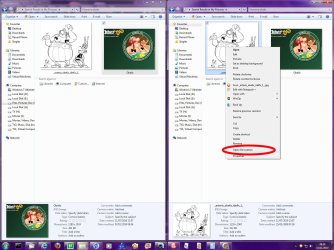
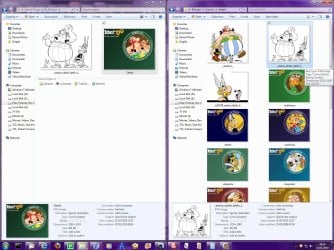
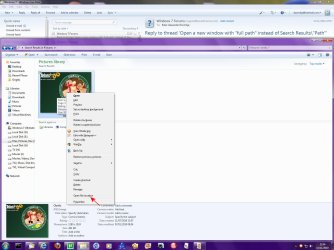
What I usually do, while no perfect, does the job quite nicely for me. I execute a search, then select a file in the results. From there, I press <CTRL>+<N> to duplicate the search results window:

Image1.jpg
Create your Search, then select a file in the results

Image2.jpg
Press <CTRL>+<N> to duplicate the search results in a new window

Image3.jpg
Right-click and select "Open file location"​

Then, in the duplicated search window, I use the "Right-click, Oen File Location" command. This way at least, I get to keep the search results window open alongside the path location of a result.

Works for me...
 

My Computer My Computer

At a glance

Windows 7 Professional 32-bit SP1AMD A4/A63.00GB EDOVMware SVGA 3D
Computer type
PC/Desktop
Computer Manufacturer/Model Number
Virtual Machine
OS
Windows 7 Professional 32-bit SP1
CPU
AMD A4/A6
Motherboard
Intel Corporation 440BX Desktop Reference Platform
Memory
3.00GB EDO
Graphics Card(s)
VMware SVGA 3D
Sound Card
High Definition Audio Device
Monitor(s) Displays
Generic Non-PnP Monitor on VMware SVGA 3D
Screen Resolution
1440x900
Hard Drives
1 x 60GB VMware Virtual SATA Hard Drive ATA Device
Antivirus
Kaspersky Total Security
What I usually do, while no perfect, does the job quite nicely for me. I execute a search, then select a file in the results. From there, I press <CTRL>+<N> to duplicate the search results window:

Create your Search, then select a file in the results

Press <CTRL>+<N> to duplicate the search results in a new window

Right-click and select "Open file location"[/CENTER]

Then, in the duplicated search window, I use the "Right-click, Oen File Location" command. This way at least, I get to keep the search results window open alongside the path location of a result.

Works for me...

Thanks but your method is even more tedious than Rei Tumult's method. One ctrl button can replace all the steps you listed.

And your method won't work in saving time if there are lots of search results... like 40 results in a 1TB hard disk.
 

My Computer My Computer

At a glance

Windows 7 Pro
OS
Windows 7 Pro
What I usually do, while no perfect, does the job quite nicely for me. I execute a search, then select a file in the results. From there, I press <CTRL>+<N> to duplicate the search results window:

Create your Search, then select a file in the results

Press <CTRL>+<N> to duplicate the search results in a new window

Right-click and select "Open file location"[/CENTER]

Then, in the duplicated search window, I use the "Right-click, Oen File Location" command. This way at least, I get to keep the search results window open alongside the path location of a result.

Works for me...

Thanks but your method is even more tedious than Rei Tumult's method. One ctrl button can replace all the steps you listed.

And your method won't work in saving time if there are lots of search results... like 40 results in a 1TB hard disk.

You try juggling search results that need to span over 520,000 files. And you're complaining about 40 files?

Each unto his own, I guess....
 

My Computer My Computer

At a glance

Windows 7 Professional 32-bit SP1AMD A4/A63.00GB EDOVMware SVGA 3D
Computer type
PC/Desktop
Computer Manufacturer/Model Number
Virtual Machine
OS
Windows 7 Professional 32-bit SP1
CPU
AMD A4/A6
Motherboard
Intel Corporation 440BX Desktop Reference Platform
Memory
3.00GB EDO
Graphics Card(s)
VMware SVGA 3D
Sound Card
High Definition Audio Device
Monitor(s) Displays
Generic Non-PnP Monitor on VMware SVGA 3D
Screen Resolution
1440x900
Hard Drives
1 x 60GB VMware Virtual SATA Hard Drive ATA Device
Antivirus
Kaspersky Total Security
What I usually do, while no perfect, does the job quite nicely for me. I execute a search, then select a file in the results. From there, I press <CTRL>+<N> to duplicate the search results window:

Create your Search, then select a file in the results

Press <CTRL>+<N> to duplicate the search results in a new window

Right-click and select "Open file location"[/CENTER]

Then, in the duplicated search window, I use the "Right-click, Oen File Location" command. This way at least, I get to keep the search results window open alongside the path location of a result.

Works for me...

Thanks but your method is even more tedious than Rei Tumult's method. One ctrl button can replace all the steps you listed.

And your method won't work in saving time if there are lots of search results... like 40 results in a 1TB hard disk.
Oops misread your initial instructions. I misread the thing and thought you were telling me to use ctrl+N after i "opened file location". That would be tedious because it means you have to press the back button after that and restart the search process since the search results are not cached... not even temporarily.

Your method is an alternative to Rei Tumult's method since both methods require me to right click and move my mouse all the way down to "open file location". The only difference is I have to press an extra n in your method.

It's kind of awkward to have to press ctrl+n... so i'll be using Rei Tumult's method.
 

My Computer My Computer

At a glance

Windows 7 Pro
OS
Windows 7 Pro
If you're a keyboard junkie, like myself, you can spped things up even more, regardless of which method you use. You can duplicate a mouse "Right-click", point to and click "Open file location" by using the keyboard only:

Press the <CONTEXT_MENU> key on your keyboard, then press <I>. The <CONTEXT_MENU> key in most cases has the graphical representation of a mouse context menu on the keycap. You'll notice actually that this trick works with just about any context menu that can be activated with the <CONTEXT_MENU> key on your keyboard - If said context menu is keyboard activated, Windows is smart enough to underline the hotkey required to "point to and click" any particular menu item. Notice in the screenshot below that the letter "I" is underlined for the "Open file location" menu item:
Image1.jpg

It may not save altogether much time using the mouse or the keyboard, but when you need to do so often, it adds up, and you can save alot of time in the long run.
 

My Computer My Computer

At a glance

Windows 7 Professional 32-bit SP1AMD A4/A63.00GB EDOVMware SVGA 3D
Computer type
PC/Desktop
Computer Manufacturer/Model Number
Virtual Machine
OS
Windows 7 Professional 32-bit SP1
CPU
AMD A4/A6
Motherboard
Intel Corporation 440BX Desktop Reference Platform
Memory
3.00GB EDO
Graphics Card(s)
VMware SVGA 3D
Sound Card
High Definition Audio Device
Monitor(s) Displays
Generic Non-PnP Monitor on VMware SVGA 3D
Screen Resolution
1440x900
Hard Drives
1 x 60GB VMware Virtual SATA Hard Drive ATA Device
Antivirus
Kaspersky Total Security
If you're a keyboard junkie, like myself, you can spped things up even more, regardless of which method you use. You can duplicate a mouse "Right-click", point to and click "Open file location" by using the keyboard only:

Press the <CONTEXT_MENU> key on your keyboard, then press <I>. The <CONTEXT_MENU> key in most cases has the graphical representation of a mouse context menu on the keycap. You'll notice actually that this trick works with just about any context menu that can be activated with the <CONTEXT_MENU> key on your keyboard - If said context menu is keyboard activated, Windows is smart enough to underline the hotkey required to "point to and click" any particular menu item. Notice in the screenshot below that the letter "I" is underlined for the "Open file location" menu item:

It may not save altogether much time using the mouse or the keyboard, but when you need to do so often, it adds up, and you can save alot of time in the long run.
OH! GREAT IDEA! THANKS!
The only thing is that I prefer to use my mouse for navigating through the folders.

Any cheap three-buttoned (not including scroll-roller button) mouse that I can buy?
 

My Computer My Computer

At a glance

Windows 7 Pro
OS
Windows 7 Pro
If you're a keyboard junkie, like myself, you can spped things up even more, regardless of which method you use. You can duplicate a mouse "Right-click", point to and click "Open file location" by using the keyboard only:

Press the <CONTEXT_MENU> key on your keyboard, then press <I>. The <CONTEXT_MENU> key in most cases has the graphical representation of a mouse context menu on the keycap. You'll notice actually that this trick works with just about any context menu that can be activated with the <CONTEXT_MENU> key on your keyboard - If said context menu is keyboard activated, Windows is smart enough to underline the hotkey required to "point to and click" any particular menu item. Notice in the screenshot below that the letter "I" is underlined for the "Open file location" menu item:

It may not save altogether much time using the mouse or the keyboard, but when you need to do so often, it adds up, and you can save alot of time in the long run.
OH! GREAT IDEA! THANKS!
The only thing is that I prefer to use my mouse for navigating through the folders.

Any cheap three-buttoned (not including scroll-roller button) mouse that I can buy?

To be honest, the last 3-button mouse I had with no wheel was way back when on my Pentium 233, and I haven't seen any since then.

Microsoft makes some good mouse hardware with multiple buttons (some of which are thumb accessible), as does SteelSeries, but I don't use them, because they are mostly designed for right-handed use or cost too much. Also i keep my buttons assigned for right-hand use but I hold my mouse in my left hand, so most multiple-button mice are no good for me.

A Mouse doesn't last me long anyway - I replace it about every 6 months - so if I have to spend any more than R60 or so for a mouse (about $9), then I look elsewhere for something cheaper.
 

My Computer My Computer

At a glance

Windows 7 Professional 32-bit SP1AMD A4/A63.00GB EDOVMware SVGA 3D
Computer type
PC/Desktop
Computer Manufacturer/Model Number
Virtual Machine
OS
Windows 7 Professional 32-bit SP1
CPU
AMD A4/A6
Motherboard
Intel Corporation 440BX Desktop Reference Platform
Memory
3.00GB EDO
Graphics Card(s)
VMware SVGA 3D
Sound Card
High Definition Audio Device
Monitor(s) Displays
Generic Non-PnP Monitor on VMware SVGA 3D
Screen Resolution
1440x900
Hard Drives
1 x 60GB VMware Virtual SATA Hard Drive ATA Device
Antivirus
Kaspersky Total Security
The only thing is that I prefer to use my mouse for navigating through the folders.

Any cheap three-buttoned (not including scroll-roller button) mouse that I can buy?

To be honest, the last 3-button mouse I had with no wheel was way back when on my Pentium 233, and I haven't seen any since then.

Microsoft makes some good mouse hardware with multiple buttons (some of which are thumb accessible), as does SteelSeries, but I don't use them, because they are mostly designed for right-handed use or cost too much. Also i keep my buttons assigned for right-hand use but I hold my mouse in my left hand, so most multiple-button mice are no good for me.

A Mouse doesn't last me long anyway - I replace it about every 6 months - so if I have to spend any more than R60 or so for a mouse (about $9), then I look elsewhere for something cheaper.
Actually, I meant "three-buttoned mouse (if you don't include the scroll-roller button in the count)".
Not "three-buttoned mouse with no scroll-roller button".

From the way you replied, my guess is that you thought I meant the latter.

Would your reply be the same if I was referring to the former, not the latter?


Just curious. Why would there be a need to replace a mouse every 6 months?
 

My Computer My Computer

At a glance

Windows 7 Pro
OS
Windows 7 Pro
Just curious. Why would there be a need to replace a mouse every 6 months?

I replace my mouse every six months or so because I work them out, and the buttons get worn and stop working (the biggest culprit of this is "Diablo II"). And I'm not prepared to risk paying R1500 (around $210) for a mouse that might stand up to that kind of punishment...
 

My Computer My Computer

At a glance

Windows 7 Professional 32-bit SP1AMD A4/A63.00GB EDOVMware SVGA 3D
Computer type
PC/Desktop
Computer Manufacturer/Model Number
Virtual Machine
OS
Windows 7 Professional 32-bit SP1
CPU
AMD A4/A6
Motherboard
Intel Corporation 440BX Desktop Reference Platform
Memory
3.00GB EDO
Graphics Card(s)
VMware SVGA 3D
Sound Card
High Definition Audio Device
Monitor(s) Displays
Generic Non-PnP Monitor on VMware SVGA 3D
Screen Resolution
1440x900
Hard Drives
1 x 60GB VMware Virtual SATA Hard Drive ATA Device
Antivirus
Kaspersky Total Security
Getting the full path still doesn't work

So, the suggestions above are fine... if you don't want the full path.

Say you're searching for "Bar" in your C drive. "Bar" is located at "C:\Foo\Bar". If you click to open the folder location, you don't get "C:\Foo\Bar", you get "C:\Foo\". If there are 700 folders inside that Foo folder, this isn't very helpful for getting the location of "Bar", especially if what you're searching for isn't easily "typable" like "Bar." If what you're searching for is 1-287-38901, that would be a pain to find, and the ideal solution would be to search for it, which brings me back to the original problem.

Anyone know a way around this? I just upgraded from Vista to Win7, and I thought my problems would be solved, this just caused more (I have to search for paths all the time at work, this just makes things take 3 times as long).
 

My Computer My Computer

At a glance

Windows 7
OS
Windows 7
Back
Top