Open Folder Icon - Change

How to Change Open Folder Icon in Windows 7 and Windows 8


   Information
This will show you how to change the active icon used to indicate which folder is expanded or opened in the Windows Explorer Navigation Pane, Start Menu All Programs, and registry folder tree to any custom icon that you want instead in Windows 7 and Windows 8.

   Warning


  • You can only do this while logged in to a administrator account.
  • This will affect all user account's active open folder icons on the computer.
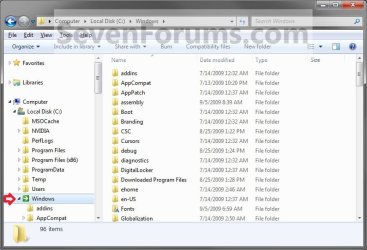
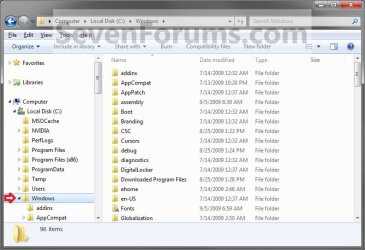
EXAMPLE: Active Open Folder
NOTE: This is the Windows Explorer navigation with the default open folder icon (left screenshot) and a custom open folder icon (right screenshot).
Default.jpg

After.jpg


OPTION ONE

To Change Default Open Folder Icon


1. Press the Windows + R keys to open the Run dialog, type regedit, and press click/tap on OK.

2. If prompted by UAC, then click/tap on Yes.

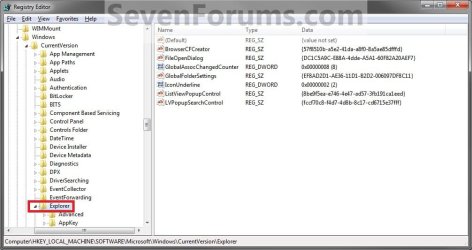
3. In regedit, navigate to the location below. (see screenshot below)
HKEY_LOCAL_MACHINE\SOFTWARE\Microsoft\Windows\CurrentVersion\Explorer
Reg1.jpg
4. In the left pane, right click on the Explorer key, and click on New and Key. (See screenshot above)

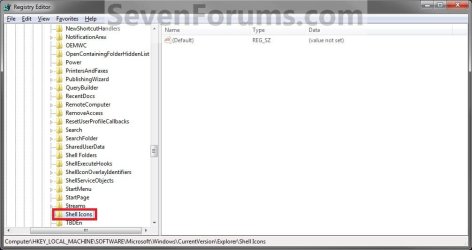
5. Type Shell Icons, and press Enter. (see screenshot below)
NOTE: If Shell Icons is already here, then you can skip steps 4 and 5.
Reg2.jpg
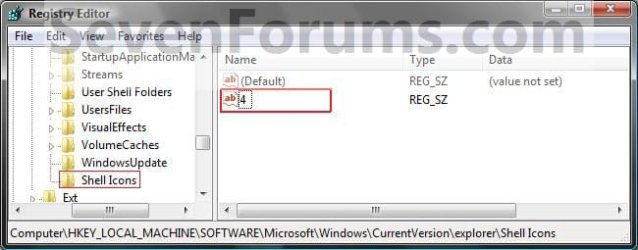
6. In the right pane of Shell Icons, right click on an empty space, and click on New and String Value. Type 4, and press Enter. (see screen shot below)
Reg3.jpg
7. Double click/tap on 4 to modify it. (see screenshot above)

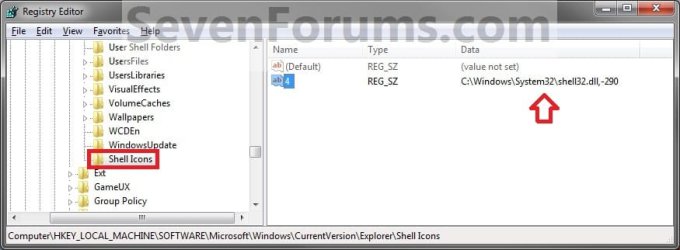
8. Type in the full path of the icon that you want to use as the new open folder icon. (See screenshot below)
NOTE: If you change the icon's location (path), then you must also change the location here in step 8 as well for the folder to still display that icon in Windows Explorer.


   Tip
These are some good icon paths to use:
  • 290.png C:\Windows\System32\shell32.dll,-290
  • 246.png C:\Windows\System32\shell32.dll,-246
Modify.jpg
9. The registry will now look similar to this with your icon path under the Data column in the right pane instead. (see screenshot below)
Reg4.jpg
10. Close Regedit.

11. Log off and Log on, or restart the computer to apply the new open folder icon.


OPTION TWO

To Restore Default Open Folder Icon


NOTE: This option assumes that you did OPTION ONE above to change the default folder icon.
1. Press the Windows + R keys to open the Run dialog, type regedit, and press click/tap on OK.

2. If prompted by UAC, then click/tap on Yes.

3. In regedit, navigate to the location below. (see screenshot below)
Code:
HKEY_LOCAL_MACHINE\SOFTWARE\Microsoft\Windows\CurrentVersion\Explorer\Shell Icons
4. In the right pane of Shell Icons, right click on 4, and click/tap on Delete. (See screenshot below)
Reg4.jpg
5. Click/tap on Yes. (See screenshot below)
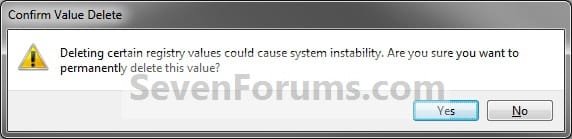
Confirm.jpg
6. Close Regedit.

7. Log off and Log on, or restart the computer to restore the default yellow open folder icon.
That's it,
Shawn


Last edited:
Hi brink,

Can you tell me about description of number 4 (new string value)?
Did you mean this only for open folder icon ? :confused:
 

My Computer

OS
Windows 7 Ultimate 32bit
Hello Mavericks,

Yes, the 4 value is the indicator for "Open Folder" icons only. :)
 

My Computer

Computer type
PC/Desktop
Computer Manufacturer/Model Number
Self built custom
OS
64-bit Windows 11 Pro for Workstations
CPU
Intel i7-8700K OC'd to 5 GHz
Motherboard
ASUS ROG Maximus XI Formula Z390
Memory
64 GB (4x16GB) G.SKILL TridentZ RGB DDR4 3600 MHz
Graphics Card(s)
ASUS ROG-STRIX-GTX1080TI-O11G-GAMING
Sound Card
Integrated
Monitor(s) Displays
2 x Samsung Odyssey G7 27"
Screen Resolution
2560x1440
Hard Drives
1TB Samsung 990 PRO M.2,
4TB Samsung 990 PRO PRO M.2,
TerraMaster F8 SSD Plus NAS
PSU
Seasonic Prime Titanium 850W
Case
Thermaltake Core P3
Cooling
Corsair Hydro H115i
Keyboard
Logitech wireless K800
Mouse
Logitech MX Master 4
Internet Speed
2 Gb/s Download and 100 Mb/s Upload
Antivirus
Malwarebyte Anti-Malware Premium
Browser
Google Chrome
Other Info
Logitech Z625 speaker system,
Logitech BRIO 4K Pro webcam,
HP Color LaserJet Pro MFP M477fdn,
APC SMART-UPS RT 1000 XL - SURT1000XLI,
Galaxy S23 Plus phone
Doesn't .ico files work to change all the icons at once when putting it in the windows folder? Or does it have to be a .dll?
 

My Computer

OS
Windows 7
Hello Sara,

Yes, you sure can type in the full path to a ICO file of your own in quotes if you like. :)
 

My Computer

Computer type
PC/Desktop
Computer Manufacturer/Model Number
Self built custom
OS
64-bit Windows 11 Pro for Workstations
CPU
Intel i7-8700K OC'd to 5 GHz
Motherboard
ASUS ROG Maximus XI Formula Z390
Memory
64 GB (4x16GB) G.SKILL TridentZ RGB DDR4 3600 MHz
Graphics Card(s)
ASUS ROG-STRIX-GTX1080TI-O11G-GAMING
Sound Card
Integrated
Monitor(s) Displays
2 x Samsung Odyssey G7 27"
Screen Resolution
2560x1440
Hard Drives
1TB Samsung 990 PRO M.2,
4TB Samsung 990 PRO PRO M.2,
TerraMaster F8 SSD Plus NAS
PSU
Seasonic Prime Titanium 850W
Case
Thermaltake Core P3
Cooling
Corsair Hydro H115i
Keyboard
Logitech wireless K800
Mouse
Logitech MX Master 4
Internet Speed
2 Gb/s Download and 100 Mb/s Upload
Antivirus
Malwarebyte Anti-Malware Premium
Browser
Google Chrome
Other Info
Logitech Z625 speaker system,
Logitech BRIO 4K Pro webcam,
HP Color LaserJet Pro MFP M477fdn,
APC SMART-UPS RT 1000 XL - SURT1000XLI,
Galaxy S23 Plus phone
Windows Folder Icons

Brink - Is there anyway to get the folder icon with the four preview files from Windows XP? This was a great way to preview files in a directory. I see a number of people looking for the same thing but no answers.

Thanks. Slag
 

My Computer

OS
win 7
Hello Slag, and welcome to Seven Forums.

Could you post a screenshot of it?
 

My Computer

Computer type
PC/Desktop
Computer Manufacturer/Model Number
Self built custom
OS
64-bit Windows 11 Pro for Workstations
CPU
Intel i7-8700K OC'd to 5 GHz
Motherboard
ASUS ROG Maximus XI Formula Z390
Memory
64 GB (4x16GB) G.SKILL TridentZ RGB DDR4 3600 MHz
Graphics Card(s)
ASUS ROG-STRIX-GTX1080TI-O11G-GAMING
Sound Card
Integrated
Monitor(s) Displays
2 x Samsung Odyssey G7 27"
Screen Resolution
2560x1440
Hard Drives
1TB Samsung 990 PRO M.2,
4TB Samsung 990 PRO PRO M.2,
TerraMaster F8 SSD Plus NAS
PSU
Seasonic Prime Titanium 850W
Case
Thermaltake Core P3
Cooling
Corsair Hydro H115i
Keyboard
Logitech wireless K800
Mouse
Logitech MX Master 4
Internet Speed
2 Gb/s Download and 100 Mb/s Upload
Antivirus
Malwarebyte Anti-Malware Premium
Browser
Google Chrome
Other Info
Logitech Z625 speaker system,
Logitech BRIO 4K Pro webcam,
HP Color LaserJet Pro MFP M477fdn,
APC SMART-UPS RT 1000 XL - SURT1000XLI,
Galaxy S23 Plus phone
For 64 bit Systems, do I need to go to Wow6432Node?
And for custom icons, I have to put the address in quotes, right?
 

My Computer

Computer Manufacturer/Model Number
ASUS G72 Notebook
OS
Windows 7 Ultimate 64-bit
CPU
Intel® Core™2 Duo mobile processor P8700 2.53 GHz
Memory
6GB DDRII
Graphics Card(s)
NVIDIA GeForce GTX 260M
Sound Card
EAX Advanced HD 4.0 + Logitech Wireless Headset G930
Monitor(s) Displays
17.3" LED-backlit LCD high-definition plus widescreen
Screen Resolution
1600 x 900
Hard Drives
2 x Seagate Momentus 500 GB 5400.6 SATA 3Gb/s
Cooling
Targus
Mouse
Logitech Wireless Trackball M570
Internet Speed
3 to 6 Mbps Download / .5 to 1 Mbps Upload
Other Info
Clear Modem with Wi-fi*
Comodo Internet Security Premium
Hello Andre,

Answers inline. :)

For 64 bit Systems, do I need to go to Wow6432Node?
No. You would only need to do what is in the tutorial.

And for custom icons, I have to put the address in quotes, right?

Only if there are spaces in the full path names.
 

My Computer

Computer type
PC/Desktop
Computer Manufacturer/Model Number
Self built custom
OS
64-bit Windows 11 Pro for Workstations
CPU
Intel i7-8700K OC'd to 5 GHz
Motherboard
ASUS ROG Maximus XI Formula Z390
Memory
64 GB (4x16GB) G.SKILL TridentZ RGB DDR4 3600 MHz
Graphics Card(s)
ASUS ROG-STRIX-GTX1080TI-O11G-GAMING
Sound Card
Integrated
Monitor(s) Displays
2 x Samsung Odyssey G7 27"
Screen Resolution
2560x1440
Hard Drives
1TB Samsung 990 PRO M.2,
4TB Samsung 990 PRO PRO M.2,
TerraMaster F8 SSD Plus NAS
PSU
Seasonic Prime Titanium 850W
Case
Thermaltake Core P3
Cooling
Corsair Hydro H115i
Keyboard
Logitech wireless K800
Mouse
Logitech MX Master 4
Internet Speed
2 Gb/s Download and 100 Mb/s Upload
Antivirus
Malwarebyte Anti-Malware Premium
Browser
Google Chrome
Other Info
Logitech Z625 speaker system,
Logitech BRIO 4K Pro webcam,
HP Color LaserJet Pro MFP M477fdn,
APC SMART-UPS RT 1000 XL - SURT1000XLI,
Galaxy S23 Plus phone
Hello, I have a problem with this. So i've used your tutorial for making closed folder, and i want to have both folders the same(opened and closed), but when i put string value 3 and 4 only one of them works(the first one i've put in). That happens if i have disabled "show icons, never pictures" at folder options. So i'm asking if there is a way to have both closed and opened folder the same and if there is the way to still have enabled showing pictures and not just icons.
I'm sorry of wrote anything wrong i'm still learning english. Thank you.
 

My Computer

OS
Windows 7 Ultimate x64
Hello, I have a problem with this. So i've used your tutorial for making closed folder, and i want to have both folders the same(opened and closed), but when i put string value 3 and 4 only one of them works(the first one i've put in). That happens if i have disabled "show icons, never pictures" at folder options. So i'm asking if there is a way to have both closed and opened folder the same and if there is the way to still have enabled showing pictures and not just icons.
I'm sorry of wrote anything wrong i'm still learning english. Thank you.

Hello LainQe, and welcome to Seven Forums.

You're only suppose to use the string value 4 in this tutorial for this, and not 3. :)

Having thumbnail previews turned on or off has no affect on what his tutorial does to change the "open folder" icon in the navigation pane.
 
Last edited:

My Computer

Computer type
PC/Desktop
Computer Manufacturer/Model Number
Self built custom
OS
64-bit Windows 11 Pro for Workstations
CPU
Intel i7-8700K OC'd to 5 GHz
Motherboard
ASUS ROG Maximus XI Formula Z390
Memory
64 GB (4x16GB) G.SKILL TridentZ RGB DDR4 3600 MHz
Graphics Card(s)
ASUS ROG-STRIX-GTX1080TI-O11G-GAMING
Sound Card
Integrated
Monitor(s) Displays
2 x Samsung Odyssey G7 27"
Screen Resolution
2560x1440
Hard Drives
1TB Samsung 990 PRO M.2,
4TB Samsung 990 PRO PRO M.2,
TerraMaster F8 SSD Plus NAS
PSU
Seasonic Prime Titanium 850W
Case
Thermaltake Core P3
Cooling
Corsair Hydro H115i
Keyboard
Logitech wireless K800
Mouse
Logitech MX Master 4
Internet Speed
2 Gb/s Download and 100 Mb/s Upload
Antivirus
Malwarebyte Anti-Malware Premium
Browser
Google Chrome
Other Info
Logitech Z625 speaker system,
Logitech BRIO 4K Pro webcam,
HP Color LaserJet Pro MFP M477fdn,
APC SMART-UPS RT 1000 XL - SURT1000XLI,
Galaxy S23 Plus phone
I just found out that i'm a bit stuped beacuse I messed thinks up pretty hard i've just found out that i need to change live folder... Sorry for posting this here. Have a nice day.
 

My Computer

OS
Windows 7 Ultimate x64
No worries. I'm just happy to hear that you got it sorted. :)
 

My Computer

Computer type
PC/Desktop
Computer Manufacturer/Model Number
Self built custom
OS
64-bit Windows 11 Pro for Workstations
CPU
Intel i7-8700K OC'd to 5 GHz
Motherboard
ASUS ROG Maximus XI Formula Z390
Memory
64 GB (4x16GB) G.SKILL TridentZ RGB DDR4 3600 MHz
Graphics Card(s)
ASUS ROG-STRIX-GTX1080TI-O11G-GAMING
Sound Card
Integrated
Monitor(s) Displays
2 x Samsung Odyssey G7 27"
Screen Resolution
2560x1440
Hard Drives
1TB Samsung 990 PRO M.2,
4TB Samsung 990 PRO PRO M.2,
TerraMaster F8 SSD Plus NAS
PSU
Seasonic Prime Titanium 850W
Case
Thermaltake Core P3
Cooling
Corsair Hydro H115i
Keyboard
Logitech wireless K800
Mouse
Logitech MX Master 4
Internet Speed
2 Gb/s Download and 100 Mb/s Upload
Antivirus
Malwarebyte Anti-Malware Premium
Browser
Google Chrome
Other Info
Logitech Z625 speaker system,
Logitech BRIO 4K Pro webcam,
HP Color LaserJet Pro MFP M477fdn,
APC SMART-UPS RT 1000 XL - SURT1000XLI,
Galaxy S23 Plus phone
This patch worked much better than the one I had for Windows XP,
seeing my folder icon everywhere and getting rid of the pesky yellow ones. :cool:

... except for "Start-Menu > Programs", still showing Windows yellow style.
Rebuilding the Icon Cache didn't fix it, well, all right, something I can live with.

Then I installed a new program, and that "Start-Menu > Programs" folder shows
my icon. Seems Windows needs a little help in that location to notice that
something like the folder icon has changed ...

So I used this boring dirty trick :

  • Make a new text file (can be empty) on the Desktop.
  • Open every Start-Menu folder in the explorer which shows the old, wrong icon
  • ("Start-Menu" > Programs > rigth-click on "folder-with-old-icon" > Open).
  • Move (Drag'n'Drop) the text file in there.
  • Move it back (you can use [Ctrl-Z] to do it).

Hours later, all ok now ... :sarc:

Regards,
Tom
 

My Computer

Computer type
PC/Desktop
Computer Manufacturer/Model Number
Custom Build
OS
Windows 7 Ultimate x64
CPU
Intel Sandy Bridge i5 2500K
Motherboard
ASUS P8 H67-M Pro Rev. 3
Memory
16 GB
Graphics Card(s)
Intel internal HD 3000
Sound Card
Realtek internal High Def Audio
Monitor(s) Displays
ViewSonic 24"
Case
Cooler Master - HAF 932 (Big Tower)
Cooling
CPU: EKL AG "Alpenfohn Brocken"
Mouse
SteelSeries Sensei
Antivirus
Kaspersky Internet Security
Browser
Avant (Tri-Core: IE, FireFox & Chrome Engine)
Hello Tom,

Did you restart the PC to fully apply the open folder icon?
 

My Computer

Computer type
PC/Desktop
Computer Manufacturer/Model Number
Self built custom
OS
64-bit Windows 11 Pro for Workstations
CPU
Intel i7-8700K OC'd to 5 GHz
Motherboard
ASUS ROG Maximus XI Formula Z390
Memory
64 GB (4x16GB) G.SKILL TridentZ RGB DDR4 3600 MHz
Graphics Card(s)
ASUS ROG-STRIX-GTX1080TI-O11G-GAMING
Sound Card
Integrated
Monitor(s) Displays
2 x Samsung Odyssey G7 27"
Screen Resolution
2560x1440
Hard Drives
1TB Samsung 990 PRO M.2,
4TB Samsung 990 PRO PRO M.2,
TerraMaster F8 SSD Plus NAS
PSU
Seasonic Prime Titanium 850W
Case
Thermaltake Core P3
Cooling
Corsair Hydro H115i
Keyboard
Logitech wireless K800
Mouse
Logitech MX Master 4
Internet Speed
2 Gb/s Download and 100 Mb/s Upload
Antivirus
Malwarebyte Anti-Malware Premium
Browser
Google Chrome
Other Info
Logitech Z625 speaker system,
Logitech BRIO 4K Pro webcam,
HP Color LaserJet Pro MFP M477fdn,
APC SMART-UPS RT 1000 XL - SURT1000XLI,
Galaxy S23 Plus phone
Hi Shawn,

yes, I restarted even twice, first time after the patch and second time
after rebuilding the icon cache. And meanwhile there were some more
restarts including shutdown and and power up again.

I left some folders unchanged, they still have the original yellow icon ... :)

I'm using "Classic Shell 4.0.2", but I don't think, that it caused that problem.
You can switch to the original Start-Menu via shift-clicking the Start button,
and the original menu also had/has the yellow icon.

The behaviour was like a web browser which shows his cached version
of a web page instead of refreshing it. Changing something inside the
folder like my moving of the text file seems to trigger a refresh.

I rate it as a side effect of something installed in my system, or maybe
it's caused from the localization to the German language, who knows ...

I always like to know what caused a problem (sometimes I'm more
interested in the reason than in the solution :D ), but to solve it was
just a little juggling with that text file, no "collateral damage" was
detected, so I'm still very happy with my new folder icon !


Regards,
Tom
 

My Computer

Computer type
PC/Desktop
Computer Manufacturer/Model Number
Custom Build
OS
Windows 7 Ultimate x64
CPU
Intel Sandy Bridge i5 2500K
Motherboard
ASUS P8 H67-M Pro Rev. 3
Memory
16 GB
Graphics Card(s)
Intel internal HD 3000
Sound Card
Realtek internal High Def Audio
Monitor(s) Displays
ViewSonic 24"
Case
Cooler Master - HAF 932 (Big Tower)
Cooling
CPU: EKL AG "Alpenfohn Brocken"
Mouse
SteelSeries Sensei
Antivirus
Kaspersky Internet Security
Browser
Avant (Tri-Core: IE, FireFox & Chrome Engine)
As long as you got it sorted, then I'm happy. :)
 

My Computer

Computer type
PC/Desktop
Computer Manufacturer/Model Number
Self built custom
OS
64-bit Windows 11 Pro for Workstations
CPU
Intel i7-8700K OC'd to 5 GHz
Motherboard
ASUS ROG Maximus XI Formula Z390
Memory
64 GB (4x16GB) G.SKILL TridentZ RGB DDR4 3600 MHz
Graphics Card(s)
ASUS ROG-STRIX-GTX1080TI-O11G-GAMING
Sound Card
Integrated
Monitor(s) Displays
2 x Samsung Odyssey G7 27"
Screen Resolution
2560x1440
Hard Drives
1TB Samsung 990 PRO M.2,
4TB Samsung 990 PRO PRO M.2,
TerraMaster F8 SSD Plus NAS
PSU
Seasonic Prime Titanium 850W
Case
Thermaltake Core P3
Cooling
Corsair Hydro H115i
Keyboard
Logitech wireless K800
Mouse
Logitech MX Master 4
Internet Speed
2 Gb/s Download and 100 Mb/s Upload
Antivirus
Malwarebyte Anti-Malware Premium
Browser
Google Chrome
Other Info
Logitech Z625 speaker system,
Logitech BRIO 4K Pro webcam,
HP Color LaserJet Pro MFP M477fdn,
APC SMART-UPS RT 1000 XL - SURT1000XLI,
Galaxy S23 Plus phone
Hello,
I did the tutorial for the Folder Icon (the closed one) and it worked.
I did this tutorial for the open folder but it didn't work.
I rebooted my computer and nothing happened. I have the customized icon but the open folders have the Windows yellow default folders.
I created the string value on the Shell Icons key that was already created (as I did the other tutorial for closed folder) or was I supposed to create a new Shell Icons key?
Any help is appreciated. Thanks in advanced!
 

My Computer

Computer type
PC/Desktop
Computer Manufacturer/Model Number
Samsung
OS
Windows 7 Home Basic x64

My Computer

Computer type
PC/Desktop
Computer Manufacturer/Model Number
Self built custom
OS
64-bit Windows 11 Pro for Workstations
CPU
Intel i7-8700K OC'd to 5 GHz
Motherboard
ASUS ROG Maximus XI Formula Z390
Memory
64 GB (4x16GB) G.SKILL TridentZ RGB DDR4 3600 MHz
Graphics Card(s)
ASUS ROG-STRIX-GTX1080TI-O11G-GAMING
Sound Card
Integrated
Monitor(s) Displays
2 x Samsung Odyssey G7 27"
Screen Resolution
2560x1440
Hard Drives
1TB Samsung 990 PRO M.2,
4TB Samsung 990 PRO PRO M.2,
TerraMaster F8 SSD Plus NAS
PSU
Seasonic Prime Titanium 850W
Case
Thermaltake Core P3
Cooling
Corsair Hydro H115i
Keyboard
Logitech wireless K800
Mouse
Logitech MX Master 4
Internet Speed
2 Gb/s Download and 100 Mb/s Upload
Antivirus
Malwarebyte Anti-Malware Premium
Browser
Google Chrome
Other Info
Logitech Z625 speaker system,
Logitech BRIO 4K Pro webcam,
HP Color LaserJet Pro MFP M477fdn,
APC SMART-UPS RT 1000 XL - SURT1000XLI,
Galaxy S23 Plus phone
Can't get this working

Hi,

For some to me unknown reason I can not get this part working.
The closed (empty) folders icon went perfect.

This open folder option, seems to have a mind of it's own on my computer.
I have added 3 images to also make it clearer.

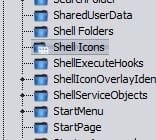
You will see in the regedit list the "Shell Icons" folder is open and has the correct icon.
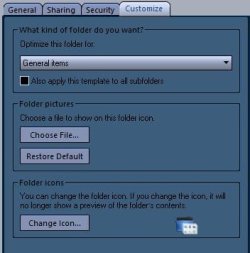
With the option to change icons per folder (Customize tab), it also shows the changed icon (blue). This image is from the folders cats customize tab (see images)

How ever in Explorer the folder icons stay the same yellow ones.

So, what do I need to do extra, since something I am missing here.

In regedit I set the path to the icon, like:
c:\Users\Ronald\Downloads\Documents\Folder Icons\Electric Grid\Folder Open.ico
I tried with quotes and without quotes, both give the same results.

Windows 8.1

Thanks, Ron
 

Attachments

  • folders.JPG
    folders.JPG
    10.2 KB · Views: 502
  • shell icons.JPG
    shell icons.JPG
    15.9 KB · Views: 455
  • customize.JPG
    customize.JPG
    29.3 KB · Views: 451

My Computer

Computer type
PC/Desktop
Computer Manufacturer/Model Number
HP Envy 700-540d
OS
Windows 8.1 64bit
CPU
Core i7-4790 3.60MHz
Motherboard
Kaili2
Memory
8 GB DDR3
Graphics Card(s)
Nvidia GTX 745 - 4GB
Sound Card
Intergrated 7.1
Monitor(s) Displays
Samsung 24"
Screen Resolution
1920x1080
Hard Drives
Sata 2TB
Internet Speed
6Mbits - 1Mbits (Thailand is slow)
Antivirus
AVG 2015
Browser
FF
Other Info
Dutch guy, living in Thailand

http://support.hp.com/th-th/document/c04535723
Back
Top