
Solved "Open with..." Problem: Will not change Default Program

LostAtSea

New member
Local time
5:04 PM
Messages
4
Problem: All .max files on my PC automatically open with Adobe Acrobat (obviously the incorrect program).

If I go to "Open with..." only Adobe Acrobat is available.

Clicking "Browse.." and trying to change the program yields no change.

I haven't tried uninstalling (then reinstalling) either program yet, as I am using both of them frequently for a university assignment.
HwD6q.jpg

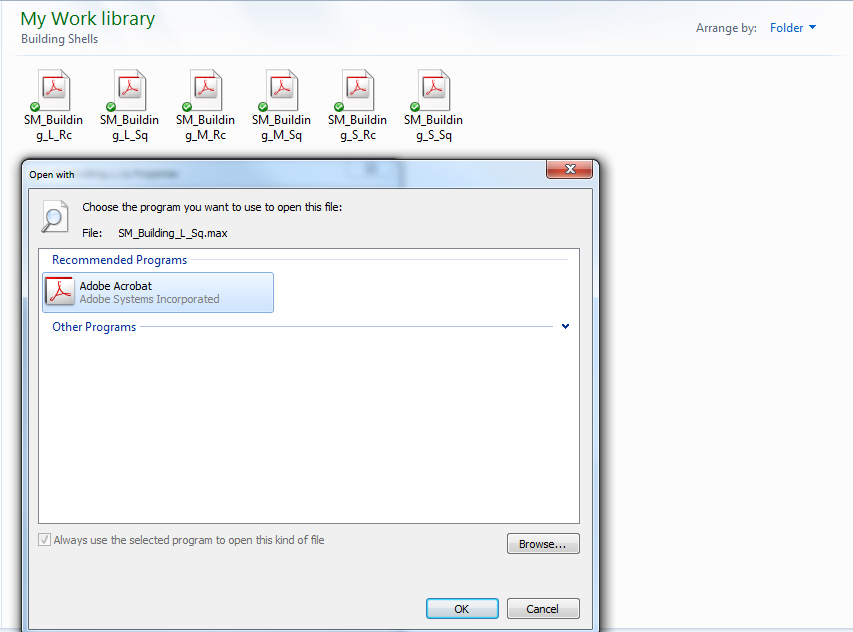
Here is a screenshot of my "Open With" window, along with other .max files in the background.

I can open .max files from Autodesk 3ds Max, but this is more tedious and time consuming than it sounds, and it isn't really a solution.

Help me Obi Wa... I mean Seven Forums, you are my only hope.
 

My Computer

OS
Windows 7 Ultimate x64
Hmmm, I think this might possibly be a Max problem.

Via "Control panel - Default programs - Set associations" I can change the program to any program, other than 3ds Max
 

My Computer

OS
Windows 7 Ultimate x64
Hello LostAtSea, and welcome to Seven Forums.

When you were using Open with, were you able to select Autodesk 3ds Max, or select the .exe file for the Autodesk 3ds Max program while browsing?

If you go into Set your default programs instead, is Autodesk 3ds Max listed to be able to set it as the default program for all of it's associations?
 

My Computer

Computer type
PC/Desktop
Computer Manufacturer/Model Number
Self built custom
OS
64-bit Windows 11 Pro for Workstations
CPU
Intel i7-8700K OC'd to 5 GHz
Motherboard
ASUS ROG Maximus XI Formula Z390
Memory
64 GB (4x16GB) G.SKILL TridentZ RGB DDR4 3600 MHz
Graphics Card(s)
ASUS ROG-STRIX-GTX1080TI-O11G-GAMING
Sound Card
Integrated
Monitor(s) Displays
2 x Samsung Odyssey G7 27"
Screen Resolution
2560x1440
Hard Drives
1TB Samsung 990 PRO M.2,
4TB Samsung 990 PRO PRO M.2,
TerraMaster F8 SSD Plus NAS
PSU
Seasonic Prime Titanium 850W
Case
Thermaltake Core P3
Cooling
Corsair Hydro H115i
Keyboard
Logitech wireless K800
Mouse
Logitech MX Master 4
Internet Speed
2 Gb/s Download and 100 Mb/s Upload
Antivirus
Malwarebyte Anti-Malware Premium
Browser
Google Chrome
Other Info
Logitech Z625 speaker system,
Logitech BRIO 4K Pro webcam,
HP Color LaserJet Pro MFP M477fdn,
APC SMART-UPS RT 1000 XL - SURT1000XLI,
Galaxy S23 Plus phone
Sorry, I should have stated that I can click on the Autodesk 3ds Max .exe but it doesn't change anything and takes me back to the suggested programs list. It only does this for the Autodesk 3ds Max .exe though. I can for example change it so the file opens with Word, or Excel, or Flash etc. but not Max.
 

My Computer

OS
Windows 7 Ultimate x64

My Computer

Computer type
PC/Desktop
Computer Manufacturer/Model Number
Self built custom
OS
64-bit Windows 11 Pro for Workstations
CPU
Intel i7-8700K OC'd to 5 GHz
Motherboard
ASUS ROG Maximus XI Formula Z390
Memory
64 GB (4x16GB) G.SKILL TridentZ RGB DDR4 3600 MHz
Graphics Card(s)
ASUS ROG-STRIX-GTX1080TI-O11G-GAMING
Sound Card
Integrated
Monitor(s) Displays
2 x Samsung Odyssey G7 27"
Screen Resolution
2560x1440
Hard Drives
1TB Samsung 990 PRO M.2,
4TB Samsung 990 PRO PRO M.2,
TerraMaster F8 SSD Plus NAS
PSU
Seasonic Prime Titanium 850W
Case
Thermaltake Core P3
Cooling
Corsair Hydro H115i
Keyboard
Logitech wireless K800
Mouse
Logitech MX Master 4
Internet Speed
2 Gb/s Download and 100 Mb/s Upload
Antivirus
Malwarebyte Anti-Malware Premium
Browser
Google Chrome
Other Info
Logitech Z625 speaker system,
Logitech BRIO 4K Pro webcam,
HP Color LaserJet Pro MFP M477fdn,
APC SMART-UPS RT 1000 XL - SURT1000XLI,
Galaxy S23 Plus phone
Thanks Brink. I had actually found this before posting on here and it didn't help me at the time, however after going back and reviewing it, I realised that I had missed something very crucial out.

My problem is now fixed! Huzzah!

Thanks once again for all the help.
 

My Computer

OS
Windows 7 Ultimate x64
Great news. :)
 

My Computer

Computer type
PC/Desktop
Computer Manufacturer/Model Number
Self built custom
OS
64-bit Windows 11 Pro for Workstations
CPU
Intel i7-8700K OC'd to 5 GHz
Motherboard
ASUS ROG Maximus XI Formula Z390
Memory
64 GB (4x16GB) G.SKILL TridentZ RGB DDR4 3600 MHz
Graphics Card(s)
ASUS ROG-STRIX-GTX1080TI-O11G-GAMING
Sound Card
Integrated
Monitor(s) Displays
2 x Samsung Odyssey G7 27"
Screen Resolution
2560x1440
Hard Drives
1TB Samsung 990 PRO M.2,
4TB Samsung 990 PRO PRO M.2,
TerraMaster F8 SSD Plus NAS
PSU
Seasonic Prime Titanium 850W
Case
Thermaltake Core P3
Cooling
Corsair Hydro H115i
Keyboard
Logitech wireless K800
Mouse
Logitech MX Master 4
Internet Speed
2 Gb/s Download and 100 Mb/s Upload
Antivirus
Malwarebyte Anti-Malware Premium
Browser
Google Chrome
Other Info
Logitech Z625 speaker system,
Logitech BRIO 4K Pro webcam,
HP Color LaserJet Pro MFP M477fdn,
APC SMART-UPS RT 1000 XL - SURT1000XLI,
Galaxy S23 Plus phone
Problem: All .max files on my PC automatically open with Adobe Acrobat (obviously the incorrect program).

If I go to "Open with..." only Adobe Acrobat is available.

Clicking "Browse.." and trying to change the program yields no change.

I haven't tried uninstalling (then reinstalling) either program yet, as I am using both of them frequently for a university assignment.

HwD6q.jpg

Here is a screenshot of my "Open With" window, along with other .max files in the background.

I can open .max files from Autodesk 3ds Max, but this is more tedious and time consuming than it sounds, and it isn't really a solution.

Help me Obi Wa... I mean Seven Forums, you are my only hope.


I almost went crazy trying to resolve this issue! My issue started with IE always asking me to let it be the default browser. I discovered that the .html file types were not assigned to a program and none of the usual step would allow me to assign it. I finally stumbled on the solution and feel obliged to enter it on this forum in order to save someone else's sanity.
Here are the steps I used:
  1. Click the "Start" button, type "regedit" and press "Enter" while holding the "Ctrl" and "Shift" keys.
  2. Click "Continue" in the confirmation window, or type the administrator password, if requested.
  3. Navigate to "HKEY_CURRENT_USER\Software\Classes" in the Registry Editor. Right-click the extension under "Classes," select "Delete" and click "Yes" in the confirmation window.
  4. Navigate to "HKEY_CURRENT_USER\Software\Microsoft\Windows\CurrentVersion\Explorer\FileExt." Right-click the extension under the "FileExt" folder in the left-hand pane, and select "Delete." Click "Yes" in the confirmation window.
  5. Test that the association has been removed by double-clicking it from Windows Explorer. If it opens an associated program, then continue the procedure. If it asks you to choose a program, then the association has been removed.
  6. Hold the "Ctrl" key and press "F" to search the Registry. Enter ".EXT", replacing "EXT" with the actual extension, and press "Enter." Right-click any folder from the right-hand pane that is named after that extension, and delete it. This step may be unnecessary, but some programs place additional entries in randomly named folders.
  7. Use the "Default Programs" dialog to set the association as normal.
After further investigation, I found that the original problem was caused by a badly coded program uninstall procedure file.
 

My Computer

Computer type
Laptop
Computer Manufacturer/Model Number
Alienware M18x
OS
Windows 7 Professional x64
CPU
Intel Core i7-2760QM 2.40GHz
Memory
32GB Dual-channel
Graphics Card(s)
GeForce GTX 560M
Hard Drives
Twin Kingston 240GB SATA III SSD RAID 1 Mirroring
Antivirus
Webroot SecureAnywhere
Browser
IE 11
Back
Top