
How to Configure Opera's "Speed Dial"
Information
In the next few minutes you will be learning how to configure and use Opera's "Speed Dial" feature. This tutorial includes full information about usage of all speed dial features and does not require any Opera plugins.
Note
Make sure you are using Opera 10 or Opera 10.10, as you will need the latest version to have access to these features. It is highly recommended to use a clean copy of Opera with no mods/ad-ons.
Step One - Basics:
The first time you start Opera, your screen will probably be either blank, or will be divided into a 3x3 square layout. If your screen is blank Right Click anywhere and select "Configure Speed Dial". A small window will appear. At the bottom of the window uncheck "Hide Speed Dial". Now we're ready.
Let's begin by adding our favourite websites to the board. To add a website to the tile you prefer simply click the tile and either type in the adress manually, select one of the frequently visited pages, or select one of your currently open tabs as the website. Once you have made your decision, click OK. The website will load, and will be set to the tile you selected. Also, a thumbnail of the website will appear. This helps easier recognition of the websites. To access a website, simply click it's thumbnail.
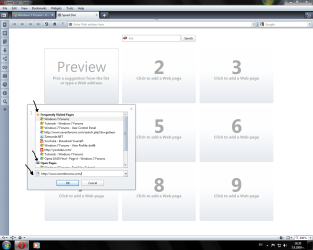
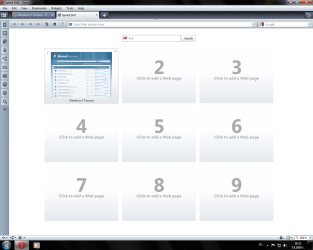
Configure the speed dial as you like, here are my two usual configurations:


If this is enough for you, then you are finished! If you are the customizable type though, continue to step two, there you will learn about the freedom to have many website shortcuts in one page, and how get more stylish with a background or Opera skin.
Step Two - Advanced Features:
Now, let's get more serious, let's make this "Speed Dial" the coolest! We will begin by increasing the number of websites in the Speed Dial. Right click the side of the speed dial background and select "Configure Speed Dial". A pop-up box appears immediately. Select how big you want your grid to be. I'll take 5x5, thank you! Aww man! My last 2 websites couldn't fit! Anyway you'll probably end up with something like this when finished filling:
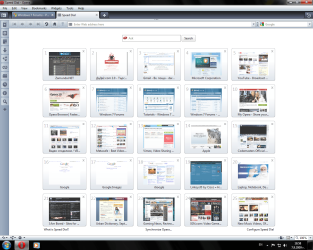
Perfect, eh? Now let's continue by adding an Opera Skin. The Opera Skins website offers a huge variety of skins to customize opera with. Something bright? Something dark? You got it! After choosing a skin press "Download" and after a while you will have the skin. You will be asked if you want to keep the skin applied after the download. You'd probably answer "Yes". Great! Now we're looking much better. Here's how I look like:

Pretty stylish, really finishes up the touch. But wait! There's more to customize! Right click the side of the Speed Dial again and choose "Configure Speed Dial". Go to that setting called "Enable Background Image" and check it's box. Now you can browse your computer and find an image which fits as your speed dial background best!
Note
It's recommend using an image as big as your screen resolution.
Here are my two most frequently used sets:
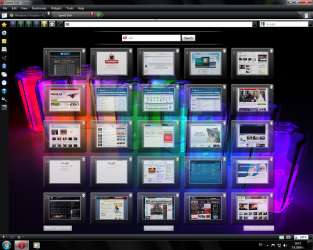
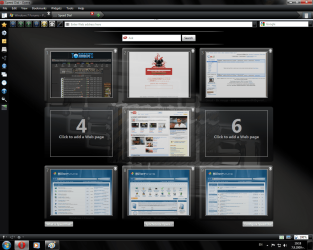
Still feel like configuring? The Opera Advanced Settings might help! Tweak freely!!! Also try out Opera Debugger, Opera History, Opera History Search, Opera Plugins and last, but not least Opera Info.
That's It!
-D.W.96
Last edited by a moderator:


