
Outlook 2010 - Always Send from Default Account

How to Always Send New Email from Default Account in Outlook 2010


Outlook 2010 lacks a true default account when there are multiple accounts delivered to different pst files in the profile. Outlook uses the account assigned to the pst the folder is in for new messages, not the default account assigned in Account Settings.

Someone wrote a macro that gets around this (see here: Exchange Messaging Outlook August 19 2010) Problem with this is, if you have both imap and pop3 accounts, Outlook will use the pop3 not the “default” account.


This guide will show you how to create a “New Mail” button on Outlook’s Home tab which will always send from your default account.

In Outlook press Alt+F11and open ThisOutlookSession and paste in the following code:

Public Sub New_Mail()
Dim oAccount As Outlook.Account
Dim oMail As Outlook.MailItem
For Each oAccount In Application.Session.Accounts
If oAccount = "Name of Default Account" Then
Set oMail = Application.CreateItem(olMailItem)
oMail.SendUsingAccount = oAccount
oMail.Display
End If
Next
End Sub
Make sure you change the bold to the name of your default account
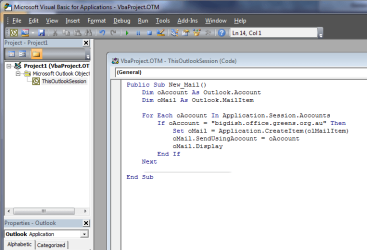


1.PNG


1. Click File :ar: Save and close the VB window​


2. Back in Outlook, click File :ar: Options :ar: Customize Ribbon


3. From the “Choose commands from” drop box select Macros
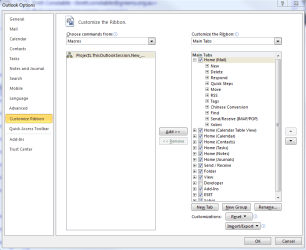


2.PNG


4. Under Main Tabs click Home (Mail) and down the bottom click “New Group”

5. You can then click “Rename” and change the name

6. Click the macro in the left panel and “Add” to the New Group
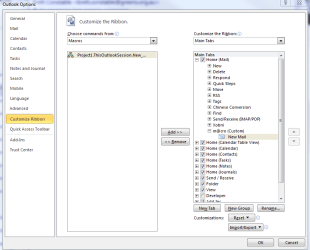

4.PNG


7. You can now click “Rename” and call it “New Mail” (or whatever you’d like)
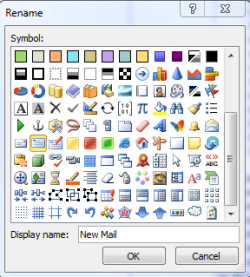

3.PNG


8. Click OK and you’ll now see a “New Mail” button on the Outlook ribbon


5.PNG


9. Now click File :ar: Options :ar: Trust Centre :ar: Trust Centre Settings :ar: Macro Settings and make sure “Notifications for all macros” is selected


Finished


Now when you want to send new mail from your default account just use this button
 
Last edited by a moderator:
Custom Buttons

Took your idea one step further and created custom Reply, Reply All and Forward buttons.

In Outlook:

1. Press alt + F11. This will open up the MS Visual Basic for Applications window.
a. This is where we’ll input the code for our custom Reply, Reply All and Forward buttons.
2. Expand the Project1 tree, then right click on the Microsoft Outlook Objects folder.
a. Chose Insert, then Module
b. This will create a Modules folder and a Module beneath it. Double click on that module
3. In the blank area copy and paste the following code (be sure to change “Account Name” to the Outlook account name for your Domain B. Keep the quotes:
Public Sub New_Mail()
Dim oAccount As Outlook.Account
Dim oMail As Outlook.MailItem
For Each oAccount In Application.Session.Accounts
If oAccount = "Account Name" Then
Set oMail = Application.ActiveExplorer.Selection(1).Reply
oMail.SendUsingAccount = oAccount
oMail.Display
End If
Next
End Sub
4. Click in the Name row in the Properties window on the left. Change Module1 (2,3, etc) to Reply.
5. Click on the Modules folder and do Insert then Module
a. This creates a new module. Double click and insert the following text
Public Sub New_Mail()
Dim oAccount As Outlook.Account
Dim oMail As Outlook.MailItem
For Each oAccount In Application.Session.Accounts
If oAccount = "Account Name" Then
Set oMail = Application.ActiveExplorer.Selection(1).ReplyAll
oMail.SendUsingAccount = oAccount
oMail.Display
End If
Next
End Sub
6. Click in the Name row in the Properties window on the left. Change Module1 (2,3, etc) to ReplyAll
7. Click on the Modules folder and do Insert then Module again (last time)
a. Double click and insert the following text
Public Sub New_Mail()
Dim oAccount As Outlook.Account
Dim oMail As Outlook.MailItem
For Each oAccount In Application.Session.Accounts
If oAccount = "Account Name" Then
Set oMail = Application.ActiveExplorer.Selection(1).Forward
oMail.SendUsingAccount = oAccount
oMail.Display
End If
Next
End Sub
8. Go to File and Save VbaProjectOTM
a. Go to File and click Close and return to Microsoft Outlook
9. Now we’ll add the actual buttons to our ribbon. You’ll need to do these steps for your main ribbon (seen in the Inbox) and the ribbon you see when you open a new mail message.
10. Go to File, then Options, Customize Ribbon.
a. Click the dropdown for Choose commands from and click Macros
11. On the right side highlight Home(Mail) and click New Group at the bottom
a. Right click and chose Rename. Enter whatever name you like
b. Make sure this new folder is highlighted
12. On the left highlight each Macro (ex: Project1.Project1.Reply.New_Mail) and click Add
a. Continue until all three Macros are listed in the new folder on the right.
13. Right click on the first Macro and chose Rename
a. Pick a pretty icon and rename the Macro to the appropriate function (Reply for Reply, etc)
b. Optional: Right click the Respond folder and chose Remove to remove the original Reply, Forward, etc.
c. Continue with the other Macros then hit Ok
Your new buttons will now appear in the Ribbon and when clicked should give you messages with your Domain B listed as the sender.
 

My Computer

Computer Manufacturer/Model Number
None
OS
Windows 7 64 bit
CPU
Intel Core 2 Quad
Motherboard
MSI
Memory
8GB G Skill
Graphics Card(s)
Nvidia GeForce 8800GT
Sound Card
Onboard
Monitor(s) Displays
Samsung
Hard Drives
A bunch. All WD
Case
Off brand
Cooling
Fans
THANK YOU!!!!!!

TW33K, I don't know who you are, but thank you! :geek:

I've been bitten by the change in behaviour with Outlook 2010 with the default account that's used to send e-mail. This macro has brought back the functionality that I need.

I recognize that some may see the 2010 functionality as better, some may see it as worse, some may see it as a bug. In my eyes, I see it as a change and can understand why different people would want to see it behave differently. This Macro is extremely helpful!

With luck a future update to Outlook 2010 will provide options for how the behaviour works. Until then I have my new mail button that works as expected!

Cheers,
 

My Computer

OS
Windwos 7 Pro x64
Enable macros

Thank you. This worked! I do, however, get a message asking me to enable macros every time I open Outlook.
 

My Computer

OS
Windows 7 Home Premium 64 bit
Great tweak

Why would I need to worry about the reply? Reply should default to account sent to, correct?
 

My Computer

OS
Windows 7 home 32
You are awesome, thanks!

Now, I have a beautiful menu--reply, reply all and forward--in my Ribbon.

I POP 13 accounts and I wished I could force default send.

Can those macros be associated with shortcut keys?
 

My Computer

OS
Windows 7 Ultimate x64
Hi,

Do these instructions apply to the 2007 version ?
 

My Computer

Computer Manufacturer/Model Number
Asus N53v-DH 72
OS
windows 7 home premium 64bit
CPU
Intel(R) Core(TM) i7-2670QM CPU @ 2.20GHz
Motherboard
ASUSTeK Computer Inc
Memory
6049 MB
Graphics Card(s)
NVIDIA GeForce GT 540M (1024 MB)
Monitor(s) Displays
15.6
Screen Resolution
1920-1080
Hard Drives
ST9750420AS (698 GB, IDE)

C: (NTFS) 293.0 GB (229.9 GB free)
D: (NTFS) 380.6 GB (380.5 GB free)
Total Size 673.6 GB (610.4 GB free)
Keyboard
Standard
Mouse
Optical
Internet Speed
D-12877kbps U-370kbps

My Computer

Computer type
PC/Desktop
Computer Manufacturer/Model Number
Self assembled
OS
Windows 10 Home 64Bit
CPU
Intel Core i5 10400 @ 2.90GHz
Motherboard
Intel Corporation DG41WV (PROCESSOR)
Memory
8.00GB Single-Channel Unknown @ 1329MHz (16-20-20-38)
Sound Card
Realtek High Definition Audio
Monitor(s) Displays
DELL E170S
Screen Resolution
1280x1024 pixels
Hard Drives
931GB TOSHIBA DT01ACA100 (SATA)
238GB TEAM TM8PS7256G (SATA SSD)
Case
Nothing Fancy
Cooling
Fans
Keyboard
A4 Tech Co LTD
Mouse
A4 Tech Co Ltd/Logitech
Internet Speed
25 Mbps

My Computer

Computer Manufacturer/Model Number
Asus N53v-DH 72
OS
windows 7 home premium 64bit
CPU
Intel(R) Core(TM) i7-2670QM CPU @ 2.20GHz
Motherboard
ASUSTeK Computer Inc
Memory
6049 MB
Graphics Card(s)
NVIDIA GeForce GT 540M (1024 MB)
Monitor(s) Displays
15.6
Screen Resolution
1920-1080
Hard Drives
ST9750420AS (698 GB, IDE)

C: (NTFS) 293.0 GB (229.9 GB free)
D: (NTFS) 380.6 GB (380.5 GB free)
Total Size 673.6 GB (610.4 GB free)
Keyboard
Standard
Mouse
Optical
Internet Speed
D-12877kbps U-370kbps

My Computer

Computer type
PC/Desktop
Computer Manufacturer/Model Number
Self assembled
OS
Windows 10 Home 64Bit
CPU
Intel Core i5 10400 @ 2.90GHz
Motherboard
Intel Corporation DG41WV (PROCESSOR)
Memory
8.00GB Single-Channel Unknown @ 1329MHz (16-20-20-38)
Sound Card
Realtek High Definition Audio
Monitor(s) Displays
DELL E170S
Screen Resolution
1280x1024 pixels
Hard Drives
931GB TOSHIBA DT01ACA100 (SATA)
238GB TEAM TM8PS7256G (SATA SSD)
Case
Nothing Fancy
Cooling
Fans
Keyboard
A4 Tech Co LTD
Mouse
A4 Tech Co Ltd/Logitech
Internet Speed
25 Mbps

My Computer

Computer Manufacturer/Model Number
Asus N53v-DH 72
OS
windows 7 home premium 64bit
CPU
Intel(R) Core(TM) i7-2670QM CPU @ 2.20GHz
Motherboard
ASUSTeK Computer Inc
Memory
6049 MB
Graphics Card(s)
NVIDIA GeForce GT 540M (1024 MB)
Monitor(s) Displays
15.6
Screen Resolution
1920-1080
Hard Drives
ST9750420AS (698 GB, IDE)

C: (NTFS) 293.0 GB (229.9 GB free)
D: (NTFS) 380.6 GB (380.5 GB free)
Total Size 673.6 GB (610.4 GB free)
Keyboard
Standard
Mouse
Optical
Internet Speed
D-12877kbps U-370kbps

My Computer

Computer type
PC/Desktop
Computer Manufacturer/Model Number
Self assembled
OS
Windows 10 Home 64Bit
CPU
Intel Core i5 10400 @ 2.90GHz
Motherboard
Intel Corporation DG41WV (PROCESSOR)
Memory
8.00GB Single-Channel Unknown @ 1329MHz (16-20-20-38)
Sound Card
Realtek High Definition Audio
Monitor(s) Displays
DELL E170S
Screen Resolution
1280x1024 pixels
Hard Drives
931GB TOSHIBA DT01ACA100 (SATA)
238GB TEAM TM8PS7256G (SATA SSD)
Case
Nothing Fancy
Cooling
Fans
Keyboard
A4 Tech Co LTD
Mouse
A4 Tech Co Ltd/Logitech
Internet Speed
25 Mbps
Got it. Thanks Koolcat77.
 

My Computer

Computer Manufacturer/Model Number
Asus N53v-DH 72
OS
windows 7 home premium 64bit
CPU
Intel(R) Core(TM) i7-2670QM CPU @ 2.20GHz
Motherboard
ASUSTeK Computer Inc
Memory
6049 MB
Graphics Card(s)
NVIDIA GeForce GT 540M (1024 MB)
Monitor(s) Displays
15.6
Screen Resolution
1920-1080
Hard Drives
ST9750420AS (698 GB, IDE)

C: (NTFS) 293.0 GB (229.9 GB free)
D: (NTFS) 380.6 GB (380.5 GB free)
Total Size 673.6 GB (610.4 GB free)
Keyboard
Standard
Mouse
Optical
Internet Speed
D-12877kbps U-370kbps

My Computer

Computer type
PC/Desktop
Computer Manufacturer/Model Number
Self assembled
OS
Windows 10 Home 64Bit
CPU
Intel Core i5 10400 @ 2.90GHz
Motherboard
Intel Corporation DG41WV (PROCESSOR)
Memory
8.00GB Single-Channel Unknown @ 1329MHz (16-20-20-38)
Sound Card
Realtek High Definition Audio
Monitor(s) Displays
DELL E170S
Screen Resolution
1280x1024 pixels
Hard Drives
931GB TOSHIBA DT01ACA100 (SATA)
238GB TEAM TM8PS7256G (SATA SSD)
Case
Nothing Fancy
Cooling
Fans
Keyboard
A4 Tech Co LTD
Mouse
A4 Tech Co Ltd/Logitech
Internet Speed
25 Mbps
Add default email signature to macro

Is there a way to write a macro to add to this that will add a default signature to the macro button when you press reply? Thanks!
 

My Computer

OS
windows 7 32 bit
The code worked great for me! However i do have a questions. When i use the Reply All button it sends the e-mail to my new default account. Is there a way to stop that? Also, where do i find the option to customize the ribbon on the message screen to customize the buttons there as well?
Thanks for your help!
 

My Computer

OS
Windows 7 64bit
Doesn't work. I followed the directions to the letter, and got an icon on the toolbar as predicted, but clicking on it gets no response, even with macros enabled, &c. I'm running Outlook 2010 under Windows 7, both with SP1 installed. I've tried every way to get me "Send From" to default to my IMAP account, but in always defaults to my POP3 account, no matter what my settings are or how many subterfuges I try, including this one.
 

My Computer

Computer Manufacturer/Model Number
HP a6800z
OS
Windows 7 64 Pro
CPU
AMD Athlon
Memory
4gb
Monitor(s) Displays
HDMI
Hard Drives
500gb, 1tb, 32gb flash drive
Reply from selected message only!

Took your idea one step further and created custom Reply, Reply All and Forward buttons.

In Outlook:

1. Press alt + F11. This will open up the MS Visual Basic for Applications window.
a. This is where we’ll input the code for our custom Reply, Reply All and Forward buttons.
2. Expand the Project1 tree, then right click on the Microsoft Outlook Objects folder.
a. Chose Insert, then Module
b. This will create a Modules folder and a Module beneath it. Double click on that module
3. In the blank area copy and paste the following code (be sure to change “Account Name” to the Outlook account name for your Domain B. Keep the quotes:
Public Sub New_Mail()
Dim oAccount As Outlook.Account
Dim oMail As Outlook.MailItem
For Each oAccount In Application.Session.Accounts
If oAccount = "Account Name" Then
Set oMail = Application.ActiveExplorer.Selection(1).Reply
oMail.SendUsingAccount = oAccount
oMail.Display
End If
Next
End Sub
4. Click in the Name row in the Properties window on the left. Change Module1 (2,3, etc) to Reply.
5. Click on the Modules folder and do Insert then Module
a. This creates a new module. Double click and insert the following text
Public Sub New_Mail()
Dim oAccount As Outlook.Account
Dim oMail As Outlook.MailItem
For Each oAccount In Application.Session.Accounts
If oAccount = "Account Name" Then
Set oMail = Application.ActiveExplorer.Selection(1).ReplyAll
oMail.SendUsingAccount = oAccount
oMail.Display
End If
Next
End Sub
6. Click in the Name row in the Properties window on the left. Change Module1 (2,3, etc) to ReplyAll
7. Click on the Modules folder and do Insert then Module again (last time)
a. Double click and insert the following text
Public Sub New_Mail()
Dim oAccount As Outlook.Account
Dim oMail As Outlook.MailItem
For Each oAccount In Application.Session.Accounts
If oAccount = "Account Name" Then
Set oMail = Application.ActiveExplorer.Selection(1).Forward
oMail.SendUsingAccount = oAccount
oMail.Display
End If
Next
End Sub
8. Go to File and Save VbaProjectOTM
a. Go to File and click Close and return to Microsoft Outlook
9. Now we’ll add the actual buttons to our ribbon. You’ll need to do these steps for your main ribbon (seen in the Inbox) and the ribbon you see when you open a new mail message.
10. Go to File, then Options, Customize Ribbon.
a. Click the dropdown for Choose commands from and click Macros
11. On the right side highlight Home(Mail) and click New Group at the bottom
a. Right click and chose Rename. Enter whatever name you like
b. Make sure this new folder is highlighted
12. On the left highlight each Macro (ex: Project1.Project1.Reply.New_Mail) and click Add
a. Continue until all three Macros are listed in the new folder on the right.
13. Right click on the first Macro and chose Rename
a. Pick a pretty icon and rename the Macro to the appropriate function (Reply for Reply, etc)
b. Optional: Right click the Respond folder and chose Remove to remove the original Reply, Forward, etc.
c. Continue with the other Macros then hit Ok
Your new buttons will now appear in the Ribbon and when clicked should give you messages with your Domain B listed as the sender.


Thank you for this code, works great from the outlook window. In addition to adding these buttons to the ribbon on my home screen I added them to the ribbon inside of an open mail. They work here as well, however, it replies to whichever message I have selected in the main outlook window, not the message I have open. For example, if I were to leave 3 separate emails open, go back to the first one and press reply, it replies to which ever message was last selected in my main outlook window.


I'd love to have this work from inside mail messages as well. I am trying to push this out to a client but am not sure it will be sufficient as is. Any idea how to make this work from inside mail?

Thanks again for the code!
 

My Computer

OS
Win7 x64
Back
Top