
Parental Controls - Allow or Block Specific Programs

How to Allow or Block Specific Programs in Windows 7 Parental Controls

   Information
Using Parental Controls, you can allow or block specific programs from being used on your computer by standard user accounts.


Here's How:

1. Open the Control Panel (icons view), and click on Parental Controls.

2. If prompted by UAC, then click on Yes.

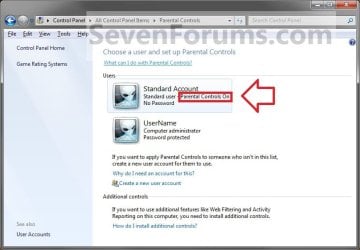
3. Select and click on the listed standard user account that you want to use Parental Controls to allow or block specific programs for. (see screenshot below)
Step3.jpg

4. Turn on Parental Controls for this standard user account if it is not already turned on for it.

5. Under Windows Settings, click on the Allow and block specific programs link. (see screenshot below)
Step2.jpg
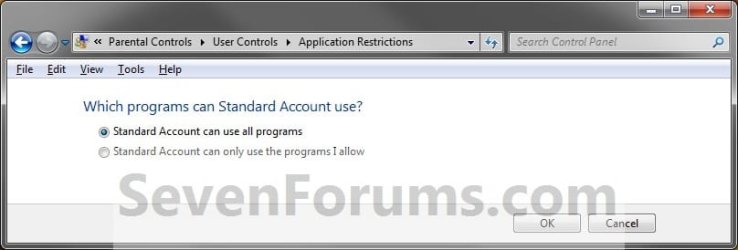
6. To Allow All Programs to Be Used by the Selected Standard User
A) Select (dot) Standard Account can use all programs, and click on OK. (see screenshot below)
Application_Restrictions.jpg
B) Go to step 8.
7. To Allow or Block Specific Programs to Be Used by the Selected Standard User
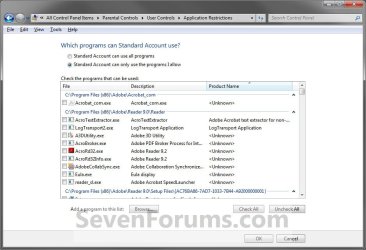
A) Select (dot) Standard Account can only use the programs I allow. (see screenshot below)
Application_Restrictions2.jpg
B) Select (check) all of the listed programs found on your computer that you want to allow to be used. (see screenshot above)
NOTE: If a program you want to allow or block doesn't appear in the list, then click on Browse to navigate to, select the program's EXE file, and click on Open to add it to the list.

   Warning
All unchecked programs will be blocked and not allowed to be used by the standard user account.


C) When done, click on OK. (see screenshot above)
8. Click on OK. (see screenshot below step 5)

9. Close the Parental Controls window. (see screenshot below step 3)

That's it,
Shawn


Last edited:
UAC -NO YES

Every time my UAC pops up there is only "no" that is live - no "yes" available - so i cant change anything or let anything in.:(
 

My Computer

OS
Windows 7 Home Premium 32bit.

My Computer

Computer type
PC/Desktop
Computer Manufacturer/Model Number
Custom Build
OS
Windows 10 Pro x64
CPU
Intel Core i5 4440 @Stock
Motherboard
Gigabyte Z97 D3H
Memory
4 x 4GB HyperX Fury DDR3
Graphics Card(s)
Gigabyte GTX 1050Ti O4G
Sound Card
Integrated
Monitor(s) Displays
Dell P2417H
Screen Resolution
1920 x 1080
Hard Drives
Samsung EVO 850 120GB / Toshiba DT01ACA050 1TB 7200prm 32MB
PSU
Riotoro Onyx 750W
Case
NZXT H500 Black-Red
Cooling
Stock CPU + NZXT 120mm + 2x120mm red fans
Keyboard
Modecom Volcano Lanparty
Mouse
Asus ROG Gladius / DeepCool E-Pad Plus
Internet Speed
DOCSIS 50/3 Mbit
Browser
Google Chrome
Other Info
Asus K55VJ(i5 3210M, GT635M / 2GB, 8GB DDR3, 500GB HDD)
NOT ALLOWING PROGRAM ACCESS

I have a Dell laptop with Windows 7, I set up parental controls to allow or block specific programs. There were only 2 programs that I wanted to block my other user from accessing, all other programs are allowed. One of the programs that is marked as allowed won't open under the user that has the parental controls on it. How do I allow that user access other than just checking that program in the parental controls?
 

My Computer

Computer type
PC/Desktop
OS
WINDOWS 7
Hell AMERIC, and welcome to Seven Forums. :)

The Parental Control settings in this tutorial are for only allowing programs you check to be run by the account.
 

My Computer

Computer type
PC/Desktop
Computer Manufacturer/Model Number
Self built custom
OS
64-bit Windows 11 Pro for Workstations
CPU
Intel i7-8700K OC'd to 5 GHz
Motherboard
ASUS ROG Maximus XI Formula Z390
Memory
64 GB (4x16GB) G.SKILL TridentZ RGB DDR4 3600 MHz
Graphics Card(s)
ASUS ROG-STRIX-GTX1080TI-O11G-GAMING
Sound Card
Integrated
Monitor(s) Displays
2 x Samsung Odyssey G7 27"
Screen Resolution
2560x1440
Hard Drives
1TB Samsung 990 PRO M.2,
4TB Samsung 990 PRO PRO M.2,
TerraMaster F8 SSD Plus NAS
PSU
Seasonic Prime Titanium 850W
Case
Thermaltake Core P3
Cooling
Corsair Hydro H115i
Keyboard
Logitech wireless K800
Mouse
Logitech MX Master 4
Internet Speed
2 Gb/s Download and 100 Mb/s Upload
Antivirus
Malwarebyte Anti-Malware Premium
Browser
Google Chrome
Other Info
Logitech Z625 speaker system,
Logitech BRIO 4K Pro webcam,
HP Color LaserJet Pro MFP M477fdn,
APC SMART-UPS RT 1000 XL - SURT1000XLI,
Galaxy S23 Plus phone
I just made account for my son and set parental control for this user. But you can only choose program can run by user, don't have any option to block any program.

I add skype, work, exel to the list allow program. After that, I log to my son account for test, and I see that he still use another program as I ?????
 

My Computer

Computer type
PC/Desktop
OS
Windows 7 Ultimate x64
Hello thinhkieuphong, and welcome to Seven Forums. :)

Just to confirm, if Parental Control currently turned on for your son's "standard user" account?

Double check to make sure that the programs you wanted to block are unchecked in the list.
 

My Computer

Computer type
PC/Desktop
Computer Manufacturer/Model Number
Self built custom
OS
64-bit Windows 11 Pro for Workstations
CPU
Intel i7-8700K OC'd to 5 GHz
Motherboard
ASUS ROG Maximus XI Formula Z390
Memory
64 GB (4x16GB) G.SKILL TridentZ RGB DDR4 3600 MHz
Graphics Card(s)
ASUS ROG-STRIX-GTX1080TI-O11G-GAMING
Sound Card
Integrated
Monitor(s) Displays
2 x Samsung Odyssey G7 27"
Screen Resolution
2560x1440
Hard Drives
1TB Samsung 990 PRO M.2,
4TB Samsung 990 PRO PRO M.2,
TerraMaster F8 SSD Plus NAS
PSU
Seasonic Prime Titanium 850W
Case
Thermaltake Core P3
Cooling
Corsair Hydro H115i
Keyboard
Logitech wireless K800
Mouse
Logitech MX Master 4
Internet Speed
2 Gb/s Download and 100 Mb/s Upload
Antivirus
Malwarebyte Anti-Malware Premium
Browser
Google Chrome
Other Info
Logitech Z625 speaker system,
Logitech BRIO 4K Pro webcam,
HP Color LaserJet Pro MFP M477fdn,
APC SMART-UPS RT 1000 XL - SURT1000XLI,
Galaxy S23 Plus phone
Back
Top