Partition / Extended : Logical Drives

How to Create Extended Partition / Logical Drives Where Needed

The Windows Master Boot Record (MBR) partition structure supports a total of only four (4) partitions per Hard Disk Drive / Solid State Drive, they can be either 4 Primary partitions or three (3) Primary partitions and a single (1) Extended partition.
This shows the different methods to create an Extended partition wherever you need one so you can create as many Logical drives as there are available drive letters that can be used to install a Windows Operating System or for data storage.
   Warning

As with anything that makes changes to the Windows structure there is always the chance for an error to occur, it would be advisable to make reliable backups to the external media of your choice of any important data, i.e. pictures, music or documents, that you would not want to lose before you make any changes to your system, it is always better to be safe than sorry.

Let's get started!
If there are 3 existing Primary partitions on the HDD / SSD already, the fourth partition created using Windows disk management will be an Extended partition by default.

To view the relevant information on the partition structure, type diskmgmt.msc in the Windows start menu search box, then right click the entry and click "Run as Administrator" if you should get a User Account Control (UAC) prompt enter your user credentials and click Yes.


Method One

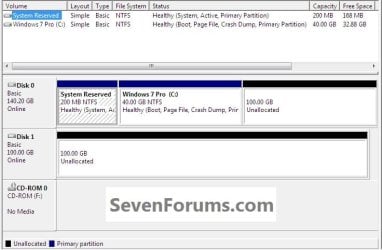
This is what I'll be starting with.
click any image to enlarge
Start.jpg
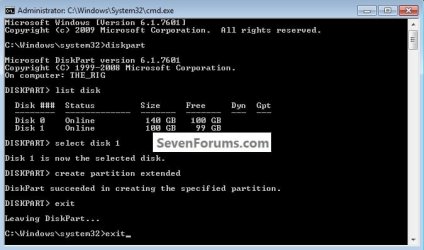
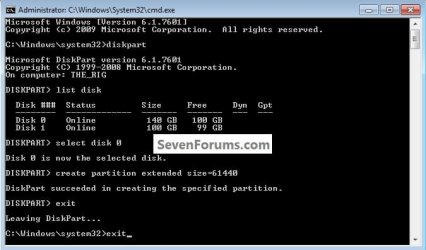
1) Open an elevated command prompt, in the command window that opens type diskpart and hit the <enter> key, all commands are followed by <enter>.

Here are the commands, click the images below to see how they are implemented.
list disk

select disk # (# = target disk number)

create partition extended

exit (2 times to close the command window)
If you need to create a specific size Extended partition, use this command.
create partition extended size=61440 <- 60GB
It has to be entered as MB and 1024MB = 1GB so 1024x60 = 61440

You can create any size you need using the formula above.
disko_size.jpg
disk1.jpg
disk0_size_2.jpg
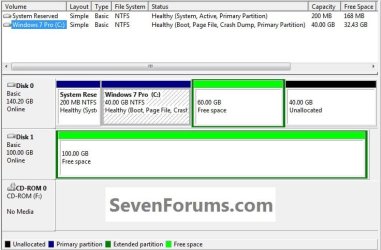
2) Now in Windows disk management right click the Extended partition Free Space to create Logical drive(s) as needed, anything created within an Extended will be a Logical drive by default.

You can create as many Logical drives within an Extended partition as there are available drive letters; you can create and name the drives in any way you like, this is just an example.
Logical.jpg


Method Two

Here's the situation a lot of people are finding themselves in when purchasing a factory built PC these days, a single HDD and all the partitions taken by the manufacturer, leaving no chance of creating any additional partitions.
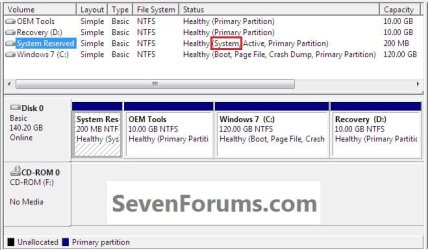
The fortunate side of a layout like this is the use of the new Windows 7 System Reserved partition and it being the System Volume, where the Windows boot files are stored.

If this is the situation you're in, after you have made back-ups of the data you need to save to external media and created the set of factory recovery disks or better still, created a complete image of the entire HDD to external media that can be restored if the need ever arises, have a look at the information below.
click image to enlarge
2.1.jpg
   Warning

If you do not have the Windows System Reserved or a System Primary partition completely separate from the Windows 7 partition present that is marked as the "System" partition in disk management do not attempt this, if you do Windows will not boot as Windows will not/is not able to boot / start independently from an Extended partition Logical drive, the system boot files must be stored on a Primary partition to execute.

Windows XP users, do not do this or XP will not boot at all.

Start by downloading the Partition Wizard Bootable ISO file from either link below then use the Windows 7 USB/DVD Download Tool to create a bootable DVD or USB flash drive.

Partition Wizard Free Bootable CD

OR

Partition Wizard Bootable Flash Drive
To boot the disk, in the BIOS set the PC boot order to boot first from the CD/DVD or USB drive, insert the PWBD and restart the PC, it'll take a few minutes for it to setup with no input at all from the user needed.
Once the program has started you can remove the CD/DVD or USB if you like.

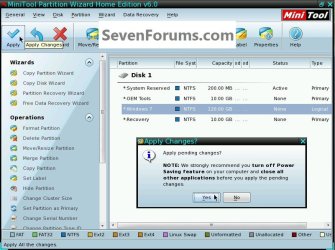
1) In the Partition Wizard program, right click the Windows 7 partition and click Modify then Set as Logical; then at the top left Action bar click Apply; then click Yes for the conformation dialog box.
click any image to enlarge
2.2.jpg
2.3.jpg
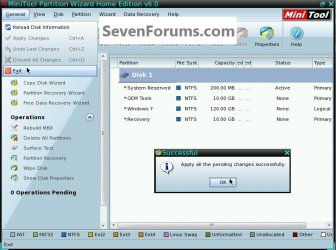
2) You will get a Pending window but that just takes seconds to complete and then click OK for the Successful dialog box.

Then remove the PWBD from the CD/DVD or USB drive and at the upper left corner click General then Exit to close the Partition Wizard program and restart Windows 7.
2.8.1.jpg
Restart Windows a couple times before you proceed to make sure all is well.

In the Windows 7 start menu search box type diskmgmt.msc then right click the entry and click "Run as Administrator" if you get a User Account Control (UAC) prompt enter your user credentials and click Yes.

3) In disk management right click the Windows 7 partition and click Shrink Volume you can accept the offered size or you can create a specific size, don't make Windows 7 too small so installed programs/apps have the needed room.
click any image to enlarge
2.5.jpg
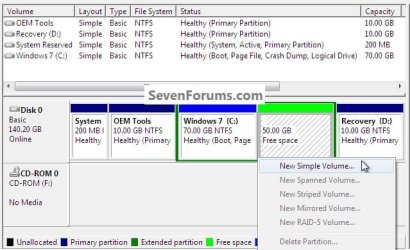
4) Now right click the new Extended partition Free Space and click New Volume to create the Logical drive(s) one at a time as needed.
2.6.jpg
It is suggested to restart Windows every time you make a change to let Windows 7 accept the changes to the system without issue.
2.7.jpg
Enjoy! :)


Last edited by a moderator:
Superb Tutorial, Mr. Partition Wizard :thumbsup:
 

My Computer

Computer type
PC/Desktop
Computer Manufacturer/Model Number
Self Assembled
OS
Microsoft Windows 10 Pro Insider Preview 64-bit
CPU
Intel(R) Core(TM) i3-4130 CPU @ 3.40GHz
Motherboard
Gigabyte Technology Co., Ltd. B85M-D3H
Memory
Corsair Vengence 4GB x2 (8.00GB Dual-Channel DDR3 @ 798MHz)
Graphics Card(s)
2047MB GeForce GTS 450 (ZOTAC International)
Sound Card
Onboard (Realtek High Definition Audio)
Monitor(s) Displays
LG Flatron E2040T
Screen Resolution
1600x900
Hard Drives
Western Digital 1 TB
Seagate 500 GB
PSU
Corsair VS550
Case
Cooler Master K380
Cooling
Cooler Master Seidon 120V Plus
Keyboard
Logitech MK260r
Mouse
Logitech MK260r
Internet Speed
PMPL Broadband
Antivirus
Windows Defender + MBAM
Browser
Firefox
Other Info
Dell Studio 15" Laptop
Thank you very much Archan. :)
 

My Computer

Computer Manufacturer/Model Number
* BFK Customs *
OS
W 7 64-bit Ultimate
CPU
Intel Q9550 Yorkfield
Motherboard
ASUS P5Q Pro
Memory
8GB Dominator 8500C5D
Graphics Card(s)
ATI : XFX 5870
Sound Card
Realtek HD Audio 7-1
Monitor(s) Displays
1x 47" LCD HDMI & 3x 26" LCD HDMI
Screen Resolution
1920x1080P & 1920x1200
Hard Drives
1x 80GB Intel X25-M G2 SSD : 1x 500GB & 1x 640GB WD Caviar Black(s)
PSU
Corsair 620HX
Case
Cooler Master RC-690
Cooling
Tuniq Tower 120, 2x 140mm and 3x 120mm case fans
Keyboard
Microsoft 500
Mouse
Razer Diamondback 3G
Internet Speed
14 Mb/s
Other Info
1x Koutech 3Gb/s SATA HDD Hot Swap Rack
so Method 2 is for converting a primary partition into an extended partition/logical volume.
Why cannot we Shrink the primary partition Windows 7 Pro (C: ) without being converted into extended/logical volume???

Can we convert the Primary partition Windows 7 Pro (C: ) into extended/logical volume using discpart????
 

My Computer

Computer Manufacturer/Model Number
HP/Compaq Presario CQ61
OS
Windows 7 Ultimate x86
CPU
2.2 GHz Intel Core 2 Duo Processor T6600
Memory
3072 MB (1 x 1024 MB + 1 x 2048 MB)
Graphics Card(s)
Intel Graphics Media Accelerator 4500MHD, 1309 MB total
Sound Card
Altec Lansing speakers
Monitor(s) Displays
15.6" Diagonal High Definition HP LED Brightview Infinity
Screen Resolution
1366 x 768
Hard Drives
320 GB SATA (5400 rpm)
Internet Speed
512kbps
so Method 2 is for converting a primary partition into an extended partition/logical volume.
Why cannot we Shrink the primary partition Windows 7 Pro (C: ) without being converted into extended/logical volume???
Hello goldencomet, welcome to Seven Forums!

You can, have a look at this tutorial at the link below, though you must keep in mind the MBR partition limit of four (4) partitions, if you try to force a fifth (5th) partition it may convert the entire disk to a Dynamic disk and that will mess up the way Windows boots and may disable Windows so it will not boot/start at all.

How to Shrink a Partition or Volume in Windows 7


Can we convert the Primary partition Windows 7 Pro (C: ) into extended/logical volume using discpart????

No you have to use the Partition Wizard Boot Disk (PWBD) diskpart won't do it.

First download the PWBD ISO file to the desktop, be sure to get the PWBD and not the installed version; scroll down to see the download link for the bootable CD ISO file at this link below.

Partition Wizard Free Bootable CD

Then use ImgBurn to burn the ISO to a CD, at no greater than 4x speed with a verify; it was designed for use and works best from a CD rather that a DVD then boot the created CD to make the changes.

ImgBurn Free ISO Burning Software
 

My Computer

Computer Manufacturer/Model Number
* BFK Customs *
OS
W 7 64-bit Ultimate
CPU
Intel Q9550 Yorkfield
Motherboard
ASUS P5Q Pro
Memory
8GB Dominator 8500C5D
Graphics Card(s)
ATI : XFX 5870
Sound Card
Realtek HD Audio 7-1
Monitor(s) Displays
1x 47" LCD HDMI & 3x 26" LCD HDMI
Screen Resolution
1920x1080P & 1920x1200
Hard Drives
1x 80GB Intel X25-M G2 SSD : 1x 500GB & 1x 640GB WD Caviar Black(s)
PSU
Corsair 620HX
Case
Cooler Master RC-690
Cooling
Tuniq Tower 120, 2x 140mm and 3x 120mm case fans
Keyboard
Microsoft 500
Mouse
Razer Diamondback 3G
Internet Speed
14 Mb/s
Other Info
1x Koutech 3Gb/s SATA HDD Hot Swap Rack
Yes Bare Foot Kid, you are right, currently i have four partitions and i have tried to create the volume but windows reported that it will convert the basic disk into dynamic disk and it wont be able to boot.

Thank you very much for the quick reply...... keep up the good work.
 

My Computer

Computer Manufacturer/Model Number
HP/Compaq Presario CQ61
OS
Windows 7 Ultimate x86
CPU
2.2 GHz Intel Core 2 Duo Processor T6600
Memory
3072 MB (1 x 1024 MB + 1 x 2048 MB)
Graphics Card(s)
Intel Graphics Media Accelerator 4500MHD, 1309 MB total
Sound Card
Altec Lansing speakers
Monitor(s) Displays
15.6" Diagonal High Definition HP LED Brightview Infinity
Screen Resolution
1366 x 768
Hard Drives
320 GB SATA (5400 rpm)
Internet Speed
512kbps
Yes Bare Foot Kid, you are right, currently i have four partitions and i have tried to create the volume but windows reported that it will convert the basic disk into dynamic disk and it wont be able to boot.

Thank you very much for the quick reply...... keep up the good work.


Hello again.


Correct, do not convert to a Dynamic disk; converting C: to an Extended/Logical drive should work as long as you have the new Windows 7 "System Reserved" partition or another separate partition presrent that is marked as the "System" volume, where the system boot files are stored.
 

My Computer

Computer Manufacturer/Model Number
* BFK Customs *
OS
W 7 64-bit Ultimate
CPU
Intel Q9550 Yorkfield
Motherboard
ASUS P5Q Pro
Memory
8GB Dominator 8500C5D
Graphics Card(s)
ATI : XFX 5870
Sound Card
Realtek HD Audio 7-1
Monitor(s) Displays
1x 47" LCD HDMI & 3x 26" LCD HDMI
Screen Resolution
1920x1080P & 1920x1200
Hard Drives
1x 80GB Intel X25-M G2 SSD : 1x 500GB & 1x 640GB WD Caviar Black(s)
PSU
Corsair 620HX
Case
Cooler Master RC-690
Cooling
Tuniq Tower 120, 2x 140mm and 3x 120mm case fans
Keyboard
Microsoft 500
Mouse
Razer Diamondback 3G
Internet Speed
14 Mb/s
Other Info
1x Koutech 3Gb/s SATA HDD Hot Swap Rack
Is it possible to convert the primary partition (C: ) to extended partition using the diskpart of the W7 installation disc???
 

My Computer

Computer Manufacturer/Model Number
HP/Compaq Presario CQ61
OS
Windows 7 Ultimate x86
CPU
2.2 GHz Intel Core 2 Duo Processor T6600
Memory
3072 MB (1 x 1024 MB + 1 x 2048 MB)
Graphics Card(s)
Intel Graphics Media Accelerator 4500MHD, 1309 MB total
Sound Card
Altec Lansing speakers
Monitor(s) Displays
15.6" Diagonal High Definition HP LED Brightview Infinity
Screen Resolution
1366 x 768
Hard Drives
320 GB SATA (5400 rpm)
Internet Speed
512kbps
Is it possible to convert the primary partition (C: ) to extended partition using the diskpart of the W7 installation disc???


No it's not, look at my first post to you above.
 

My Computer

Computer Manufacturer/Model Number
* BFK Customs *
OS
W 7 64-bit Ultimate
CPU
Intel Q9550 Yorkfield
Motherboard
ASUS P5Q Pro
Memory
8GB Dominator 8500C5D
Graphics Card(s)
ATI : XFX 5870
Sound Card
Realtek HD Audio 7-1
Monitor(s) Displays
1x 47" LCD HDMI & 3x 26" LCD HDMI
Screen Resolution
1920x1080P & 1920x1200
Hard Drives
1x 80GB Intel X25-M G2 SSD : 1x 500GB & 1x 640GB WD Caviar Black(s)
PSU
Corsair 620HX
Case
Cooler Master RC-690
Cooling
Tuniq Tower 120, 2x 140mm and 3x 120mm case fans
Keyboard
Microsoft 500
Mouse
Razer Diamondback 3G
Internet Speed
14 Mb/s
Other Info
1x Koutech 3Gb/s SATA HDD Hot Swap Rack
Hi Bare Foot Kid,
First of all I'm sorry to bring up an old thread, but I figure there's no need to start a new thread as my question is very relevant to the previous ones.

I'm writing from Italy because I have a problem about partition of my new HP DV6 6170 (1 basic HD, 4 Primary partitions). I have some questions:

1) I have already created recovery discs, and an image backup. Now it's possible convert "Recovery" to logical instead of C:?
I think in this way you lose the function F11 (recovery partition) and the ability to create recovery discs, but in addition to this:
a) the C: drive, even if it leans to the drive "system", remains primary, and having inside the OS this may be better (I'm afraid that changing C: boot I
could lose some functionality), do you agree?;
b) even losing the functionality of the F11 key, often you can recover it only by marking the partition as "active" from "disk management" (Start>
Control Panel> Administrative Tools> Computer Management> Disk Management>), it's right?

2) Why if I want to convert C: to logical I have to use necessarily Partition Wizard Free Bootable CD and not the version installed on PC? It would
be the same if I wanted to convert Recovery to logical?

Thanks a lot
 

My Computer

OS
Windows 7 Ultimate x64
Hi Bare Foot Kid,
First of all I'm sorry to bring up an old thread, but I figure there's no need to start a new thread as my question is very relevant to the previous ones.

I'm writing from Italy because I have a problem about partition of my new HP DV6 6170 (1 basic HD, 4 Primary partitions). I have some questions:

1) I have already created recovery discs, and an image backup. Now it's possible convert "Recovery" to logical instead of C:?
I think in this way you lose the function F11 (recovery partition) and the ability to create recovery discs, but in addition to this:
a) the C: drive, even if it leans to the drive "system", remains primary, and having inside the OS this may be better (I'm afraid that changing C: boot I
could lose some functionality), do you agree?;
b) even losing the functionality of the F11 key, often you can recover it only by marking the partition as "active" from "disk management" (Start>
Control Panel> Administrative Tools> Computer Management> Disk Management>), it's right?

2) Why if I want to convert C: to logical I have to use necessarily Partition Wizard Free Bootable CD and not the version installed on PC? It would
be the same if I wanted to convert Recovery to logical?

Thanks a lot

Hello Sonovaio, and welcome to Seven Forums.

You wouldn't want to convert the "Recovery" partition since that is your OEM factory recovery partition. If you do, you will no longer be able to use it to restore Windows 7 back to factory defaults with it. This also will cause you to lose the F11 function at boot to enter factory recovery.

If you wanted to convert the C: partition to logical to be able to shrink space from C: and create another partition from the unallocated space shrunk from C: , then you would need to use the Partition Wizard Free Bootable CD since the C: partition in the Windows 7 "system" partition and is in use. You would not be able to convert a "system" partition that is in use. You will not lose any functionality by converting the C: drive to logical instead of primary at boot.

Hope this helps,
Shawn
 
Last edited:

My Computer

Computer type
PC/Desktop
Computer Manufacturer/Model Number
Self built custom
OS
64-bit Windows 11 Pro for Workstations
CPU
Intel i7-8700K OC'd to 5 GHz
Motherboard
ASUS ROG Maximus XI Formula Z390
Memory
64 GB (4x16GB) G.SKILL TridentZ RGB DDR4 3600 MHz
Graphics Card(s)
ASUS ROG-STRIX-GTX1080TI-O11G-GAMING
Sound Card
Integrated
Monitor(s) Displays
2 x Samsung Odyssey G7 27"
Screen Resolution
2560x1440
Hard Drives
1TB Samsung 990 PRO M.2,
4TB Samsung 990 PRO PRO M.2,
TerraMaster F8 SSD Plus NAS
PSU
Seasonic Prime Titanium 850W
Case
Thermaltake Core P3
Cooling
Corsair Hydro H115i
Keyboard
Logitech wireless K800
Mouse
Logitech MX Master 4
Internet Speed
2 Gb/s Download and 100 Mb/s Upload
Antivirus
Malwarebyte Anti-Malware Premium
Browser
Google Chrome
Other Info
Logitech Z625 speaker system,
Logitech BRIO 4K Pro webcam,
HP Color LaserJet Pro MFP M477fdn,
APC SMART-UPS RT 1000 XL - SURT1000XLI,
Galaxy S23 Plus phone
Hello Brink, and thanks for your answer.

1) I know that converting the "Recovery" partition I will no longer be able to use it to restore Windows 7 back to factory defaults with it and this also will cause me to lose the F11 function at boot to enter factory recovery.
So I would like to know if I can resolve this problem with procedure of point 1b of my post ("even losing the functionality of the F11 key, often you can recover it only by marking the partition as "active" from "disk management": Start> Control Panel> Administrative Tools> Computer Management> Disk Management>. It's right?"), because someone in the italian forums says it's possible. Do you agree? Do you confirm this possibility?

2) I understand that the Partition Wizard Free Bootable CD is necessary to convert C: to logical. Now I ask you:
a) Bootable CD is necessary also if I want to convert Recovery (and not C:) to logical? Or it's possible to use version installed on PC?
b) Someone has converted C: with the version installed on pc and then everything seems fine, it seems there aren't problems on pc. How it's possible if you reccomend to use bootable CD? There may be problems not yet visible?

I'm sorry if my questions seems unclear or insistent, but having problems with the language I need you answer me point by point.

Thanks for your availability. :)
 

My Computer

OS
Windows 7 Ultimate x64
Answers inline. :)

First, I would strongly recommend to not mess with the "Recovery" partition at all to avoid not being able to use it to do a factory recovery of Windows 7 with it anymore.


1) I know that converting the "Recovery" partition I will no longer be able to use it to restore Windows 7 back to factory defaults with it and this also will cause me to lose the F11 function at boot to enter factory recovery.
So I would like to know if I can resolve this problem with procedure of point 1b of my post ("even losing the functionality of the F11 key, often you can recover it only by marking the partition as "active" from "disk management": Start> Control Panel> Administrative Tools> Computer Management> Disk Management>. It's right?"), because someone in the italian forums says it's possible. Do you agree? Do you confirm this possibility?
Possibly, but not always. That's why it's best to not mess with it.


2) I understand that the Partition Wizard Free Bootable CD is necessary to convert C: to logical. Now I ask you:
a) Bootable CD is necessary also if I want to convert Recovery (and not C: to logical? Or it's possible to use version installed on PC?
You should be able to convert "Recovery" from within Windows 7, and not have to at boot unless you just wanted to.

However, again, messing with "Recovery" is not advised.


b) Someone has converted C: with the version installed on pc and then everything seems fine, it seems there aren't problems on pc. How it's possible if you reccomend to use bootable CD? There may be problems not yet visible?
You could use either method (at boot or in Windows 7) that you like. I personally just find it easier and to have less chances of an error to do it at boot using METHOD TWO in the tutorial instead. That's all. :)
 

My Computer

Computer type
PC/Desktop
Computer Manufacturer/Model Number
Self built custom
OS
64-bit Windows 11 Pro for Workstations
CPU
Intel i7-8700K OC'd to 5 GHz
Motherboard
ASUS ROG Maximus XI Formula Z390
Memory
64 GB (4x16GB) G.SKILL TridentZ RGB DDR4 3600 MHz
Graphics Card(s)
ASUS ROG-STRIX-GTX1080TI-O11G-GAMING
Sound Card
Integrated
Monitor(s) Displays
2 x Samsung Odyssey G7 27"
Screen Resolution
2560x1440
Hard Drives
1TB Samsung 990 PRO M.2,
4TB Samsung 990 PRO PRO M.2,
TerraMaster F8 SSD Plus NAS
PSU
Seasonic Prime Titanium 850W
Case
Thermaltake Core P3
Cooling
Corsair Hydro H115i
Keyboard
Logitech wireless K800
Mouse
Logitech MX Master 4
Internet Speed
2 Gb/s Download and 100 Mb/s Upload
Antivirus
Malwarebyte Anti-Malware Premium
Browser
Google Chrome
Other Info
Logitech Z625 speaker system,
Logitech BRIO 4K Pro webcam,
HP Color LaserJet Pro MFP M477fdn,
APC SMART-UPS RT 1000 XL - SURT1000XLI,
Galaxy S23 Plus phone
Thank you Brink! Very exhaustive answers! Great! ;)

One last thing: I would like to explain that when I said "program installed on pc" I was not referring at "Windows 7 program" but at the same program of bootable cd (Partition Wizard, directly installed on pc... or Easus Partition Master for example...).
Do you think it's the same? So, could I use either method (at boot or with Partition Wizard/Easus Partition Master installed on pc) that I like, but dou you think that also in this way I have less chances of an error to do it with bootable cd?

Thanks so much!!!
 

My Computer

OS
Windows 7 Ultimate x64
You're welcome.

I would recommend to use the bootable CD version to have less chances of any issues. :)
 

My Computer

Computer type
PC/Desktop
Computer Manufacturer/Model Number
Self built custom
OS
64-bit Windows 11 Pro for Workstations
CPU
Intel i7-8700K OC'd to 5 GHz
Motherboard
ASUS ROG Maximus XI Formula Z390
Memory
64 GB (4x16GB) G.SKILL TridentZ RGB DDR4 3600 MHz
Graphics Card(s)
ASUS ROG-STRIX-GTX1080TI-O11G-GAMING
Sound Card
Integrated
Monitor(s) Displays
2 x Samsung Odyssey G7 27"
Screen Resolution
2560x1440
Hard Drives
1TB Samsung 990 PRO M.2,
4TB Samsung 990 PRO PRO M.2,
TerraMaster F8 SSD Plus NAS
PSU
Seasonic Prime Titanium 850W
Case
Thermaltake Core P3
Cooling
Corsair Hydro H115i
Keyboard
Logitech wireless K800
Mouse
Logitech MX Master 4
Internet Speed
2 Gb/s Download and 100 Mb/s Upload
Antivirus
Malwarebyte Anti-Malware Premium
Browser
Google Chrome
Other Info
Logitech Z625 speaker system,
Logitech BRIO 4K Pro webcam,
HP Color LaserJet Pro MFP M477fdn,
APC SMART-UPS RT 1000 XL - SURT1000XLI,
Galaxy S23 Plus phone
Thank you!

Converting C: drive I will not lose any functionality. And for security? C: as logical is equally protected from outside attacks (virus, key registry... others attacks) or less protected?

Thanks
 

My Computer

OS
Windows 7 Ultimate x64
You're most welcome Sonovaio.

There will be no other differences other than it being a logical partition instead of primary. :)
 

My Computer

Computer type
PC/Desktop
Computer Manufacturer/Model Number
Self built custom
OS
64-bit Windows 11 Pro for Workstations
CPU
Intel i7-8700K OC'd to 5 GHz
Motherboard
ASUS ROG Maximus XI Formula Z390
Memory
64 GB (4x16GB) G.SKILL TridentZ RGB DDR4 3600 MHz
Graphics Card(s)
ASUS ROG-STRIX-GTX1080TI-O11G-GAMING
Sound Card
Integrated
Monitor(s) Displays
2 x Samsung Odyssey G7 27"
Screen Resolution
2560x1440
Hard Drives
1TB Samsung 990 PRO M.2,
4TB Samsung 990 PRO PRO M.2,
TerraMaster F8 SSD Plus NAS
PSU
Seasonic Prime Titanium 850W
Case
Thermaltake Core P3
Cooling
Corsair Hydro H115i
Keyboard
Logitech wireless K800
Mouse
Logitech MX Master 4
Internet Speed
2 Gb/s Download and 100 Mb/s Upload
Antivirus
Malwarebyte Anti-Malware Premium
Browser
Google Chrome
Other Info
Logitech Z625 speaker system,
Logitech BRIO 4K Pro webcam,
HP Color LaserJet Pro MFP M477fdn,
APC SMART-UPS RT 1000 XL - SURT1000XLI,
Galaxy S23 Plus phone
Thanks for your kindness. :)

It's just that I can not understand why, if it is the same, the PC have originally 4 primary drives and not 3 primary and 1 (C:) logical drives. Why, if it's the same, C: results as "primary"? :sarc:

I'm sorry for the questions, but for me it's inexplicable, a contraddiction (not a your contraddiction, a contraddiction that I did not explain).

Thanks a lot
 

My Computer

OS
Windows 7 Ultimate x64
By default on a basic MBR disk, you can only create a maximum of 4 Primary partitions, or 3 Primary partitions and 1 Extended partition with up to 128 logical volumes in the extended partition on a single hard disk.
 

My Computer

Computer type
PC/Desktop
Computer Manufacturer/Model Number
Self built custom
OS
64-bit Windows 11 Pro for Workstations
CPU
Intel i7-8700K OC'd to 5 GHz
Motherboard
ASUS ROG Maximus XI Formula Z390
Memory
64 GB (4x16GB) G.SKILL TridentZ RGB DDR4 3600 MHz
Graphics Card(s)
ASUS ROG-STRIX-GTX1080TI-O11G-GAMING
Sound Card
Integrated
Monitor(s) Displays
2 x Samsung Odyssey G7 27"
Screen Resolution
2560x1440
Hard Drives
1TB Samsung 990 PRO M.2,
4TB Samsung 990 PRO PRO M.2,
TerraMaster F8 SSD Plus NAS
PSU
Seasonic Prime Titanium 850W
Case
Thermaltake Core P3
Cooling
Corsair Hydro H115i
Keyboard
Logitech wireless K800
Mouse
Logitech MX Master 4
Internet Speed
2 Gb/s Download and 100 Mb/s Upload
Antivirus
Malwarebyte Anti-Malware Premium
Browser
Google Chrome
Other Info
Logitech Z625 speaker system,
Logitech BRIO 4K Pro webcam,
HP Color LaserJet Pro MFP M477fdn,
APC SMART-UPS RT 1000 XL - SURT1000XLI,
Galaxy S23 Plus phone
Yes I know. But...
- I asked ... if all we need to create another partition on pc, why HP (and other marks) have before created 4 primary hard drive, if then we have convert one into logical? They could create pc with 3 primary and 1 logical yet. Since they create C: as primary... for this reason I'm "afraid" to convert it. Is there a reason they create exactly C: as primary?
- And then, if I convert C: into logical... I will not be able to install another operating system. Are you agree? Or I will be able to?

Sorry for my terrible language
 

My Computer

OS
Windows 7 Ultimate x64
Back
Top