Partition or Volume - Create New

How to Create a New Partition or Volume in Windows 7

   Information
This will show you how to create a new primary partition using Disk Management or Diskpart in Windows 7 from a empty unallocated partition or volume.
   Note
A primary partition is a type of partition created on a hard drive that can have a operating system installed on it. A primary partition functions as though it were a physically separate hard drive.

By default on a basic MBR disk, you can create a maximum of 4 Primary partitions, or 3 Primary partitions and 1 Extended partition with up to 128 logical volumes in the extended partition on a single hard disk.

*You must be logged on in an administrator account to be able to do this tutorial.
   Warning
If you disable the Disk Defragmenter service, then you will get the error below when you try to do anything in Disk Management. If you get this error, then make sure that the Disk Defragmenter service is set to only Manual.

Error.jpg


OPTION ONE

Create Primary Partition using Disk Management

1. You will first need to shrink a partition or volume from the free space on a disk to create unallocated space on that disk to use to create the new partition or volume with on the same disk.

   Note
If this is a disk that is unallocated, then skip this step and go straight to step 2.


2. Open the Control Panel (icons view), and click on the Administrative Tools icon. then close the Control Panel window.

3. Click on Computer Management in Administrative Tools, then close the Administrative Tools window.

4. In the left pane under Storage, click on Disk Management. (See screenshot below) Create_Step1.jpg
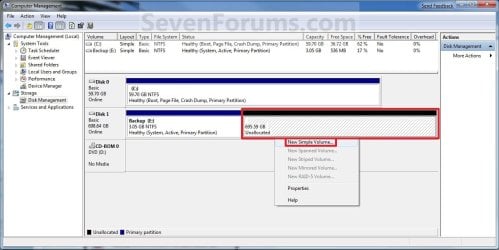
5. In the middle pane, right click on the empty unallocated partition or volume and click on New Simple Volume. (See screenshot above)

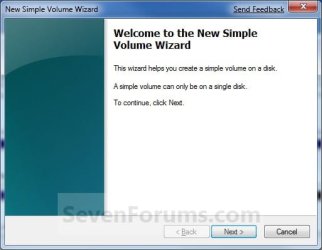
6. Click on the Next button. (See screenshot below) Create_Step2.jpg
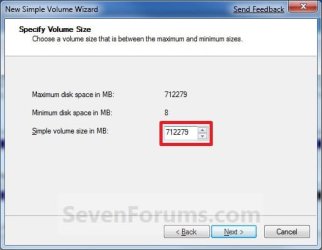
7. Type in how many MB (1 GB = 1024 MB) you want to use from the unallocated partition to create the new partition with, then click on the Next button. (See screenshot below)
NOTE: If you want to use all of the unallocated partition to create the new partition with, then type all of the maximum disk space shown for the unallocated partition. If you do not use all of the maximum disk space, then you can use the left over space from the unallocted partition to create another new partition with. Create_Step3.jpg
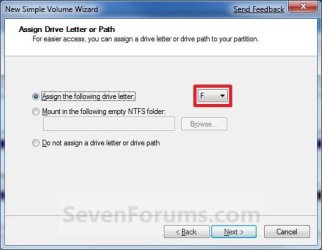
8. Select an available drive letter that you want to be assigned to the new partition in Computer, then click on the Next button. (See screenshot below) Create_Step4.jpg
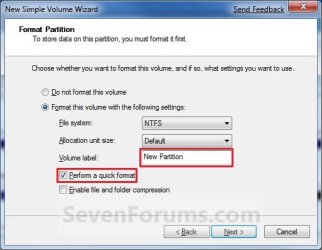
9. Type in a volume label name that you want for the new partition, check the Perform a quick format box, and click on the Next button. (See screenshot below) Create_Step5.jpg
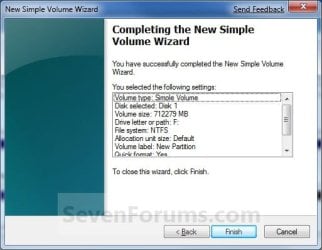
10. Click on the Finish button. (See screenshot below)

   Warning
If you get a pop-up with the message below, then click on No. You DO NOT want to convert the disk to dynamic. Doing so could render Windows 7 unbootable. A clean install of Windows 7 would be the only way to fix this afterwards if you were to click on Yes.

The operation selected will convert the disk to dynamic... are you sure you want to continue?
Create_Step6.jpg
11. The new primary partition or volume has now been created with the assigned unallocted partition space (step 7). (See screenshot below) Create_Step7.jpg
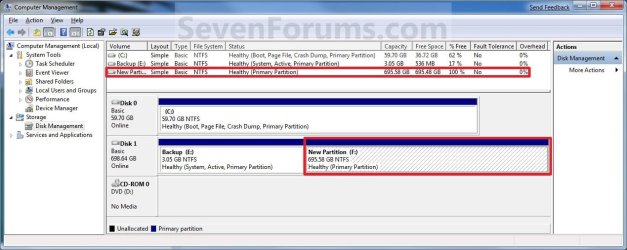
12. Close the Computer Management window. (See screenshot above)


OPTION TWO

Create Primary Partition using Diskpart in Elevated Command Prompt

1. You will first need to shrink a partition or volume to create a unallocated partition to use to create the new partition or volume with.

2. Open an elevated command prompt, or a command prompt at boot.

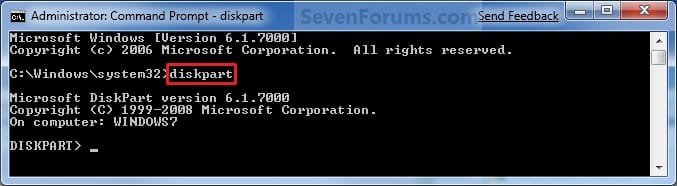
3. In the elevated command prompt, type diskpart and press Enter. (See screenshot below) CMD_Create_Step1.jpg
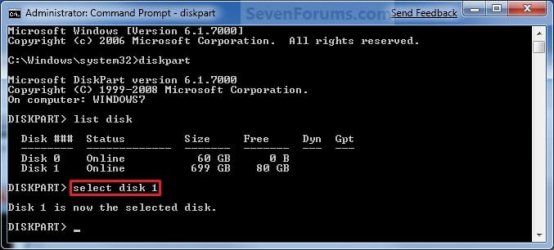
4. In the elevated command prompt, type list disk and press Enter. (See screenshot below)
NOTE: This is to help you ID the disk number that has Free unallocated space that you want to create a new partition with. For example, Disk 1 with 80 GB of free space. CMD_Create_Step2.jpg
5. In the elevated command prompt, type select disk # and press Enter. (See screenshot below)
NOTE: You would substitute # for the disk number listed that you want to create a new partition with the free unallocated space there. For example, I want to create a new partition with the 80 GB of free space, so I would type select disk 2 and press Enter. CMD_Create_Step3.jpg
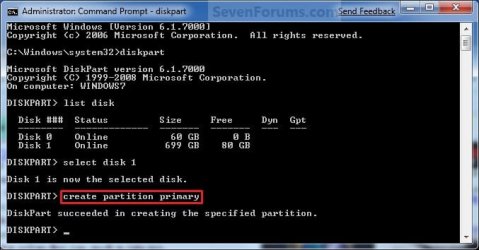
6. In the elevated command prompt, type create partition primary and press Enter. (See screenshot below)
NOTE: This will create a new blank RAW partition with selected disk (step 5) that contains the unallocated partition free space. CMD_Create_Step4.jpg
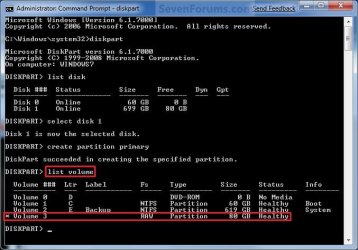
7. In the elevated command prompt, type list volume and press Enter. (See screenshot below)
NOTE: Look for the volume number that has the same Size as from the Free space in step 4. For example, Volume 3. CMD_Create_Step5.jpg
8. To Format the Partition or Disk as a NTFS File System
NOTE: This would be good for using with a HDD as an example. A) In the elevated command prompt, type format fs=ntfs quick and press Enter. (See screenshot below)
NOTE: Having quick added at the end of the command will do a quick format instead of a full format on the new blank RAW partition (step 6) to make it a new partition. CMD_Create_Step6.jpg
B) Go to step 10.
9. To Format the Partition or Disk as a FAT32 File System
NOTE: This would be good for using with a USB key drive as an example. The FAT32 file system has size limitations. You cannot create a FAT32 partition greater than 32 GB. In addition, you cannot store a file larger than 4 GB on a FAT32 partition. For more information, see Comparing NTFS and FAT file systems. A) In the elevated command prompt, type format fs=fat32 quick and press Enter. (See screenshot below)
NOTE: Having quick added at the end of the command will do a quick format instead of a full format on the new blank RAW partition (step 6) to make it a new partition.
10. When it is finished formatting, type exit in the elevated command prompt and press Enter. (See screenshot below) CMD_Create_Step7.jpg
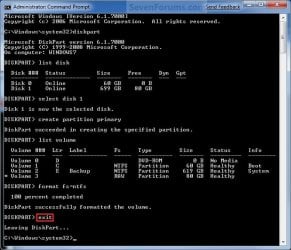
11. Close the elevated command prompt.

12. The new primary partition has now been created. You can now see the new partition in Computer with a drive letter.
That's it,
Shawn


Last edited:
You're welcome Raghs. I'm happy to hear that you got it partitioned. :)
 

My Computer

Computer type
PC/Desktop
Computer Manufacturer/Model Number
Self built custom
OS
64-bit Windows 11 Pro for Workstations
CPU
Intel i7-8700K OC'd to 5 GHz
Motherboard
ASUS ROG Maximus XI Formula Z390
Memory
64 GB (4x16GB) G.SKILL TridentZ RGB DDR4 3600 MHz
Graphics Card(s)
ASUS ROG-STRIX-GTX1080TI-O11G-GAMING
Sound Card
Integrated
Monitor(s) Displays
2 x Samsung Odyssey G7 27"
Screen Resolution
2560x1440
Hard Drives
1TB Samsung 990 PRO M.2,
4TB Samsung 990 PRO PRO M.2,
TerraMaster F8 SSD Plus NAS
PSU
Seasonic Prime Titanium 850W
Case
Thermaltake Core P3
Cooling
Corsair Hydro H115i
Keyboard
Logitech wireless K800
Mouse
Logitech MX Master 4
Internet Speed
2 Gb/s Download and 100 Mb/s Upload
Antivirus
Malwarebyte Anti-Malware Premium
Browser
Google Chrome
Other Info
Logitech Z625 speaker system,
Logitech BRIO 4K Pro webcam,
HP Color LaserJet Pro MFP M477fdn,
APC SMART-UPS RT 1000 XL - SURT1000XLI,
Galaxy S23 Plus phone

My Computer

Computer Manufacturer/Model Number
HP, Dell, Gateway, Toshiba - 4 laptops and 2 desktops
OS
Vista, Windows7, Mint Mate, Zorin, Windows 8
CPU
from 1.6GHz Duo to i7
Monitor(s) Displays
2x HP w2207
Hard Drives
5x HDD, 7x SSD, 12x Externals
Keyboard
with trackball - no mices
Mouse
Trackball mice
Internet Speed
DSL 6000
Hi Brink,
Thank you for your tutorial. But I really need some help here.

I bought a new laptop yesterday (HP DV7 3130 with Windows 7 home premium 64 bit). It came with a 500 GB Hard drive. The preformated disk was with 4 partions C: 420gb and D: Recovery, E: HP Tools and a system partition with no letter assigned to it.

I wanted of course to shrink C and make a separate partion for all my documents (G:)

I followed your instructions with these steps:

1. I shrink C: (Diskmanagement allowed me to shrink about 219 GB) which I did.
2. I got the unallocated space in the middle (now 219 GB )
3. I right clicked on it and choose create simple volume and wizard came up.
4. I followed the wizard and choose NTFS format quick and assigned to G: as wizard suggest.
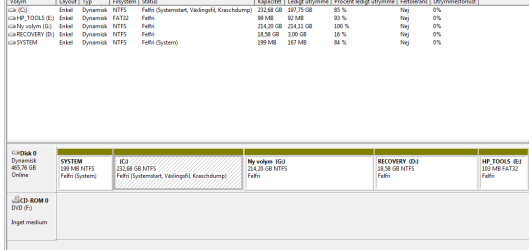
5. When executed all my partitions now turned from primary partitions to Dynamic types and the color turned from blue to greenish.

What did I do wrong?

I also noticed (which really scares me) that now I can't access some folders in C: !!!
Some of them have a lock on (for instance Document and settings)

Please help, How do I return to previous state with Primary partitions (blue color) and to be able to access all my folders again?

All the best
Anders
 

Attachments

  • New_after shrinking_C.png
    New_after shrinking_C.png
    12.5 KB · Views: 426

My Computer

OS
Windows 7 Home Premium 64 bit
Your problem is that you started out with 4 primary partitions (which is the maximum allowed). You must start with 3 primary and one extended partition. It is kind of unfortunate that HP assigned already 4 partitions.
As a first step you should delete the new partition and hopefully the 4 original partitions will be primaries again. Then you have 2 options:

1. Burn the recovery disks from the recovery partition, backup that partition to an external drive and delete that partition.
2. save the content of the HP tools partition to an external drive and delete that partition.

Now you are left with 3 primaries. Create a new partition as extended partition. See this for details (don't worry that is was written for XP, it is the same in Vista and win7). From there on you can create new simple partitions which will hosted under the extended partition.

PS: I am sure Brink will have more details to add. So wait until he has a chance to respond.
 

My Computer

Computer Manufacturer/Model Number
HP, Dell, Gateway, Toshiba - 4 laptops and 2 desktops
OS
Vista, Windows7, Mint Mate, Zorin, Windows 8
CPU
from 1.6GHz Duo to i7
Monitor(s) Displays
2x HP w2207
Hard Drives
5x HDD, 7x SSD, 12x Externals
Keyboard
with trackball - no mices
Mouse
Trackball mice
Internet Speed
DSL 6000
Thanks for your input,

I will wait for Brink too, and see what he suggest. Luckily I burnt recovery discs yesterday (4 DVDs), I suppose if I use them, everything should turn up as the same state when I opened the Computer for the first time?

But I will wait first before I do anything, and see What Brink suggest too.

Anyway your suggestions sounds good to me. Thank you for your suggestions and reply.

All the best
Anders
 

My Computer

OS
Windows 7 Home Premium 64 bit

My Computer

Computer type
PC/Desktop
Computer Manufacturer/Model Number
Self built custom
OS
64-bit Windows 11 Pro for Workstations
CPU
Intel i7-8700K OC'd to 5 GHz
Motherboard
ASUS ROG Maximus XI Formula Z390
Memory
64 GB (4x16GB) G.SKILL TridentZ RGB DDR4 3600 MHz
Graphics Card(s)
ASUS ROG-STRIX-GTX1080TI-O11G-GAMING
Sound Card
Integrated
Monitor(s) Displays
2 x Samsung Odyssey G7 27"
Screen Resolution
2560x1440
Hard Drives
1TB Samsung 990 PRO M.2,
4TB Samsung 990 PRO PRO M.2,
TerraMaster F8 SSD Plus NAS
PSU
Seasonic Prime Titanium 850W
Case
Thermaltake Core P3
Cooling
Corsair Hydro H115i
Keyboard
Logitech wireless K800
Mouse
Logitech MX Master 4
Internet Speed
2 Gb/s Download and 100 Mb/s Upload
Antivirus
Malwarebyte Anti-Malware Premium
Browser
Google Chrome
Other Info
Logitech Z625 speaker system,
Logitech BRIO 4K Pro webcam,
HP Color LaserJet Pro MFP M477fdn,
APC SMART-UPS RT 1000 XL - SURT1000XLI,
Galaxy S23 Plus phone
Thank you both for your suggestions.

I ask for precaution first, do I delete G: (that was once large C:) by rightclicking and choose delete?
 

My Computer

OS
Windows 7 Home Premium 64 bit
Anders,

Yes, you would delete G: like that. :)
 

My Computer

Computer type
PC/Desktop
Computer Manufacturer/Model Number
Self built custom
OS
64-bit Windows 11 Pro for Workstations
CPU
Intel i7-8700K OC'd to 5 GHz
Motherboard
ASUS ROG Maximus XI Formula Z390
Memory
64 GB (4x16GB) G.SKILL TridentZ RGB DDR4 3600 MHz
Graphics Card(s)
ASUS ROG-STRIX-GTX1080TI-O11G-GAMING
Sound Card
Integrated
Monitor(s) Displays
2 x Samsung Odyssey G7 27"
Screen Resolution
2560x1440
Hard Drives
1TB Samsung 990 PRO M.2,
4TB Samsung 990 PRO PRO M.2,
TerraMaster F8 SSD Plus NAS
PSU
Seasonic Prime Titanium 850W
Case
Thermaltake Core P3
Cooling
Corsair Hydro H115i
Keyboard
Logitech wireless K800
Mouse
Logitech MX Master 4
Internet Speed
2 Gb/s Download and 100 Mb/s Upload
Antivirus
Malwarebyte Anti-Malware Premium
Browser
Google Chrome
Other Info
Logitech Z625 speaker system,
Logitech BRIO 4K Pro webcam,
HP Color LaserJet Pro MFP M477fdn,
APC SMART-UPS RT 1000 XL - SURT1000XLI,
Galaxy S23 Plus phone
Hi again,
No luck here. When I deleted G: it just turn up as unallocated space (black) and the original partitions are still green. Is there more options like system restore or I use those recovery DVDs (4 total) I made yesterday?
I presume That the content on those disc are only C: what happens to the other partitions (dynymic)?

Is there a third option like third party software? I really want to go back to the state my laptop was yesterday with Basic disc and primary partitions..

Thank you for your help, and please suggest what you think.
 

Attachments

  • After delete.png
    After delete.png
    10.2 KB · Views: 284

My Computer

OS
Windows 7 Home Premium 64 bit
Sorry If I spam you with questions (I'm really nervous here not to loose data or possibilities to go back)
Q2:What happens now if I expand C: ?
 

My Computer

OS
Windows 7 Home Premium 64 bit
No problem. Go ahead and "Extend" C: into the unallocated space to see if hopefully they may return to Primary afterwards.
 

My Computer

Computer type
PC/Desktop
Computer Manufacturer/Model Number
Self built custom
OS
64-bit Windows 11 Pro for Workstations
CPU
Intel i7-8700K OC'd to 5 GHz
Motherboard
ASUS ROG Maximus XI Formula Z390
Memory
64 GB (4x16GB) G.SKILL TridentZ RGB DDR4 3600 MHz
Graphics Card(s)
ASUS ROG-STRIX-GTX1080TI-O11G-GAMING
Sound Card
Integrated
Monitor(s) Displays
2 x Samsung Odyssey G7 27"
Screen Resolution
2560x1440
Hard Drives
1TB Samsung 990 PRO M.2,
4TB Samsung 990 PRO PRO M.2,
TerraMaster F8 SSD Plus NAS
PSU
Seasonic Prime Titanium 850W
Case
Thermaltake Core P3
Cooling
Corsair Hydro H115i
Keyboard
Logitech wireless K800
Mouse
Logitech MX Master 4
Internet Speed
2 Gb/s Download and 100 Mb/s Upload
Antivirus
Malwarebyte Anti-Malware Premium
Browser
Google Chrome
Other Info
Logitech Z625 speaker system,
Logitech BRIO 4K Pro webcam,
HP Color LaserJet Pro MFP M477fdn,
APC SMART-UPS RT 1000 XL - SURT1000XLI,
Galaxy S23 Plus phone
Thanks,
But no luck here. It just extended into unallocated space, but the whole disc still is dynamic (green).
Now with 4 parts that are dynamic.
I don't know what to do...? My new laptop I bought yesterday.. I hope there is still possibilities!

Thank you for your patience. I am such a newbie.

Here is how it looks right now.

All the best
Anders
 

Attachments

  • current state.png
    current state.png
    24.4 KB · Views: 286
Last edited by a moderator:

My Computer

OS
Windows 7 Home Premium 64 bit

My Computer

Computer type
PC/Desktop
Computer Manufacturer/Model Number
Self built custom
OS
64-bit Windows 11 Pro for Workstations
CPU
Intel i7-8700K OC'd to 5 GHz
Motherboard
ASUS ROG Maximus XI Formula Z390
Memory
64 GB (4x16GB) G.SKILL TridentZ RGB DDR4 3600 MHz
Graphics Card(s)
ASUS ROG-STRIX-GTX1080TI-O11G-GAMING
Sound Card
Integrated
Monitor(s) Displays
2 x Samsung Odyssey G7 27"
Screen Resolution
2560x1440
Hard Drives
1TB Samsung 990 PRO M.2,
4TB Samsung 990 PRO PRO M.2,
TerraMaster F8 SSD Plus NAS
PSU
Seasonic Prime Titanium 850W
Case
Thermaltake Core P3
Cooling
Corsair Hydro H115i
Keyboard
Logitech wireless K800
Mouse
Logitech MX Master 4
Internet Speed
2 Gb/s Download and 100 Mb/s Upload
Antivirus
Malwarebyte Anti-Malware Premium
Browser
Google Chrome
Other Info
Logitech Z625 speaker system,
Logitech BRIO 4K Pro webcam,
HP Color LaserJet Pro MFP M477fdn,
APC SMART-UPS RT 1000 XL - SURT1000XLI,
Galaxy S23 Plus phone
I did set of recovery disc with HP recovery tool (4 DVDs) yesterday (when everything was fine) but as I remember (from the recovery wizard) it also tells me that I only can make recovery discs one time. Can I use those disc from yesterday? And second but not least: Will it really change the type of disc (from dynamic to basic with primary partitions as well) rather then just replace the content of C: and still be a dynamic disc ?

I also found this on internet:
How to non-destructively convert dynamic disks to basic disks My PKB
but I found it way over my head...
Another option could perhaps be to call HP support tomorrow and explain my situation?

Thank you again Brink, Please let me know how you would do in my situation.

Best wishes
Anders
 

My Computer

OS
Windows 7 Home Premium 64 bit
Yes, you will be able to use those recovery discs to do a factory restore of Windows 7 with.

Before you try that option to convert it from Dynamic to Primary, be sure that you backup anything that you do not want to lose to a separate location that what is being converted to be safe in case it gets wiped out.
 

My Computer

Computer type
PC/Desktop
Computer Manufacturer/Model Number
Self built custom
OS
64-bit Windows 11 Pro for Workstations
CPU
Intel i7-8700K OC'd to 5 GHz
Motherboard
ASUS ROG Maximus XI Formula Z390
Memory
64 GB (4x16GB) G.SKILL TridentZ RGB DDR4 3600 MHz
Graphics Card(s)
ASUS ROG-STRIX-GTX1080TI-O11G-GAMING
Sound Card
Integrated
Monitor(s) Displays
2 x Samsung Odyssey G7 27"
Screen Resolution
2560x1440
Hard Drives
1TB Samsung 990 PRO M.2,
4TB Samsung 990 PRO PRO M.2,
TerraMaster F8 SSD Plus NAS
PSU
Seasonic Prime Titanium 850W
Case
Thermaltake Core P3
Cooling
Corsair Hydro H115i
Keyboard
Logitech wireless K800
Mouse
Logitech MX Master 4
Internet Speed
2 Gb/s Download and 100 Mb/s Upload
Antivirus
Malwarebyte Anti-Malware Premium
Browser
Google Chrome
Other Info
Logitech Z625 speaker system,
Logitech BRIO 4K Pro webcam,
HP Color LaserJet Pro MFP M477fdn,
APC SMART-UPS RT 1000 XL - SURT1000XLI,
Galaxy S23 Plus phone
Hi anders7,

Sorry to be the bearer of bad news, but I hope that you have successfully created your recovery disks.

Windows 7 Administrator's Pocket Consultant said:
You can change storage types from basic to dynamic and from dynamic to basic. When you convert a basic disk to a dynamic disk, partitions are changed to volumes of the appropriate type automatically and data is not lost. Converting a dynamic disk to a basic disk isn't so easy. You need to delete the volumes on the dynamic disk before you can change the disk type to a basic disk. Deleting the volumes destroys the information they contain, and the only way to get it back is to restore the data from a backup.
 

My Computer

Computer type
PC/Desktop
Computer Manufacturer/Model Number
Dwarf Dwf/11/2012 r09/2013
OS
Windows 8.1 Pro RTM x64
CPU
Intel Core-i5-3570K 4-core @ 3.4GHz (Ivy Bridge) (OC 4.4GHz)
Motherboard
ASRock Z77 Extreme4-M
Memory
4 x 4GB DDR3-1600 Corsair Vengeance CMZ8GX3M2A1600C9B (16GB)
Graphics Card(s)
MSI GeForce GTX770 Gaming OC 2GB
Sound Card
Realtek High Definition on board solution (ALC 898)
Monitor(s) Displays
ViewSonic VA1912w Widescreen (VGA)
Screen Resolution
1440x900
Hard Drives
OCZ Agility 3 SSD 120GB SATA III x2 (RAID 0)
Samsung HD501LJ 500GB SATA II x2
Hitachi HDS721010CLA332 1TB SATA II
Iomega 1.5TB Ext USB 2.0
WD 2.0TB Ext USB 3.0
PSU
XFX Pro Series 850W Semi-Modular
Case
Gigabyte IF233
Cooling
1 x 120mm Front Inlet 1 x 120mm Rear Exhaust
Keyboard
Microsoft Comfort Curve Keyboard 3000 (USB)
Mouse
Microsoft Comfort Mouse 3000 for Business (USB)
Internet Speed
NetGear DG834Gv3 ADSL Modem/Router (Ethernet) ~4.0 Mb/s (O2)
Antivirus
Avast! 8.0.1497
Browser
IE 11
Other Info
Optical Drive: HL-DT-ST BD-RE BH10LS30 SATA Bluray
Lexmark S305 Printer/Scanner/Copier (USB)
WEI Score: 8.1/8.1/8.5/8.5/8.25
Asus Eee PC 1011PX Netbook (Windows 7 x86 Starter)
Thank you,
I will call Hp tomorrow as step 1, try recovery discs as step 2 (IF HP don't have another option) , and if it won't help I try with conversion of dynamic to primary as a last desperate step 3.

Thanks for your input and fast reply. Here in Sweden it's late (22.35) so I think it's best to start tomorrow fresh.

I will return here and tell how it goes. Hopefully there are HP owners out there reading this, who don't want to make the same mistake as I did.
I really wish these laptops did not come with 4 primary partitions and make it so easy to fall into these pitfalls.
In Disc Management, the option to transform an unallocated space is by create "a simple volume" as it says in Swedish (direct translation) . Nothing at all that warns you that you are transforming a "basic disc" into "dynamic disc".

I appologize for my english, but I hope I can make myself understood well enough, though my limits of the english language are obvious.

All the best
Anders
 

My Computer

OS
Windows 7 Home Premium 64 bit

My Computer

Computer type
PC/Desktop
Computer Manufacturer/Model Number
Dwarf Dwf/11/2012 r09/2013
OS
Windows 8.1 Pro RTM x64
CPU
Intel Core-i5-3570K 4-core @ 3.4GHz (Ivy Bridge) (OC 4.4GHz)
Motherboard
ASRock Z77 Extreme4-M
Memory
4 x 4GB DDR3-1600 Corsair Vengeance CMZ8GX3M2A1600C9B (16GB)
Graphics Card(s)
MSI GeForce GTX770 Gaming OC 2GB
Sound Card
Realtek High Definition on board solution (ALC 898)
Monitor(s) Displays
ViewSonic VA1912w Widescreen (VGA)
Screen Resolution
1440x900
Hard Drives
OCZ Agility 3 SSD 120GB SATA III x2 (RAID 0)
Samsung HD501LJ 500GB SATA II x2
Hitachi HDS721010CLA332 1TB SATA II
Iomega 1.5TB Ext USB 2.0
WD 2.0TB Ext USB 3.0
PSU
XFX Pro Series 850W Semi-Modular
Case
Gigabyte IF233
Cooling
1 x 120mm Front Inlet 1 x 120mm Rear Exhaust
Keyboard
Microsoft Comfort Curve Keyboard 3000 (USB)
Mouse
Microsoft Comfort Mouse 3000 for Business (USB)
Internet Speed
NetGear DG834Gv3 ADSL Modem/Router (Ethernet) ~4.0 Mb/s (O2)
Antivirus
Avast! 8.0.1497
Browser
IE 11
Other Info
Optical Drive: HL-DT-ST BD-RE BH10LS30 SATA Bluray
Lexmark S305 Printer/Scanner/Copier (USB)
WEI Score: 8.1/8.1/8.5/8.5/8.25
Asus Eee PC 1011PX Netbook (Windows 7 x86 Starter)

My Computer

Computer Manufacturer/Model Number
HP, Dell, Gateway, Toshiba - 4 laptops and 2 desktops
OS
Vista, Windows7, Mint Mate, Zorin, Windows 8
CPU
from 1.6GHz Duo to i7
Monitor(s) Displays
2x HP w2207
Hard Drives
5x HDD, 7x SSD, 12x Externals
Keyboard
with trackball - no mices
Mouse
Trackball mice
Internet Speed
DSL 6000
Back
Top