Partition or Volume - Create New

How to Create a New Partition or Volume in Windows 7

   Information
This will show you how to create a new primary partition using Disk Management or Diskpart in Windows 7 from a empty unallocated partition or volume.
   Note
A primary partition is a type of partition created on a hard drive that can have a operating system installed on it. A primary partition functions as though it were a physically separate hard drive.

By default on a basic MBR disk, you can create a maximum of 4 Primary partitions, or 3 Primary partitions and 1 Extended partition with up to 128 logical volumes in the extended partition on a single hard disk.

*You must be logged on in an administrator account to be able to do this tutorial.
   Warning
If you disable the Disk Defragmenter service, then you will get the error below when you try to do anything in Disk Management. If you get this error, then make sure that the Disk Defragmenter service is set to only Manual.

Error.jpg


OPTION ONE

Create Primary Partition using Disk Management

1. You will first need to shrink a partition or volume from the free space on a disk to create unallocated space on that disk to use to create the new partition or volume with on the same disk.

   Note
If this is a disk that is unallocated, then skip this step and go straight to step 2.


2. Open the Control Panel (icons view), and click on the Administrative Tools icon. then close the Control Panel window.

3. Click on Computer Management in Administrative Tools, then close the Administrative Tools window.

4. In the left pane under Storage, click on Disk Management. (See screenshot below) Create_Step1.jpg
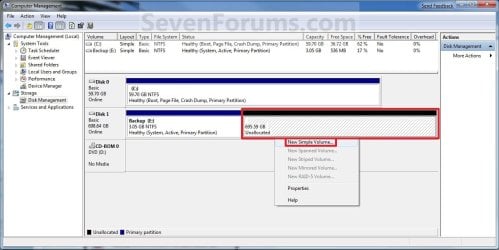
5. In the middle pane, right click on the empty unallocated partition or volume and click on New Simple Volume. (See screenshot above)

6. Click on the Next button. (See screenshot below) Create_Step2.jpg
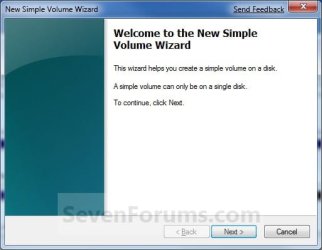
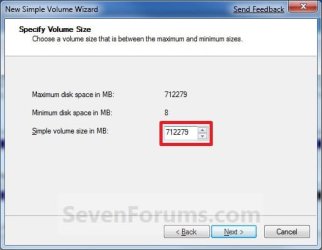
7. Type in how many MB (1 GB = 1024 MB) you want to use from the unallocated partition to create the new partition with, then click on the Next button. (See screenshot below)
NOTE: If you want to use all of the unallocated partition to create the new partition with, then type all of the maximum disk space shown for the unallocated partition. If you do not use all of the maximum disk space, then you can use the left over space from the unallocted partition to create another new partition with. Create_Step3.jpg
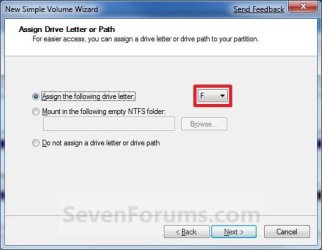
8. Select an available drive letter that you want to be assigned to the new partition in Computer, then click on the Next button. (See screenshot below) Create_Step4.jpg
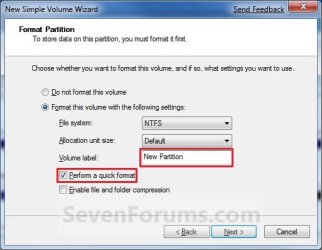
9. Type in a volume label name that you want for the new partition, check the Perform a quick format box, and click on the Next button. (See screenshot below) Create_Step5.jpg
10. Click on the Finish button. (See screenshot below)

   Warning
If you get a pop-up with the message below, then click on No. You DO NOT want to convert the disk to dynamic. Doing so could render Windows 7 unbootable. A clean install of Windows 7 would be the only way to fix this afterwards if you were to click on Yes.

The operation selected will convert the disk to dynamic... are you sure you want to continue?
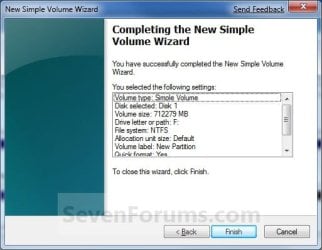
Create_Step6.jpg
11. The new primary partition or volume has now been created with the assigned unallocted partition space (step 7). (See screenshot below) Create_Step7.jpg
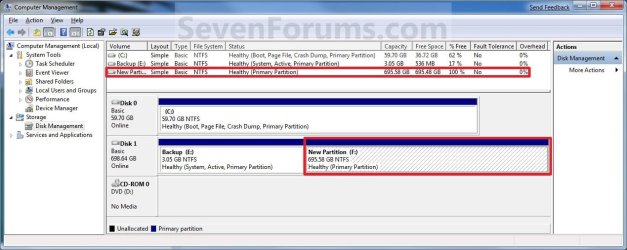
12. Close the Computer Management window. (See screenshot above)


OPTION TWO

Create Primary Partition using Diskpart in Elevated Command Prompt

1. You will first need to shrink a partition or volume to create a unallocated partition to use to create the new partition or volume with.

2. Open an elevated command prompt, or a command prompt at boot.

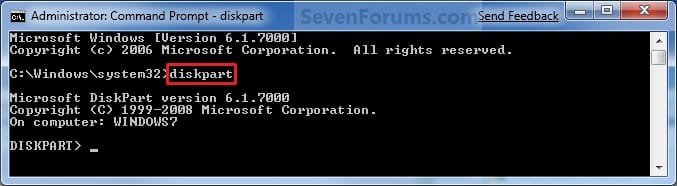
3. In the elevated command prompt, type diskpart and press Enter. (See screenshot below) CMD_Create_Step1.jpg
4. In the elevated command prompt, type list disk and press Enter. (See screenshot below)
NOTE: This is to help you ID the disk number that has Free unallocated space that you want to create a new partition with. For example, Disk 1 with 80 GB of free space. CMD_Create_Step2.jpg
5. In the elevated command prompt, type select disk # and press Enter. (See screenshot below)
NOTE: You would substitute # for the disk number listed that you want to create a new partition with the free unallocated space there. For example, I want to create a new partition with the 80 GB of free space, so I would type select disk 2 and press Enter. CMD_Create_Step3.jpg
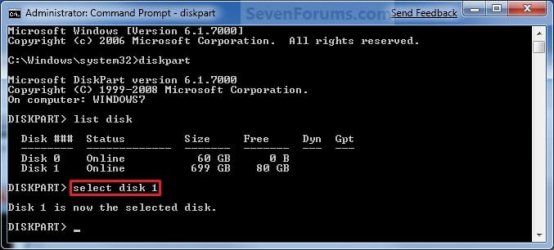
6. In the elevated command prompt, type create partition primary and press Enter. (See screenshot below)
NOTE: This will create a new blank RAW partition with selected disk (step 5) that contains the unallocated partition free space. CMD_Create_Step4.jpg
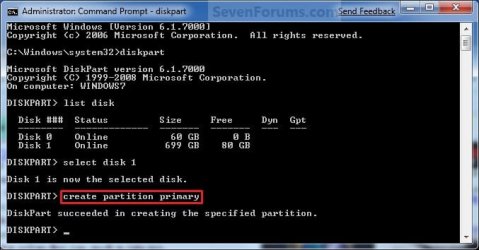
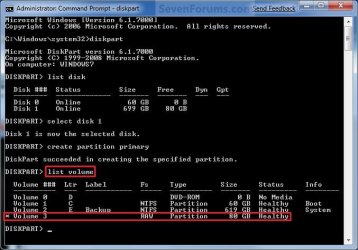
7. In the elevated command prompt, type list volume and press Enter. (See screenshot below)
NOTE: Look for the volume number that has the same Size as from the Free space in step 4. For example, Volume 3. CMD_Create_Step5.jpg
8. To Format the Partition or Disk as a NTFS File System
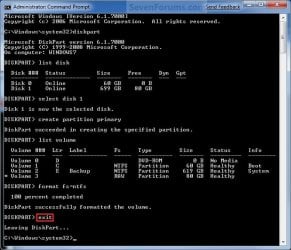
NOTE: This would be good for using with a HDD as an example. A) In the elevated command prompt, type format fs=ntfs quick and press Enter. (See screenshot below)
NOTE: Having quick added at the end of the command will do a quick format instead of a full format on the new blank RAW partition (step 6) to make it a new partition. CMD_Create_Step6.jpg
B) Go to step 10.
9. To Format the Partition or Disk as a FAT32 File System
NOTE: This would be good for using with a USB key drive as an example. The FAT32 file system has size limitations. You cannot create a FAT32 partition greater than 32 GB. In addition, you cannot store a file larger than 4 GB on a FAT32 partition. For more information, see Comparing NTFS and FAT file systems. A) In the elevated command prompt, type format fs=fat32 quick and press Enter. (See screenshot below)
NOTE: Having quick added at the end of the command will do a quick format instead of a full format on the new blank RAW partition (step 6) to make it a new partition.
10. When it is finished formatting, type exit in the elevated command prompt and press Enter. (See screenshot below) CMD_Create_Step7.jpg
11. Close the elevated command prompt.

12. The new primary partition has now been created. You can now see the new partition in Computer with a drive letter.
That's it,
Shawn


Last edited:
Hi again,

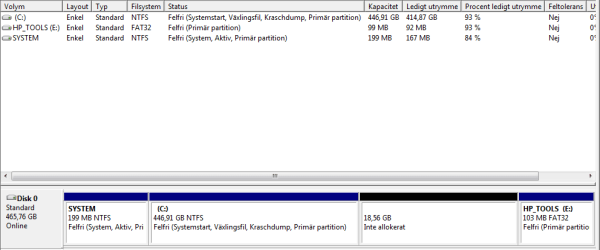
After many hours of hard work I finally got back to initial state (6 hours today only, with different programs to clean an reformat HD and a couple of calls to HP support).

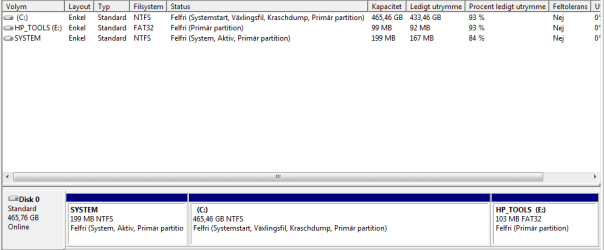
Initial state.png

So this time I want to check first with you guys in this forum.

My plan is the following (please feel free to comment or correct for optimal solution):

1. Defrag C: for best shrinking abilities
2. Delete Recovery partition
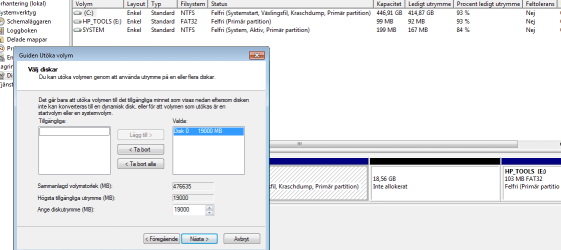
3. Extend C: (automatically to the deleted Recovery - which should now be unallocated volume
4. Shrink the New C:
5. I should now have SYSTEM , C: (so small that Windows Disk management allows me to) , Unallocated Volume (big size) and as the 4th partition HP TOOLS
6. Rightclick on the big unallocated Volume and choose what?
7. Hopefully I will end up with 4 primary partitions

Are there better solutions, please tell me.

I Hope for your patience and suggestions

All the best
Anders
 

My Computer

OS
Windows 7 Home Premium 64 bit
That should be OK. You have already created your recovery disks, and have proved that they work. When you defrag your C: drive, do so from within an http://www.sevenforums.com/tutorials/783-elevated-command-prompt.html using the following command: defrag C: /H /U /V /X. Note that this will take some time, depending on the state of the drive.

To answer your point 6.

In the Tutorial at the beginning of this thread, follow the instructions from Step 5. onwards in METHOD ONE.
 

My Computer

Computer type
PC/Desktop
Computer Manufacturer/Model Number
Dwarf Dwf/11/2012 r09/2013
OS
Windows 8.1 Pro RTM x64
CPU
Intel Core-i5-3570K 4-core @ 3.4GHz (Ivy Bridge) (OC 4.4GHz)
Motherboard
ASRock Z77 Extreme4-M
Memory
4 x 4GB DDR3-1600 Corsair Vengeance CMZ8GX3M2A1600C9B (16GB)
Graphics Card(s)
MSI GeForce GTX770 Gaming OC 2GB
Sound Card
Realtek High Definition on board solution (ALC 898)
Monitor(s) Displays
ViewSonic VA1912w Widescreen (VGA)
Screen Resolution
1440x900
Hard Drives
OCZ Agility 3 SSD 120GB SATA III x2 (RAID 0)
Samsung HD501LJ 500GB SATA II x2
Hitachi HDS721010CLA332 1TB SATA II
Iomega 1.5TB Ext USB 2.0
WD 2.0TB Ext USB 3.0
PSU
XFX Pro Series 850W Semi-Modular
Case
Gigabyte IF233
Cooling
1 x 120mm Front Inlet 1 x 120mm Rear Exhaust
Keyboard
Microsoft Comfort Curve Keyboard 3000 (USB)
Mouse
Microsoft Comfort Mouse 3000 for Business (USB)
Internet Speed
NetGear DG834Gv3 ADSL Modem/Router (Ethernet) ~4.0 Mb/s (O2)
Antivirus
Avast! 8.0.1497
Browser
IE 11
Other Info
Optical Drive: HL-DT-ST BD-RE BH10LS30 SATA Bluray
Lexmark S305 Printer/Scanner/Copier (USB)
WEI Score: 8.1/8.1/8.5/8.5/8.25
Asus Eee PC 1011PX Netbook (Windows 7 x86 Starter)
Thank you for your input Dwarf,

There is only a couple of questions that comes to my mind:

1. When I read the "method one" there is something important at the beginning.
3 Primary Partitions + 1 Extended Partitions

If I understand you and the guide correct, there will be absolutely NO risk with my suggested list (above)? I mean, If I delete the recovery partition it will go black and turn into unallocated volume, right?

Then in the next step if I rightclick on C: and choose "EXTEND" , does that mean that C: automatically turns into this "Extended Partition" mentioned in method one? (I don't want to put me in the same situation as before....)
The current state is, when I open "Disk management", that all 4 of my partitions is PRIMARY.
None of them are an "EXTEND Partition" right now.


2. Does it matter that the last partition (HP TOOLS) is to the right of C: and Recovery ? I can shrink and extend no matter what with C: ?

Best regards
Anders
 

My Computer

OS
Windows 7 Home Premium 64 bit
Hi Anders,

The partition will be automatically created as type Primary.
 

My Computer

Computer type
PC/Desktop
Computer Manufacturer/Model Number
Dwarf Dwf/11/2012 r09/2013
OS
Windows 8.1 Pro RTM x64
CPU
Intel Core-i5-3570K 4-core @ 3.4GHz (Ivy Bridge) (OC 4.4GHz)
Motherboard
ASRock Z77 Extreme4-M
Memory
4 x 4GB DDR3-1600 Corsair Vengeance CMZ8GX3M2A1600C9B (16GB)
Graphics Card(s)
MSI GeForce GTX770 Gaming OC 2GB
Sound Card
Realtek High Definition on board solution (ALC 898)
Monitor(s) Displays
ViewSonic VA1912w Widescreen (VGA)
Screen Resolution
1440x900
Hard Drives
OCZ Agility 3 SSD 120GB SATA III x2 (RAID 0)
Samsung HD501LJ 500GB SATA II x2
Hitachi HDS721010CLA332 1TB SATA II
Iomega 1.5TB Ext USB 2.0
WD 2.0TB Ext USB 3.0
PSU
XFX Pro Series 850W Semi-Modular
Case
Gigabyte IF233
Cooling
1 x 120mm Front Inlet 1 x 120mm Rear Exhaust
Keyboard
Microsoft Comfort Curve Keyboard 3000 (USB)
Mouse
Microsoft Comfort Mouse 3000 for Business (USB)
Internet Speed
NetGear DG834Gv3 ADSL Modem/Router (Ethernet) ~4.0 Mb/s (O2)
Antivirus
Avast! 8.0.1497
Browser
IE 11
Other Info
Optical Drive: HL-DT-ST BD-RE BH10LS30 SATA Bluray
Lexmark S305 Printer/Scanner/Copier (USB)
WEI Score: 8.1/8.1/8.5/8.5/8.25
Asus Eee PC 1011PX Netbook (Windows 7 x86 Starter)
Ok. I presume that everything will be fine if I understand you correct.
I will now defrag C: from your description above (Might take a while)

None of the partitions have been defragmented before, but I suppose it does not matter. I also presume that the "recovery disc" that I am going to delete does not need to be formatted or defragmented before proceeding with all operations I mentioned above.


My plan is to have a big partition for all my documents. I am also planning using VMware for testing different OS on that partition too.

And maybe in the nearest future I want to be able to create a dual boot next to Windows 7, but I recon I must then again go into Disc Managment and create another structure for my partitions?


Sorry for all these questions.

Thanks for all your help.

I will be back and check here after I defragmented C:

All the best
Anders

Update:
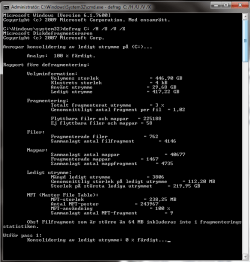
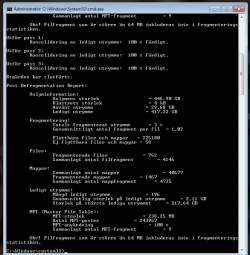
Hm.... Nothing change. C: is still 3% fragmented after defragmentation.

I'll guess it's time for partitioning.... Wish me luck.


Here is before and after defrag:

Defrag before.png defrag after.png
 
Last edited:

My Computer

OS
Windows 7 Home Premium 64 bit

My Computer

Computer Manufacturer/Model Number
HP, Dell, Gateway, Toshiba - 4 laptops and 2 desktops
OS
Vista, Windows7, Mint Mate, Zorin, Windows 8
CPU
from 1.6GHz Duo to i7
Monitor(s) Displays
2x HP w2207
Hard Drives
5x HDD, 7x SSD, 12x Externals
Keyboard
with trackball - no mices
Mouse
Trackball mice
Internet Speed
DSL 6000
Hi there,

Here is how far I got. Look right, doesn't it?

Would appreciate some comments before proceeding.

1. My defragmentation of C unsuccessful (still 3 % fragmented)
2. Delete Recovery - Success
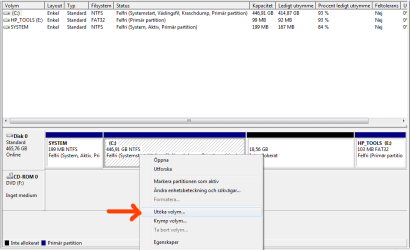
3. Extended C: Success

Look at picture below.

Is it wise to try to perform a new defrag of C: before shrinking it?

Delete recovery.png Extend volume.png

Extended by 19 GB.png after extension.png


All the best
Anders
 

My Computer

OS
Windows 7 Home Premium 64 bit

My Computer

Computer type
PC/Desktop
Computer Manufacturer/Model Number
Dwarf Dwf/11/2012 r09/2013
OS
Windows 8.1 Pro RTM x64
CPU
Intel Core-i5-3570K 4-core @ 3.4GHz (Ivy Bridge) (OC 4.4GHz)
Motherboard
ASRock Z77 Extreme4-M
Memory
4 x 4GB DDR3-1600 Corsair Vengeance CMZ8GX3M2A1600C9B (16GB)
Graphics Card(s)
MSI GeForce GTX770 Gaming OC 2GB
Sound Card
Realtek High Definition on board solution (ALC 898)
Monitor(s) Displays
ViewSonic VA1912w Widescreen (VGA)
Screen Resolution
1440x900
Hard Drives
OCZ Agility 3 SSD 120GB SATA III x2 (RAID 0)
Samsung HD501LJ 500GB SATA II x2
Hitachi HDS721010CLA332 1TB SATA II
Iomega 1.5TB Ext USB 2.0
WD 2.0TB Ext USB 3.0
PSU
XFX Pro Series 850W Semi-Modular
Case
Gigabyte IF233
Cooling
1 x 120mm Front Inlet 1 x 120mm Rear Exhaust
Keyboard
Microsoft Comfort Curve Keyboard 3000 (USB)
Mouse
Microsoft Comfort Mouse 3000 for Business (USB)
Internet Speed
NetGear DG834Gv3 ADSL Modem/Router (Ethernet) ~4.0 Mb/s (O2)
Antivirus
Avast! 8.0.1497
Browser
IE 11
Other Info
Optical Drive: HL-DT-ST BD-RE BH10LS30 SATA Bluray
Lexmark S305 Printer/Scanner/Copier (USB)
WEI Score: 8.1/8.1/8.5/8.5/8.25
Asus Eee PC 1011PX Netbook (Windows 7 x86 Starter)
Thanks Dwarf,

I really appreciate your support here.

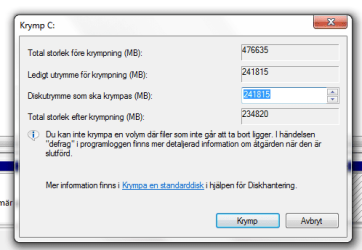
I can not shrink so much as I want to, but I suppose there is nothing I can do about that?

( Current state only allows me to shrink C: from 476 GB to 234 GB )
 

Attachments

  • shrink.png
    shrink.png
    11.1 KB · Views: 210

My Computer

OS
Windows 7 Home Premium 64 bit
Hi Anders,

No, there is nothing you can do about that. You can only shrink a partition as far as disk management says you can. What you can do is to shrink the partition, temporarily leave the newly created space as unallocated and then repeat the operation on the newly shrunk C: (restart your system after shrinking). Repeat the defrag command I mentioned earlier and then see if you can shrink C: any further.
 

My Computer

Computer type
PC/Desktop
Computer Manufacturer/Model Number
Dwarf Dwf/11/2012 r09/2013
OS
Windows 8.1 Pro RTM x64
CPU
Intel Core-i5-3570K 4-core @ 3.4GHz (Ivy Bridge) (OC 4.4GHz)
Motherboard
ASRock Z77 Extreme4-M
Memory
4 x 4GB DDR3-1600 Corsair Vengeance CMZ8GX3M2A1600C9B (16GB)
Graphics Card(s)
MSI GeForce GTX770 Gaming OC 2GB
Sound Card
Realtek High Definition on board solution (ALC 898)
Monitor(s) Displays
ViewSonic VA1912w Widescreen (VGA)
Screen Resolution
1440x900
Hard Drives
OCZ Agility 3 SSD 120GB SATA III x2 (RAID 0)
Samsung HD501LJ 500GB SATA II x2
Hitachi HDS721010CLA332 1TB SATA II
Iomega 1.5TB Ext USB 2.0
WD 2.0TB Ext USB 3.0
PSU
XFX Pro Series 850W Semi-Modular
Case
Gigabyte IF233
Cooling
1 x 120mm Front Inlet 1 x 120mm Rear Exhaust
Keyboard
Microsoft Comfort Curve Keyboard 3000 (USB)
Mouse
Microsoft Comfort Mouse 3000 for Business (USB)
Internet Speed
NetGear DG834Gv3 ADSL Modem/Router (Ethernet) ~4.0 Mb/s (O2)
Antivirus
Avast! 8.0.1497
Browser
IE 11
Other Info
Optical Drive: HL-DT-ST BD-RE BH10LS30 SATA Bluray
Lexmark S305 Printer/Scanner/Copier (USB)
WEI Score: 8.1/8.1/8.5/8.5/8.25
Asus Eee PC 1011PX Netbook (Windows 7 x86 Starter)
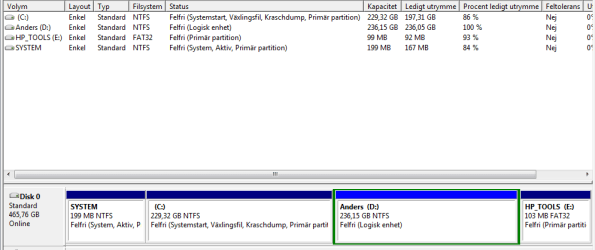
Finally done!

Here is the result. It did get a logical volume, but nothing else happened to the other partitions. Thanks for all your help!!


Best wishes
Anders
 

Attachments

  • Final_result.png
    Final_result.png
    10.9 KB · Views: 380

My Computer

OS
Windows 7 Home Premium 64 bit
You're welcome, Anders. :) It looks OK to me.

:thumbsup:
 

My Computer

Computer type
PC/Desktop
Computer Manufacturer/Model Number
Dwarf Dwf/11/2012 r09/2013
OS
Windows 8.1 Pro RTM x64
CPU
Intel Core-i5-3570K 4-core @ 3.4GHz (Ivy Bridge) (OC 4.4GHz)
Motherboard
ASRock Z77 Extreme4-M
Memory
4 x 4GB DDR3-1600 Corsair Vengeance CMZ8GX3M2A1600C9B (16GB)
Graphics Card(s)
MSI GeForce GTX770 Gaming OC 2GB
Sound Card
Realtek High Definition on board solution (ALC 898)
Monitor(s) Displays
ViewSonic VA1912w Widescreen (VGA)
Screen Resolution
1440x900
Hard Drives
OCZ Agility 3 SSD 120GB SATA III x2 (RAID 0)
Samsung HD501LJ 500GB SATA II x2
Hitachi HDS721010CLA332 1TB SATA II
Iomega 1.5TB Ext USB 2.0
WD 2.0TB Ext USB 3.0
PSU
XFX Pro Series 850W Semi-Modular
Case
Gigabyte IF233
Cooling
1 x 120mm Front Inlet 1 x 120mm Rear Exhaust
Keyboard
Microsoft Comfort Curve Keyboard 3000 (USB)
Mouse
Microsoft Comfort Mouse 3000 for Business (USB)
Internet Speed
NetGear DG834Gv3 ADSL Modem/Router (Ethernet) ~4.0 Mb/s (O2)
Antivirus
Avast! 8.0.1497
Browser
IE 11
Other Info
Optical Drive: HL-DT-ST BD-RE BH10LS30 SATA Bluray
Lexmark S305 Printer/Scanner/Copier (USB)
WEI Score: 8.1/8.1/8.5/8.5/8.25
Asus Eee PC 1011PX Netbook (Windows 7 x86 Starter)
Thx a lot Anders for keep updating your effort.
I also have the similar problem.
One of my friend bought a new HP pavillion dm1.
It also has 4 primary partition and I have tried many ways to create a new partition.
Even we did go to the store to do it for us and they can't. They used two technicians to try to do it but no result.
I guest I can follow your experience and get no problem as the laptop is still a baby, 1 day old, and my friend is a totally noob stuff like this.
I just don't want to create more hassle & problem for her :(.

Lets hope this will be good forever.
thanks also to Brink, dwarf and whs for the great assistance
 

My Computer

OS
win XP
Hello Gnuga, and welcome to Seven Forums.

Could you post a screenshot of your Disk Management (diskmgmt.msc) so we can see your drive layout?

I suspect that it's your OEM recovery partitions causing issue with being able to create another partition since they may be out of order in trying to create them. The screenshot will help determine this or not though.
 

My Computer

Computer type
PC/Desktop
Computer Manufacturer/Model Number
Self built custom
OS
64-bit Windows 11 Pro for Workstations
CPU
Intel i7-8700K OC'd to 5 GHz
Motherboard
ASUS ROG Maximus XI Formula Z390
Memory
64 GB (4x16GB) G.SKILL TridentZ RGB DDR4 3600 MHz
Graphics Card(s)
ASUS ROG-STRIX-GTX1080TI-O11G-GAMING
Sound Card
Integrated
Monitor(s) Displays
2 x Samsung Odyssey G7 27"
Screen Resolution
2560x1440
Hard Drives
1TB Samsung 990 PRO M.2,
4TB Samsung 990 PRO PRO M.2,
TerraMaster F8 SSD Plus NAS
PSU
Seasonic Prime Titanium 850W
Case
Thermaltake Core P3
Cooling
Corsair Hydro H115i
Keyboard
Logitech wireless K800
Mouse
Logitech MX Master 4
Internet Speed
2 Gb/s Download and 100 Mb/s Upload
Antivirus
Malwarebyte Anti-Malware Premium
Browser
Google Chrome
Other Info
Logitech Z625 speaker system,
Logitech BRIO 4K Pro webcam,
HP Color LaserJet Pro MFP M477fdn,
APC SMART-UPS RT 1000 XL - SURT1000XLI,
Galaxy S23 Plus phone
Thx a lot Anders for keep updating your effort.
I also have the similar problem.
One of my friend bought a new HP pavillion dm1.
It also has 4 primary partition and I have tried many ways to create a new partition.
Even we did go to the store to do it for us and they can't. They used two technicians to try to do it but no result.
I guest I can follow your experience and get no problem as the laptop is still a baby, 1 day old, and my friend is a totally noob stuff like this.
I just don't want to create more hassle & problem for her :(.

Lets hope this will be good forever.
thanks also to Brink, dwarf and whs for the great assistance


If you have 4 primaries, you have to get rid of one primary and create an extended partition. Then you can have more partitions.
 

My Computer

Computer Manufacturer/Model Number
HP, Dell, Gateway, Toshiba - 4 laptops and 2 desktops
OS
Vista, Windows7, Mint Mate, Zorin, Windows 8
CPU
from 1.6GHz Duo to i7
Monitor(s) Displays
2x HP w2207
Hard Drives
5x HDD, 7x SSD, 12x Externals
Keyboard
with trackball - no mices
Mouse
Trackball mice
Internet Speed
DSL 6000
Thx a lot Anders for keep updating your effort.
I also have the similar problem.
One of my friend bought a new HP pavillion dm1.
It also has 4 primary partition and I have tried many ways to create a new partition.
Even we did go to the store to do it for us and they can't. They used two technicians to try to do it but no result.
I guest I can follow your experience and get no problem as the laptop is still a baby, 1 day old, and my friend is a totally noob stuff like this.
I just don't want to create more hassle & problem for her :(.

Lets hope this will be good forever.
thanks also to Brink, dwarf and whs for the great assistance

You are welcome Gnuga. I am happy that you found your way here, and read this before anything happened to your friends computer, like in my case. Just like Brink and whs says, please post your layout here first. But it's very likely you have to get rid of one of your primary partitions first.

If you delete recovery partition, I suggest you use quality DVD media for burning out recoverydiscs (and also maybe test these first so they are all good). To find good DVD-media (with good media-ID )that goes well with your burner is also a pretty big world by itself. I have sticked to Verbatim (mostly) and Taiyo Yuden because I have had good experience with them (No, I am not a salesman). I am confident that there are many other Brands that will work too. But be aware, sometimes the media-ID differ from batch to batch and the media-ID is very important in relationship to your DVD-writer. I don't mean to put more burden on your shoulders, but in my world I have also experienced the importance of finding the right media (CD/DVD) for my burner.

Anyway, I think you can get recovery disc from HP if your discs turns out to be unreadable.


I am lucky that my recoverydisc worked, so I can not emphasise strongly enough that you burn those disc before you do anything with the computer.

I wish you all good luck!

All the best
Anders
 

My Computer

OS
Windows 7 Home Premium 64 bit
Well thanks to your experience everything goes well!

Also thanks for the advice to burn the recovery disc.
We have done that right away after we bought it. That was the advice of the salesperson and we did follow his advice.
I use 3 TDK discs to burn the recovery discs. Again this is the advice from the salesperson as we don't have many options here in this part of the world. Haven't used them though so cannot share experience.

FYI, I did follow your step to delete the recovery partition as I do not know what the HP tools partition is for.
I just follow all your step:
1. Delete the recovery partition
2. Expand the C partition
3. Defrag the C (using disk defragmenter from Windows)
4. Shrink the C partition
5. Created two partitions from the remaining space: one is for DATA and the other is for MULTIMEDIA files.
6. DONE & success.

Sorry I cannot post the screenshot, the laptop is now already in my friend's hand.

Thanks everybody
 

My Computer

OS
win XP
Gnuga,

The HP recovery partition, was the partition used to do a factory restore of Windows 7, or whatever was originally installed on the computer, with. Without that partition, your friend will not be able to reinstall his/her Windows 7 unless he/she had created a HP recovery disc before you deleted it to use instead. :(
 

My Computer

Computer type
PC/Desktop
Computer Manufacturer/Model Number
Self built custom
OS
64-bit Windows 11 Pro for Workstations
CPU
Intel i7-8700K OC'd to 5 GHz
Motherboard
ASUS ROG Maximus XI Formula Z390
Memory
64 GB (4x16GB) G.SKILL TridentZ RGB DDR4 3600 MHz
Graphics Card(s)
ASUS ROG-STRIX-GTX1080TI-O11G-GAMING
Sound Card
Integrated
Monitor(s) Displays
2 x Samsung Odyssey G7 27"
Screen Resolution
2560x1440
Hard Drives
1TB Samsung 990 PRO M.2,
4TB Samsung 990 PRO PRO M.2,
TerraMaster F8 SSD Plus NAS
PSU
Seasonic Prime Titanium 850W
Case
Thermaltake Core P3
Cooling
Corsair Hydro H115i
Keyboard
Logitech wireless K800
Mouse
Logitech MX Master 4
Internet Speed
2 Gb/s Download and 100 Mb/s Upload
Antivirus
Malwarebyte Anti-Malware Premium
Browser
Google Chrome
Other Info
Logitech Z625 speaker system,
Logitech BRIO 4K Pro webcam,
HP Color LaserJet Pro MFP M477fdn,
APC SMART-UPS RT 1000 XL - SURT1000XLI,
Galaxy S23 Plus phone
Clarification needed re libraries an user files??

Thanks for your excellent tutorial!!

If I shrink the C drive and use it for W7 and program files and use the remaining logical partition/drive for all my data files-
Would the transfer of data files be a simple matter of cutting and pasting the libraries files from the C drive to the new D drive???
I am confused about what the difference is between the libraries folder and its subfolders (docs, pictures, music and videos libraries) and the users file subfolders. ( my docs, my pictures, my music, and my videos) Are these data files actually the same identical files found in different folders (Libraries and My Documents?
Aside from the above folders/libraries what other data files should be on the “data partition/drive”?
Thanks for your help!
 

My Computer

OS
w7
Thanks for your excellent tutorial!!

If I shrink the C drive and use it for W7 and program files and use the remaining logical partition/drive for all my data files-
Would the transfer of data files be a simple matter of cutting and pasting the libraries files from the C drive to the new D drive???
I am confused about what the difference is between the libraries folder and its subfolders (docs, pictures, music and videos libraries) and the users file subfolders. ( my docs, my pictures, my music, and my videos) Are these data files actually the same identical files found in different folders (Libraries and My Documents?
Aside from the above folders/libraries what other data files should be on the “data partition/drive”?
Thanks for your help!

You bettter not move your data with cut/paste. The system will lose the path. You have to use the folder Properties > Location tab > Move. But make sure, you move them to a defined folder in your data partition and NOT to the partition itself. This is important - else you get a mess. What you do is define folders in your data partition like Documents, Music, Videos, etc and then you move Documents, Music Videos, etc. to the corresponding folders (with Move in Properties). Any folder that has a Location tab can be moved that way. If you want to have more instructions, view my 12 minute video that I made for the purpose.
As far as Libraries go, they cannot be moved. They are just an index of the folders in the system. Libraries themselves do not contain any data.
 

My Computer

Computer Manufacturer/Model Number
HP, Dell, Gateway, Toshiba - 4 laptops and 2 desktops
OS
Vista, Windows7, Mint Mate, Zorin, Windows 8
CPU
from 1.6GHz Duo to i7
Monitor(s) Displays
2x HP w2207
Hard Drives
5x HDD, 7x SSD, 12x Externals
Keyboard
with trackball - no mices
Mouse
Trackball mice
Internet Speed
DSL 6000
Back
Top