Partition or Volume - Create New

How to Create a New Partition or Volume in Windows 7

   Information
This will show you how to create a new primary partition using Disk Management or Diskpart in Windows 7 from a empty unallocated partition or volume.
   Note
A primary partition is a type of partition created on a hard drive that can have a operating system installed on it. A primary partition functions as though it were a physically separate hard drive.

By default on a basic MBR disk, you can create a maximum of 4 Primary partitions, or 3 Primary partitions and 1 Extended partition with up to 128 logical volumes in the extended partition on a single hard disk.

*You must be logged on in an administrator account to be able to do this tutorial.
   Warning
If you disable the Disk Defragmenter service, then you will get the error below when you try to do anything in Disk Management. If you get this error, then make sure that the Disk Defragmenter service is set to only Manual.

Error.jpg


OPTION ONE

Create Primary Partition using Disk Management

1. You will first need to shrink a partition or volume from the free space on a disk to create unallocated space on that disk to use to create the new partition or volume with on the same disk.

   Note
If this is a disk that is unallocated, then skip this step and go straight to step 2.


2. Open the Control Panel (icons view), and click on the Administrative Tools icon. then close the Control Panel window.

3. Click on Computer Management in Administrative Tools, then close the Administrative Tools window.

4. In the left pane under Storage, click on Disk Management. (See screenshot below) Create_Step1.jpg
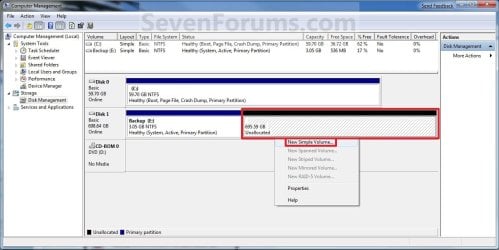
5. In the middle pane, right click on the empty unallocated partition or volume and click on New Simple Volume. (See screenshot above)

6. Click on the Next button. (See screenshot below) Create_Step2.jpg
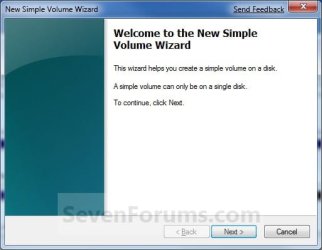
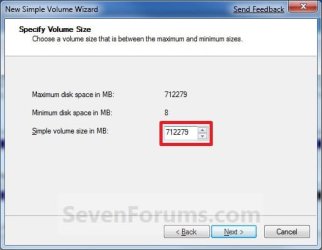
7. Type in how many MB (1 GB = 1024 MB) you want to use from the unallocated partition to create the new partition with, then click on the Next button. (See screenshot below)
NOTE: If you want to use all of the unallocated partition to create the new partition with, then type all of the maximum disk space shown for the unallocated partition. If you do not use all of the maximum disk space, then you can use the left over space from the unallocted partition to create another new partition with. Create_Step3.jpg
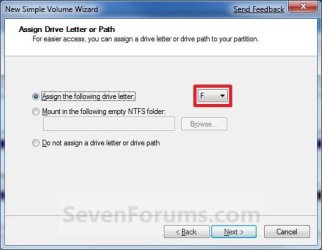
8. Select an available drive letter that you want to be assigned to the new partition in Computer, then click on the Next button. (See screenshot below) Create_Step4.jpg
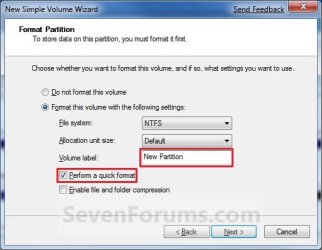
9. Type in a volume label name that you want for the new partition, check the Perform a quick format box, and click on the Next button. (See screenshot below) Create_Step5.jpg
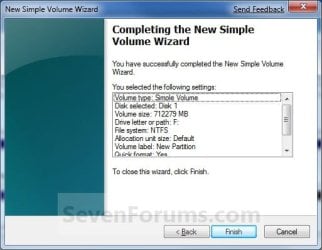
10. Click on the Finish button. (See screenshot below)

   Warning
If you get a pop-up with the message below, then click on No. You DO NOT want to convert the disk to dynamic. Doing so could render Windows 7 unbootable. A clean install of Windows 7 would be the only way to fix this afterwards if you were to click on Yes.

The operation selected will convert the disk to dynamic... are you sure you want to continue?
Create_Step6.jpg
11. The new primary partition or volume has now been created with the assigned unallocted partition space (step 7). (See screenshot below) Create_Step7.jpg
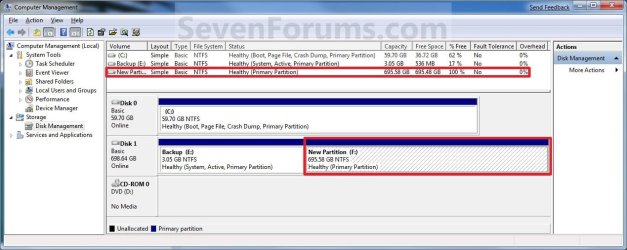
12. Close the Computer Management window. (See screenshot above)


OPTION TWO

Create Primary Partition using Diskpart in Elevated Command Prompt

1. You will first need to shrink a partition or volume to create a unallocated partition to use to create the new partition or volume with.

2. Open an elevated command prompt, or a command prompt at boot.

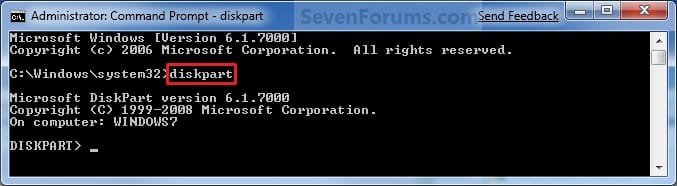
3. In the elevated command prompt, type diskpart and press Enter. (See screenshot below) CMD_Create_Step1.jpg
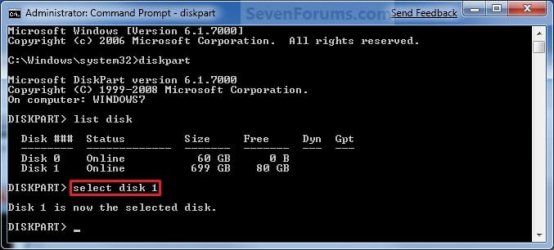
4. In the elevated command prompt, type list disk and press Enter. (See screenshot below)
NOTE: This is to help you ID the disk number that has Free unallocated space that you want to create a new partition with. For example, Disk 1 with 80 GB of free space. CMD_Create_Step2.jpg
5. In the elevated command prompt, type select disk # and press Enter. (See screenshot below)
NOTE: You would substitute # for the disk number listed that you want to create a new partition with the free unallocated space there. For example, I want to create a new partition with the 80 GB of free space, so I would type select disk 2 and press Enter. CMD_Create_Step3.jpg
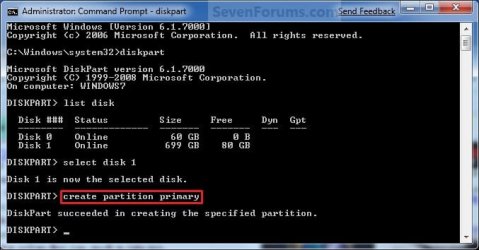
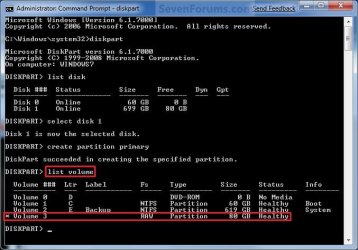
6. In the elevated command prompt, type create partition primary and press Enter. (See screenshot below)
NOTE: This will create a new blank RAW partition with selected disk (step 5) that contains the unallocated partition free space. CMD_Create_Step4.jpg
7. In the elevated command prompt, type list volume and press Enter. (See screenshot below)
NOTE: Look for the volume number that has the same Size as from the Free space in step 4. For example, Volume 3. CMD_Create_Step5.jpg
8. To Format the Partition or Disk as a NTFS File System
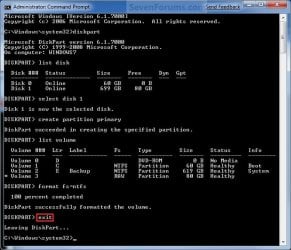
NOTE: This would be good for using with a HDD as an example. A) In the elevated command prompt, type format fs=ntfs quick and press Enter. (See screenshot below)
NOTE: Having quick added at the end of the command will do a quick format instead of a full format on the new blank RAW partition (step 6) to make it a new partition. CMD_Create_Step6.jpg
B) Go to step 10.
9. To Format the Partition or Disk as a FAT32 File System
NOTE: This would be good for using with a USB key drive as an example. The FAT32 file system has size limitations. You cannot create a FAT32 partition greater than 32 GB. In addition, you cannot store a file larger than 4 GB on a FAT32 partition. For more information, see Comparing NTFS and FAT file systems. A) In the elevated command prompt, type format fs=fat32 quick and press Enter. (See screenshot below)
NOTE: Having quick added at the end of the command will do a quick format instead of a full format on the new blank RAW partition (step 6) to make it a new partition.
10. When it is finished formatting, type exit in the elevated command prompt and press Enter. (See screenshot below) CMD_Create_Step7.jpg
11. Close the elevated command prompt.

12. The new primary partition has now been created. You can now see the new partition in Computer with a drive letter.
That's it,
Shawn


Last edited:
Lokks like there's only about 30gb used space on F.

Much easier to use the Free Partition Wizard.

D/L and install it.

On the main window, rt click F , select Move/Resize.

Drag the left edge of F all the way left to incorporate the unallocated space.

Then drag the right edge of F all the way rt to fill the window.

OK , then Click Apply.


Click Here for Free Partition Wizard Home Edition
 

My Computers

System One System Two

  • Computer type
    PC/Desktop
    OS
    7 X64
    CPU
    i5 8400
    Motherboard
    gigabyte b365m ds3h
    Memory
    2x8gb 3200mhz
    Hard Drives
    various
    PSU
    pure power 11 400w cm
    Case
    Coolermaster
    Cooling
    cryorig m9i
  • Computer type
    PC/Desktop
    OS
    7x64
    CPU
    g5400
    Motherboard
    ga b365m ds3h
    Memory
    8gb ddr4 2400
    PSU
    xfx pro 450w
Thanks guys for all your help!

I'm now hopefully close to what I've been trying to accomplish for two weeks!

Here is the final screenshot.

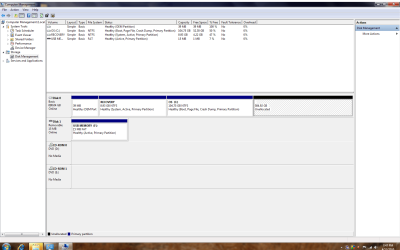
How can I create a new logical partition from the 585 GB of unallocated space resulting from the shrinking of the C volume???

Jim
 

Attachments

  • screen.png
    screen.png
    232.9 KB · Views: 605

My Computer

OS
w7
You decided to delete the F partition.

To create an Extended partition from that unallocated space, Rt click it in Disk management and select new simple volume.

It will automatically be ceated as an extended partition - selct Quick format, ntfs and give it a drive letter.
 

My Computers

System One System Two

  • Computer type
    PC/Desktop
    OS
    7 X64
    CPU
    i5 8400
    Motherboard
    gigabyte b365m ds3h
    Memory
    2x8gb 3200mhz
    Hard Drives
    various
    PSU
    pure power 11 400w cm
    Case
    Coolermaster
    Cooling
    cryorig m9i
  • Computer type
    PC/Desktop
    OS
    7x64
    CPU
    g5400
    Motherboard
    ga b365m ds3h
    Memory
    8gb ddr4 2400
    PSU
    xfx pro 450w
You decided to delete the F partition.

To create an Extended partition from that unallocated space, Rt click it in Disk management and select new simple volume.

It will automatically be ceated as an extended partition - selct Quick format, ntfs and give it a drive letter.
Perfect - as simple as that. The wizard will guide you. But if you want to see it in real, watch this video. It is 12 minutes long.
 

My Computer

Computer Manufacturer/Model Number
HP, Dell, Gateway, Toshiba - 4 laptops and 2 desktops
OS
Vista, Windows7, Mint Mate, Zorin, Windows 8
CPU
from 1.6GHz Duo to i7
Monitor(s) Displays
2x HP w2207
Hard Drives
5x HDD, 7x SSD, 12x Externals
Keyboard
with trackball - no mices
Mouse
Trackball mice
Internet Speed
DSL 6000
hi Shawn thx 4 ur wonderful tuts here they are a gr8 help

however i have a query if u could pls ans it

as per your tut i performed a shrink drive on my D: drive and this created a new unallocated drive

4t3ddf.png


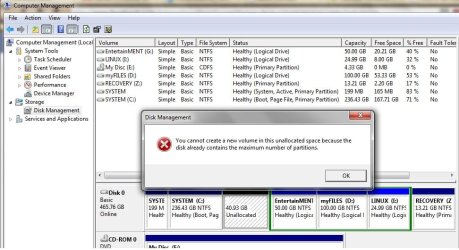
however when i right-clicked on the new unallocated drive this pop up showed up

2egd1cp.png


i am really confused please could you advice me and explain what does this mean
 

My Computer

OS
windows 7
Hello Aahana, and welcome to Seven Forums.

First, be sure to NOT let it convert your disk to Dynamic. You may not be able to boot back into Windows 7 if you do.

You are getting this message since you already have the limit of 4 primary partitions on your hard disk. Ideally you want 3 primaries and 1 extended to have up to 128 logical volumes in the extended partition if free space allows. Another option is to use another hard dive.

It seems that it may be your 10GB OEM Recovery partition that is locking you up. If you do not want to use another hard drive instead, then you will need to create a set of OEM recovery disc with the "Recovery Manager" type shortcut for your brand of computer in your Start Menu. Afterwards, you can use the free Partition Manager Home Edition to delete the 10GB OEM "Recovery partition" until it is "Unallocated Space", combine the two "Unallocated spaces" (10Gb and 59.7GB) if not already, then create the new logical partition with the "Unallocated space" to have 3 primary and 1 logical partitions.

Hope this helps,
Shawn
 

My Computer

Computer type
PC/Desktop
Computer Manufacturer/Model Number
Self built custom
OS
64-bit Windows 11 Pro for Workstations
CPU
Intel i7-8700K OC'd to 5 GHz
Motherboard
ASUS ROG Maximus XI Formula Z390
Memory
64 GB (4x16GB) G.SKILL TridentZ RGB DDR4 3600 MHz
Graphics Card(s)
ASUS ROG-STRIX-GTX1080TI-O11G-GAMING
Sound Card
Integrated
Monitor(s) Displays
2 x Samsung Odyssey G7 27"
Screen Resolution
2560x1440
Hard Drives
1TB Samsung 990 PRO M.2,
4TB Samsung 990 PRO PRO M.2,
TerraMaster F8 SSD Plus NAS
PSU
Seasonic Prime Titanium 850W
Case
Thermaltake Core P3
Cooling
Corsair Hydro H115i
Keyboard
Logitech wireless K800
Mouse
Logitech MX Master 4
Internet Speed
2 Gb/s Download and 100 Mb/s Upload
Antivirus
Malwarebyte Anti-Malware Premium
Browser
Google Chrome
Other Info
Logitech Z625 speaker system,
Logitech BRIO 4K Pro webcam,
HP Color LaserJet Pro MFP M477fdn,
APC SMART-UPS RT 1000 XL - SURT1000XLI,
Galaxy S23 Plus phone
Thx a Lot Shawn for being so sweet in welcoming me here

however I am confused still

if i intend to use this drive to install windows XP is it ok then to let it be a Dynamic disk ?

actually I intend to install Adobe Master collection CS3 as I am a student of animation and have tried installing it in windows 7 however discovered that Adobe CS3 and CS4 doesnt support Win 7 yet as when i tried installing it it would just install the shared component of the coll but none of the main softwares such as Photoshop, Illustrator , flash , adobe premiere pro or after effects get installed on it

and hence need a dual boot system so as to let me work on my CS3 coll which works just fine on XP

Hope I am not causing you too much of a trouble
 

My Computer

OS
windows 7
No problem at all Aahana.

DO NOT convert a basic disk that contains a installed operating system to a dynamic disk. Doing so will cause you to no longer be able to boot or start that operating system. :(
 

My Computer

Computer type
PC/Desktop
Computer Manufacturer/Model Number
Self built custom
OS
64-bit Windows 11 Pro for Workstations
CPU
Intel i7-8700K OC'd to 5 GHz
Motherboard
ASUS ROG Maximus XI Formula Z390
Memory
64 GB (4x16GB) G.SKILL TridentZ RGB DDR4 3600 MHz
Graphics Card(s)
ASUS ROG-STRIX-GTX1080TI-O11G-GAMING
Sound Card
Integrated
Monitor(s) Displays
2 x Samsung Odyssey G7 27"
Screen Resolution
2560x1440
Hard Drives
1TB Samsung 990 PRO M.2,
4TB Samsung 990 PRO PRO M.2,
TerraMaster F8 SSD Plus NAS
PSU
Seasonic Prime Titanium 850W
Case
Thermaltake Core P3
Cooling
Corsair Hydro H115i
Keyboard
Logitech wireless K800
Mouse
Logitech MX Master 4
Internet Speed
2 Gb/s Download and 100 Mb/s Upload
Antivirus
Malwarebyte Anti-Malware Premium
Browser
Google Chrome
Other Info
Logitech Z625 speaker system,
Logitech BRIO 4K Pro webcam,
HP Color LaserJet Pro MFP M477fdn,
APC SMART-UPS RT 1000 XL - SURT1000XLI,
Galaxy S23 Plus phone
No problem at all Aahana.

DO NOT convert a basic disk that contains a installed operating system to a dynamic disk. Doing so will cause you to no longer be able to boot or start that operating system. :(

Oh No Shawn Havent actually installed XP yet but need to soon so then - in that case will a dynamic disk be ok ?

cause i really need to work on my cs3 and seems like xp is my only option
 

My Computer

OS
windows 7
NO DYNAMIC DISK - FOR ANYTHING !!!! Follow Shawns guidance of 3 primaries and 1 extended, then you will be OK.
 

My Computer

Computer Manufacturer/Model Number
HP, Dell, Gateway, Toshiba - 4 laptops and 2 desktops
OS
Vista, Windows7, Mint Mate, Zorin, Windows 8
CPU
from 1.6GHz Duo to i7
Monitor(s) Displays
2x HP w2207
Hard Drives
5x HDD, 7x SSD, 12x Externals
Keyboard
with trackball - no mices
Mouse
Trackball mice
Internet Speed
DSL 6000
Aahana,

You cannot use a Dynamic disk on a hard drive that you have an OS installed on, or plan on installing one on, if you plan on being able to ever boot to it. As Wolfgang posted above: ;)


NO DYNAMIC DISK - FOR ANYTHING !!!!
 
Last edited:

My Computer

Computer type
PC/Desktop
Computer Manufacturer/Model Number
Self built custom
OS
64-bit Windows 11 Pro for Workstations
CPU
Intel i7-8700K OC'd to 5 GHz
Motherboard
ASUS ROG Maximus XI Formula Z390
Memory
64 GB (4x16GB) G.SKILL TridentZ RGB DDR4 3600 MHz
Graphics Card(s)
ASUS ROG-STRIX-GTX1080TI-O11G-GAMING
Sound Card
Integrated
Monitor(s) Displays
2 x Samsung Odyssey G7 27"
Screen Resolution
2560x1440
Hard Drives
1TB Samsung 990 PRO M.2,
4TB Samsung 990 PRO PRO M.2,
TerraMaster F8 SSD Plus NAS
PSU
Seasonic Prime Titanium 850W
Case
Thermaltake Core P3
Cooling
Corsair Hydro H115i
Keyboard
Logitech wireless K800
Mouse
Logitech MX Master 4
Internet Speed
2 Gb/s Download and 100 Mb/s Upload
Antivirus
Malwarebyte Anti-Malware Premium
Browser
Google Chrome
Other Info
Logitech Z625 speaker system,
Logitech BRIO 4K Pro webcam,
HP Color LaserJet Pro MFP M477fdn,
APC SMART-UPS RT 1000 XL - SURT1000XLI,
Galaxy S23 Plus phone
You're most welcome Aahana. :)
 

My Computer

Computer type
PC/Desktop
Computer Manufacturer/Model Number
Self built custom
OS
64-bit Windows 11 Pro for Workstations
CPU
Intel i7-8700K OC'd to 5 GHz
Motherboard
ASUS ROG Maximus XI Formula Z390
Memory
64 GB (4x16GB) G.SKILL TridentZ RGB DDR4 3600 MHz
Graphics Card(s)
ASUS ROG-STRIX-GTX1080TI-O11G-GAMING
Sound Card
Integrated
Monitor(s) Displays
2 x Samsung Odyssey G7 27"
Screen Resolution
2560x1440
Hard Drives
1TB Samsung 990 PRO M.2,
4TB Samsung 990 PRO PRO M.2,
TerraMaster F8 SSD Plus NAS
PSU
Seasonic Prime Titanium 850W
Case
Thermaltake Core P3
Cooling
Corsair Hydro H115i
Keyboard
Logitech wireless K800
Mouse
Logitech MX Master 4
Internet Speed
2 Gb/s Download and 100 Mb/s Upload
Antivirus
Malwarebyte Anti-Malware Premium
Browser
Google Chrome
Other Info
Logitech Z625 speaker system,
Logitech BRIO 4K Pro webcam,
HP Color LaserJet Pro MFP M477fdn,
APC SMART-UPS RT 1000 XL - SURT1000XLI,
Galaxy S23 Plus phone
Hello Aahana, and welcome to Seven Forums.

First, be sure to NOT let it convert your disk to Dynamic. You may not be able to boot back into Windows 7 if you do.

You are getting this message since you already have the limit of 4 primary partitions on your hard disk. Ideally you want 3 primaries and 1 extended to have up to 128 logical volumes in the extended partition if free space allows. Another option is to use another hard dive.

It seems that it may be your 10GB OEM Recovery partition that is locking you up. If you do not want to use another hard drive instead, then you will need to create a set of OEM recovery disc with the "Recovery Manager" type shortcut for your brand of computer in your Start Menu. Afterwards, you can use the free Partition Manager Home Edition to delete the 10GB OEM "Recovery partition" until it is "Unallocated Space", combine the two "Unallocated spaces" (10Gb and 59.7GB) if not already, then create the new logical partition with the "Unallocated space" to have 3 primary and 1 logical partitions.

Hope this helps,
Shawn


Thank you, soooooooooo much, that's realy helpful!
 

My Computer

OS
Windows 7 Home Premium
Hi,

Having trouble recently while creating a new partition. I shrink my C drive and when I was trying to make a new volume there I got a message like "..... the disk already contains the maximum number of partitions". Now I can not go back.... I tried to do a 'System Restore' but all the time the System Restore was unsuccessful.

Could you please tell me how can I go back? Also what are the other options to Create New Partitions?

Thank you.
Suranjit

Note: I have attached a screenshot.
 

Attachments

  • Disk Management.jpg
    Disk Management.jpg
    189.6 KB · Views: 386

My Computer

Computer Manufacturer/Model Number
HP
OS
Windows 7 64 bit
CPU
Inter Core 2 Duo T6600
Memory
4GB DDR3
Graphics Card(s)
ATI Radeon
Sound Card
Altec Lansing
Yeah, you painted yourself into the corner because you have 4 primary partitions. I suggest you delete one (after saving the data) - e.g. E because it is small. Then you can create more simple partitions - including a new E as simple partition.
 

My Computer

Computer Manufacturer/Model Number
HP, Dell, Gateway, Toshiba - 4 laptops and 2 desktops
OS
Vista, Windows7, Mint Mate, Zorin, Windows 8
CPU
from 1.6GHz Duo to i7
Monitor(s) Displays
2x HP w2207
Hard Drives
5x HDD, 7x SSD, 12x Externals
Keyboard
with trackball - no mices
Mouse
Trackball mice
Internet Speed
DSL 6000
Hi whs,

Thanks for your advice. That drive 'E' is a DVD so I will try to remove any other drive. But could you please tell me how can I get my new "Unallocated" space back???

Thanks,
Suranjit
 

My Computer

Computer Manufacturer/Model Number
HP
OS
Windows 7 64 bit
CPU
Inter Core 2 Duo T6600
Memory
4GB DDR3
Graphics Card(s)
ATI Radeon
Sound Card
Altec Lansing
Sorry, I missed that one of them was a cd drive. But then I do not understand why you got the message. With only 3 primaries, you should be able to create additional simple partitions. Maybe you want to try your luck with Partition Wizard. That is a real nice program and a lot more flexible than Disk management.
As to your question, with Disk Management you can add the unallocated space only to C. Right click on C and "extend partition". Then follow the wizard. With the Partition Wizard program, you have more options.
Note: It is always a good practice to backup partitions with which one plays around. Damage is unlikely, but one never knows.
 

My Computer

Computer Manufacturer/Model Number
HP, Dell, Gateway, Toshiba - 4 laptops and 2 desktops
OS
Vista, Windows7, Mint Mate, Zorin, Windows 8
CPU
from 1.6GHz Duo to i7
Monitor(s) Displays
2x HP w2207
Hard Drives
5x HDD, 7x SSD, 12x Externals
Keyboard
with trackball - no mices
Mouse
Trackball mice
Internet Speed
DSL 6000
You have run out of partition slots on that drive.

You can get rid of one of them. ( I avoid the 100mb partition, partly for that reason )

Or you can extend C using Disk Management - rt click C and select Extend.

Or you can move that unallocated space inside the Extended partition using Partition Wizard, then either add it into one of the existing logical drives, or create a new one. That will take a while as all the data in the Extended partition will be moved to the lower address spaces.
 

My Computers

System One System Two

  • Computer type
    PC/Desktop
    OS
    7 X64
    CPU
    i5 8400
    Motherboard
    gigabyte b365m ds3h
    Memory
    2x8gb 3200mhz
    Hard Drives
    various
    PSU
    pure power 11 400w cm
    Case
    Coolermaster
    Cooling
    cryorig m9i
  • Computer type
    PC/Desktop
    OS
    7x64
    CPU
    g5400
    Motherboard
    ga b365m ds3h
    Memory
    8gb ddr4 2400
    PSU
    xfx pro 450w
Thanks all. I was able to extend that unallocated partition into the C drive.

But I think I did a mistake while working with a 'logical drive'. I deleted one of my 'logical drive' and when I tried to allocate that free space to any other drive, I could not do that.
I even can not create a "New Simple Volume" on that Free space !!! Got the message 'There is not enough space available on the disk(s) to complete this operation".

Is there any way I can allocate this space to C drive and later can I make a bigger partition?

Another issue: In the "My Computer" it shows a partition as "Local Disk (Q:)" which is not in the Disk management. When I tried to open or do anything in that drive, I got warning messages like 'Invalid Function'. Any idea about that?

Thanks again.
Suranjit
 

My Computer

Computer Manufacturer/Model Number
HP
OS
Windows 7 64 bit
CPU
Inter Core 2 Duo T6600
Memory
4GB DDR3
Graphics Card(s)
ATI Radeon
Sound Card
Altec Lansing
Back
Top