Partition or Volume - Shrink

How to Shrink a Partition or Volume in Windows 7

   Information
This will show you how to shrink an existing partition or volume using Disk Management or Diskpart in Windows 7 to create unallocated disk space, from which you can create a new partition or volume with.
   Warning
You must be logged on in an administrator account to be able to do this tutorial.

If while shrinking a partition below, you get a Convert to Dynamic disks? type prompt, do not do so.

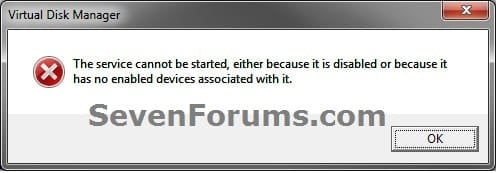
If you disable the Disk Defragmenter service, then you will get the error below when you try to do anything in Disk Management. If you get this error, then make sure that the Disk Defragmenter service is set to only Manual.
Error.jpg


OPTION ONE

Using Disk Management


1. Open the Control Panel (icons view), and click on the Administrative Tools icon. then close the Control Panel window.

2. Click on Computer Management in Administrative Tools, then close the Administrative Tools window.

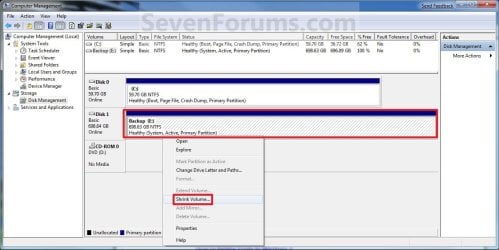
3. In the left pane under Storage, click on Disk Management. (See screenshot below)
Shrink_Step1.jpg
4. In the middle pane, right click on the partition that you want to shrink and click on Shrink Volume. (See screenshot above)

5. Type in how many MB (1 GB = 1024 MB) of the available shrink space shown that you want to shrink the partition or volume by to be used for the new unallocated space, then click on the Shrink button. (See screenshot below)
   Warning
The size of the available shrink space can be restricted by the amount of space currently allocated to on the hard drive for the virtual memory page file, System Protection maximum storage space size, and hibernation files. The location of the files on the hard drive plays a big part here because these files are marked as unmovable, and Disk Management is unable to relocate them. As such, if these unmovable files are located in the middle of the total amount of free space on the disk, then only the amount of free space on the other side (to the right) of these files will actually be available for the new partition. This will result in you showing that you have x amount of free space, but not being able to use it for your partition. The only way around this is to use a 3rd party hard drive partition management program, or setup the partition when installing Vista.

Shrink_Step2.jpg
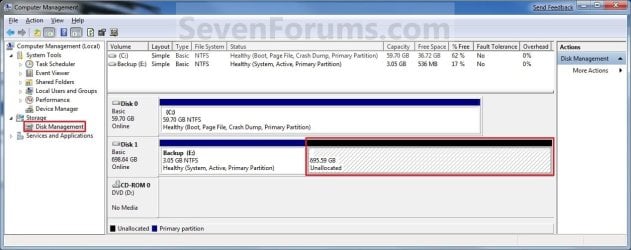
6. The selected partition (step 4) has now been shrunk to create a new empty unallocated space. You can use this new unallocated space to create a new partition with. (See screenshot below)
Shrink_Step3.jpg
7. Close the Computer Management window. (See screenshot above)


OPTION TWO

Using Diskpart in a Elevated Command Prompt


1. Open a elevated command prompt, or a command prompt at boot.

2. In the elevated command prompt, type diskpart and press Enter. (See screenshot below)
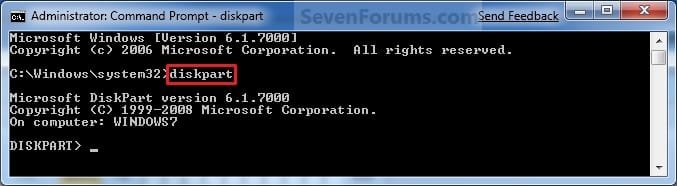
CMD_Shrink_Step1.jpg
3. In the elevated command prompt, type list volume and press Enter. (See screenshot below)
NOTE: This will give you a list of volume numbers to select from to shrink.
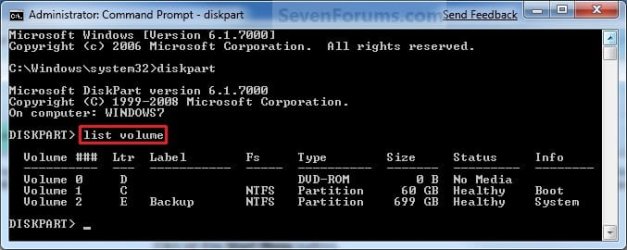
CMD_Shrink_Step2.jpg
4. In the elevated command prompt, type select volume # and press Enter. (See screenshot below)
NOTE: You would substitute # for the volume number listed that you want to shrink. For example, I want to shrink the listed volume 2, so I would type select volume 2 and press Enter.
CMD_Shrink_Step3.jpg
5. In the elevated command prompt, type shrink querymax and press Enter. (See screenshot below)
NOTE: This will give you the maximum amount of size in MB that you can shrink the selected partition or volume (step 4) by to be used as the new unallocated space. For example, I have 696 GB available to shrink.
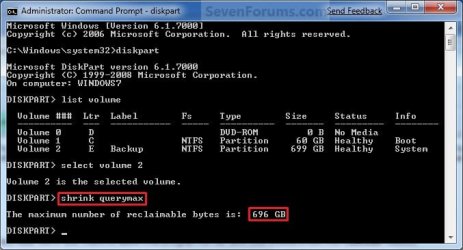
CMD_Shrink_Step4.jpg
6. To Shrink All of the Available Space
A) In the elevated command prompt, type shrink and press Enter.
NOTE: This will shrink the selected partition or volume by all of the maximum number of reclaimable bytes (step 4) to be used for the new unallocated space.

B) Go to step 8.
7. To Shrink the Available Space by a Specified Size
A) In the elevated command prompt, type shrink desired=(# in MB) and press Enter. (See screenshot below)
NOTE: You would substitute (# in MB) for how many MB (1 GB = 1024 MB) you want to shrink the selected partition or volume (step 4) by to be used for the new unallocated space. For example, if I only wanted to shrink the partition or volume by 81920 MB (80 GB), then I would type shrink desired=81920 and press Enter.
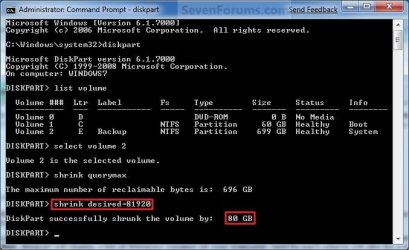
CMD_Shrink_Step5.jpg
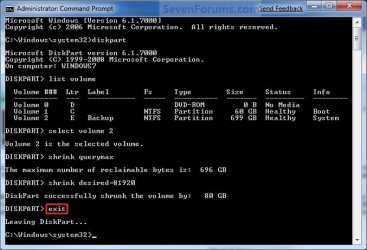
8. In the elevated command prompt, type exit and press Enter. (See screenshot below)
CMD_Shrink_Step6.jpg
9. Close the elevated command prompt.

10. The selected partition (step 4) has now been shrunk to create a new empty unallocated space. You can use this new unallocated space to create a new partition with.
That's it,
Shawn


Last edited:
A few days ago, I accidentally used the clean all command to my main hdd...
Luckily, I have back up the data the days before.. I have followed shawn's tutorial, so I think I might as well give this a try since I already clean my hdd

The problem is when I use the "list disk" command, my hdd is there, but when I type "list vol" command, my hard drive doesn't show up..

I thought that there was sth wrong with my laptop, so I tried this guide with my USB flash drive. I tried clean my USB, shrink it, and create the partition the same way that this guide does, AND it works..

I wonder why it doesn't work for my hdd?
 

My Computer

Computer Manufacturer/Model Number
Sager NP8150
OS
Windows 7 home premium x64
Mouse
Razer Orochi+Kabuto
A few days ago, I accidentally used the clean all command to my main hdd...
Luckily, I have back up the data the days before.. I have followed shawn's tutorial, so I think I might as well give this a try since I already clean my hdd

The problem is when I use the "list disk" command, my hdd is there, but when I type "list vol" command, my hard drive doesn't show up..

I thought that there was sth wrong with my laptop, so I tried this guide with my USB flash drive. I tried clean my USB, shrink it, and create the partition the same way that this guide does, AND it works..

I wonder why it doesn't work for my hdd?

As have used Clean All, you have no partitions or Volumes on the HD.
You now need to use this tutorial:
http://www.sevenforums.com/tutorials/2674-partition-volume-create-new.html?ltr=P
 

My Computer

OS
ME/XP/Vista/Win7
A few days ago, I accidentally used the clean all command to my main hdd...
Luckily, I have back up the data the days before.. I have followed shawn's tutorial, so I think I might as well give this a try since I already clean my hdd

The problem is when I use the "list disk" command, my hdd is there, but when I type "list vol" command, my hard drive doesn't show up..

I thought that there was sth wrong with my laptop, so I tried this guide with my USB flash drive. I tried clean my USB, shrink it, and create the partition the same way that this guide does, AND it works..

I wonder why it doesn't work for my hdd?

As have used Clean All, you have no partitions or Volumes on the HD.
You now need to use this tutorial:
http://www.sevenforums.com/tutorials/2674-partition-volume-create-new.html?ltr=P

Ah, so you mean that I dont have to do the shrink blablabla if I used clean all? Thx for the quick reply theog.. I will try it now...
 

My Computer

Computer Manufacturer/Model Number
Sager NP8150
OS
Windows 7 home premium x64
Mouse
Razer Orochi+Kabuto
Thx theog, it works like a charm... Now I have another question.. How do you create another partition when installing the windows? For example I have 465 gb hdd and I want to use 100gb for my boot hdd, and the rest for data hdd?
 

My Computer

Computer Manufacturer/Model Number
Sager NP8150
OS
Windows 7 home premium x64
Mouse
Razer Orochi+Kabuto

My Computer

OS
ME/XP/Vista/Win7
Hi. I want to shrink my HDD so that i can backup some files before formatting my PC, will this work? and after i format my PC will i be able to extend the HDD that i shrinked again :) Thank You.
 

My Computer

Computer Manufacturer/Model Number
Advent/Roma
OS
Windows 7 Ultimate 32bit
CPU
Intel Celeron T3100
Motherboard
Phoenix 1.90AD, 12/04/2010
Memory
3GB
Graphics Card(s)
Intel GM45
Sound Card
Realtek High Definition Audio
Monitor(s) Displays
Generic PnP Monitor
Screen Resolution
1366x768
Hard Drives
320GB
Hello Didaboss,

Could you post a screenshot of your Disk Management (diskmgmt.msc) window showing your HDD's layout first?

This will help determine what your options will be. :)
 

My Computer

Computer type
PC/Desktop
Computer Manufacturer/Model Number
Self built custom
OS
64-bit Windows 11 Pro for Workstations
CPU
Intel i7-8700K OC'd to 5 GHz
Motherboard
ASUS ROG Maximus XI Formula Z390
Memory
64 GB (4x16GB) G.SKILL TridentZ RGB DDR4 3600 MHz
Graphics Card(s)
ASUS ROG-STRIX-GTX1080TI-O11G-GAMING
Sound Card
Integrated
Monitor(s) Displays
2 x Samsung Odyssey G7 27"
Screen Resolution
2560x1440
Hard Drives
1TB Samsung 990 PRO M.2,
4TB Samsung 990 PRO PRO M.2,
TerraMaster F8 SSD Plus NAS
PSU
Seasonic Prime Titanium 850W
Case
Thermaltake Core P3
Cooling
Corsair Hydro H115i
Keyboard
Logitech wireless K800
Mouse
Logitech MX Master 4
Internet Speed
2 Gb/s Download and 100 Mb/s Upload
Antivirus
Malwarebyte Anti-Malware Premium
Browser
Google Chrome
Other Info
Logitech Z625 speaker system,
Logitech BRIO 4K Pro webcam,
HP Color LaserJet Pro MFP M477fdn,
APC SMART-UPS RT 1000 XL - SURT1000XLI,
Galaxy S23 Plus phone
Here you go :)

P.S that System (E) HDD got created while i was formatting (re installing Windows) :)
 

Attachments

  • Capture.PNG
    Capture.PNG
    26 KB · Views: 183

My Computer

Computer Manufacturer/Model Number
Advent/Roma
OS
Windows 7 Ultimate 32bit
CPU
Intel Celeron T3100
Motherboard
Phoenix 1.90AD, 12/04/2010
Memory
3GB
Graphics Card(s)
Intel GM45
Sound Card
Realtek High Definition Audio
Monitor(s) Displays
Generic PnP Monitor
Screen Resolution
1366x768
Hard Drives
320GB
Didaboss,

Yes, you will easily be able to shrink the C: partition to have unallocated space to create a new partition with for your backups. :)

For the best reliability of your backups though, I would recommend to have them on a separate physical HDD instead. This way if something should happen to this drive, the other one would still be there with your data/backups on it.
 

My Computer

Computer type
PC/Desktop
Computer Manufacturer/Model Number
Self built custom
OS
64-bit Windows 11 Pro for Workstations
CPU
Intel i7-8700K OC'd to 5 GHz
Motherboard
ASUS ROG Maximus XI Formula Z390
Memory
64 GB (4x16GB) G.SKILL TridentZ RGB DDR4 3600 MHz
Graphics Card(s)
ASUS ROG-STRIX-GTX1080TI-O11G-GAMING
Sound Card
Integrated
Monitor(s) Displays
2 x Samsung Odyssey G7 27"
Screen Resolution
2560x1440
Hard Drives
1TB Samsung 990 PRO M.2,
4TB Samsung 990 PRO PRO M.2,
TerraMaster F8 SSD Plus NAS
PSU
Seasonic Prime Titanium 850W
Case
Thermaltake Core P3
Cooling
Corsair Hydro H115i
Keyboard
Logitech wireless K800
Mouse
Logitech MX Master 4
Internet Speed
2 Gb/s Download and 100 Mb/s Upload
Antivirus
Malwarebyte Anti-Malware Premium
Browser
Google Chrome
Other Info
Logitech Z625 speaker system,
Logitech BRIO 4K Pro webcam,
HP Color LaserJet Pro MFP M477fdn,
APC SMART-UPS RT 1000 XL - SURT1000XLI,
Galaxy S23 Plus phone
Brink,

Ok, Thank You very much. You're Great! :)
 

My Computer

Computer Manufacturer/Model Number
Advent/Roma
OS
Windows 7 Ultimate 32bit
CPU
Intel Celeron T3100
Motherboard
Phoenix 1.90AD, 12/04/2010
Memory
3GB
Graphics Card(s)
Intel GM45
Sound Card
Realtek High Definition Audio
Monitor(s) Displays
Generic PnP Monitor
Screen Resolution
1366x768
Hard Drives
320GB
You're most welcome. :)
 

My Computer

Computer type
PC/Desktop
Computer Manufacturer/Model Number
Self built custom
OS
64-bit Windows 11 Pro for Workstations
CPU
Intel i7-8700K OC'd to 5 GHz
Motherboard
ASUS ROG Maximus XI Formula Z390
Memory
64 GB (4x16GB) G.SKILL TridentZ RGB DDR4 3600 MHz
Graphics Card(s)
ASUS ROG-STRIX-GTX1080TI-O11G-GAMING
Sound Card
Integrated
Monitor(s) Displays
2 x Samsung Odyssey G7 27"
Screen Resolution
2560x1440
Hard Drives
1TB Samsung 990 PRO M.2,
4TB Samsung 990 PRO PRO M.2,
TerraMaster F8 SSD Plus NAS
PSU
Seasonic Prime Titanium 850W
Case
Thermaltake Core P3
Cooling
Corsair Hydro H115i
Keyboard
Logitech wireless K800
Mouse
Logitech MX Master 4
Internet Speed
2 Gb/s Download and 100 Mb/s Upload
Antivirus
Malwarebyte Anti-Malware Premium
Browser
Google Chrome
Other Info
Logitech Z625 speaker system,
Logitech BRIO 4K Pro webcam,
HP Color LaserJet Pro MFP M477fdn,
APC SMART-UPS RT 1000 XL - SURT1000XLI,
Galaxy S23 Plus phone
Hi Brink,
Tried to re-partition my wife's laptop this morning, firstly using PW then Windows disk manager but couldn't seem to do it without changing the disk to "dynamic" so in the end I left it alone. Just read through the whole of this thread and you answered my query in Post 57 regarding max 4 primary partitions. Her laptop is a Samsung and has a windows partition C, a recovery partition D and 2 other much smaller system partitions - hence max reached.

I read your advice about removing the Recovery partition allowing me to create a new one which I may do but first I have a couple of questions:

1. What is a Dynamic disk and why so many warnings about not selecting this option?

2. Rather than creating a set of recovery DVDs, can I just copy the files from D onto a backup external HDD - it's just that I don't have full confidence in back up media having had problems in the past. If so, can I just drag and drop or do I need to create an image - what are all my options?

Regards
TWD
 

My Computer

OS
Windows Home Premium 64bit
Hello TWD,

If the Windows 7 HDD is converted to be a dynamic disk, then it will no longer be able to boot to it. Plus, it may also mess up your Recovery partition leaving you with no way to reinstall Windows 7 other than having to purchase a new "retail" copy, or order a replacement set of OEM recovery discs from the computer's manufacturer.

Drag and drop to only manually backup individual files (ex: documents, pictures, music, etc...) to another location would be fine, but not for the HDD itself.

You would always want to create a set of factory recovery discs as a backup of your recovery parition. This way if something should happen to your HDD (ex: fails), you would be able to restore Windows 7 to a new replacement HDD with the set of factory recovery discs.

As an additional backup plan to be extra safe, creating a system image to an external HDD would be good for the same to be able to do a system image recovery.

Hope this helps,
Shawn
 

My Computer

Computer type
PC/Desktop
Computer Manufacturer/Model Number
Self built custom
OS
64-bit Windows 11 Pro for Workstations
CPU
Intel i7-8700K OC'd to 5 GHz
Motherboard
ASUS ROG Maximus XI Formula Z390
Memory
64 GB (4x16GB) G.SKILL TridentZ RGB DDR4 3600 MHz
Graphics Card(s)
ASUS ROG-STRIX-GTX1080TI-O11G-GAMING
Sound Card
Integrated
Monitor(s) Displays
2 x Samsung Odyssey G7 27"
Screen Resolution
2560x1440
Hard Drives
1TB Samsung 990 PRO M.2,
4TB Samsung 990 PRO PRO M.2,
TerraMaster F8 SSD Plus NAS
PSU
Seasonic Prime Titanium 850W
Case
Thermaltake Core P3
Cooling
Corsair Hydro H115i
Keyboard
Logitech wireless K800
Mouse
Logitech MX Master 4
Internet Speed
2 Gb/s Download and 100 Mb/s Upload
Antivirus
Malwarebyte Anti-Malware Premium
Browser
Google Chrome
Other Info
Logitech Z625 speaker system,
Logitech BRIO 4K Pro webcam,
HP Color LaserJet Pro MFP M477fdn,
APC SMART-UPS RT 1000 XL - SURT1000XLI,
Galaxy S23 Plus phone
Thanks Shawn,
I already create a system image at least monthly for all my computers to an external drive as I have lost EVERYTHING more than once in the past. I also keep the last 3-4 images before overwritiing them. Would this be enough to ensure my restoration capability in the event of a disaster or should I keep the original restoration files as well? Seems a bit pointless especially if they become several months (or years) old because of the numerous windows updates that have taken place in the mean time. If you think a system image and a data back up is sufficient I may well ditch the restore partition.

Regardss
TWD
 

My Computer

OS
Windows Home Premium 64bit
I would recommend to also create a set of factory recovery discs from your recovery partition to have them stored away in case you may need them if the system images fail for some reason (ex: drive failure).

It's better to have them than not have them when you wished you did later.

Afterwards, you can delete the recovery partition if you like, and extend another partition into it. Be sure to create a new system image without the recovery partition though.
 

My Computer

Computer type
PC/Desktop
Computer Manufacturer/Model Number
Self built custom
OS
64-bit Windows 11 Pro for Workstations
CPU
Intel i7-8700K OC'd to 5 GHz
Motherboard
ASUS ROG Maximus XI Formula Z390
Memory
64 GB (4x16GB) G.SKILL TridentZ RGB DDR4 3600 MHz
Graphics Card(s)
ASUS ROG-STRIX-GTX1080TI-O11G-GAMING
Sound Card
Integrated
Monitor(s) Displays
2 x Samsung Odyssey G7 27"
Screen Resolution
2560x1440
Hard Drives
1TB Samsung 990 PRO M.2,
4TB Samsung 990 PRO PRO M.2,
TerraMaster F8 SSD Plus NAS
PSU
Seasonic Prime Titanium 850W
Case
Thermaltake Core P3
Cooling
Corsair Hydro H115i
Keyboard
Logitech wireless K800
Mouse
Logitech MX Master 4
Internet Speed
2 Gb/s Download and 100 Mb/s Upload
Antivirus
Malwarebyte Anti-Malware Premium
Browser
Google Chrome
Other Info
Logitech Z625 speaker system,
Logitech BRIO 4K Pro webcam,
HP Color LaserJet Pro MFP M477fdn,
APC SMART-UPS RT 1000 XL - SURT1000XLI,
Galaxy S23 Plus phone
Yep, that makes sense Shawn. Need to check out how to do it, I'm sure there will be something in the help files.

Cheers,
TWD
 

My Computer

OS
Windows Home Premium 64bit
TWD,

What brand is your computer, and is it a laptop or desktop?

I can look up the instructions for it. :)
 

My Computer

Computer type
PC/Desktop
Computer Manufacturer/Model Number
Self built custom
OS
64-bit Windows 11 Pro for Workstations
CPU
Intel i7-8700K OC'd to 5 GHz
Motherboard
ASUS ROG Maximus XI Formula Z390
Memory
64 GB (4x16GB) G.SKILL TridentZ RGB DDR4 3600 MHz
Graphics Card(s)
ASUS ROG-STRIX-GTX1080TI-O11G-GAMING
Sound Card
Integrated
Monitor(s) Displays
2 x Samsung Odyssey G7 27"
Screen Resolution
2560x1440
Hard Drives
1TB Samsung 990 PRO M.2,
4TB Samsung 990 PRO PRO M.2,
TerraMaster F8 SSD Plus NAS
PSU
Seasonic Prime Titanium 850W
Case
Thermaltake Core P3
Cooling
Corsair Hydro H115i
Keyboard
Logitech wireless K800
Mouse
Logitech MX Master 4
Internet Speed
2 Gb/s Download and 100 Mb/s Upload
Antivirus
Malwarebyte Anti-Malware Premium
Browser
Google Chrome
Other Info
Logitech Z625 speaker system,
Logitech BRIO 4K Pro webcam,
HP Color LaserJet Pro MFP M477fdn,
APC SMART-UPS RT 1000 XL - SURT1000XLI,
Galaxy S23 Plus phone
Hi Brink,
It's a Samsung laptop model R730 (PDC T4300) 17.3"

TWD
 

My Computer

OS
Windows Home Premium 64bit
TWD,

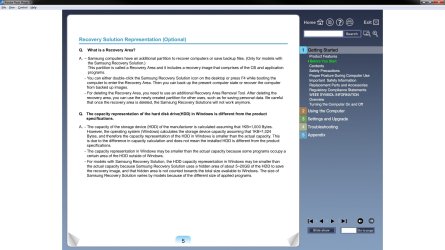
Page 5 in the manual for your laptop below is not real clear on this, but it looks like you may be able to either tap F4 at boot while restarting the computer or look for a Samsung Recovery Solution shortcut in the Start Menu to see if there may be an option to be able to create a set of factory recovery discs.

Page-5.jpg
 

My Computer

Computer type
PC/Desktop
Computer Manufacturer/Model Number
Self built custom
OS
64-bit Windows 11 Pro for Workstations
CPU
Intel i7-8700K OC'd to 5 GHz
Motherboard
ASUS ROG Maximus XI Formula Z390
Memory
64 GB (4x16GB) G.SKILL TridentZ RGB DDR4 3600 MHz
Graphics Card(s)
ASUS ROG-STRIX-GTX1080TI-O11G-GAMING
Sound Card
Integrated
Monitor(s) Displays
2 x Samsung Odyssey G7 27"
Screen Resolution
2560x1440
Hard Drives
1TB Samsung 990 PRO M.2,
4TB Samsung 990 PRO PRO M.2,
TerraMaster F8 SSD Plus NAS
PSU
Seasonic Prime Titanium 850W
Case
Thermaltake Core P3
Cooling
Corsair Hydro H115i
Keyboard
Logitech wireless K800
Mouse
Logitech MX Master 4
Internet Speed
2 Gb/s Download and 100 Mb/s Upload
Antivirus
Malwarebyte Anti-Malware Premium
Browser
Google Chrome
Other Info
Logitech Z625 speaker system,
Logitech BRIO 4K Pro webcam,
HP Color LaserJet Pro MFP M477fdn,
APC SMART-UPS RT 1000 XL - SURT1000XLI,
Galaxy S23 Plus phone
OK, Done the deed. Made a s/w restore dvd, copied all the files to an external file, did a windows back up including image, shrunk the C drive, extended the D drive and quick formatted it, then copied all our musc files to it. One way to spend your Saturday LOL

Thanks for advice Shawn
 

My Computer

OS
Windows Home Premium 64bit
Back
Top