
You are using an out of date browser. It may not display this or other websites correctly.
You should upgrade or use an alternative browser.
You should upgrade or use an alternative browser.
Partition??
- Thread starter jack1953
- Start date

Suggest you post a snip of your Disk Management. Then we can advise you.
My Computer
At a glance
Vista, Windows7, Mint Mate, Zorin, Windows 8from 1.6GHz Duo to i7
- Computer Manufacturer/Model Number
- HP, Dell, Gateway, Toshiba - 4 laptops and 2 desktops
- OS
- Vista, Windows7, Mint Mate, Zorin, Windows 8
- CPU
- from 1.6GHz Duo to i7
- Monitor(s) Displays
- 2x HP w2207
- Hard Drives
- 5x HDD, 7x SSD, 12x Externals
- Keyboard
- with trackball - no mices
- Mouse
- Trackball mice
- Internet Speed
- DSL 6000

My Computer
At a glance
Windows 7 Ultimate x64Intel i5-2500k16GB2x Radeon HD7970 Crossfire
- Computer Manufacturer/Model Number
- Custom
- OS
- Windows 7 Ultimate x64
- CPU
- Intel i5-2500k
- Motherboard
- ASUS P8Z68-V Pro/GEN3
- Memory
- 16GB
- Graphics Card(s)
- 2x Radeon HD7970 Crossfire
- Sound Card
- On-Board / Logitech G930
- Monitor(s) Displays
- 3x Dell u2412m
- Screen Resolution
- 5760x1200
- Hard Drives
- Toshiba thns064gg2bbaa SSD
Seagate Barracuda 7200.12 ST31000528AS 1TB
Intel RST SSD caching enabled
- PSU
- Corsair AX850
- Case
- Corsair Obsidian 650D
- Cooling
- Corsair H100
- Keyboard
- Logitech Illuminated
- Mouse
- Logitech M510 Wireless
- Internet Speed
- 1Mb/s

usually if you buy a netbook or notebook.. that's should be write on specification about the OS..you buy it include the OS or non OS, if include the OS if you see at device manager and disk management you will see that's the partition for storing your original OS.
My Computer
At a glance
windows 7Phenom II AMD Dragon 3.5GhzDDR3 4GBATI Radeon 512Mb
- Computer Manufacturer/Model Number
- built up
- OS
- windows 7
- CPU
- Phenom II AMD Dragon 3.5Ghz
- Memory
- DDR3 4GB
- Graphics Card(s)
- ATI Radeon 512Mb
- Monitor(s) Displays
- HP L1506
- Screen Resolution
- 1152 x 864
- Hard Drives
- WDC 1 TB SATA-II Green Power
- Keyboard
- HP wireless keyboard
- Mouse
- HP Optic
- Internet Speed
- 1GB

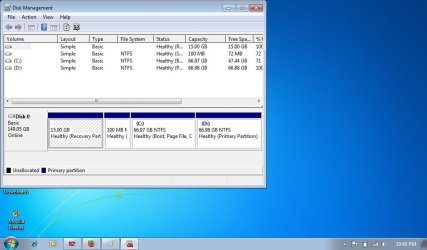
I would not change a thing.
1. the first partition is your recovery partition that contains the backup of the OS in case you have to reinstall
2. the second little partition is your boot partition
3. the 3d partition is the operating system
4. the 4th partition is available for data
Note that you cannot create any more partitions at this time (without getting into deep trouble called dynamics) because you already have 4 primaries - which is the maximum. If you plan to create another partition, come back and we will tell you the steps on how to create another partition safely.
1. the first partition is your recovery partition that contains the backup of the OS in case you have to reinstall
2. the second little partition is your boot partition
3. the 3d partition is the operating system
4. the 4th partition is available for data
Note that you cannot create any more partitions at this time (without getting into deep trouble called dynamics) because you already have 4 primaries - which is the maximum. If you plan to create another partition, come back and we will tell you the steps on how to create another partition safely.
My Computer
At a glance
Vista, Windows7, Mint Mate, Zorin, Windows 8from 1.6GHz Duo to i7
- Computer Manufacturer/Model Number
- HP, Dell, Gateway, Toshiba - 4 laptops and 2 desktops
- OS
- Vista, Windows7, Mint Mate, Zorin, Windows 8
- CPU
- from 1.6GHz Duo to i7
- Monitor(s) Displays
- 2x HP w2207
- Hard Drives
- 5x HDD, 7x SSD, 12x Externals
- Keyboard
- with trackball - no mices
- Mouse
- Trackball mice
- Internet Speed
- DSL 6000

I would not change a thing.
1. the first partition is your recovery partition that contains the backup of the OS in case you have to reinstall
2. the second little partition is your boot partition
3. the 3d partition is the operating system
4. the 4th partition is available for data
Note that you cannot create any more partitions at this time (without getting into deep trouble called dynamics) because you already have 4 primaries - which is the maximum. If you plan to create another partition, come back and we will tell you the steps on how to create another partition safely.
WHS -- Isn't the Recovery Partition empty?
My Computer
At a glance
Windows 7 Home Premium 32-Bit - Build 7600 SP1Intel Core i3-2120 3.30GhzKingston 4 GB DDR3 1333 mhzAMD Radeon HD6670
- Computer type
- PC/Desktop
- Computer Manufacturer/Model Number
- Custom Build
- OS
- Windows 7 Home Premium 32-Bit - Build 7600 SP1
- CPU
- Intel Core i3-2120 3.30Ghz
- Motherboard
- Asus P8Z68-V LX Intel Z68 Socket H2 ATX
- Memory
- Kingston 4 GB DDR3 1333 mhz
- Graphics Card(s)
- AMD Radeon HD6670
- Sound Card
- Sound Blaster Audigy SE 24-Bit
- Monitor(s) Displays
- Asus VE228
- Screen Resolution
- 1440 X 900
- Hard Drives
- OCZ Vertex 3 120 GB Sata 3 SSD ==
Kingston SH103/S3 120 G Hyper X 120 GB SSD ==
Western Digital 500 GB Caviar Green 7200 RPM ==
- PSU
- Corsair CX600M == 600 Watt
- Case
- NZXT Apollo - Silver with Clear Side Panel
- Cooling
- Three 120 mm Fans
- Keyboard
- Microsoft Natural 4000
- Mouse
- Microsoft Custom Optical 3000
- Internet Speed
- AT&T Fiber Optic Wireless Network
- Antivirus
- Microsoft Security Essentials
- Browser
- Chrome
- Other Info
- 120 mm Blue LED Fan -- Three Blue LED Lazer Light Sticks
No, it contains an image of your whole system as it came out of the box. Once you burnt the recovery DVDs from it, you could delete it. But I do not recommend that without further safety measures like e.g. images. You never know whether the DVDs you burnt will work.I would not change a thing.
1. the first partition is your recovery partition that contains the backup of the OS in case you have to reinstall
2. the second little partition is your boot partition
3. the 3d partition is the operating system
4. the 4th partition is available for data
Note that you cannot create any more partitions at this time (without getting into deep trouble called dynamics) because you already have 4 primaries - which is the maximum. If you plan to create another partition, come back and we will tell you the steps on how to create another partition safely.
WHS -- Isn't the Recovery Partition empty?
My Computer
At a glance
Vista, Windows7, Mint Mate, Zorin, Windows 8from 1.6GHz Duo to i7
- Computer Manufacturer/Model Number
- HP, Dell, Gateway, Toshiba - 4 laptops and 2 desktops
- OS
- Vista, Windows7, Mint Mate, Zorin, Windows 8
- CPU
- from 1.6GHz Duo to i7
- Monitor(s) Displays
- 2x HP w2207
- Hard Drives
- 5x HDD, 7x SSD, 12x Externals
- Keyboard
- with trackball - no mices
- Mouse
- Trackball mice
- Internet Speed
- DSL 6000
I just bought a used Samsung netbook. It has Windows 7 Starter. It is 120G HD but is partitioned. Are these partitioned by design? Is there a way to 'unpartition it'???
Thanks,
Jack
When you start installing things, put your programs on C: and your Data on D:. An example would be MS Office on your C: drive and put the letters that you type in Office on your D: drive. It makes things tidy and if you ever have to reinstall Windows, you will have all of your documents on D: drive and will not have to back them up.
My Computer
At a glance
Windows 7 Home Premium 32-Bit - Build 7600 SP1Intel Core i3-2120 3.30GhzKingston 4 GB DDR3 1333 mhzAMD Radeon HD6670
- Computer type
- PC/Desktop
- Computer Manufacturer/Model Number
- Custom Build
- OS
- Windows 7 Home Premium 32-Bit - Build 7600 SP1
- CPU
- Intel Core i3-2120 3.30Ghz
- Motherboard
- Asus P8Z68-V LX Intel Z68 Socket H2 ATX
- Memory
- Kingston 4 GB DDR3 1333 mhz
- Graphics Card(s)
- AMD Radeon HD6670
- Sound Card
- Sound Blaster Audigy SE 24-Bit
- Monitor(s) Displays
- Asus VE228
- Screen Resolution
- 1440 X 900
- Hard Drives
- OCZ Vertex 3 120 GB Sata 3 SSD ==
Kingston SH103/S3 120 G Hyper X 120 GB SSD ==
Western Digital 500 GB Caviar Green 7200 RPM ==
- PSU
- Corsair CX600M == 600 Watt
- Case
- NZXT Apollo - Silver with Clear Side Panel
- Cooling
- Three 120 mm Fans
- Keyboard
- Microsoft Natural 4000
- Mouse
- Microsoft Custom Optical 3000
- Internet Speed
- AT&T Fiber Optic Wireless Network
- Antivirus
- Microsoft Security Essentials
- Browser
- Chrome
- Other Info
- 120 mm Blue LED Fan -- Three Blue LED Lazer Light Sticks
No, it contains an image of your whole system as it came out of the box. Once you burnt the recovery DVDs from it, you could delete it. But I do not recommend that without further safety measures like e.g. images. You never know whether the DVDs you burnt will work.
The reason I said that is that it shows the capacity as all free.
My Computer
At a glance
Windows 7 Home Premium 32-Bit - Build 7600 SP1Intel Core i3-2120 3.30GhzKingston 4 GB DDR3 1333 mhzAMD Radeon HD6670
- Computer type
- PC/Desktop
- Computer Manufacturer/Model Number
- Custom Build
- OS
- Windows 7 Home Premium 32-Bit - Build 7600 SP1
- CPU
- Intel Core i3-2120 3.30Ghz
- Motherboard
- Asus P8Z68-V LX Intel Z68 Socket H2 ATX
- Memory
- Kingston 4 GB DDR3 1333 mhz
- Graphics Card(s)
- AMD Radeon HD6670
- Sound Card
- Sound Blaster Audigy SE 24-Bit
- Monitor(s) Displays
- Asus VE228
- Screen Resolution
- 1440 X 900
- Hard Drives
- OCZ Vertex 3 120 GB Sata 3 SSD ==
Kingston SH103/S3 120 G Hyper X 120 GB SSD ==
Western Digital 500 GB Caviar Green 7200 RPM ==
- PSU
- Corsair CX600M == 600 Watt
- Case
- NZXT Apollo - Silver with Clear Side Panel
- Cooling
- Three 120 mm Fans
- Keyboard
- Microsoft Natural 4000
- Mouse
- Microsoft Custom Optical 3000
- Internet Speed
- AT&T Fiber Optic Wireless Network
- Antivirus
- Microsoft Security Essentials
- Browser
- Chrome
- Other Info
- 120 mm Blue LED Fan -- Three Blue LED Lazer Light Sticks
Because it is a hidden partition - I think.No, it contains an image of your whole system as it came out of the box. Once you burnt the recovery DVDs from it, you could delete it. But I do not recommend that without further safety measures like e.g. images. You never know whether the DVDs you burnt will work.
The reason I said that is that it shows the capacity as all free.
My Computer
At a glance
Vista, Windows7, Mint Mate, Zorin, Windows 8from 1.6GHz Duo to i7
- Computer Manufacturer/Model Number
- HP, Dell, Gateway, Toshiba - 4 laptops and 2 desktops
- OS
- Vista, Windows7, Mint Mate, Zorin, Windows 8
- CPU
- from 1.6GHz Duo to i7
- Monitor(s) Displays
- 2x HP w2207
- Hard Drives
- 5x HDD, 7x SSD, 12x Externals
- Keyboard
- with trackball - no mices
- Mouse
- Trackball mice
- Internet Speed
- DSL 6000

- Local time
- 2:00 PM
- Messages
- 50,634
Here is how to move your User folders to the D: Data drive: http://www.sevenforums.com/tutorials/18629-user-folders-change-default-location.html
This is a good arrangement because you can save an Win7 backup image of just your OS/Programs C partition so that if Win7 ever becomes irreparable, by booting the DVD/Repair CD the System partition can be reimaged in 20 minutes with the data ready and current in it's own separate partition "vault" - which should also be backed up externally. http://www.sevenforums.com/tutorials/663-backup-complete-computer-create-image-backup.html
I believe BigMck was noticing that the Recov partition shows no content in the DM listings. Is it possible your Recov partition had its files deleted? You can Explore its contents using free Partition Wizard CD to see if anything is still there. If not, you can delete it using PW CD, then slide the 100mb boot partition intact all the way to the left side of HD, click on C to Resize>Move it's left border to the left to add the extra 15gb to C.
You can then resize the right border of C to give D more room if desired to use as a data partition. Finally rightclick on D to slide its left border to the left to claim the extra space. OK, Apply all steps.
If you follow this course, back up your files and have a Win7 DVD or Repair CD standing by in case you need to run Startup Repair after these changes.
Free Download Magic Partition Manager Software - Partition Wizard Online
http://www.sevenforums.com/tutorials/2083-system-repair-disc-create.html
If Recov partition is still intact, be sure to make your disks and store them securely.
This is a good arrangement because you can save an Win7 backup image of just your OS/Programs C partition so that if Win7 ever becomes irreparable, by booting the DVD/Repair CD the System partition can be reimaged in 20 minutes with the data ready and current in it's own separate partition "vault" - which should also be backed up externally. http://www.sevenforums.com/tutorials/663-backup-complete-computer-create-image-backup.html
I believe BigMck was noticing that the Recov partition shows no content in the DM listings. Is it possible your Recov partition had its files deleted? You can Explore its contents using free Partition Wizard CD to see if anything is still there. If not, you can delete it using PW CD, then slide the 100mb boot partition intact all the way to the left side of HD, click on C to Resize>Move it's left border to the left to add the extra 15gb to C.
You can then resize the right border of C to give D more room if desired to use as a data partition. Finally rightclick on D to slide its left border to the left to claim the extra space. OK, Apply all steps.
If you follow this course, back up your files and have a Win7 DVD or Repair CD standing by in case you need to run Startup Repair after these changes.
Free Download Magic Partition Manager Software - Partition Wizard Online
http://www.sevenforums.com/tutorials/2083-system-repair-disc-create.html
If Recov partition is still intact, be sure to make your disks and store them securely.
Last edited:
I would not change a thing.
1. the first partition is your recovery partition that contains the backup of the OS in case you have to reinstall
2. the second little partition is your boot partition
3. the 3d partition is the operating system
4. the 4th partition is available for data
Note that you cannot create any more partitions at this time (without getting into deep trouble called dynamics) because you already have 4 primaries - which is the maximum. If you plan to create another partition, come back and we will tell you the steps on how to create another partition safely.
When I go to my computer, it shows 2 drives with 60G on each, a C and a D drive. All the info is on the C and a tiny bit showing up on the D. What happens when the C drive reaches its max? Is there a way to switch to the D and utilize the other half of the hard drive?
Thanks again.
Jack
My Computer
At a glance
Windows 7
- OS
- Windows 7
- Local time
- 2:00 PM
- Messages
- 50,634
I gave you the answer in the post above.
If you don't like having your User folders on a separate data partition, you can delete D in Disk Management, then Extend C into its space. http://www.sevenforums.com/tutorials/2670-partition-volume-extend.html
You don't really have enough space for normally sized User folders to fit on the OS/programs partition, so I'd either move User folders to data drive for reasons stated, or delete D and extend C.
If you don't like having your User folders on a separate data partition, you can delete D in Disk Management, then Extend C into its space. http://www.sevenforums.com/tutorials/2670-partition-volume-extend.html
You don't really have enough space for normally sized User folders to fit on the OS/programs partition, so I'd either move User folders to data drive for reasons stated, or delete D and extend C.
I gave you the answer in the post above.
If you don't like having your User folders on a separate data partition, you can delete D in Disk Management, then Extend C into its space. http://www.sevenforums.com/tutorials/2670-partition-volume-extend.html
You don't really have enough space for normally sized User folders to fit on the OS/programs partition, so I'd either move User folders to data drive for reasons stated, or delete D and extend C.
Thanks Greg!! All set!! You DA MAN!!!
Jack

My Computer
At a glance
Windows 7
- OS
- Windows 7

- Local time
- 2:00 PM
- Messages
- 12,011
The previous owner had two 67 gig partitions. We don’t know if he bought it that way. He may have saved his personal data on C or on D.
You can save you personal data on C or D also.
You currently have 19 GB occupied on C, with 48 GB free on C.
There is little reason for you to have a D partition unless you intend to put your personal files there.
If you want to keep your personal files on C, as Greg said you can delete D and make C cover the entire drive.
Most people worldwide use just a single C partition that contains both Windows and their personal data. On this forum, quite a few use 2 partitions: C for Windows and D for personal data. It’s purely personal choice
Your hard drive isn’t very big. If you want to keep data on D, you only have about 67 gigs of space. That can get eaten up quickly by video files. If you intend to get involved with video, you might want to do one of these 2 things:
1: Delete D, shrink C to maybe 40 GB, and then create a new D containing ALL of the remaining space of about 95 GB. Then keep personal data on D. A 40 GB C partition is big enough for most Windows 7 installations. Again, no point in a D unless you want to keep data there.
2: Delete D and expand C to take up the entire drive. You would have a C drive of about 134 GB for both Windows and data. No D drive at all.
Which you should do depends on your intended usage. If you are only going to have text files, it likely won’t matter. If you intend to get into video files on such a small drive, you might be better off with a single C. Otherwise, you might run out of space on your current 67 GB D drive.
You can save you personal data on C or D also.
You currently have 19 GB occupied on C, with 48 GB free on C.
There is little reason for you to have a D partition unless you intend to put your personal files there.
If you want to keep your personal files on C, as Greg said you can delete D and make C cover the entire drive.
Most people worldwide use just a single C partition that contains both Windows and their personal data. On this forum, quite a few use 2 partitions: C for Windows and D for personal data. It’s purely personal choice
Your hard drive isn’t very big. If you want to keep data on D, you only have about 67 gigs of space. That can get eaten up quickly by video files. If you intend to get involved with video, you might want to do one of these 2 things:
1: Delete D, shrink C to maybe 40 GB, and then create a new D containing ALL of the remaining space of about 95 GB. Then keep personal data on D. A 40 GB C partition is big enough for most Windows 7 installations. Again, no point in a D unless you want to keep data there.
2: Delete D and expand C to take up the entire drive. You would have a C drive of about 134 GB for both Windows and data. No D drive at all.
Which you should do depends on your intended usage. If you are only going to have text files, it likely won’t matter. If you intend to get into video files on such a small drive, you might be better off with a single C. Otherwise, you might run out of space on your current 67 GB D drive.
My Computer
At a glance
Windows 7 Home Premium SP1, 64-bitIntel Skylake i5-6600K, not overclocked8 GB HyperX DDR4-2666 (2 x 4 GB)none; graphics are integrated on CPU
- Computer type
- PC/Desktop
- Computer Manufacturer/Model Number
- Ignatz Special; 4 speed manual gearbox; factory air conditioning; one of one
- OS
- Windows 7 Home Premium SP1, 64-bit
- CPU
- Intel Skylake i5-6600K, not overclocked
- Motherboard
- AsRock Z170M Extreme 4, micro ATX
- Memory
- 8 GB HyperX DDR4-2666 (2 x 4 GB)
- Graphics Card(s)
- none; graphics are integrated on CPU
- Sound Card
- onboard: Realtek ALC1150; external: USB Behringer UF0-202
- Monitor(s) Displays
- Dell S2340M 23 inch IPS
- Screen Resolution
- 1600 x 900
- Hard Drives
- System: Crucial MX100 series SSD, 128 GB;
Data: Samsung Spinpoint 103SJ, 1 TB;
Backup: WD Caviar Green WD30EZRX-00D8PB0, 3 TB
- PSU
- Rosewill SilentNight 500 watt fanless, semi-modular
- Case
- Antec Solo II
- Cooling
- Noctua NH-U12S; Noctua F12 intake, Noctua S12A exhaust
- Keyboard
- Microsoft 200 6JH-00001 USB
- Mouse
- Dell or Microsoft optical wired; USB
- Antivirus
- Microsoft Security Essentials and Malwarebytes Premium
- Browser
- Pale Moon
- Other Info
- All fans PWM; speeds at idle: CPU circa 500 rpm; intake circa 600 rpm; exhaust circa 600 rpm; CPU temps 27 idle and 47 C load in a warm room (27 C/81 F) when running Intel Extreme Tuning Utility stress test.

- Local time
- 4:00 PM
- Messages
- 5,053
Whoever set up those partitions is a turd. What was the need to have a primary partition for data? Just backup your data, delete that D: partition, then create a new logical partition for data. And yes, it does make sense to have a separate data partition.
If you want maneouvre space for more primary partitions in the future, you can even get rid of the system reserved and boot directly off the windows partition. I'm on low bandwidth again, so look in the tuts section how you can do that. Though that'll take away the ability to boot to recovery options without using the win7 disk.
If you want maneouvre space for more primary partitions in the future, you can even get rid of the system reserved and boot directly off the windows partition. I'm on low bandwidth again, so look in the tuts section how you can do that. Though that'll take away the ability to boot to recovery options without using the win7 disk.
My Computer
At a glance
Windows 7 x64 pro/ Windows 7 x86 Pro/ XP SP3 x86
- Computer Manufacturer/Model Number
- Too many to describe...
- OS
- Windows 7 x64 pro/ Windows 7 x86 Pro/ XP SP3 x86
I have to be cautious about the inference from a response.Whoever set up those partitions is a turd. What was the need to have a primary partition for data? Just backup your data, delete that D: partition, then create a new logical partition for data. And yes, it does make sense to have a separate data partition.
If you want maneouvre space for more primary partitions in the future, you can even get rid of the system reserved and boot directly off the windows partition. I'm on low bandwidth again, so look in the tuts section how you can do that. Though that'll take away the ability to boot to recovery options without using the win7 disk.
I thought the partitioning looked good. Good size for OS, apps + some data. Data partition for either folders as gregrocker described or more static data (images, videos, music.....).
Given the data partition is relatively small to begin with why have it extended logical. Would you really want more partitions out of 67GB. Is there something fundamentally better in having a logical data partition?
If D: remains primary what are the problems in simply converting to logical at a later date? (Using say Partition Wizard).
Last edited:
My Computer
At a glance
Windows 7x64 Home Premium SP1Intel i7 2600kG.Skill Ripjaws (DDR3-1600) 2x4GBNvidia GeForce GTS 450; Intel HD Graphics 300...
- Computer type
- PC/Desktop
- Computer Manufacturer/Model Number
- Own build
- OS
- Windows 7x64 Home Premium SP1
- CPU
- Intel i7 2600k
- Motherboard
- ASUS P8Z68 Deluxe
- Memory
- G.Skill Ripjaws (DDR3-1600) 2x4GB
- Graphics Card(s)
- Nvidia GeForce GTS 450; Intel HD Graphics 3000(GT2+)
- Monitor(s) Displays
- Dell Ultrasharp IPS panel U2311H, Samsung SyncMaster P2350
- Screen Resolution
- 1920x1080
- Hard Drives
- Samsung 850 Pro SSD 256GB, Samsung SSD 840 120GB, Seagates 1TB Barracuda ST31000528AS x2
- PSU
- Seasonic M12II 520W
- Case
- Lian Li Lancool PC-K60
- Cooling
- Case: 1x120mm, 3x140mm CPU: Hyper 212+
- Keyboard
- Logitech MK520 (wireless)
- Mouse
- Logitech MK520
- Internet Speed
- 6-7 Mbps
- Antivirus
- Norton Security Premium, Malwarebytes on 2 (MSE on 3rd PC)
- Browser
- FireFox
- Other Info
- Audio: Logitech Z523 2.1

Hello jack1953, welcome to Seven Forums!
From your last post it seems you may have accomplished what you want; though if you would like to see an outline of the process of recovering all the space to the left of C: into the C: partition as Greg suggested, have a look at Option Two in this tutorial at the link below and be sure to post back with any further questions you may have and to keep us informed.
Partition Wizard : Use the Bootable CD
It is a good idea to keep your personal data stored separately from the OS partition; I too would suggest keeping the D: partition intact and using Option Three in the same tutorial to do a wipe (secure erase) to the partition to over-write all the old data left by the previous owner and then use it to store your personal data.
From your last post it seems you may have accomplished what you want; though if you would like to see an outline of the process of recovering all the space to the left of C: into the C: partition as Greg suggested, have a look at Option Two in this tutorial at the link below and be sure to post back with any further questions you may have and to keep us informed.
Partition Wizard : Use the Bootable CD
It is a good idea to keep your personal data stored separately from the OS partition; I too would suggest keeping the D: partition intact and using Option Three in the same tutorial to do a wipe (secure erase) to the partition to over-write all the old data left by the previous owner and then use it to store your personal data.
My Computer
At a glance
W 7 64-bit UltimateIntel Q9550 Yorkfield8GB Dominator 8500C5DATI : XFX 5870
- Computer Manufacturer/Model Number
- * BFK Customs *
- OS
- W 7 64-bit Ultimate
- CPU
- Intel Q9550 Yorkfield
- Motherboard
- ASUS P5Q Pro
- Memory
- 8GB Dominator 8500C5D
- Graphics Card(s)
- ATI : XFX 5870
- Sound Card
- Realtek HD Audio 7-1
- Monitor(s) Displays
- 1x 47" LCD HDMI & 3x 26" LCD HDMI
- Screen Resolution
- 1920x1080P & 1920x1200
- Hard Drives
- 1x 80GB Intel X25-M G2 SSD : 1x 500GB & 1x 640GB WD Caviar Black(s)
- PSU
- Corsair 620HX
- Case
- Cooler Master RC-690
- Cooling
- Tuniq Tower 120, 2x 140mm and 3x 120mm case fans
- Keyboard
- Microsoft 500
- Mouse
- Razer Diamondback 3G
- Internet Speed
- 14 Mb/s
- Other Info
- 1x Koutech 3Gb/s SATA HDD Hot Swap Rack
As was already discussed above, I would keep D as data partition. A while ago I made a little video tutorial on how to go about that (just skip the part that talks about creating the partition because you already have D all ready and set up).
It is very important that you first create folders in D to which the Documents, Pictures, etc. folders will be moved. Those folders can have any name because the system is going to rename them anyhow when you "Move". If you move the folders directly to the partition address, you will get a mess because the folders will assume the address path of the partition rather than a folder.
It is very important that you first create folders in D to which the Documents, Pictures, etc. folders will be moved. Those folders can have any name because the system is going to rename them anyhow when you "Move". If you move the folders directly to the partition address, you will get a mess because the folders will assume the address path of the partition rather than a folder.
My Computer
At a glance
Vista, Windows7, Mint Mate, Zorin, Windows 8from 1.6GHz Duo to i7
- Computer Manufacturer/Model Number
- HP, Dell, Gateway, Toshiba - 4 laptops and 2 desktops
- OS
- Vista, Windows7, Mint Mate, Zorin, Windows 8
- CPU
- from 1.6GHz Duo to i7
- Monitor(s) Displays
- 2x HP w2207
- Hard Drives
- 5x HDD, 7x SSD, 12x Externals
- Keyboard
- with trackball - no mices
- Mouse
- Trackball mice
- Internet Speed
- DSL 6000
Similar threads
- Replies
- 9
- Views
- 3K

- Replies
- 2
- Views
- 3K

- Replies
- 2
- Views
- 4K
