PinBall

Dwarf

The Contemplator, (1963-2013)
Guru
Gold Member
Local time
7:57 AM
Messages
9,197
Location
Doncaster, UK
   Information
This will show you how you can install the PinBall game that came with XP.

   Warning
Note that you MUST have a legitimate XP disk in order to continue. I used XP Pro SP2 (Upgrade) for this.


1) Create 2 folders in My Documents and give them suitable names. These will be for the Source and Destination files. I used PinBall SRC and PinBall respectively. If you wish, you can just create a Destination folder and work directly from the disk.

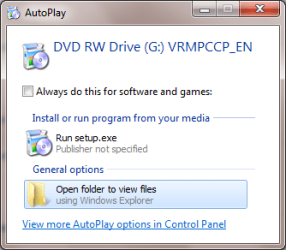
2) Insert XP disk into drive. When the AutoPlay dialogue appears, click on Open folder to view files.
Capture.PNG

3) Click to open the I386 folder
Capture1.PNG

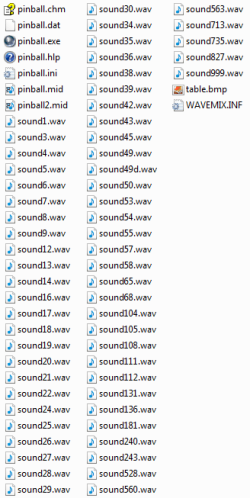
4) Copy the following files to your Source folder. You can copy the final file, wavemix.inf, straight to your Destination folder. If you wish, you can also work directly from the disk.
Capture2.PNG

5) Open a Command Prompt.
Capture3.PNG

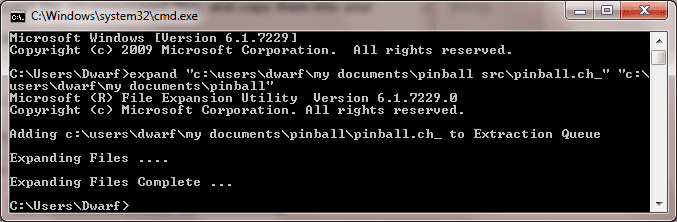
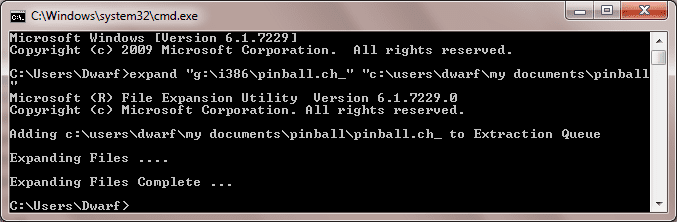
6) Now you need to expand the aforementioned files, and copy them into your Destination folder. Note that you will need to provide the path(s) to your folder(s) here.

i) From your Source folder.
Capture4.PNG

ii) From the XP disk (change drive letter to suit).
Capture5.PNG

7) Repeat for all files, 68 in total.

8) Now open your Destination folder. You will notice that, although the files have been expanded, their names (or rather the 3-character extension) ends with _.You now need to rename each file to correct the file extension. Use the following table for guidance.

CH_ ... CHM
DA_ ... DAT
EX_ ... EXE
HL_ ... HLP
IN_ ... INI
MI_ ... MID
WA_ ... WAV
BM_ ... BMP

9) Your Destination folder should now look like this.
Capture6.PNG

10) You can now run Pinball directly from the executable.
Capture7.PNG

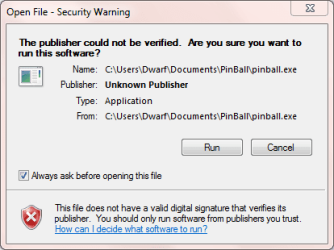
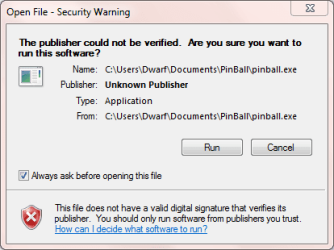
11) If the following dialogue appears, click Run.
Capture8.PNG

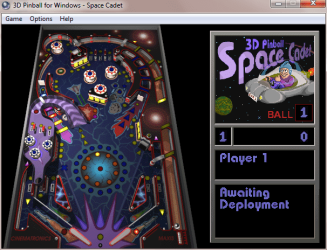
12) You may now enjoy playing PinBall.
Capture9.PNG
 

Attachments

  • Capture8.PNG
    Capture8.PNG
    10 KB · Views: 421
  • Capture9.PNG
    Capture9.PNG
    79.5 KB · Views: 441
Last edited:

My Computer My Computer

Computer type
PC/Desktop
Computer Manufacturer/Model Number
Dwarf Dwf/11/2012 r09/2013
OS
Windows 8.1 Pro RTM x64
CPU
Intel Core-i5-3570K 4-core @ 3.4GHz (Ivy Bridge) (OC 4.4GHz)
Motherboard
ASRock Z77 Extreme4-M
Memory
4 x 4GB DDR3-1600 Corsair Vengeance CMZ8GX3M2A1600C9B (16GB)
Graphics Card(s)
MSI GeForce GTX770 Gaming OC 2GB
Sound Card
Realtek High Definition on board solution (ALC 898)
Monitor(s) Displays
ViewSonic VA1912w Widescreen (VGA)
Screen Resolution
1440x900
Hard Drives
OCZ Agility 3 SSD 120GB SATA III x2 (RAID 0)
Samsung HD501LJ 500GB SATA II x2
Hitachi HDS721010CLA332 1TB SATA II
Iomega 1.5TB Ext USB 2.0
WD 2.0TB Ext USB 3.0
PSU
XFX Pro Series 850W Semi-Modular
Case
Gigabyte IF233
Cooling
1 x 120mm Front Inlet 1 x 120mm Rear Exhaust
Keyboard
Microsoft Comfort Curve Keyboard 3000 (USB)
Mouse
Microsoft Comfort Mouse 3000 for Business (USB)
Internet Speed
NetGear DG834Gv3 ADSL Modem/Router (Ethernet) ~4.0 Mb/s (O2)
Antivirus
Avast! 8.0.1497
Browser
IE 11
Other Info
Optical Drive: HL-DT-ST BD-RE BH10LS30 SATA Bluray
Lexmark S305 Printer/Scanner/Copier (USB)
WEI Score: 8.1/8.1/8.5/8.5/8.25
Asus Eee PC 1011PX Netbook (Windows 7 x86 Starter)
That seems like a really huge effort for such a simple game. I bet I can find a download somewhere for the game if I look hard enough.

UPDATE:

Alternate Easy Method:

  1. [FONT=&quot]On a Windows XP computer, click the My computer icon and navigate to C:Program FilesWindows NT folder.(you may need to click show the contents of this folder to gain access)[/FONT]
  2. [FONT=&quot]Copy the folder called Pinball to USB thumb drive or a cd or zip it up and Email it to yourself.[/FONT]
  3. [FONT=&quot]On your Vista/7 Computer logon as an administrator, then insert your device that has the folder Pinball on it. Copy the folder Pinball to C:Program FilesMicrosoft Games. You may need to deal with the User Account Control a few times.[/FONT]
  4. [FONT=&quot]Now open the Pinball folder at C:Program FilesMicrosoft Games and locate the file called pinball.exe[/FONT]
  5. [FONT=&quot]Right click the Pinball.exe file and drag it to the Games folder in the Start menu and choose copy here, and you’re done.[/FONT]
 

My Computer My Computer

Computer Manufacturer/Model Number
Custom
OS
Win7 64bit Ultimate
CPU
AMD Phenom II X6 1100T Black Edition Thuban 3.3GHz, 3.7GHz
Motherboard
Gigabyte GA-890FXA-UD5
Memory
CORSAIR DOMINATOR GT 8GB (2 x 4GB) 1866 DDR3
Graphics Card(s)
XFX HD-697A-CNDC Radeon HD6970 2GB 256-bit
Sound Card
Creative SoundBlaster X-Fi Platinum Fatal1ty Edition
Monitor(s) Displays
Dual 25 Inch Hanns-G HZ251
Screen Resolution
1920x1080 X 2
PSU
Corsair 850W Single Rail
Case
Thermaltake V9 BlacX w/ Dual HDD Docking Station
Cooling
Air lots and lots of air and copper...
Keyboard
Kensington (Low-Profile)
Mouse
Creative Fatal1ty
Internet Speed
15Gbit (15 Down 5 Up)
Other Info
XIGMATEK HDT-S1284F 120mm HYPRO Bearing CPU Cooler, LG Blu-Ray Burner.
That seems like a really huge effort for such a simple game. I bet I can find a download somewhere for the game if I look hard enough.

UPDATE:

Alternate Easy Method:

  1. [FONT=&quot]On a Windows XP computer, click the My computer icon and navigate to C:Program FilesWindows NT folder.(you may need to click show the contents of this folder to gain access)[/FONT]
  2. [FONT=&quot]Copy the folder called Pinball to USB thumb drive or a cd or zip it up and Email it to yourself.[/FONT]
  3. [FONT=&quot]On your Vista/7 Computer logon as an administrator, then insert your device that has the folder Pinball on it. Copy the folder Pinball to C:Program FilesMicrosoft Games. You may need to deal with the User Account Control a few times.[/FONT]
  4. [FONT=&quot]Now open the Pinball folder at C:Program FilesMicrosoft Games and locate the file called pinball.exe[/FONT]
  5. [FONT=&quot]Right click the Pinball.exe file and drag it to the Games folder in the Start menu and choose copy here, and you’re done.[/FONT]

A friend of mine actually sent me the link to this forum, and I made an account just now because I wanted to mention that this method works if you have Windows XP mode installed on your windows 7 computer. So, if you have Windows 7 Professional and are able to get Windows XP mode, you can copy the folder from that. When I did it, I mounted my flash drive in Windows XP mode and copied to that, but now that I think of it you could probably directly copy it over to your hard drive since you can access your actual Windows 7 drive from Windows XP mode.

UPDATE: I can run pinball, but it is very sluggish and not playable. If anyone has a way to make it work outside of Windows XP mode, let me know since that is where I retrieved the file.
 
Last edited:

My Computer My Computer

OS
Windows 7 Professional 32-bit
PINBALL in Windows 7

You do NOT need a Windows XP disk to load/play Pinball in Vista or Windows 7

You do NOT need a Windows XP drive or partition to load/plan Pinball in Vista or Windows 7

You DO need access to a computer running XP, and you DO need a flash drive

Here's what I just did to install and run Pinball on my new computer that's running Windows 7/64:

Insert a flash drive into the XP machine

Go to C:Program Files\Windows NT

Use SEND TO to copy the PINBALL folder to the drive

Insert the flash drive into the Vista or Windows 7 machine

Open C:\Program Files\Microsoft Games

Using your mouse, move the PINBALL folder into C:\Program Files\Microsoft Games

Right click on the PINBALL file (the one with the logo) and create a shortcut on your desktop.

It loads, it runs, and all functions appear to be intact.
 

My Computer My Computer

Computer Manufacturer/Model Number
HP p6270z
OS
Windows 7 64
CPU
AMD Phenom
Memory
4GB
pinball

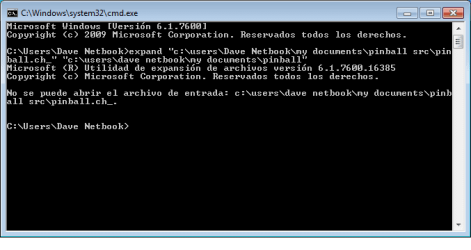
Have tried following the instructions supplied by Dwarf but gett error message in cmd promt see attachment. Any suggestions

I am trying this on my netbook using windows starter

Dave Heff
 

Attachments

  • cmd result.png
    cmd result.png
    6.5 KB · Views: 156

My Computer My Computer

Computer Manufacturer/Model Number
Dell 64 bit
OS
Windows 7 64bit & Windows 7 starter
CPU
intel core i5 750 2.6ghz
Motherboard
?
Memory
8192mb ddr3 dual channel
Graphics Card(s)
1gb ati radeon hd 5450
Sound Card
integrated 7.1
Monitor(s) Displays
Dell 23in
Hard Drives
1 tb serial aTA (7200 RPM)
PSU
220 ac
Case
tower
Cooling
fan
Hi Dave and welcome to Windows 7 Forums :party:

Have you copied the files from the XP disk to the source folder? The message you are getting indicates that the file cannot be found.
 

My Computer My Computer

Computer type
PC/Desktop
Computer Manufacturer/Model Number
Dwarf Dwf/11/2012 r09/2013
OS
Windows 8.1 Pro RTM x64
CPU
Intel Core-i5-3570K 4-core @ 3.4GHz (Ivy Bridge) (OC 4.4GHz)
Motherboard
ASRock Z77 Extreme4-M
Memory
4 x 4GB DDR3-1600 Corsair Vengeance CMZ8GX3M2A1600C9B (16GB)
Graphics Card(s)
MSI GeForce GTX770 Gaming OC 2GB
Sound Card
Realtek High Definition on board solution (ALC 898)
Monitor(s) Displays
ViewSonic VA1912w Widescreen (VGA)
Screen Resolution
1440x900
Hard Drives
OCZ Agility 3 SSD 120GB SATA III x2 (RAID 0)
Samsung HD501LJ 500GB SATA II x2
Hitachi HDS721010CLA332 1TB SATA II
Iomega 1.5TB Ext USB 2.0
WD 2.0TB Ext USB 3.0
PSU
XFX Pro Series 850W Semi-Modular
Case
Gigabyte IF233
Cooling
1 x 120mm Front Inlet 1 x 120mm Rear Exhaust
Keyboard
Microsoft Comfort Curve Keyboard 3000 (USB)
Mouse
Microsoft Comfort Mouse 3000 for Business (USB)
Internet Speed
NetGear DG834Gv3 ADSL Modem/Router (Ethernet) ~4.0 Mb/s (O2)
Antivirus
Avast! 8.0.1497
Browser
IE 11
Other Info
Optical Drive: HL-DT-ST BD-RE BH10LS30 SATA Bluray
Lexmark S305 Printer/Scanner/Copier (USB)
WEI Score: 8.1/8.1/8.5/8.5/8.25
Asus Eee PC 1011PX Netbook (Windows 7 x86 Starter)
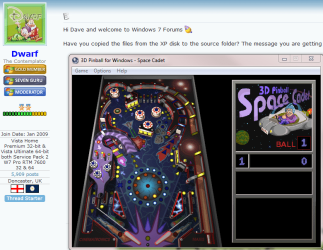
For XP Mode / Virtual PC users:
  1. Copy the folder [XP Mode]C:\Program Files\Windows NT\Pinball to your host.
  2. Play ;)
Pinball.PNG
 

My Computer My Computer

Computer type
Laptop
Computer Manufacturer/Model Number
HP ENVY 17-1150eg
OS
Windows 10 Pro x64 EN-GB
CPU
1.6 GHz Intel Core i7-720QM Processor
Memory
6 GB
Graphics Card(s)
ATI Mobility Radeon HD 5850 Graphics
Sound Card
Beats sound system with integrated subwoofer
Monitor(s) Displays
17" laptop display, 22" LED and 32" Full HD TV through HDMI
Screen Resolution
1600*900 (1), 1920*1080 (2&3)
Hard Drives
Internal: 2 x 500 GB SATA Hard Disk Drive 7200 rpm
External: 2TB for backups, 3TB USB3 network drive for media
Cooling
As Envy runs a bit warm, I have it on a Cooler Master pad
Keyboard
Logitech diNovo Media Desktop Laser (bluetooth)
Mouse
Logitech Performance Mouse MX
Internet Speed
50/10 Mbps VDSL
Antivirus
Windows Defender 4.3.9431.0
Browser
Maxthon 3.5.2., IE11
pinball

Hi Dwarf

thanks for your prompt reply, yes pretty sure I have copied all the files you listed, but will have anotrher look. The disc I am usinng is a Dell reinstallation cd using XP Home Edition

Dave
 

My Computer My Computer

Computer Manufacturer/Model Number
Dell 64 bit
OS
Windows 7 64bit & Windows 7 starter
CPU
intel core i5 750 2.6ghz
Motherboard
?
Memory
8192mb ddr3 dual channel
Graphics Card(s)
1gb ati radeon hd 5450
Sound Card
integrated 7.1
Monitor(s) Displays
Dell 23in
Hard Drives
1 tb serial aTA (7200 RPM)
PSU
220 ac
Case
tower
Cooling
fan
pinball

Thanks for your help, being a novice to the cmd promt, it felt quite scary inputing items...but sure enough I now have pinball up & Running allthough it freezes in full screen, but I can live with that. Once again many thanks and a happy new year:party:
 

My Computer My Computer

Computer Manufacturer/Model Number
Dell 64 bit
OS
Windows 7 64bit & Windows 7 starter
CPU
intel core i5 750 2.6ghz
Motherboard
?
Memory
8192mb ddr3 dual channel
Graphics Card(s)
1gb ati radeon hd 5450
Sound Card
integrated 7.1
Monitor(s) Displays
Dell 23in
Hard Drives
1 tb serial aTA (7200 RPM)
PSU
220 ac
Case
tower
Cooling
fan
PINBALL with HELP as well

Yes, you can just copy the Pinball folder (Program Files\Windows NT\ Pinball) from any XP machine into your Windows 7 Program Files\Microsoft Games, but the HELP buttons (both types: menu and context) won't work, because the necessary files are not in the XP folder referred to above. To find what you need (back on XP) go to C:\WINDOWS\Help, and grab pinball.chm, pinball.chw (these two are for menu/html help), and pinball.hlp (context help..the little ? up next to the X on the Options/Player Controls screen).
Copy to windows 7, put the .chm and .chw in C:\Windows\Help (not in Help\Help), and put the .hlp in C:\Windows. Html help now opens, but that ? in the player controls screen won't work yet (not that you need it); but if you're curious, follow the suggested help and support trail to microsoft Article 917607.
By the way, instead of having to make a shortcut of the pinball .exe to put in your start menu, you can download an installer here Microsoft Pinball For Windows Vista & 7 - Home which puts everthing in place for you (But you'll still have to get the HELP files as detailed above).
Any comments welcome, I've probably missed something...oh yes, with the html help, you won't be able to open the 'Using the Help Viewer' topics..no loss, but damn. The necessary files must be somewhere back in XP.
UPDATE: Since doing the above (including installing the two 'fix it' files from microsoft Article 917607 mentioned above), have experienced some strange behavior generally, so probably not a good idea to do all this unless you know what you are doing. I'll try to figure this out properly and hopefully update this post again.
 
Last edited:

My Computer My Computer

OS
Windows 7 Home Premium x64
Back
Top