
Power Button - Start Menu

How to Change the Default Windows 7 Start Menu Power Button Action

   Information
This will show you how to change the Windows 7 Start Menu power button default action for the current user account or all user accounts to be either Switch User, Log Off, Lock, Restart, Sleep, Hibernate, or Shutdown when clicked on.
   Tip
The Hibernate option will not be available in the Start Menu Power Button unless you have hibernate enabled and have hybrid sleep turned off in your Power Plan Options.
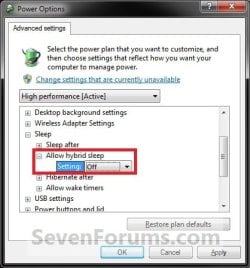
Power_Options.jpg


EXAMPLE: Start Menu Power Button
Start_Menu.jpg


OPTION ONE

Through Taskbar and Start Menu Properties


NOTE: This option will let you change the default action for the Start Menu power button only in the user account that you are currently logged on.
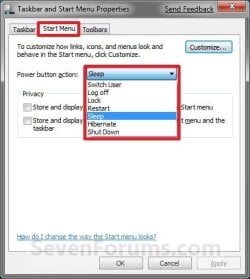
1. Right click on the Start button and click on Properties.

2. To the right of Power button action, select the action that you want for the Start Menu power button and click on OK. (see screenshot below)
NOTE: The Hibernate option will not be listed unless you enable hibernate and have turned off the Hybrid sleep option in the Power Plan Settings. If you are using Hybrid sleep, then you would select Sleep from below.
Start_Menu_Properties.jpg


OPTION TWO

Through Advanced Power Options


NOTE: This option will let you change the default action for the Start Menu power button only in the user account that you are currently logged on.
1. Open Advanced Power Options for your power plan.

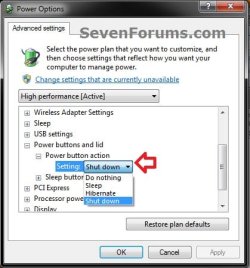
2. Scroll down, and expand the Power buttons and lid and Power button action options. (see screenshot below step 3)

3. To the right of the Power button action Setting, select the action you would like for the Start Menu power button and click on OK. (see screenshot below)
NOTE: The Hibernate option will not be listed unless you enable hibernate and have turned off the Hybrid sleep option in the Power Plan Settings. If you are using Hybrid sleep, then you would select Sleep from below.
Power_Options-2.jpg


OPTION THREE

Through System Settings


NOTE: This option will let you change the default action for the Start Menu power button only in the user account that you are currently logged on. This will also change the Power button setting in all power plans in your user account.
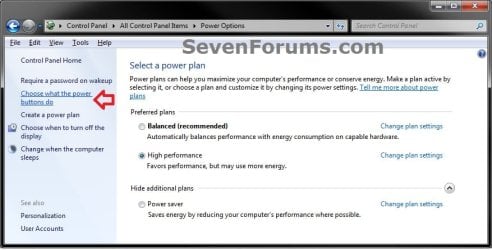
1. Open the Control Panel (Icons View), and click on the Power Options icon.

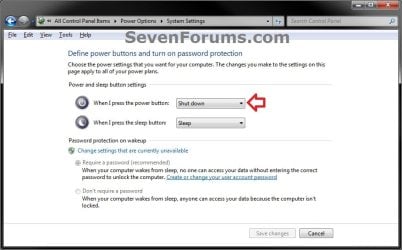
2. In the left pane, click on the Choose what the power buttons do link. (see screenshot below)
System_Settings-1.jpg
3. To the right of When I press the power button, select the action that you want for the Start Menu power button in the drop down box and click on the Save changes button. (see screenshot below)
NOTE: The Save changes button will remain grayed out until you make a change in the settings. The Hibernate option will not be listed unless you enable hibernate and have turned off the Hybrid sleep option in the Power Plan Settings. If you are using Hybrid sleep, then you would select Sleep from below.
System_Settings-2_UAC.jpg
4. You can close the Power Options window when done. (see screenshot below step 2)


OPTION FOUR

Manually in Registry Editor


NOTE: This option will let you change the default action for the Start Menu power button only in the user account that you are currently logged on.
1. Open the Start Menu, then type regedit in the search box and press Enter.

2. If prompted by UAC, then click on Yes (if administrator) or enter administrator's password (if standard user).

3. Do step 4 or 5 below for how you want to set this.

4. Same as OPTION 1, 2, or 3 above
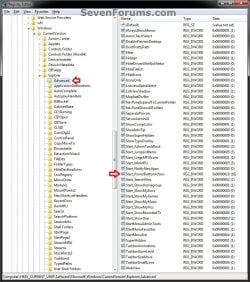
A) In regedit, navigate to the location below. (see screenshot below)
HKEY_CURRENT_USER\Software\Microsoft\Windows\CurrentVersion\Explorer\Advanced
Reg-1.jpg
B) In the right pane of Advanced, double click on Start_PowerButtonAction to modify it, and go to step 6 below. (see screenshot above)
5. Same as OPTION FIVE below with Group Policy for All Users
NOTE: You must be logged in as an administrator to be able to do this step.
A) In regedit, navigate to the location below.
HKEY_CURRENT_USER\Software\Policies\Microsoft\Windows\Explorer
B) In the right pane of Advanced, double click on Start_PowerButtonAction to modify it, and go to step 6 below.
NOTE: If Start_PowerButtonAction doesn't exist, then right click on an empty area in the right pane of Explorer, click on New and DWORD (32-bit) Value, type Start_PowerButtonAction, and press Enter.
6. Type in the Hexadecimal Value data number below for the Power Button option that you want, and click on OK. (see screenshot below)
NOTE: The Hibernate option will not be available unless you enable hibernate and have turned off the Hybrid sleep option in the Power Plan Settings. If you are using Hybrid sleep, then you would select Sleep from below.
Power Button | Hex Value data
Switch User |100

Log Off |1

Lock|200

Restart|4

Sleep|10

Hibernate|40

Shutdown|2

REG-2.jpg
7. Close regedit.

8. If open, close and reopen Taskbar and Start Menu Properties (Option One) to see the changes.
NOTE: If you used step 5, then you may need to log off and on to apply first.


OPTION FIVE

Through Local Group Policy Editor


NOTE: You can only do this option while logged in an administrator account.
1. Open the all users, specific users or groups, or all users except administrators Local Group Policy Editor for how you want this policy applied.

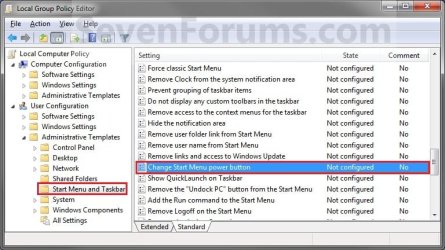
2. In the left pane, double click on User Configuration, Administrative Templates, and click on Start Menu and Taskbar. (see screenshot below)
Power_Group_Policy.jpg
3. In the right pane of Start Menu and Taskbar, right click on Change Start Menu power button and click on Edit. (See screenshot below)

4. To Allow All Users to Change Power Button
NOTE: This option will allow all users to be able to change their Start Menu power button to what they like using OPTION ONE above.
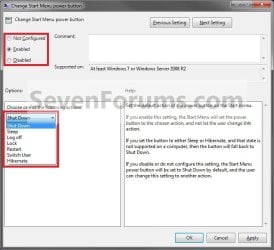
A) Select (dot) Not Configured or Disabled. (see screenshot below step 6)

B) Go to step 6.
5. To Change Start Menu Power Button for All Users
NOTE: This option will let you change the Start Menu power button to what you want for all users accounts on the computer. After applied, the Power button action option in the Start Menu will be grayed out for all users and cannot be changed (see step 7).
A) Select (dot) Enabled, then under Options, select the action you want for the Start Menu power button in the drop down menu. (see screenshot below step 6)
NOTE: The Hibernate option will not be listed unless you enable hibernate and have turned off the Hybrid sleep option in thePower Plan Settings. If you are using Hybrid sleep, then you would select Sleep from below.
6. Click on OK. (See screenshot below)
Power_Properties.jpg
7. If you check Start Menu and Taskbar Properties using the OPTION ONE section above, you will now notice that the option to change the Start Menu power button is grayed out and set to what you have it set to in step 5A above. (see screenshot below)
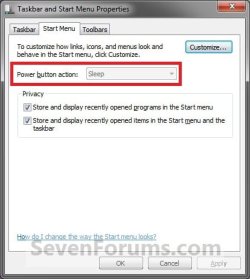
Power_Start.jpg
That's it,
Shawn


Last edited:
Hi All,

Is there a way to push the power button changes to multiple PCs? By that I mean, can I set the power button to "Log Off" on multiple machines with a script? We prefer to log off in our domain instead of shutdown, and it would be nice to set the 'Shut Down' button to 'Log off' on all my PCs (and all my users) in the domain without visiting each machine...

Thanks guys,

M

Hello M, and welcome to Seven Forums.

I don't use a domain, but I would think that using OPTION FIVE to set your domain policy would have it enforced on all systems when they logged in to the domain. Hopefully someone with more domain experience will post to verify.
 
Last edited:

My Computer

Computer type
PC/Desktop
Computer Manufacturer/Model Number
Self built custom
OS
64-bit Windows 11 Pro for Workstations
CPU
Intel i7-8700K OC'd to 5 GHz
Motherboard
ASUS ROG Maximus XI Formula Z390
Memory
64 GB (4x16GB) G.SKILL TridentZ RGB DDR4 3600 MHz
Graphics Card(s)
ASUS ROG-STRIX-GTX1080TI-O11G-GAMING
Sound Card
Integrated
Monitor(s) Displays
2 x Samsung Odyssey G7 27"
Screen Resolution
2560x1440
Hard Drives
1TB Samsung 990 PRO M.2,
4TB Samsung 990 PRO PRO M.2,
TerraMaster F8 SSD Plus NAS
PSU
Seasonic Prime Titanium 850W
Case
Thermaltake Core P3
Cooling
Corsair Hydro H115i
Keyboard
Logitech wireless K800
Mouse
Logitech MX Master 4
Internet Speed
2 Gb/s Download and 100 Mb/s Upload
Antivirus
Malwarebyte Anti-Malware Premium
Browser
Google Chrome
Other Info
Logitech Z625 speaker system,
Logitech BRIO 4K Pro webcam,
HP Color LaserJet Pro MFP M477fdn,
APC SMART-UPS RT 1000 XL - SURT1000XLI,
Galaxy S23 Plus phone
Thanks for the quick response Brink! Unfortunately I do not have access to the GPOs for the domain (and the folks who do are clueless...) so I am forced to accomplish simple Group policy tasks with complicated scripts and deployments via SCCM. Thanks again, lets hope someone knows a way to push this fix with a script.
 

My Computer

OS
Windows 7 Ent x64 SP1 (7601)
If you aren't a domain admin, you won't be able to push out policy. You could write logon scripts, but unless you can assign logon scripts to individuals in AD, they would be useless. I'm not familiar with SCCM, as we don't use it on our domain. Exactly what does it allow you, as a non-domain admin, to do in the domain?
 

My Computer

Computer Manufacturer/Model Number
Dell XPS 15 L502x
OS
Windows 7 Ultimate x64 SP1
CPU
Core i7-2670QM
Memory
8GB DDR3 PC3-10600
Graphics Card(s)
Intel HD Graphics 3000 + GeForce GT 540M
Screen Resolution
1920x1080
Hard Drives
1TB 5400RPM Seagate
Hi keg,

I should clarify: I am a domain admin, just not with access to the DC or GPOs. We have a tiered access model, so only a few people have access to the DCs and I am not one of them. However I have access to pretty much everything else.

SCCM is a tool that allows you to push software and run reports on domain PCs from a central console. We would be dead without it; its a great tool. We use it to install software on up to 1500 PCs at once - push security updates to software, remove unapproved software, report on system hardware, deploy reg hacks... Typically when I need to deploy a fix that I can't get the GPO guys to make, I build a script and deploy it via SCCM, which will ensure 100% compliance every time. This solution is as reliable as a GPO, but more complex for sure.

M
 

My Computer

OS
Windows 7 Ent x64 SP1 (7601)
Here is some code to deploy that should accomplish the task for you. It parses all user profiles on the computer, loads their HKCU hives and then sets the appropriate registry key.

Note that I have just provided the code, as I am not familiar with SCCM and so you will need to incorporate it into a suitable script that can be deployed. I recommend that you test it first before deploying it on a wider scale.

Code:
' ################################################
' Start of Routine
' ################################################
Option Explicit
Const ForAppending = 8
Const HKLM = &H80000002
' ################################################ 
' HKCU reference and value to be used
' ################################################ 
Const sDwordUserKey = "\Software\Microsoft\Windows\CurrentVersion\Explorer\Advanced"
Const sDwordUserKeyValueName = "Start_PowerButtonAction"
Const sDwordUserKeyValue = "1"
' ################################################
' Main
' ################################################
Dim oReg, oFSO, oFile, oUserSubkey, aUserProfiles, oShell
Dim sProfileLCase, sRegExe, sRegLoad, sRegUnload, sHiveName, sSubPath, sProfile, sValueName, sKeyPathUserProfiles, sValue, ReturnVal
Set oReg = GetObject("winmgmts:\\.\root\default:StdRegProv")
Set oShell = CreateObject ("WScript.Shell") 
Set oFSO = CreateObject ("Scripting.FileSystemObject")
' ################################################
' Begin configuration of existing user profiles
' ################################################
sValueName = "ProfileImagePath"
sKeyPathUserProfiles = "SOFTWARE\Microsoft\Windows NT\CurrentVersion\ProfileList"
sRegExe = "C:\Windows\system32\reg.exe"
oReg.EnumKey HKLM, sKeyPathUserProfiles, aUserProfiles
' ################################################
' Start of users loop
' ################################################
For Each oUserSubkey In aUserProfiles
sSubPath = sKeyPathUserProfiles & "\" & oUserSubkey
oReg.GetExpandedStringValue HKLM,sSubPath,sValueName,sValue 
sProfile = Split(sValue, "\")
sProfileLCase = LCase(sProfile(2)) 
If sProfileLCase = "system32" Then
ElseIf sProfileLCase = "localservice" Then
ElseIf sProfileLCase = "networkservice" Then
ElseIf sProfileLCase = "serviceprofiles" Then
Else
' ################################################
' Load user's profile hive into a temp location
' ################################################
sHiveName = "TempHive_" & sProfileLCase   
sRegLoad = " LOAD HKLM\" & sHiveName & " """ & sValue & "\ntuser.dat"""
oShell.Run sRegExe & sRegLoad, 0, True   
' ################################################
' Call Subroutine to change registry key
' ################################################
SetConfigUserHive (sHiveName)   
' ################################################
' Unload user's profile hive
' ################################################
sRegUnload = " UNLOAD HKLM\" & sHiveName
oShell.Run sRegExe & sRegUnload, 0, True
End If 
Next
' ################################################
' End of users loop
' ################################################
' Default User Profile
' ################################################
sHiveName = "TempHive_DefaultUser"
sRegLoad = " LOAD HKLM\" & sHiveName & " ""C:\Documents and Settings\Default User\ntuser.dat"""
oShell.Run sRegExe & sRegLoad, 0, True
' ################################################
' Call Subroutine to change registry key
' ################################################
SetConfigUserHive (sHiveName)
sRegUnload = " UNLOAD HKLM\" & sHiveName
oShell.Run sRegExe & sRegUnload, 0, True
' ################################################
' Routine exit point
' ################################################
WScript.Quit ()
' ################################################
' Subroutine to change registry key
' ################################################
Sub SetConfigUserHive (sTempHive)
Dim sTempHiveStringKeyPath, sTempHiveDwordKeyPath
' ################################################
' Path of registry key
' ################################################
sTempHiveDwordKeyPath = sTempHive & sDwordUserKey
' ################################################
' Create Dword registry key if non-existant
' ################################################
If oReg.GetDwordValue(HKLM, sTempHiveDwordKeyPath & "\", sDwordUserKeyValueName) <> 0 Then
ReturnVal = oReg.CreateKey(HKLM, sTempHiveDwordKeyPath)
End If
' ################################################  
' Create Dword value
' ################################################
ReturnVal = oReg.SetDwordValue(HKLM, sTempHiveDwordKeyPath & "\", sDwordUserKeyValueName, sDwordUserKeyValue)
End Sub
' ################################################
' End of Subroutine
' ################################################

Acknowledgements to Nick Moseley, t3chn1ck
 

My Computer

Computer type
PC/Desktop
Computer Manufacturer/Model Number
Dwarf Dwf/11/2012 r09/2013
OS
Windows 8.1 Pro RTM x64
CPU
Intel Core-i5-3570K 4-core @ 3.4GHz (Ivy Bridge) (OC 4.4GHz)
Motherboard
ASRock Z77 Extreme4-M
Memory
4 x 4GB DDR3-1600 Corsair Vengeance CMZ8GX3M2A1600C9B (16GB)
Graphics Card(s)
MSI GeForce GTX770 Gaming OC 2GB
Sound Card
Realtek High Definition on board solution (ALC 898)
Monitor(s) Displays
ViewSonic VA1912w Widescreen (VGA)
Screen Resolution
1440x900
Hard Drives
OCZ Agility 3 SSD 120GB SATA III x2 (RAID 0)
Samsung HD501LJ 500GB SATA II x2
Hitachi HDS721010CLA332 1TB SATA II
Iomega 1.5TB Ext USB 2.0
WD 2.0TB Ext USB 3.0
PSU
XFX Pro Series 850W Semi-Modular
Case
Gigabyte IF233
Cooling
1 x 120mm Front Inlet 1 x 120mm Rear Exhaust
Keyboard
Microsoft Comfort Curve Keyboard 3000 (USB)
Mouse
Microsoft Comfort Mouse 3000 for Business (USB)
Internet Speed
NetGear DG834Gv3 ADSL Modem/Router (Ethernet) ~4.0 Mb/s (O2)
Antivirus
Avast! 8.0.1497
Browser
IE 11
Other Info
Optical Drive: HL-DT-ST BD-RE BH10LS30 SATA Bluray
Lexmark S305 Printer/Scanner/Copier (USB)
WEI Score: 8.1/8.1/8.5/8.5/8.25
Asus Eee PC 1011PX Netbook (Windows 7 x86 Starter)
Thanks for such good explanations, but none of these methods work for me. I can change the setting via the power button properties and it shows logoff which is what I want. If I go to the Registry, the value is 1 (log off). The policies are set for log off.
BUT the button still says "Shutdown!"

Any ideas on how to fix this?
Thanks
 

My Computer

Computer type
PC/Desktop
Computer Manufacturer/Model Number
Custom Build
OS
Win7 Ultimate 64 w/ Latest Updates
CPU
Intel Core i7-4790K @ 4.00 GHz
Motherboard
Asus Z97-PRO WiFi with Latest Bios (1204) and Drivers
Memory
16 Gig (2 PNY 8GB DDR3)
Graphics Card(s)
On Board Intel 4600 HD Graphics (Supports 3 Monitors)
Sound Card
On Board
Monitor(s) Displays
Samsung 27 inch P2770HD (3)
Screen Resolution
1680x1050
Hard Drives
Samsung SSD 840 EVO 250GB
WDC WD2002FAEX -OOMJRAO 2 TByte
PSU
XFX PRO850W
Case
Antec P280
Cooling
Corsair H55 Liquid CPU Cooler, 3 other fans
Keyboard
Logitech K750 Wireless
Mouse
Logitech M570 Wireless
Internet Speed
Up 6, Down 20
Antivirus
Microsoft Security Essentials
Browser
Chrome and IE 11 (Only use Chrome)
Other Info
APC Pro-1500 UPS
Hello Tom, and welcome to Seven Forums.

Does your Power button with "Shut down" in the Start Menu happen to have a little shield on it as well??

If so, then this is normal and indicates that you have Windows Updates that need to be installed. Clicking on this "Shut down" button with the shield icon will have Windows 7 install the updates first then shut down. Afterwards your power button will return to what you had it set for.

If this is the case, then you could use the tutorial below to turn this off by not allowing it.

http://www.sevenforums.com/tutorial...change-install-updates-shut-down-default.html

Hope this helps, :)
Shawn
 
Last edited:

My Computer

Computer type
PC/Desktop
Computer Manufacturer/Model Number
Self built custom
OS
64-bit Windows 11 Pro for Workstations
CPU
Intel i7-8700K OC'd to 5 GHz
Motherboard
ASUS ROG Maximus XI Formula Z390
Memory
64 GB (4x16GB) G.SKILL TridentZ RGB DDR4 3600 MHz
Graphics Card(s)
ASUS ROG-STRIX-GTX1080TI-O11G-GAMING
Sound Card
Integrated
Monitor(s) Displays
2 x Samsung Odyssey G7 27"
Screen Resolution
2560x1440
Hard Drives
1TB Samsung 990 PRO M.2,
4TB Samsung 990 PRO PRO M.2,
TerraMaster F8 SSD Plus NAS
PSU
Seasonic Prime Titanium 850W
Case
Thermaltake Core P3
Cooling
Corsair Hydro H115i
Keyboard
Logitech wireless K800
Mouse
Logitech MX Master 4
Internet Speed
2 Gb/s Download and 100 Mb/s Upload
Antivirus
Malwarebyte Anti-Malware Premium
Browser
Google Chrome
Other Info
Logitech Z625 speaker system,
Logitech BRIO 4K Pro webcam,
HP Color LaserJet Pro MFP M477fdn,
APC SMART-UPS RT 1000 XL - SURT1000XLI,
Galaxy S23 Plus phone
Shawn.

You were RIGHT ON! I powered down and there were updates waiting. Now button is set to Log Off

Thanks a million!
 

My Computer

Computer type
PC/Desktop
Computer Manufacturer/Model Number
Custom Build
OS
Win7 Ultimate 64 w/ Latest Updates
CPU
Intel Core i7-4790K @ 4.00 GHz
Motherboard
Asus Z97-PRO WiFi with Latest Bios (1204) and Drivers
Memory
16 Gig (2 PNY 8GB DDR3)
Graphics Card(s)
On Board Intel 4600 HD Graphics (Supports 3 Monitors)
Sound Card
On Board
Monitor(s) Displays
Samsung 27 inch P2770HD (3)
Screen Resolution
1680x1050
Hard Drives
Samsung SSD 840 EVO 250GB
WDC WD2002FAEX -OOMJRAO 2 TByte
PSU
XFX PRO850W
Case
Antec P280
Cooling
Corsair H55 Liquid CPU Cooler, 3 other fans
Keyboard
Logitech K750 Wireless
Mouse
Logitech M570 Wireless
Internet Speed
Up 6, Down 20
Antivirus
Microsoft Security Essentials
Browser
Chrome and IE 11 (Only use Chrome)
Other Info
APC Pro-1500 UPS
You're most welcome Tom. :)
 

My Computer

Computer type
PC/Desktop
Computer Manufacturer/Model Number
Self built custom
OS
64-bit Windows 11 Pro for Workstations
CPU
Intel i7-8700K OC'd to 5 GHz
Motherboard
ASUS ROG Maximus XI Formula Z390
Memory
64 GB (4x16GB) G.SKILL TridentZ RGB DDR4 3600 MHz
Graphics Card(s)
ASUS ROG-STRIX-GTX1080TI-O11G-GAMING
Sound Card
Integrated
Monitor(s) Displays
2 x Samsung Odyssey G7 27"
Screen Resolution
2560x1440
Hard Drives
1TB Samsung 990 PRO M.2,
4TB Samsung 990 PRO PRO M.2,
TerraMaster F8 SSD Plus NAS
PSU
Seasonic Prime Titanium 850W
Case
Thermaltake Core P3
Cooling
Corsair Hydro H115i
Keyboard
Logitech wireless K800
Mouse
Logitech MX Master 4
Internet Speed
2 Gb/s Download and 100 Mb/s Upload
Antivirus
Malwarebyte Anti-Malware Premium
Browser
Google Chrome
Other Info
Logitech Z625 speaker system,
Logitech BRIO 4K Pro webcam,
HP Color LaserJet Pro MFP M477fdn,
APC SMART-UPS RT 1000 XL - SURT1000XLI,
Galaxy S23 Plus phone
How about "undock"?

In my case (on a lenovo t61p laptop), the start menu power button arrow pulldown list includes the item "undock". The button itself currently defaults to "hibernate", presumably because in the win 7 power options dialog I have set the physical power button to hibernate the machine.

I would like the default button value to be "undock." However, if I go to start menu properties, that is not listed as one of the options to default to. Similarly, your list of hex values to set in the registry does not include the "undock" item. Any idea how I can get that start menu button to default to "undock"? BTW, selecting undock in the pulldown menu truly does undock the machine, so it is not a no-op.

Thanks.
 

My Computer

Computer type
Laptop
Computer Manufacturer/Model Number
Lenovo T61p
OS
win 7 pro x64
CPU
T7700 Intel
Memory
4GB
Hello apb,

Do you have the "Undock" option to select in Option Two or Option Three?
 

My Computer

Computer type
PC/Desktop
Computer Manufacturer/Model Number
Self built custom
OS
64-bit Windows 11 Pro for Workstations
CPU
Intel i7-8700K OC'd to 5 GHz
Motherboard
ASUS ROG Maximus XI Formula Z390
Memory
64 GB (4x16GB) G.SKILL TridentZ RGB DDR4 3600 MHz
Graphics Card(s)
ASUS ROG-STRIX-GTX1080TI-O11G-GAMING
Sound Card
Integrated
Monitor(s) Displays
2 x Samsung Odyssey G7 27"
Screen Resolution
2560x1440
Hard Drives
1TB Samsung 990 PRO M.2,
4TB Samsung 990 PRO PRO M.2,
TerraMaster F8 SSD Plus NAS
PSU
Seasonic Prime Titanium 850W
Case
Thermaltake Core P3
Cooling
Corsair Hydro H115i
Keyboard
Logitech wireless K800
Mouse
Logitech MX Master 4
Internet Speed
2 Gb/s Download and 100 Mb/s Upload
Antivirus
Malwarebyte Anti-Malware Premium
Browser
Google Chrome
Other Info
Logitech Z625 speaker system,
Logitech BRIO 4K Pro webcam,
HP Color LaserJet Pro MFP M477fdn,
APC SMART-UPS RT 1000 XL - SURT1000XLI,
Galaxy S23 Plus phone
Thanks!

In Option 2, the advanced power settings dialog, only the same 4 options (hibernate, shutdown, sleep, do nothing) are available.

In Option 3, the power button option from the 'power options' dialog, the same 4 options are available.

Maybe part of my problem is conceptual. I am assuming that "start menu power button" options are not identical to "physical power button" options in effect, and indeed if I change the start menu power button default to 'sleep' from 'hibernate', the advanced power options setting stays at 'hibernate.'

Also, the start button properties options in properties from the task bar include more options than are available in the power settings dialogs, such as lock screen and logout. So, I assume that the start menu options get populated, or at least selected, from 2 different places -- one being the current power options, and the other I don't know, maybe the registry key in your option 4.

So, maybe the problem is something obscure, like when windows was installed, the machine was not connected to a dock. Or, maybe MS has some good reason to omit that particular default, maybe so that it is not present if the machine is not docked.
 

My Computer

Computer type
Laptop
Computer Manufacturer/Model Number
Lenovo T61p
OS
win 7 pro x64
CPU
T7700 Intel
Memory
4GB
Maybe I should also add that I found a workaround. Namely, one can undock with the shell command "C:\Windows\System32\rundll32.exe cfgmgr32.dll,CM_Request_Eject_PC" (using my actual system dir), so I created a shortcut that does that, and put it into the quick launch bar. That actually allows me to undock with one less click than going via the start menu power button -- if I had been able to get it to default to "undock."

I learned the command from Eject or Undock a Laptop PC from Command Line or C# - Noah Coad - Site Home - MSDN Blogs .
 

My Computer

Computer type
Laptop
Computer Manufacturer/Model Number
Lenovo T61p
OS
win 7 pro x64
CPU
T7700 Intel
Memory
4GB
Perfect. I'm happy to hear that you found a workaround. :)
 

My Computer

Computer type
PC/Desktop
Computer Manufacturer/Model Number
Self built custom
OS
64-bit Windows 11 Pro for Workstations
CPU
Intel i7-8700K OC'd to 5 GHz
Motherboard
ASUS ROG Maximus XI Formula Z390
Memory
64 GB (4x16GB) G.SKILL TridentZ RGB DDR4 3600 MHz
Graphics Card(s)
ASUS ROG-STRIX-GTX1080TI-O11G-GAMING
Sound Card
Integrated
Monitor(s) Displays
2 x Samsung Odyssey G7 27"
Screen Resolution
2560x1440
Hard Drives
1TB Samsung 990 PRO M.2,
4TB Samsung 990 PRO PRO M.2,
TerraMaster F8 SSD Plus NAS
PSU
Seasonic Prime Titanium 850W
Case
Thermaltake Core P3
Cooling
Corsair Hydro H115i
Keyboard
Logitech wireless K800
Mouse
Logitech MX Master 4
Internet Speed
2 Gb/s Download and 100 Mb/s Upload
Antivirus
Malwarebyte Anti-Malware Premium
Browser
Google Chrome
Other Info
Logitech Z625 speaker system,
Logitech BRIO 4K Pro webcam,
HP Color LaserJet Pro MFP M477fdn,
APC SMART-UPS RT 1000 XL - SURT1000XLI,
Galaxy S23 Plus phone
Brink,
I know this is an old post but, In Option 4, 5, b, should read "...double click on Start_PowerButtonAction to modify..."

Honu425
 

My Computer

OS
Windows 7 Pro 32bit,
Thank you Honu. It has been corrected. :)
 

My Computer

Computer type
PC/Desktop
Computer Manufacturer/Model Number
Self built custom
OS
64-bit Windows 11 Pro for Workstations
CPU
Intel i7-8700K OC'd to 5 GHz
Motherboard
ASUS ROG Maximus XI Formula Z390
Memory
64 GB (4x16GB) G.SKILL TridentZ RGB DDR4 3600 MHz
Graphics Card(s)
ASUS ROG-STRIX-GTX1080TI-O11G-GAMING
Sound Card
Integrated
Monitor(s) Displays
2 x Samsung Odyssey G7 27"
Screen Resolution
2560x1440
Hard Drives
1TB Samsung 990 PRO M.2,
4TB Samsung 990 PRO PRO M.2,
TerraMaster F8 SSD Plus NAS
PSU
Seasonic Prime Titanium 850W
Case
Thermaltake Core P3
Cooling
Corsair Hydro H115i
Keyboard
Logitech wireless K800
Mouse
Logitech MX Master 4
Internet Speed
2 Gb/s Download and 100 Mb/s Upload
Antivirus
Malwarebyte Anti-Malware Premium
Browser
Google Chrome
Other Info
Logitech Z625 speaker system,
Logitech BRIO 4K Pro webcam,
HP Color LaserJet Pro MFP M477fdn,
APC SMART-UPS RT 1000 XL - SURT1000XLI,
Galaxy S23 Plus phone
Thank you sir for this very useful information
But i have some questions,My PC have some problems when i shut it down so i always keep it running and there is no problem with that.But some times other members of family forget and shut it down after using it and then it takes a lot of effort to fix it.So my Question is ,How do i replace every single shut down option with something different (say restart) .I've done all steps you mentioned and successively replaced all shutdown options to restart but still that shutdown option when you hover the mouse over that triangle in start menu.How do i replace it with restart or just hide it ?
Thank you in advance.
 

My Computer

Computer type
PC/Desktop
OS
Windows 7 Ultimate x64

My Computer

Computer type
PC/Desktop
Computer Manufacturer/Model Number
Self built custom
OS
64-bit Windows 11 Pro for Workstations
CPU
Intel i7-8700K OC'd to 5 GHz
Motherboard
ASUS ROG Maximus XI Formula Z390
Memory
64 GB (4x16GB) G.SKILL TridentZ RGB DDR4 3600 MHz
Graphics Card(s)
ASUS ROG-STRIX-GTX1080TI-O11G-GAMING
Sound Card
Integrated
Monitor(s) Displays
2 x Samsung Odyssey G7 27"
Screen Resolution
2560x1440
Hard Drives
1TB Samsung 990 PRO M.2,
4TB Samsung 990 PRO PRO M.2,
TerraMaster F8 SSD Plus NAS
PSU
Seasonic Prime Titanium 850W
Case
Thermaltake Core P3
Cooling
Corsair Hydro H115i
Keyboard
Logitech wireless K800
Mouse
Logitech MX Master 4
Internet Speed
2 Gb/s Download and 100 Mb/s Upload
Antivirus
Malwarebyte Anti-Malware Premium
Browser
Google Chrome
Other Info
Logitech Z625 speaker system,
Logitech BRIO 4K Pro webcam,
HP Color LaserJet Pro MFP M477fdn,
APC SMART-UPS RT 1000 XL - SURT1000XLI,
Galaxy S23 Plus phone
Windows 7 Power Button

First of all, excellent article, thank you!

However...

there is an issue it didn't address. I need to add 2 Safe Mode entries - with and without networking respectively - to the Power button action.

win7_power_button1.png


[How] can this be done?

Thanks again.
 

My Computer

Computer type
PC/Desktop
Computer Manufacturer/Model Number
custom build
OS
Windows 7 Ultimate x64

My Computer

Computer type
PC/Desktop
Computer Manufacturer/Model Number
Self built custom
OS
64-bit Windows 11 Pro for Workstations
CPU
Intel i7-8700K OC'd to 5 GHz
Motherboard
ASUS ROG Maximus XI Formula Z390
Memory
64 GB (4x16GB) G.SKILL TridentZ RGB DDR4 3600 MHz
Graphics Card(s)
ASUS ROG-STRIX-GTX1080TI-O11G-GAMING
Sound Card
Integrated
Monitor(s) Displays
2 x Samsung Odyssey G7 27"
Screen Resolution
2560x1440
Hard Drives
1TB Samsung 990 PRO M.2,
4TB Samsung 990 PRO PRO M.2,
TerraMaster F8 SSD Plus NAS
PSU
Seasonic Prime Titanium 850W
Case
Thermaltake Core P3
Cooling
Corsair Hydro H115i
Keyboard
Logitech wireless K800
Mouse
Logitech MX Master 4
Internet Speed
2 Gb/s Download and 100 Mb/s Upload
Antivirus
Malwarebyte Anti-Malware Premium
Browser
Google Chrome
Other Info
Logitech Z625 speaker system,
Logitech BRIO 4K Pro webcam,
HP Color LaserJet Pro MFP M477fdn,
APC SMART-UPS RT 1000 XL - SURT1000XLI,
Galaxy S23 Plus phone
Back
Top