
Solved "Preparing your Desktop" and then blue screen with no HDD activity

Re message 20 - I was just about to try unplugging the XP drive when your message arrived, so I have tried that first.

The result was - XP drive inactive - Boot from Win7 drive enabled as first entry - Win 7 drive is active in PW.
Then booted from Win7 DVD and did the startup repair 3 times. The log showed no faults and message was startup OK. I then clicked Finish and shutdown. No change in the situation when restarting..

Then I unplugged the XP drive and checked for Win 7 active and rebuilt MBR in PW. Booting from DVD to get the startup repair and did that 3 times.

When I restarted the PC (XP drive still unplugged) I got the Win7 Welcome screen. First time for days!!!

But that then segued into Preparing your desktop, followed by the blue screen and the Not genuine windows, warning. And that was it - no desktop icons as when Win 7 crashed in the first place. :cry:

Before i had done any more work today I checked both drives using Bootmaster. There are two drives with a total of 6 partitions. On five of them there was a file named §BOOT.
On the Win 7 partition there was a file named BOOTMGR from 2010 - years before I bought the DVD.
On the XP partition there were §BOOT (2008), BOOTMGR (2010), NTLDR (2008), BOOT (December 2014)- Seems like too many to me!
By the way, PW does not show all those.

So at least I can sort of get into Win 7, but can't use it. Ctrl+Alt+Del gets me to the usual shutdown screen.

On the Win 7 partition the BOOTMGR entry is still there with the same date.

Tony

I only installed Win 7 to learn how to use it after the dire warnings from MS about EOL for XP! It was OK for months but now I can't even get XP to work. And that iw where all my files,email etc are. It seems that the drive still has them intact if I could only boot to it.:mad:
 

My Computer My Computer

At a glance

XP Pro and Win7 Pro both 32 bit plus Win 8.1 ...4 G
Computer type
PC/Desktop
Computer Manufacturer/Model Number
Acer twice plus Lenovo
OS
XP Pro and Win7 Pro both 32 bit plus Win 8.1 64bit
Memory
4 G
Hard Drives
300G and 500 G with 4TB backup drive
Antivirus
AVG, MS Essentials and Windows Defender
Browser
IE8, IE9, IE11 and Opera.
Other Info
The various items listed are NOT all on one PC! But all PCs are connected via a combined LAN/WLAN which also provides connection to a network printer
Do you see any signs of your User account or did it create a new one, possibly because the old one is corrupt? Try to run a full scan with Malwarebytes and then run SFC /SCANNOW Command . If these won't run from desktop, switch to the bootable AV and SFC methods in Troubleshooting Windows 7 Failure to Start.

See if you can browse via Explorer to your old User account under C:Users. If you see it then I would simply drag your files over to the new account, test all programs to see if they run and if not reinstall them, set up your desktop and browser again.

But if you see signs of further corruption I'd strongly consider a Clean Reinstall Windows 7. If you leave the XP drive plugged in it may correctly configure a Dual Boot.

See if you can install EasyBCD (click Download - no Name or Email required) to add XP on the Add OS Entry tab, letting it autocomplete the drive letter if it will.

As to those earlier Boot files were likely when Win7 was installed earlier as a Dual Boot and configured its boot files on the XP partition as it does. You may need to delete them, if necessary from boot using Copy & Paste - in Windows Recovery Console. If XP won't boot when added from Win7, unplug the Win7 drive, boot into XP Repair console to run bootrec /fixboot and bootrec /fixmbr to see if it will start. If not you may need to run an XP Repair Install or you can simply abandon the XPired OS and browse into it to get its files from Win7 or disk.

I don't know what the other boot program you're using is but it may have corrupted the bootloaders.

Please post a screenshot of Disk Management - Post a Screen Capture Image or PW drive map and listings.
 
Last edited:
Greg

Yes, i still have the Users folder and it still has my account name in it.
So I switched on with the XP drive still unplugged.

Good news first! I am writing this on my PC through Win 7. Not so good / I can\t access IE9 but can access Chrome :o

Not so good news! I could not boot into any sort of desktop except the blank blue screen. So using some lateral thinking following up something I read earlier, I sued ctrl-alt-del to get into Task Manager and ran explorer.exe. That got me a picture desktop with a few icons AND, a Start button. Many of the links via the Start menu do not work and give messages such as "Problem with shortcut" or "no such interface supported in explorer.exe".

When I installed Win 7 I left all of XP and its files on the existing hard drive. Then added a new empty HD which I partitioned to suit. For the Win7 install I made one partition drive name W: Win 7. Using the basic procedure in Installing more than one operating system (multi-boot) - Windows Help

I then ran the Windows 7 upgrade adviser and followed with the Files and Settings Transfer Wizard (I think those are the correct names).

Installed Win 7 from DVD to W: and then used the transfer wizard generated file to load all my data from XP to Win 7 Obviously, as a lot of the stuff was/is compatible, the system didn't need all the programmes reinstalled as they are on the original drive in the same PC already.

So I think that is now the root of the problem - many of the links will reference the programmes/dats on the XP drive. Foe example, to get Outlook which was installed while using only XP, the XP drive has to be connected.

So now I wonder what that drive will be called in Win 7 when I plug it back in!

The obvious answer is to rename the Win 7 partition as drive W: thus allowing the XP partition to be C: But I wonder what will happen?

I will let you know and I will definitely NOT be trying it until I have reported back!

Tony

In Denmark we have our high point on Christmas Eve as the main holiday and family feasts. So I will be a day out of sync with UK/USA later this week . Glædelig Jul og Godt Nyt År
 

My Computer My Computer

At a glance

XP Pro and Win7 Pro both 32 bit plus Win 8.1 ...4 G
Computer type
PC/Desktop
Computer Manufacturer/Model Number
Acer twice plus Lenovo
OS
XP Pro and Win7 Pro both 32 bit plus Win 8.1 64bit
Memory
4 G
Hard Drives
300G and 500 G with 4TB backup drive
Antivirus
AVG, MS Essentials and Windows Defender
Browser
IE8, IE9, IE11 and Opera.
Other Info
The various items listed are NOT all on one PC! But all PCs are connected via a combined LAN/WLAN which also provides connection to a network printer
Where is the screenshot of Disk Management - Post a Screen Capture Image? If unable to make one you can also install or boot Partition Wizard (burned to CD using Windows Image burner) to take a picture of the drive map and attach it back with paper clip in reply box.

None of the methods you used are recommended or would not be expected to cause problems. The steps to get and keep a perfect Clean Reinstall Windows 7 are in the blue link and have been used by over a million consumers without a single complaint or anyone coming back with problems if they stick with the tools and methods given.

Windows 7 will always boot as C when it is correctly installed from booted installer and not another OS which locks out the C drive letter from use. It is best to unplug all other drives during install so that separate HD's remain bootable only via the BIOS, although if you don't like this arrangement you can later install EasyBCD to Win7 to add XP to a Dual Boot, which will still keep either hard drive bootable independently. But if you install Win7 while XP hard drive is plugged in, it will edit the boot files on XP partition and become dependent upon it to boot it's own Win7 hard drive.

If I were you, I would unplug XP hard drive and do a perfect Clean Reinstall Windows 7
including all of the preparatory steps so that you end up with a perfect install instead of a mess, and it will stay that way for as long as you stick with the tools and methods given.
 
Last edited:
Greg

Softlee, softlee, catchee monkey!

As I am at present only able to use Win7 with a temporary profile opened via Task Manager and explorer.exe, my options are very limited. I guess that I am only able to use Chrome as I directly installed it once when I was using Win 7 in its full glory!

So, going to Properties on Computer does show Manage, but clicking on that only gives the message that it won't work in explorer.exe. Similarly with the link to the Snipping Tool - it is there, but won't open. Clicking on Computer itself can't get me the usual list of drives and files for the same reason.

When I have time I will use PW and take a photo of the screen and send it via my wife's PC. I have very little time every day as I have 11 cats and a handicapped wife to care for so have to make the 12 of them my priority. So please don't nag and let me work through your suggestions and requests in my own time, even though it may seem extraordinarily slow to other people.:sleepy:

All the best and thanks for all the help.
Tony

PS Yes, I possibly did not go the approved route when I made my PC Dual Boot, but it DID work for over half a year. That is called "Trouble Shooting" - my profession for 22 years;)
 

My Computer My Computer

At a glance

XP Pro and Win7 Pro both 32 bit plus Win 8.1 ...4 G
Computer type
PC/Desktop
Computer Manufacturer/Model Number
Acer twice plus Lenovo
OS
XP Pro and Win7 Pro both 32 bit plus Win 8.1 64bit
Memory
4 G
Hard Drives
300G and 500 G with 4TB backup drive
Antivirus
AVG, MS Essentials and Windows Defender
Browser
IE8, IE9, IE11 and Opera.
Other Info
The various items listed are NOT all on one PC! But all PCs are connected via a combined LAN/WLAN which also provides connection to a network printer
Greg

I have done some more archive work and so attach some "camera screenshots"! Sorry they are not all straight, but I think they are readable.

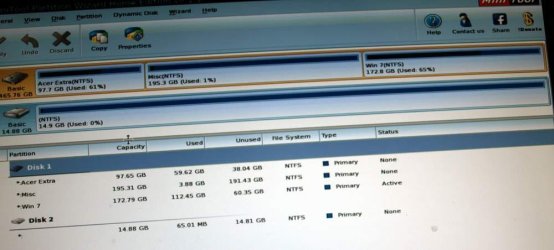
test3 - PW shows the Win 7 drive with the OS partition marked active. For a control I added an empty USB memstick
test4 - PW shows the same but now with my external (backup) USB One Touch HD
test5 - PW shows the same but now with the XP drive added - OS partition not marked active
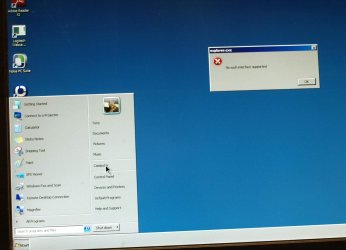
test6 - This is what I get after using explorer.exe within the temporary profile that is setup when Win 7 is booted from its HD on startup.

In the last one you can see that I have managed to change the mouse by going direct to its menu from the Search in Start. You can also see the message I receive when clicking on Computer and many of the othe Start menu links that fail.

I checked on the Environment Variables settings for the temporary profile and as I suspected some refer to drive C: and others to drive W: in the same set.

As I have no way of getting to the drives, folders and files, I can't see any way of changing that.

I also cannot use MalwareBytes - although I can attempt to download it, permission is refused and again I can't access the permissions service. I have downloaded it to a memstick, but as I cannot use My Computer to get to the memstick, I still cannot run it.

So now I have tried your suggestions and still cannot run Win 7 in a usable way. XP won't boot at all and it is obvious that the Dual boot files in the root of the HDs are the problem. i would try the fixmbr and boot/rebuild commands if I could get to the Command window. But as XP/Win7 dual boot files prevent booting from the XP HD and even the install CD, I am stuck on that route.

Any more ideas?
Tony
 

Attachments

  • test3.JPG
    test3.JPG
    55.6 KB · Views: 2
  • test4.JPG
    test4.JPG
    68.4 KB · Views: 0
  • test5.JPG
    test5.JPG
    154.1 KB · Views: 0
  • test6.JPG
    test6.JPG
    102.7 KB · Views: 1

My Computer My Computer

At a glance

XP Pro and Win7 Pro both 32 bit plus Win 8.1 ...4 G
Computer type
PC/Desktop
Computer Manufacturer/Model Number
Acer twice plus Lenovo
OS
XP Pro and Win7 Pro both 32 bit plus Win 8.1 64bit
Memory
4 G
Hard Drives
300G and 500 G with 4TB backup drive
Antivirus
AVG, MS Essentials and Windows Defender
Browser
IE8, IE9, IE11 and Opera.
Other Info
The various items listed are NOT all on one PC! But all PCs are connected via a combined LAN/WLAN which also provides connection to a network printer
Can you run Malwarebytes and then SFC from Safe Mode, or create a new Admin User account? http://www.sevenforums.com/tutorials/181024-user-account-create.html
http://www.sevenforums.com/tutorials/139810-sfc-scannow-run-command-prompt-boot.html


If you ran Startup Repair three separate times with only the 7 drive attached and it starts now but will not function then it may be heavily infected or corrupted. In this case if you're not ready to rescue your files to http://www.sevenforums.com/tutorials/219487-clean-reinstall-factory-oem-windows-7-a.html#post1839164 then attempt to disinfect and run SFC from http://www.sevenforums.com/tutorials/219533-troubleshooting-windows-7-failure-boot.html.

Separately with only XP plugged in you can try the repairs for it I gave you days ago
 
Last edited:
Greg

The last point in your message 27 I can answer straight away - Yes! I tried it but as XP no longer boots, I can not get to step 4 as before that stage I get an "operating system missing message" and BSOD.

As far as Malwarebytes is concerned, the Win 7 temporary user profile does not allow me to download anything, AND, even though I have downloaded it to a memstick, as I cannot get to My Computer, I can't access that download to run it.

I have tried to Run lusrmgr.msc and netplwiz etc but as all those are through the path C:/Windows/system32 they cannot run - as I have written before, I originally installed Win 7 on its partition in drive W: and at some point Win 7 renamed that to C: thus making a conflict in environment variables etc.

I have not yet tried to boot Win 7 in Safe Mode, so will do that later today and report back.

If that also fails then I have one more idea, but need a three bits of information first before I try it - in the root of the XP drive there is a folder that does not appear on my wife's PC which has the same XP installation; that is called BOOT, From its date it would appear to have been added by Win 7 at the point where everything started to go crazy. There is also a file BOOTMGR which appears to be identical to the one in the root of the Win 7 drive. I presume that is the one installed for Dual Booting?

Thirdly, is there a way of getting direct to the command prompt on the XP install CD? I have a vague idea that there is a key combination that can do that.

Tony
 

My Computer My Computer

At a glance

XP Pro and Win7 Pro both 32 bit plus Win 8.1 ...4 G
Computer type
PC/Desktop
Computer Manufacturer/Model Number
Acer twice plus Lenovo
OS
XP Pro and Win7 Pro both 32 bit plus Win 8.1 64bit
Memory
4 G
Hard Drives
300G and 500 G with 4TB backup drive
Antivirus
AVG, MS Essentials and Windows Defender
Browser
IE8, IE9, IE11 and Opera.
Other Info
The various items listed are NOT all on one PC! But all PCs are connected via a combined LAN/WLAN which also provides connection to a network printer
The XP boot repairs and Repair Install are all done from booting the XP disk as shown in Repair Install tutorial.
 
I have searched for the XP Repair Install tutorial you refer me to, but can't find it. Link please.

Thanks in advance and Happy New Year!
 

My Computer My Computer

At a glance

XP Pro and Win7 Pro both 32 bit plus Win 8.1 ...4 G
Computer type
PC/Desktop
Computer Manufacturer/Model Number
Acer twice plus Lenovo
OS
XP Pro and Win7 Pro both 32 bit plus Win 8.1 64bit
Memory
4 G
Hard Drives
300G and 500 G with 4TB backup drive
Antivirus
AVG, MS Essentials and Windows Defender
Browser
IE8, IE9, IE11 and Opera.
Other Info
The various items listed are NOT all on one PC! But all PCs are connected via a combined LAN/WLAN which also provides connection to a network printer
Post 22.

I'll let you get caught up on all of the other steps from the top that have been overlooked.
 
Now we have got over the Christmas and New Year (have a happy one!) I had been doing a lot of reading and from the advice on this forum and elsewhere decided to start over yesterday. So now I have XP back again which is the most important point for me. Today I went into it in detail looking for things to correct, for example the drive names, emails from my external backup, drivers for camera etc. So far I have concentrated on XP so the HD for Win 7 is unplugged. When I have finished checking all the XP programmes, then I will switch my attention to that and report back.

For the XP Pro OS - looking at the various log files in the root it seems fairly obvious that at some point the Win 7 crash and startup repair attempts had corrupted/added boot information. I looked at the CMD options and decided to use a programme that rolls all those commands up into an easy to use GUI. It worked very well and was well worth the very small cost. This is the link https://neosmart.net/wiki/easyre/recovery/ . I used the Automatic option.

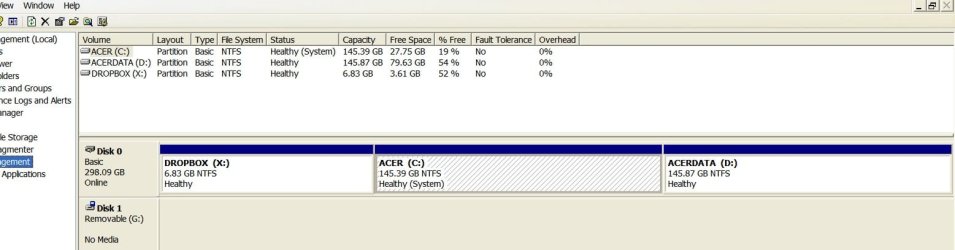
Here is the final screenshot of the XP HD management.

I have also used the Malwarebytes on the XP HD and that is clear, so nothing lurking there. There wers just some Open Candy ad links needing quarantine.

Tony
 

Attachments

  • xp-discs.jpg
    xp-discs.jpg
    61.2 KB · Views: 1

My Computer My Computer

At a glance

XP Pro and Win7 Pro both 32 bit plus Win 8.1 ...4 G
Computer type
PC/Desktop
Computer Manufacturer/Model Number
Acer twice plus Lenovo
OS
XP Pro and Win7 Pro both 32 bit plus Win 8.1 64bit
Memory
4 G
Hard Drives
300G and 500 G with 4TB backup drive
Antivirus
AVG, MS Essentials and Windows Defender
Browser
IE8, IE9, IE11 and Opera.
Other Info
The various items listed are NOT all on one PC! But all PCs are connected via a combined LAN/WLAN which also provides connection to a network printer
Thanks for the report on EasyEssentials boot disk, which offers enhanced Win7 Startup Repair with more focus on the bcd repairs, and is mentioned in Step 10 of Troubleshooting Windows 7 Failure to Start.

The only thing noticeable in the screenshot is that C being the System partition should always be marked Active. You can do this by right clicking it in Disk Mgmt. Remember that Win7 will never repair unless the correct Partition Marked Active is marked Active - preferably the 100mb System Reserved if you have it and definitely if it's already marked Active, or if not Win7 partition itself.
 
Maybe C (for XP OS) is not shown as active because the screenshot was taken within XP disk management when only the XP OS drive was plugged in?
I just tried right clicking (left for me!) and the option for making both drives active/inactive is grayed out. Maybe because I have now plugged back in the Win 7 OS drive and that partition is marked active - as it was before. I guess I need to use PW to change from Win7 partition to XP partitition as Active.

I ran Malwarebytes again so as to check the Win 7 drive and Malwarebytes gave a clean result.

I have NOT tried booting from that drive as yet! My BIOS boot menu options are now set to boot from the XP drive with CD second and floppy third.
 

My Computer My Computer

At a glance

XP Pro and Win7 Pro both 32 bit plus Win 8.1 ...4 G
Computer type
PC/Desktop
Computer Manufacturer/Model Number
Acer twice plus Lenovo
OS
XP Pro and Win7 Pro both 32 bit plus Win 8.1 64bit
Memory
4 G
Hard Drives
300G and 500 G with 4TB backup drive
Antivirus
AVG, MS Essentials and Windows Defender
Browser
IE8, IE9, IE11 and Opera.
Other Info
The various items listed are NOT all on one PC! But all PCs are connected via a combined LAN/WLAN which also provides connection to a network printer
If the XP drive is booting itself with C as the System partition, then C should be Active.

But if you have a Dual Boot configured from Win7 which is providing the System partition for both, then XP should not be Active.

You have the choice to boot either OS via the BIOS Boot order and BIOS Boot menu key, or you can configure a Dual Boot using EasyBCD from Win7 to have a WIndows Boot Menu.

Please post back a screenshot from Win7 of Disk Management - Post a Screen Capture Image
with both drives plugged in.
 
Taking your questions in order:

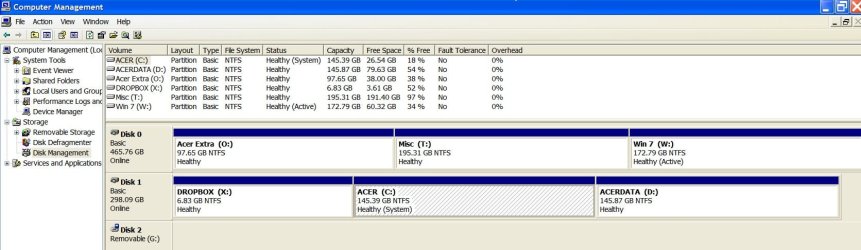
PW does show both the XP partition and the Win 7 partition as active. So with the first boot in BIOS set as the XP hosting drive, my PC boots straight into XP without difficulty now. Using Disc management in XP shows the XP partition as System and the Win 7 partition as Active.

I haven't tried to do anything to Win 7 so does that mean that the original Dual Boot file still exists? I don't see a Dual Boot menu when starting the PC.

I do not want (ever again!) to use Dual Boot. When I am satisfied that there is no risk of further corruption, I will try booting via F12 into the Win 7 drive whenever I want to check for updates. It just means remembering the drive model number, which is no great hardship :)

Screenshot via XP attached that now has both drives showing, and the drive letters back the way they were.

Tor
 

Attachments

  • both-discs.jpg
    both-discs.jpg
    109.6 KB · Views: 1

My Computer My Computer

At a glance

XP Pro and Win7 Pro both 32 bit plus Win 8.1 ...4 G
Computer type
PC/Desktop
Computer Manufacturer/Model Number
Acer twice plus Lenovo
OS
XP Pro and Win7 Pro both 32 bit plus Win 8.1 64bit
Memory
4 G
Hard Drives
300G and 500 G with 4TB backup drive
Antivirus
AVG, MS Essentials and Windows Defender
Browser
IE8, IE9, IE11 and Opera.
Other Info
The various items listed are NOT all on one PC! But all PCs are connected via a combined LAN/WLAN which also provides connection to a network printer
Have you tried to boot Win7 with the XP drive unplugged? If it will boot itself with C labeled System Active then it has its boot files and is good to be set first to boot in BIOS setup, or triggered via the BIOS Boot Menu key at boot if you want XP drive set Primary and first to boot in BIOS.

A reason we cannot see if Win7 partition is flagged System now may be because it is not the booted OS. But if you installed Win7 second with XP plugged in then it normally would not have its own System boot files until repaired as follows:

If Win7 cannot boot itself, then with the XP drive unplugged boot into Win7 installation media System Recovery Options or System Repair Disk to run Startup Repair - Run 3 Separate Times until Win7 boots on its own and holds the System Active Boot flags.

Both System partitions on a Dual Boot where each hard drive is independently bootable need to have their System partition marked Active, always.
 
Thanks Greg for #37. I am having so much fun :D Well, now that I am sure that XP still works and all my files are OK.

I will certainly boot into Win 7 by itself sometime over the next couple of days. Also, thanks for the XP Repair Tool link. Now that Fix-It is shrinking, it looks like a good thing to have.

From all your comments (yes, I do read them!) I had come to the conclusion that files in XP partition root should be inspected and repaired. I see that the boot.bak file appears to relate to a Dual Boot system and that the current boot.ini file was replaced by EasyRE with a file that msconfig now states "does not refer to a valid operating system". I think I should replace it with a file that shows the correct XP description as mentioned in How to edit the Boot.ini file in Windows XP

I attach the three versions in a text file.

Tony
 

Attachments

My Computer My Computer

At a glance

XP Pro and Win7 Pro both 32 bit plus Win 8.1 ...4 G
Computer type
PC/Desktop
Computer Manufacturer/Model Number
Acer twice plus Lenovo
OS
XP Pro and Win7 Pro both 32 bit plus Win 8.1 64bit
Memory
4 G
Hard Drives
300G and 500 G with 4TB backup drive
Antivirus
AVG, MS Essentials and Windows Defender
Browser
IE8, IE9, IE11 and Opera.
Other Info
The various items listed are NOT all on one PC! But all PCs are connected via a combined LAN/WLAN which also provides connection to a network printer
You'd probably be better off posting those files to the NeoSmart forums where they support the EasyRE tool you purchased. I am not nearly as well versed on XP or what that tool does or is meant to do for XP. Someone else here may be though.

Did you ever try the XP Boot repair commands from its Disk command line?

I'm more interested in whether WIn7 will boot on its own so we can get it booting independently if not.
 
Greg

In the end I gave up the Dual Boot install method. It was a good idea as it meant that the original XP installed programmes did not need to be reinstalled.

I have tried most of the suggestions and succeeded in fixing XP so that whole OS, programmes and files are OK again. The best tool for that was EasyRE.

For Win 7 I could not get at several suggestions as the temporary profile could not get even simple services to work, such as opening My Computer!

So I have now installed Win 7 over the original installation without using Dual Boot.

It does mean that I have to install several important programmes where I have the install media. But as they all work on XP anyway, I can always choose to boot from the XP drive and work there for those items.

Thanks for trying.
Tony
 

My Computer My Computer

At a glance

XP Pro and Win7 Pro both 32 bit plus Win 8.1 ...4 G
Computer type
PC/Desktop
Computer Manufacturer/Model Number
Acer twice plus Lenovo
OS
XP Pro and Win7 Pro both 32 bit plus Win 8.1 64bit
Memory
4 G
Hard Drives
300G and 500 G with 4TB backup drive
Antivirus
AVG, MS Essentials and Windows Defender
Browser
IE8, IE9, IE11 and Opera.
Other Info
The various items listed are NOT all on one PC! But all PCs are connected via a combined LAN/WLAN which also provides connection to a network printer
Back
Top