
How to Clear and Reset the Print Spooler Queue in Vista, Windows 7, and Windows 8
Information
This tutorial will show you how to clear and reset the print spooler queue in Vista, Windows 7, and Windows 8.
This can be handy if you have a document stuck in the print spooler, and/or not allowing your computer to go to sleep automatically if set to do so.
You must be logged in as an administrator to be able to do the steps in this tutorial.
This can be handy if you have a document stuck in the print spooler, and/or not allowing your computer to go to sleep automatically if set to do so.
You must be logged in as an administrator to be able to do the steps in this tutorial.
Note
If the print spooler issue persists after resetting it below, the installed printer driver may not be compatible or corrupted. Check the printer manufacturer's website to download and install the latest Windows compatible driver for it.
OPTION ONE
To Automatically Clear and Reset Print Spooler Queue with a BAT File
1. Click/tap on the Download button below to download the file below.
Reset_and_Clear_Print_Spooler_Queue.bat
Download
2. Save the .bat file to your desktop.
3. Right click or press and hold on the downloaded .bat file, and click/tap on Run as administrator.
4. If prompted by UAC, then click/tap on Yes (UAC-Windows 7/8) or Continue (UAC-Vista).
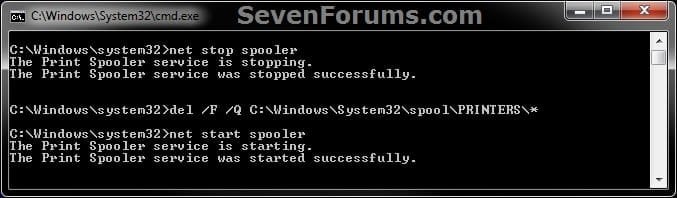
5. You will now see a command prompt open for a few seconds, run the commands, and then automatically close. (see screenshot below)
6. You can now delete the download .bat file if you like.
OPTION TWO
To Manually Clear and Reset Print Spooler Queue
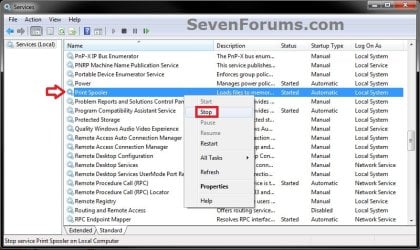
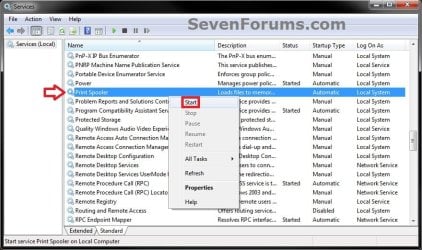
1. Open Services, and stop the Print Spooler service. (see screenshot below)
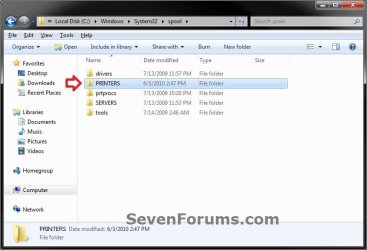
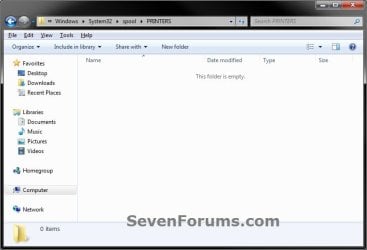
2. Navigate to the folder below, and open the PRINTERS. (see screenshot below)
C:\Windows\system32\spool\PRINTERS
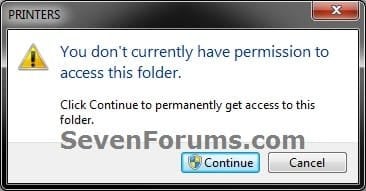
3. Click/tap on Continue and Yes (if prompted by UAC) to approve opening the PRINTERS folder. (see screenshot below)
4. Delete all files in the PRINTERS folder until it is empty, then close Windows Explorer. (see screenshot below)
:warn:WARNING: DO NOT DELETE the PRINTERS folder itself. Only delete it's contents.
5. Open Services, and start the Print Spooler service. (see screenshot below)
That's it,
Shawn
Attachments
Last edited:


 . Microsoft's "Cancel All Print Jobs" button is a Charlie Foxtrot. Having to start and stop services and delete files in obscure locations leaves me with a headache imagining they hired Lindsay Lohan, Kim Kardashian and Snooki as half vast programmers in Redmond.
