Solved Problem creating new partitions on unallocated space

FroRap

New member
Local time
10:09 AM
Messages
4
Sooooo... I'm a bit OCD when it comes to my computer and I've formatted various laptops and desktops over the years "just because" I love that fresh new computer feeling. I'm not new to formatting which is why I'm posting this thread: I'm lost and don't know where to go next.

I booted from my Windows 7 DVD as per usual, went through the steps and now I'm at the "Where do you want to install Windows?" screen. I had four partitions on my last install - A: Software, C: System Files, D: Data, and M: Mac (formatted as exFAT). The problem that I'm experiencing, and which I've never run into before, is that Windows has "greyed out" the options for Deleting existing partitions and Creating New partitions on unallocated space.

Did some research and ended up using Command Prompt to delete my old volumes/partitions that way. So now I have one big piece of unallocated space, but Windows still won't let me Create New partitions on it. When the unallocated space is selected with the mouse, Windows gives me the following error:

"Windows cannot be installed to this hard disk space. The partition contains one or more dynamic volumes that are not supported for installation."

Any help on how to solve this would be very much appreciated!
 

My Computer My Computer

Computer Manufacturer/Model Number
Asus X53Z
OS
Windows 7 Home Premium x64
CPU
A8 Vision 1.5 Ghz Quad Core
Memory
8 GB
Graphics Card(s)
Radeon HD 6520G
Monitor(s) Displays
15.6" LED Backlight
Hard Drives
750 GB 5400 RPM
I just reinstalled and had that problem. Win 7 would not install. I had to delete the partitions and reformat the drive before Win 7 would install on it. Same way reinstalling Win 8 on a separate drive. I had to do the same thing with the Win 8 drive before Win 8 would install.
 

My Computer My Computer

Computer type
PC/Desktop
Computer Manufacturer/Model Number
My Own Build
OS
Windows 10 64 bit
CPU
Intel i7 6700K
Motherboard
ASUS ROG Maximus VIII Hero
Memory
16GB Corsair Dominator
Graphics Card(s)
Intel CPU Graphics
Sound Card
RealTek
Monitor(s) Displays
27" Dell S2719dgf
Screen Resolution
2560X1440
Hard Drives
1 TB Samsung 850 EVO SSD for Win 10 Pro
500GB Samsung 850 EVO SSD for Win 10 Insider
2 TB drive for backup
PSU
EVGA Supernova 750G2
Case
BeQuiet Silent Base 600
Cooling
Deepcool Captain 120EX
Keyboard
Microsoft Wireless 2000
Mouse
Microsoft wireless
Internet Speed
100 MB/sec (Cable)
Antivirus
Microsoft Defender and Malwarebytes
Browser
Edge/Firefox
Other Info
Cakewalk (Sonar) by BandLab and Studio One 4.1 Pro recording studio software. MOTU 896Mk3 Hybrid recording interface, Frontier Tranzport wireless control unit, Behringer X-Touch Control Surface.
Five USB connected optical drives for CD Audio production using Nero BurningROM
Yeah the thing is I managed to delete my old volumes/partitions via Command Prompt. The problem that I'm experiencing now - after doing some reading and running the CLEAN ALL command through DISKPART - is that it's not letting me create new partitions on my unallocated space, nor will it let me format. I'm stuck...
 

My Computer My Computer

Computer Manufacturer/Model Number
Asus X53Z
OS
Windows 7 Home Premium x64
CPU
A8 Vision 1.5 Ghz Quad Core
Memory
8 GB
Graphics Card(s)
Radeon HD 6520G
Monitor(s) Displays
15.6" LED Backlight
Hard Drives
750 GB 5400 RPM
System specs = filled. After reading the Wikipedia article I'm thinking that I do. Laptop is relatively new, I bought it in May 2012.
 

My Computer My Computer

Computer Manufacturer/Model Number
Asus X53Z
OS
Windows 7 Home Premium x64
CPU
A8 Vision 1.5 Ghz Quad Core
Memory
8 GB
Graphics Card(s)
Radeon HD 6520G
Monitor(s) Displays
15.6" LED Backlight
Hard Drives
750 GB 5400 RPM
My motherboard does have UEFI BIOS. Is this something that is a UEFI BIOS issue?

I had a problem partitioning drives in my old PC (not UEFI BIOS) until I defragged the drive. Then it would let me partition the drive.
 

My Computer My Computer

Computer type
PC/Desktop
Computer Manufacturer/Model Number
My Own Build
OS
Windows 10 64 bit
CPU
Intel i7 6700K
Motherboard
ASUS ROG Maximus VIII Hero
Memory
16GB Corsair Dominator
Graphics Card(s)
Intel CPU Graphics
Sound Card
RealTek
Monitor(s) Displays
27" Dell S2719dgf
Screen Resolution
2560X1440
Hard Drives
1 TB Samsung 850 EVO SSD for Win 10 Pro
500GB Samsung 850 EVO SSD for Win 10 Insider
2 TB drive for backup
PSU
EVGA Supernova 750G2
Case
BeQuiet Silent Base 600
Cooling
Deepcool Captain 120EX
Keyboard
Microsoft Wireless 2000
Mouse
Microsoft wireless
Internet Speed
100 MB/sec (Cable)
Antivirus
Microsoft Defender and Malwarebytes
Browser
Edge/Firefox
Other Info
Cakewalk (Sonar) by BandLab and Studio One 4.1 Pro recording studio software. MOTU 896Mk3 Hybrid recording interface, Frontier Tranzport wireless control unit, Behringer X-Touch Control Surface.
Five USB connected optical drives for CD Audio production using Nero BurningROM
I finally got it to work, half via Command Prompt and half by pure frustration/multiple reboots. And yet I still have no idea why it all of a sudden decided to let me create new partitions again.

For the record, never try using the CLEAN ALL command unless you want to spend a long time waiting for it to finish cleaning. The CLEAN command will do the trick if, like me, you're just trying to clean your disk so you can install Windows on it again.

For anyone who's wondering, check out the post by gregrocker:
http://www.sevenforums.com/install [...] k-0-a.html

Seems to have done the trick for me. I still have no idea why Windows wasn't letting me peruse the options in the usual way that I do when formatting. Aaaand that's the half-day wasted mark. Thanks Microsoft!
 

My Computer My Computer

Computer Manufacturer/Model Number
Asus X53Z
OS
Windows 7 Home Premium x64
CPU
A8 Vision 1.5 Ghz Quad Core
Memory
8 GB
Graphics Card(s)
Radeon HD 6520G
Monitor(s) Displays
15.6" LED Backlight
Hard Drives
750 GB 5400 RPM
I always do a clean command twice to ensure the disk is free of mbr code, clean all is just unnecessary.
 

My Computer My Computer

Computer type
PC/Desktop
OS
Microsoft Windows 10 Professional / Windows 7 Professional
CPU
Intel i5-3570
Motherboard
Lenovo Mahobay
Memory
16GB DDR3
Graphics Card(s)
AMD Radeon HD 7850 2GB
Sound Card
(1) Realtek HD Audio (2) AMD HD Audio
Monitor(s) Displays
LG LS192WS
Screen Resolution
1440 x 900 @ 32bit color
Hard Drives
(1) SUV300S37A/120G (2) ST3500413AS SATA Disk Device AHCI mode enabled.
PSU
Corsair HX620
Case
Thermaltake V4 Black Edition
Cooling
Cooler Master Hyper 212 + Artic Silver 5 on CPU/GPU
Keyboard
Dell SK-8115
Mouse
Razer Copperhead with MAPED mat (awesome!)
Internet Speed
100 Mbps up/down
Browser
Chrome
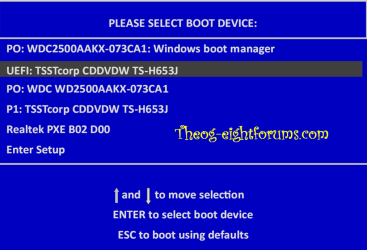
In the steps which you linked which worked for you it has user check in BIOS for a Legacy BIOS setting to disable and EFI boot disk to remove from BIOS Boot order. Was this required?

If so you have an EFI BIOS which requires using the steps to install that Theog linked: UEFI (Unified Extensible Firmware Interface) - Install Windows 7 with

It's your choice of course to bypass EFI to do a normal Win7 install, but I just wanted to help you clarify if you have an EFI BIOS to begin with. If not then what likely helped is wiping the boot sector or defining an Active partition.
 
Back
Top