Nosmas
New member
My situation is almost identical to that of the OP in http://www.sevenforums.com/installation-setup/22578-convert-dual-boot-single-boot-2-hds.html.
I have 2 HDDs both of which are partitioned so that the OS and data files are on separate partitions. Windows 7 Home Premium is on a 500GB SATA (i.e. serial) HDD (C: drive) and XP is on a 80GB IDE (i.e. parallel) HDD (D: drive). The BCD file originally looked as follows: -
As I no longer require XP and wish to either wipe the D: drive or even physically remove it from the system I used BCDedit to remove the Legacy OS Loader. As expected I no longer get the option to choose which OS to boot into and therefore boot straight into W7.
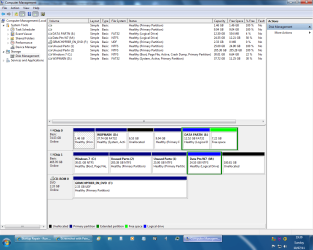
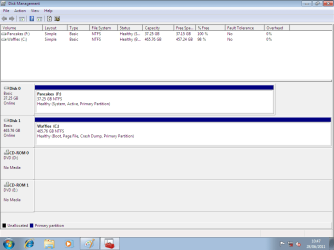
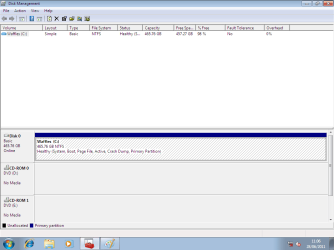
However when I use the W7 DVD to do a Startup Repair the System Recovery Options window shows W7 in Location D: and although I have run the repair a number of times I have been unable to make the C: drive the ‘System’ partition. In Computer Management, C: shows as Healthy (Boot, Page File, Active, Crash Dump, Primary Partition) and D: shows as Healthy (System, Active, Primary Partition).
I then used DISKPART to make D: inactive, and actually saw D: change to show as Healthy (Active, Primary Partition) when I entered the command. However when I next ran the Startup Repair it showed no OS, and the radio button for ‘Restore your computer using a system image you created earlier’ was already selected. I then selected the alternative radio button ‘Use recovery tools that can help fix problems starting Windows. Select an operating system to repair. If your operating system isn’t listed, click Load Drivers and then install drivers for your hard disks.’ I couldn’t find any drivers so clicked on ‘Next’ then selected ‘Startup Repair’ only to find that D: had been made Active again (in Computer Management), and when the Startup Repair was run again it showed Windows 7 Location as D:.
Can someone please tell me if I am doing something wrong, or is there some other procedure that I should run in order to make C: the ‘System’ partition?
I have 2 HDDs both of which are partitioned so that the OS and data files are on separate partitions. Windows 7 Home Premium is on a 500GB SATA (i.e. serial) HDD (C: drive) and XP is on a 80GB IDE (i.e. parallel) HDD (D: drive). The BCD file originally looked as follows: -
Code:
Microsoft Windows [Version 6.1.7601]
Copyright (c) 2009 Microsoft Corporation. All rights reserved.

C:\Windows\system32>bcdedit

Windows Boot Manager
--------------------
identifier {bootmgr}
device partition=D:
description Windows Boot Manager
locale en-US
inherit {globalsettings}
default {current}
resumeobject {86be99a0-2331-11df-9307-ebb202f71558}
displayorder {ntldr}
{current}
toolsdisplayorder {memdiag}
timeout 30

Windows Legacy OS Loader
------------------------
identifier {ntldr}
device partition=D:
path \ntldr
description Earlier Version of Windows

Windows Boot Loader
-------------------
identifier {current}
device partition=C:
path \Windows\system32\winload.exe
description Windows 7
locale en-US
inherit {bootloadersettings}
recoverysequence {86be99a2-2331-11df-9307-ebb202f71558}
recoveryenabled Yes
osdevice partition=C:
systemroot \Windows
resumeobject {86be99a0-2331-11df-9307-ebb202f71558}
nx OptIn

C:\Windows\system32>
As I no longer require XP and wish to either wipe the D: drive or even physically remove it from the system I used BCDedit to remove the Legacy OS Loader. As expected I no longer get the option to choose which OS to boot into and therefore boot straight into W7.
However when I use the W7 DVD to do a Startup Repair the System Recovery Options window shows W7 in Location D: and although I have run the repair a number of times I have been unable to make the C: drive the ‘System’ partition. In Computer Management, C: shows as Healthy (Boot, Page File, Active, Crash Dump, Primary Partition) and D: shows as Healthy (System, Active, Primary Partition).
I then used DISKPART to make D: inactive, and actually saw D: change to show as Healthy (Active, Primary Partition) when I entered the command. However when I next ran the Startup Repair it showed no OS, and the radio button for ‘Restore your computer using a system image you created earlier’ was already selected. I then selected the alternative radio button ‘Use recovery tools that can help fix problems starting Windows. Select an operating system to repair. If your operating system isn’t listed, click Load Drivers and then install drivers for your hard disks.’ I couldn’t find any drivers so clicked on ‘Next’ then selected ‘Startup Repair’ only to find that D: had been made Active again (in Computer Management), and when the Startup Repair was run again it showed Windows 7 Location as D:.
Can someone please tell me if I am doing something wrong, or is there some other procedure that I should run in order to make C: the ‘System’ partition?
My Computer
- Computer type
- PC/Desktop
- Computer Manufacturer/Model Number
- Dell Optiplex 9030
- OS
- Microsoft Windows 10 Pro 64-bit Multiprocessor
- CPU
- Intel(R) Core(TM) i3-4160 CPU @3.60 GHz x 4
- Memory
- 4.00 GB
- Monitor(s) Displays
- 23-inch full-HD WLED
- Screen Resolution
- 1920 x 1080 @ 60 Hz
- Hard Drives
- 1 x 2.5-inch SATA hard drive
- PSU
- 185 Watt
- Browser
- MS Edge and IE 11