problems installing/dualbooting XP on separate hd

I have never see it freeze, but you might look in the Win 7 partition for the hidden system files I mentioned earlier. If you can get a picture of the boot.ini contents, that might help.

Also, open an Administrative command window, type bcdedit and post back a picture of that.

You haven't changed the drive order or anything, right. When you boot you get a boot menu with Win 7 and XP and going to Win 7 works normally?
 

My Computer My Computer

At a glance

Windows 7 x64i7-2600K8 GGTX 480
Computer Manufacturer/Model Number
Homebuilt
OS
Windows 7 x64
CPU
i7-2600K
Motherboard
Asus P8Z77-v Pro
Memory
8 G
Graphics Card(s)
GTX 480
Sound Card
Onboard
Monitor(s) Displays
LG W2753V
Screen Resolution
1920x1080
Hard Drives
Crucial M4 128 G SSD
yea my raptor (the drive which is entirely windows 7) boots first, and it asks me whether i want to load Windows 7 or XP, 7 works fine, XP gives me the missing \ntdlr error.
 

Attachments

  • bootedit.JPG
    bootedit.JPG
    37.7 KB · Views: 6

My Computer My Computer

At a glance

Windows 7 Home PremiumAMD Phenom II 955 Black Edition4GB OCZ Platinum 1333mhzSapphire HD4870 1GB Vapor-X
Computer Manufacturer/Model Number
Built
OS
Windows 7 Home Premium
CPU
AMD Phenom II 955 Black Edition
Motherboard
Gigabyte GA-MA770T-UD3P
Memory
4GB OCZ Platinum 1333mhz
Graphics Card(s)
Sapphire HD4870 1GB Vapor-X
Sound Card
Soundblaster X-Fi Xtreme Gamer
Monitor(s) Displays
23" LG 1080p digital, 19" Sony 1280x1024 analog
Hard Drives
WD Raptor 150GB SATA (Windows 7)
WD Caviar Black 1TB SATA (Storage) (Windows XP)
PSU
650 watts
Case
Lian Li
Cooling
2 120mm fans
Why is F marked Active now? I would boot Partition Wizard, rightclick F>Modify>Set Inactive.

Did Easy prompt you to add the 3 boot files? It will autocomplete the drive letter. Can you post back a screenshot of the Easy listings?

Also, unhide System and Hidden files in Control Panel>Folder Options>View, then check the root of both drives for ntldr, ntdetect, boot.ini
 
Well, that looks OK. I think EasyBCD would have put partition=C: instead of boot, but check the boot.ini file. It should say rdisk(1)partition(1). Maybe something is keeping EasyBCD from updating the files. It is still a beta, but when I tested it, it seemed OK.

You can edit boot.ini using EasyBCD, I think under tools, legacy.
 

My Computer My Computer

At a glance

Windows 7 x64i7-2600K8 GGTX 480
Computer Manufacturer/Model Number
Homebuilt
OS
Windows 7 x64
CPU
i7-2600K
Motherboard
Asus P8Z77-v Pro
Memory
8 G
Graphics Card(s)
GTX 480
Sound Card
Onboard
Monitor(s) Displays
LG W2753V
Screen Resolution
1920x1080
Hard Drives
Crucial M4 128 G SSD
ok so in easyBCD, under Change Settings, it gives me the option to change the drive letter for each entry, the XP entry is listed as BOOT, should i change that to C: or to E: since xp is installed on the E partition?
 

My Computer My Computer

At a glance

Windows 7 Home PremiumAMD Phenom II 955 Black Edition4GB OCZ Platinum 1333mhzSapphire HD4870 1GB Vapor-X
Computer Manufacturer/Model Number
Built
OS
Windows 7 Home Premium
CPU
AMD Phenom II 955 Black Edition
Motherboard
Gigabyte GA-MA770T-UD3P
Memory
4GB OCZ Platinum 1333mhz
Graphics Card(s)
Sapphire HD4870 1GB Vapor-X
Sound Card
Soundblaster X-Fi Xtreme Gamer
Monitor(s) Displays
23" LG 1080p digital, 19" Sony 1280x1024 analog
Hard Drives
WD Raptor 150GB SATA (Windows 7)
WD Caviar Black 1TB SATA (Storage) (Windows XP)
PSU
650 watts
Case
Lian Li
Cooling
2 120mm fans
the boot ini says:
[boot loader]
timeout=20
default=multi(0)disk(0)rdisk(1)partition(2)\WINDOWS
[operating systems]
multi(0)disk(0)rdisk(1)partition(2)\WINDOWS="Windows XP on E:\" /fastdetect
 

My Computer My Computer

At a glance

Windows 7 Home PremiumAMD Phenom II 955 Black Edition4GB OCZ Platinum 1333mhzSapphire HD4870 1GB Vapor-X
Computer Manufacturer/Model Number
Built
OS
Windows 7 Home Premium
CPU
AMD Phenom II 955 Black Edition
Motherboard
Gigabyte GA-MA770T-UD3P
Memory
4GB OCZ Platinum 1333mhz
Graphics Card(s)
Sapphire HD4870 1GB Vapor-X
Sound Card
Soundblaster X-Fi Xtreme Gamer
Monitor(s) Displays
23" LG 1080p digital, 19" Sony 1280x1024 analog
Hard Drives
WD Raptor 150GB SATA (Windows 7)
WD Caviar Black 1TB SATA (Storage) (Windows XP)
PSU
650 watts
Case
Lian Li
Cooling
2 120mm fans
If XP is on the second partition, then it would be Partition(2). You can try changing it to C:, but it may not make a difference.

As gregrocker says, if there is no OS on a partition, it should not be marked active, so F: should not be active, but I do not know if it would effect the current situation.
 

My Computer My Computer

At a glance

Windows 7 x64i7-2600K8 GGTX 480
Computer Manufacturer/Model Number
Homebuilt
OS
Windows 7 x64
CPU
i7-2600K
Motherboard
Asus P8Z77-v Pro
Memory
8 G
Graphics Card(s)
GTX 480
Sound Card
Onboard
Monitor(s) Displays
LG W2753V
Screen Resolution
1920x1080
Hard Drives
Crucial M4 128 G SSD
i did what greg said and now E is the active partition on that drive, how ever i still cant boot into XP
 

My Computer My Computer

At a glance

Windows 7 Home PremiumAMD Phenom II 955 Black Edition4GB OCZ Platinum 1333mhzSapphire HD4870 1GB Vapor-X
Computer Manufacturer/Model Number
Built
OS
Windows 7 Home Premium
CPU
AMD Phenom II 955 Black Edition
Motherboard
Gigabyte GA-MA770T-UD3P
Memory
4GB OCZ Platinum 1333mhz
Graphics Card(s)
Sapphire HD4870 1GB Vapor-X
Sound Card
Soundblaster X-Fi Xtreme Gamer
Monitor(s) Displays
23" LG 1080p digital, 19" Sony 1280x1024 analog
Hard Drives
WD Raptor 150GB SATA (Windows 7)
WD Caviar Black 1TB SATA (Storage) (Windows XP)
PSU
650 watts
Case
Lian Li
Cooling
2 120mm fans
Did Easy prompt you to add the 3 boot files when you Added XP? It will autocomplete the drive letter. Can you post back a screenshot of the Easy listings?

Also, unhide System and Hidden files in Control Panel>Folder Options>View, then check the root of both drives for ntldr, ntdetect, boot.ini. Copy if missing so all 3 appear in the root of both OS drives
 
Last edited:
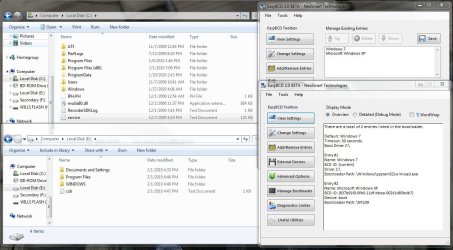
alright, so i dont have any of those files in either of the root directories, and like i said earlier, easybcd locks up when i hit accept when it asks me if i want to install the 3 files.... the screen shot shows the contents of both root directories, and my easy bcd list and bootloader entries. is there anywhere i can just get those files and copy them into both directories? seems like that shouldn't be too hard....
 

Attachments

  • easy bcd.JPG
    easy bcd.JPG
    132.7 KB · Views: 6

My Computer My Computer

At a glance

Windows 7 Home PremiumAMD Phenom II 955 Black Edition4GB OCZ Platinum 1333mhzSapphire HD4870 1GB Vapor-X
Computer Manufacturer/Model Number
Built
OS
Windows 7 Home Premium
CPU
AMD Phenom II 955 Black Edition
Motherboard
Gigabyte GA-MA770T-UD3P
Memory
4GB OCZ Platinum 1333mhz
Graphics Card(s)
Sapphire HD4870 1GB Vapor-X
Sound Card
Soundblaster X-Fi Xtreme Gamer
Monitor(s) Displays
23" LG 1080p digital, 19" Sony 1280x1024 analog
Hard Drives
WD Raptor 150GB SATA (Windows 7)
WD Caviar Black 1TB SATA (Storage) (Windows XP)
PSU
650 watts
Case
Lian Li
Cooling
2 120mm fans
I'm looking for those files now. They're on the XP CD.

Is it possible they got put in F? Look there.

Be sure to unhide both Hidden and System files in Control Panel>Folder Options>View.
Then look in C, E and F.
 
Copy into the root of both XP and Win7. See if Dual Boot works.

You may have to remove and then add again using Easy.
 

Attachments

still doesn't work. i'm starting to lose hope. is there a different boot manager that i can use instead of the windows one? if not, i'm going to reformat everything and reinstall, but what would be the best way to do that? i want to have xp and 7, but i also want 7 to be on my raptor, but i can't have both on my raptor because its only 150gb
 

My Computer My Computer

At a glance

Windows 7 Home PremiumAMD Phenom II 955 Black Edition4GB OCZ Platinum 1333mhzSapphire HD4870 1GB Vapor-X
Computer Manufacturer/Model Number
Built
OS
Windows 7 Home Premium
CPU
AMD Phenom II 955 Black Edition
Motherboard
Gigabyte GA-MA770T-UD3P
Memory
4GB OCZ Platinum 1333mhz
Graphics Card(s)
Sapphire HD4870 1GB Vapor-X
Sound Card
Soundblaster X-Fi Xtreme Gamer
Monitor(s) Displays
23" LG 1080p digital, 19" Sony 1280x1024 analog
Hard Drives
WD Raptor 150GB SATA (Windows 7)
WD Caviar Black 1TB SATA (Storage) (Windows XP)
PSU
650 watts
Case
Lian Li
Cooling
2 120mm fans
i did what greg said and now E is the active partition on that drive, how ever i still cant boot into XP

Neither E or F should be marked active, only Windows 7.

I think maybe the XP MBR was derailed to F since it somehow got marked Active and the XP installer looks for first active partition to place MBR.

Check on F to see if the 3 boot files are there and copy them to the root of C and E.

This may require an XP repair install with F marked inactive as it should have been. How-to repair Windows XP
 
no, they aren't in F. and jesus christ when i load the xp repair cd and it asks me to select which windows installation i want to repair, i either have 1. D:\WINDOWS or 2.E:\Windows. i'm assuming that WINDOWS is the XP partition and Windows is the 7 partion, but why the hell does it always change the drive letters around? and once i hit 1 and press enter, it just gives me a prompt, like i'm supposed to know what to type...
 

My Computer My Computer

At a glance

Windows 7 Home PremiumAMD Phenom II 955 Black Edition4GB OCZ Platinum 1333mhzSapphire HD4870 1GB Vapor-X
Computer Manufacturer/Model Number
Built
OS
Windows 7 Home Premium
CPU
AMD Phenom II 955 Black Edition
Motherboard
Gigabyte GA-MA770T-UD3P
Memory
4GB OCZ Platinum 1333mhz
Graphics Card(s)
Sapphire HD4870 1GB Vapor-X
Sound Card
Soundblaster X-Fi Xtreme Gamer
Monitor(s) Displays
23" LG 1080p digital, 19" Sony 1280x1024 analog
Hard Drives
WD Raptor 150GB SATA (Windows 7)
WD Caviar Black 1TB SATA (Storage) (Windows XP)
PSU
650 watts
Case
Lian Li
Cooling
2 120mm fans
OK, let's backup a minute: Did you copy the 3 XP boot files into the root of XP and Win7 partitions?

Then remove and Add XP back in EasyBCD?

If neither of those work, and you can't get the Repair Install to work when trying to repair either of the OS's found (try E since it is the correct drive), then I would make sure neither partition on DISK0 is marked Active, boot the XP CD and reinstall XP to its partition. This time it should place the boot files correctly so they will be available for EasyBCD to configure the Dual Boot.

Be sure to full format partition using XP CD.
 
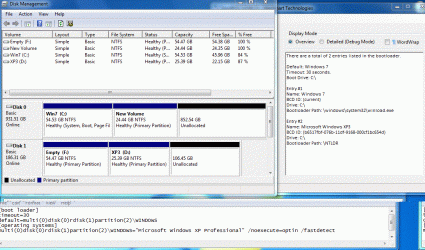
I just set up a system similar to yours. The Active partition does not seem to make a difference, nor does using device boot or C:. But I did get a bootgrabber error with EasyBCD 2.0 builds 76 and 77.

The result was the Drive Entry in EasyBCD was not changed to C: and the boot.ini file was not placed in the Win 7 partition. If yours was already there, it was probably put there during the XP install.

Mine now boots fine after I copied the boot.ini to the Win 7 partition. I also made the device=C:, but it appears this is not necessary.

Anyway, if yours looks like this attachment, I can think of nothing else to try, except possibly reinstalling XP. If you do reinstall XP, when you finish, put in the Win 7 Install DVD and from within XP, open a command window and type:

E:\boot\bootsect.exe /nt60 sys
where e: is replaced by your DVD drive letter.

This will get you back to booting Win 7 then start again and make the manual changes indicated if necessary.

Good Luck..
 

Attachments

  • XP3.GIF
    XP3.GIF
    144.7 KB · Views: 10

My Computer My Computer

At a glance

Windows 7 x64i7-2600K8 GGTX 480
Computer Manufacturer/Model Number
Homebuilt
OS
Windows 7 x64
CPU
i7-2600K
Motherboard
Asus P8Z77-v Pro
Memory
8 G
Graphics Card(s)
GTX 480
Sound Card
Onboard
Monitor(s) Displays
LG W2753V
Screen Resolution
1920x1080
Hard Drives
Crucial M4 128 G SSD
ALRIGHT GUYS IT'S WORKING!!!!
I think I've pretty much got this down now, and I hope that everyone who's trying to dual boot XP and Vista/7 on separate hard drives will appreciate this.
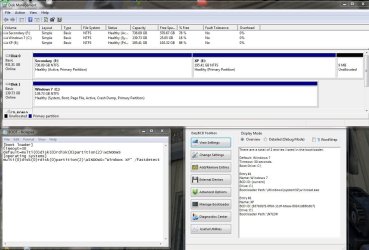
After getting stuck, I booted into the partition manager, deleted the XP partition on disk 0 and made the Secondary partition on disk 0 inactive. Then I booted the XP install cd and ran that, when it restarted the computer after it finished formatting, I brought up the BIOS boot menu and booted from disk 0 (BIOS should normally boot the Windows 7 drive first). XP booted and finished installing. Once that was done, I booted back into the partition manager and once again made the new XP partition inactive. Then I let my computer boot up normally into Windows 7, put my Windows 7 Home Premium 64bit cd in the drive and found and copied over the NTDETECT and NTRDL files to both the root and the \WINDOWS folder on my XP partition. I used easyBCD to edit the legacy BOOT.ini file, and changed the values from disk 1 to disk 0. copied the new file to the root and WINDOWS directory of the XP partition and then created an entry in easyBCD for XP, the program still froze but when I opened it back up, I went to "Change Settings" and changed the Windows XP drive from BOOT to E:\ then hit save, and restarted my PC. I am now able to boot into XP, restart and boot back into Windows 7, flawlessly. Thank you Salt, and Greg, for taking the time to help, I couldn't have done it with out you guys. Here's a final screen shot of everything.
 

Attachments

  • final working.JPG
    final working.JPG
    132 KB · Views: 11

My Computer My Computer

At a glance

Windows 7 Home PremiumAMD Phenom II 955 Black Edition4GB OCZ Platinum 1333mhzSapphire HD4870 1GB Vapor-X
Computer Manufacturer/Model Number
Built
OS
Windows 7 Home Premium
CPU
AMD Phenom II 955 Black Edition
Motherboard
Gigabyte GA-MA770T-UD3P
Memory
4GB OCZ Platinum 1333mhz
Graphics Card(s)
Sapphire HD4870 1GB Vapor-X
Sound Card
Soundblaster X-Fi Xtreme Gamer
Monitor(s) Displays
23" LG 1080p digital, 19" Sony 1280x1024 analog
Hard Drives
WD Raptor 150GB SATA (Windows 7)
WD Caviar Black 1TB SATA (Storage) (Windows XP)
PSU
650 watts
Case
Lian Li
Cooling
2 120mm fans
Glad you got it working.

For anyone reading this, the bootgrabber error that occurred in the 76 and 77 beta builds of EasyBCD can be corrected by going to the Program Files\NeoSmart Technologies\EasyBCD\bin folder and setting Bootgrabber.exe to run in XP SP3 compatibility mode.

Edit: The above procedure worked once, but not the second time. Setting bootgrabber.exe to run as admin might be a better choice.
 
Last edited:

My Computer My Computer

At a glance

Windows 7 x64i7-2600K8 GGTX 480
Computer Manufacturer/Model Number
Homebuilt
OS
Windows 7 x64
CPU
i7-2600K
Motherboard
Asus P8Z77-v Pro
Memory
8 G
Graphics Card(s)
GTX 480
Sound Card
Onboard
Monitor(s) Displays
LG W2753V
Screen Resolution
1920x1080
Hard Drives
Crucial M4 128 G SSD
Still not understanding why F: data partition is marked Active. It ain't right.

But glad you got Dual Boot running.
 
Back
Top